Why People Search for This
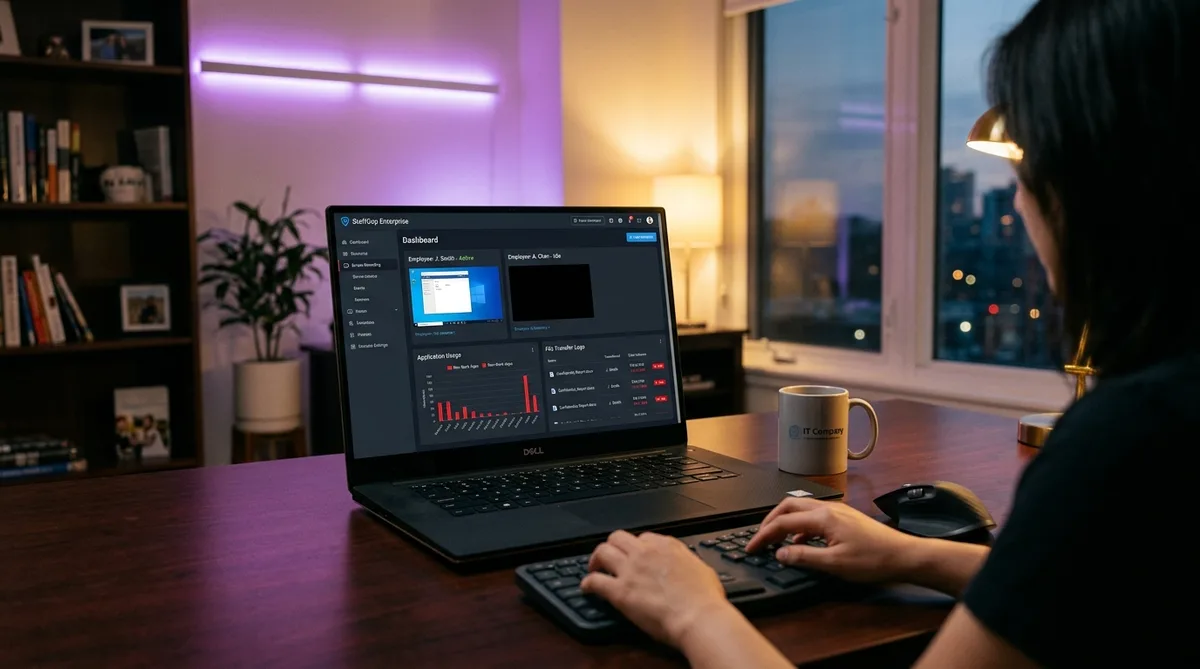
If you have landed here looking for how to cheat StaffCop, you are almost certainly working under one of the most thorough monitoring platforms on the market. StaffCop Enterprise is not a friendly little time tracker that counts your hours. It is a full insider-threat and data-loss-prevention system that records your screen as video, logs every keystroke, tracks file movements, watches USB ports, and reads email and messenger traffic — all stored on your employer's own servers.
Most people who search for this are not trying to steal company time. The real frustration is the gap between how work actually happens and how StaffCop measures it. Knowledge work involves reading, thinking, planning on paper, talking through problems, and stepping away to let an idea settle. None of that shows up as activity. A few minutes of staring at a diagram or a phone call with a teammate registers as idle time, even though it is some of the most productive work you do all day.
When a tool watches that closely, normal human rhythms start to look like slacking. A bathroom break, a lunch that runs long, a stretch of deep reading with no typing — each one leaves a visible dent in the report. Over a week, those dents add up to a productivity story that does not match reality, and that is the story your manager sees.
This guide breaks down exactly how StaffCop tracks activity, what it costs in 2026, and what you can do to keep your activity profile consistent when you step away. If you want the wider picture across many tools, start with our hub on how to cheat time tracking software.
How StaffCop Tracks Activity
StaffCop bills itself as covering 22+ system objects, which is a polite way of saying it watches almost everything a Windows endpoint can do. Understanding each layer is the only way to grasp why a simple trick will not hold up. Let us walk through the major ones.
Screen Recording
StaffCop does not just take periodic screenshots — it can record your desktop as a continuous video stream. Alongside that footage, it indexes the applications you used, the websites you visited, the files you touched, and the keystrokes you typed, so a reviewer can scrub through your day like a video and jump to any moment of interest.
This is a meaningfully higher bar than tools that snap a screenshot every ten minutes. With video, there are no gaps to slip through. A reviewer can see whether the screen was genuinely changing or frozen on a static window for an hour. That makes any approach based purely on keeping an idle clock alive far less convincing than it would be against a lighter tool.
Keystroke Logging
StaffCop's keystroke monitoring records the actual content of what you type, including functional keys, inside monitored applications. This is not a count of how many keys you pressed; it is the real text of messages, searches, documents, and in some configurations credentials. All of it is indexed and searchable on the server, so an administrator can run a query after the fact and reconstruct exactly what was typed.
Because the keylogger is content-aware, StaffCop can flag specific words or phrases the moment they appear. This is why it is sold as a data-loss-prevention tool first and a productivity tracker second. It is also why keyboard activity matters: a profile that shows hours of mouse movement with zero typing stands out immediately.
File and DLP Monitoring
File tracking is one of StaffCop's core strengths. It logs file operations on local drives and network shares, and crucially it can create shadow copies of files that are transferred — meaning the system keeps its own duplicate of what you moved, not just a note that you moved it. This is the heart of its data-loss-prevention positioning.
The rules engine ties into this. Administrators can build policies that trigger when sensitive files are accessed, copied, renamed, or sent somewhere they should not go. When a rule fires, StaffCop can alert security staff in real time and, in some setups, block the action outright before the data leaves.
USB and Removable Media Tracking
StaffCop watches USB and removable media closely. It logs when a device is plugged in, records what files move to or from it, and can keep shadow copies of those transfers. Administrators can go further and block unapproved USB devices entirely, allowing only whitelisted hardware to connect.
The same controls extend to other exfiltration paths — printing, clipboard use, and cloud uploads are all monitored and can be restricted. If your company deployed StaffCop mainly to stop data from walking out the door, removable media is one of the first things it locks down.
Email and Messenger Monitoring
StaffCop monitors both incoming and outgoing email, capturing message content rather than just metadata. The same applies to instant messaging and social media — messenger conversations and posts are logged and made searchable in the central console.
Combined with the keystroke logger, this gives administrators two angles on the same communication: the message as it was sent and the keystrokes as it was typed. For a tool whose primary job is catching insider risk, communications monitoring is central, not optional.
Application and Website Tracking
On top of the heavier surveillance, StaffCop does the bread-and-butter work of a productivity tracker. It records which applications are in the foreground and for how long, and which websites you visit. Administrators can classify apps and sites as productive or unproductive and build reports around the split, much like other employee monitoring software.
This is where StaffCop overlaps with all-in-one surveillance suites such as Teramind and Veriato. The key thing to remember is that StaffCop tracks the foreground application — the window actually on top — so what counts is which app is in focus at any given moment, not merely which apps happen to be open.
Active vs. Idle Time Analysis
StaffCop separates active time from idle time and reports the split per user, group, or department. When there is no mouse movement, keyboard input, or scrolling for a set period, the clock flips to idle and that stretch is recorded as a gap in your day.
Administrators can even configure StaffCop to send automated notices to excessively idle employees — so a long quiet stretch is not just logged, it can trigger a nudge in real time. For anyone judged on logged hours as well as productivity, idle gaps are just as damaging as time spent on the wrong apps.
Behavior Rules and Alerts
The rules engine is what turns all this raw data into action. Administrators can define what counts as risky or unproductive behavior and have StaffCop respond automatically. A rule can watch web activity, email, keystrokes, file transfers, instant messaging, idle time, and more, and fire an alert the instant a condition is met.
Its behavior analytics also look for anomalies — patterns that deviate from a user's normal baseline. That cuts both ways. A sudden burst of unusual file copying might flag an insider threat, but so might an activity pattern that looks too mechanical or repetitive, which is exactly why anything you use to maintain activity needs to look natural rather than robotic.
StaffCop Pricing in 2026
StaffCop Enterprise is licensed per monitored user, with no separate charge for the database or server components. Unusually for this category, it is sold both as a subscription and as a one-time perpetual license, and you can pick the term that fits your budget. Public self-serve pricing is limited — for larger deployments you generally request a quote — but the published example tiers give a clear sense of the cost.
Perpetual License — from $490 for 5 users
The perpetual option is a one-time purchase that you own outright. The published example is $490 for a 5-user pack, which works out to roughly $98 per seat as a single payment rather than a recurring fee. This model appeals to organizations that prefer a capital purchase over an ongoing subscription, and it pairs naturally with StaffCop's on-premise deployment.
12-Month License — from $350 for 5 users
The annual subscription example runs $350 for 5 users for a year, or about $70 per seat per year (roughly $5.83 per user per month). This is the middle-ground option for teams that want a yearly commitment without paying the full perpetual price up front.
Short-Term License — from $175 for 5 users
StaffCop also offers shorter terms. The published example is $175 for a 5-user, 3-month license, useful for trials, seasonal teams, or short projects. Monthly subscription pricing for a base endpoint count starts in the region of $98 per month, with per-endpoint pricing scaling above that threshold.
Deployment Cost Beyond Licensing
Because StaffCop is primarily on-premise, the license fee is only part of the picture. The company's IT team has to provision a server, install Ubuntu or Windows Server, configure a PostgreSQL database, stand up the web interface, apply the license, build the monitoring policy, and push the agent to every workstation. That setup overhead is exactly why StaffCop is favored in environments with strict data-sovereignty requirements that prohibit cloud-based monitoring — the data never leaves the building.
How to Maintain Consistent Activity
Given everything above — screen video, content-level keystroke logging, file and USB monitoring, foreground app tracking, idle analysis, and a rules engine watching for anomalies — it should be clear that keeping a StaffCop report consistent takes more than nudging your mouse every few minutes. StaffCop is built to spot exactly the kind of thin, repetitive activity that a basic jiggler produces.
A few practical principles help when you legitimately need to step away without your timeline collapsing into idle gaps:
- Keep productive apps in the foreground. Because StaffCop scores the window actually on top, leaving your real work tools in focus before you step away matters more than leaving a dozen apps merely open in the background.
- Cover both input methods. Mouse movement alone with zero keyboard activity is a glaring pattern. Realistic activity includes both.
- Vary the pattern. StaffCop's anomaly detection looks for behavior that deviates from your baseline, and mechanical, perfectly-spaced actions can read as unnatural. Movement should look human.
- Do not move sensitive files to make a point. The DLP layer watches file and USB activity far more aggressively than productivity metrics, so never try to look busy by shuffling files around.
Why TrickTack Works Well with StaffCop
This is where TrickTack fits in. TrickTack is a lightweight desktop app that simulates natural human activity while you are away from the keyboard. Unlike a crude mouse jiggler, it was designed around the same signals that surveillance suites like StaffCop measure, so it produces a profile that looks like genuine work rather than a stuck cursor. Here is how it maps to StaffCop's monitoring layers:
- Mouse movement simulation — TrickTack generates randomized, human-like cursor movement rather than robotic straight lines, keeping StaffCop's active-versus-idle clock running so brief absences do not register as idle gaps.
- Keyboard input simulation — Because StaffCop logs keystrokes and a mouse-only profile is suspicious, TrickTack simulates realistic keyboard input so both input channels show natural activity. See the documentation for how the input modes work.
- Application switching — Since StaffCop scores the foreground app, TrickTack can cycle between open applications so your productive tools stay in focus and keep contributing to your activity profile rather than a single static window sitting on top all day.
- Scrolling simulation — Real computer use means scrolling through code, documents, and pages. TrickTack adds scroll activity for another layer of believable behavior.
Together, those four signals produce the kind of varied, multi-channel activity StaffCop expects from a person actually working — mouse, keyboard, scrolling, and shifting foreground apps — which is far more convincing than any single trick aimed at one metric. You can read more about applying this across platforms in our guide to tricking employee monitoring software.
Keep Your StaffCop Reports Consistent
TrickTack simulates mouse, keyboard, scrolling, and app switching — covering the activity signals StaffCop monitors. Try it free for 7 days.
DownloadFrequently Asked Questions
Does StaffCop take screenshots?
Yes, StaffCop captures periodic screenshots and supports full screen recording, all stored on-premise on your company's own servers. Administrators can configure the capture interval and review screenshots alongside keystroke logs, application data, and file activity. The on-premise architecture means this visual data never leaves your company's network. TrickTack keeps your screen active with realistic app switching and input during breaks so both screenshots and video recordings show natural work behavior.
Can StaffCop run in stealth mode without my knowledge?
Yes. StaffCop includes a Stealth Mode that hides the agent from the taskbar, system tray, and the standard list of installed programs. In this mode there is no icon, no notification, and no obvious way to tell the software is running. Administrators can also deploy it in a visible mode where employees are informed, which is required by law in many regions. Whether your employer uses stealth or transparent mode depends entirely on their configuration and local regulations. If you are unsure, check your company's monitoring policy or acceptable use agreement, which most employers are legally required to provide.
Does StaffCop log everything I type?
StaffCop's keystroke logging records the actual content of what you type, not just that a key was pressed. This includes typed messages, search queries, documents, and in some configurations passwords entered into applications. It also captures functional keys. Because the keylogger records real text, administrators can reconstruct conversations and searches after the fact. This is one of the most invasive parts of StaffCop and is a core reason it is marketed as a data loss prevention and insider threat tool rather than a simple time tracker. Keystroke data is indexed and searchable on the StaffCop server.
Can StaffCop see files I copy to a USB drive?
Yes. USB and removable media monitoring is one of StaffCop's headline data loss prevention features. It logs when a USB device is connected, what files are transferred to or from it, and can create shadow copies of those files for later review. Administrators can also block USB devices entirely or allow only approved hardware. The same controls apply to cloud uploads, printing, and clipboard activity. If your company is running StaffCop primarily for DLP, file movement to external media is one of the first things it watches.
Can StaffCop detect a mouse jiggler?
StaffCop does not have a dedicated mouse jiggler detection feature, but it does far more than measure mouse movement. It records screen video, foreground applications, keystrokes, file activity, and websites. A basic jiggler keeps your active-versus-idle clock running but does nothing about the screen recordings or the lack of keyboard input, so a reviewer watching the timeline would notice an unchanging screen with no real work happening. To present a consistent activity profile you need realistic mouse movement, keyboard input, scrolling, and application switching together, not just a wiggling cursor. Tools like TrickTack combine all of those signals.
Where is StaffCop data stored and who can see it?
StaffCop is primarily an on-premise platform, which means the server, the PostgreSQL database, and all recorded data live on your company's own infrastructure rather than in a vendor cloud. This is a major reason it is popular in industries with strict data sovereignty rules. Your administrators, and anyone they grant access to, can view screen recordings, keystroke logs, file activity, and reports through the StaffCop web interface. Because the data never leaves the company network, there is no third-party vendor dashboard involved, but the visibility your own IT and management team has is essentially complete.
Conclusion
StaffCop Enterprise is one of the most comprehensive monitoring platforms an employee is likely to encounter. It records the screen as video, logs the content of every keystroke, tracks files and USB transfers with shadow copies, reads email and messenger traffic, and runs a rules engine watching for anything out of the ordinary — all hosted on your employer's own servers. Against a tool this thorough, a basic mouse jiggler or a key-pressing script simply will not hold up.
That is exactly the problem TrickTack was built for. By simulating natural mouse movement, keyboard input, scrolling, and application switching together, it produces the kind of varied, multi-channel activity profile StaffCop expects to see from someone actually working. Whether you are at lunch, in a meeting, or simply need a reset, it keeps your activity consistent across the signals that matter.
For more on working with specific tools, see our deep dives on how to cheat Teramind and how to cheat Veriato, or start broad with our hub on how to cheat time tracking software. Ready to try it? Download TrickTack and start your free 7-day trial.
Try TrickTack Free for 7 Days
Simulate natural mouse, keyboard, scrolling, and app-switching activity to keep StaffCop reports looking consistent. Cancel anytime during your trial.
Download

