Why People Search for This
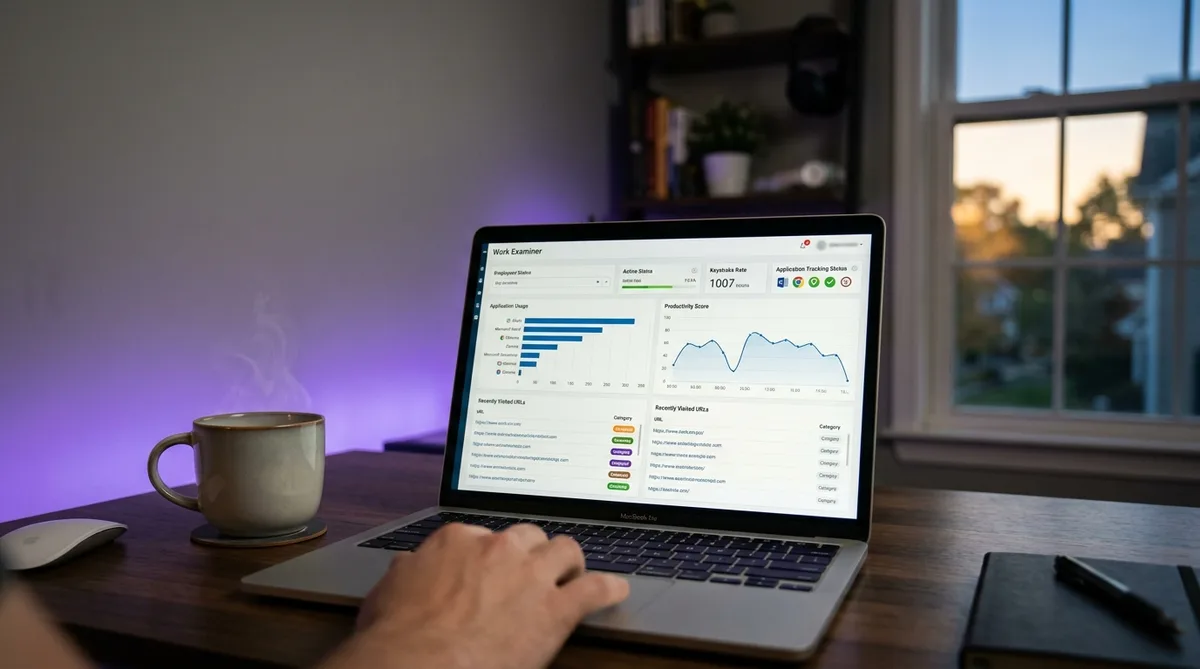
If you have been looking up how to cheat Work Examiner, you are almost certainly dealing with the same problem that every monitored employee faces: the software measures your keyboard and mouse, not your actual work. Work Examiner (now also sold as WE Controlio) is one of the more aggressive monitoring tools out there. It logs keystrokes, captures screenshots, records every website and application, and tracks the gap between your active and idle minutes — and it can do all of this silently in the background.
The trouble is that real knowledge work does not look like constant typing. You read documentation, you think through a problem, you sketch on paper, you take a call away from your desk, you walk to the kitchen to refill your coffee. None of that registers as activity. To Work Examiner, a thirty-minute design discussion at a whiteboard looks identical to thirty minutes of doing nothing — both show up as idle time and a dip in your productivity score.
That mismatch between how work actually happens and how Work Examiner records it is exactly why people search for terms like "work examiner cheat," "trick work examiner," or "bypass work examiner monitoring." Most are not trying to avoid working. They want their reports to reflect a normal, consistent day instead of penalizing them for the perfectly legitimate parts of their job that happen away from the keyboard.
This guide breaks down precisely how Work Examiner monitors your computer, what it costs in 2026, and how you can keep your activity reports consistent even when you step away. For a wider look at how these tools work across the industry, see our main guide on how to cheat time tracking software.
How Work Examiner Tracks Activity
Work Examiner does not rely on a single signal. It stacks several monitoring layers on top of each other to build a detailed record of your workday, and then converts all of it into reports with productivity scores, active and idle time, attendance, and activity categories. Understanding each layer is the key to keeping your reports clean. Let us walk through them one at a time.
Keystroke Logging
Work Examiner ships with a built-in keylogger that records what you type. This is one of its more invasive features compared with tools that only measure activity levels. The keystrokes you make in chats, documents, search bars, and forms can all be captured and stored for a manager to review later.
What sets Work Examiner apart is specified keystroke logging. Instead of recording everything blindly, an administrator can target the keylogger at specific applications or websites — for example, capturing only what is typed inside a messenger, a game, or a site the company considers off-limits. This makes the logging more focused and harder to notice, because it activates around the exact apps an employer is most suspicious of.
The practical takeaway is that keyboard input is not just measured for how much you type; the content can be recorded too. That matters because a monitoring setup that only watches the mouse leaves an obvious gap — no keystrokes at all looks unnatural next to active mouse movement.
Real-Time and History Screenshots
Work Examiner captures screenshots in two modes: real-time, where a manager can watch your current screen live, and history mode, where snapshots are recorded at intervals and played back later. Administrators control how often screenshots are taken and what image quality is used, trading detail for disk space.
There is one detail here that matters a great deal for anyone trying to keep reports consistent: Work Examiner offers an option to not record screenshots during idle PC time. In other words, screenshot capture is tied to detected activity. When the software believes you are active, it grabs the screen on schedule. When it detects no input, capture pauses.
That coupling cuts both ways. A static screen captured over and over while the activity meter says you are working would look strange in playback. This is similar to how screenshot-heavy tools like Teramind build a visual timeline that a manager can scroll through, where any frozen or repetitive frame stands out immediately.
Website and URL Monitoring
Work Examiner records the full list of websites you visit, not just that a browser was open. It logs specific URLs, the time spent on each site, and which sites were active versus sitting in the background. These appear in dozens of reports broken down by user, computer, group, hour, day, and week.
On top of plain logging, Work Examiner can also capture emails and instant messages from a range of clients and messengers. So the web and communication side of your day is recorded in fairly granular detail — which sites, for how long, and in many cases what was sent.
The lesson for keeping reports consistent is that browsing data is part of the picture. A realistic day involves moving between a handful of work-related sites and apps, not a single frozen window. Movement and variety across applications read as genuine work.
Application and Active-Time Tracking
Alongside website logging, Work Examiner tracks which applications are running and which one is in active use. It records how much time was spent in each program and separates foreground (active) usage from background processes. All of this rolls up into the active-time totals that drive your productivity score.
Because the tool watches the active application, the app you have in focus matters. Time spent with a work tool in the foreground counts differently from time spent with a distraction on top. Keeping legitimate work applications in focus — and cycling between them the way a real person would — is what produces a believable application report.
Idle Detection
Work Examiner draws a hard line between active time and idle time based on mouse and keyboard input. When it detects no input for a configured stretch, it flags that period as idle. Idle time then shows up plainly in the reports, drags down your active-hour totals, and lowers your productivity percentage.
Idle gaps are particularly visible in Work Examiner because of the screenshot coupling described above. When the software pauses screenshots during idle time, a long idle stretch leaves a noticeable hole in your visual timeline as well as in your numbers. A manager glancing at your day sees both the dip in active time and the gap in screenshots.
This is why a simple "keep the screen awake" trick is not enough on its own. Beating idle detection convincingly means producing the kind of varied, ongoing input that a working person naturally generates — not a single repeated nudge.
Stealth Mode and Web Filtering
Work Examiner can run in Stealth mode, completely hidden from the user, or in a visible Tray Icon mode. In Stealth mode there is no icon, no notification, and no obvious sign the client is installed — yet it keeps logging keystrokes, screenshots, sites, and active time the entire time. Administrators can switch between the two modes, and the client can be configured to start automatically when the computer is turned on.
The software also includes web filtering. Companies can build a policy that blocks specific sites or limits how much free-browsing time each employee gets per day, with email alerts when someone tries to reach a prohibited site. So Work Examiner is not only watching — in many deployments it is actively gatekeeping what you can open.
The implication of stealth deployment is simple: you may not be able to tell whether Work Examiner is running. That is all the more reason to keep your activity profile consistent and natural rather than assuming you are unmonitored on any given day.
Work Examiner Pricing in 2026
Work Examiner is sold under two related models in 2026: the cloud-based WE Controlio subscription and the older on-premise Work Examiner Standard license. Here is how the pricing breaks down.
WE Controlio (Cloud) — from $7.99/user/month
The cloud product is priced per monitored user:
- $7.99 per user per month on the monthly plan.
- $79.90 per user per year on the annual plan, which works out cheaper per month.
- A minimum of 5 users is required for either subscription.
The cloud version includes the full monitoring stack — keystroke logging, real-time and history screenshots, website and application tracking, productivity scoring, attendance, and the choice of stealth or visible deployment — managed from a hosted dashboard.
Work Examiner Standard (On-Premise) — perpetual per-PC license
The legacy on-premise product is licensed per computer as a one-time purchase rather than a subscription. As an example, monitoring 15 PCs with Work Examiner Standard works out to roughly 15 × $45 = $675 for a perpetual license, with the software hosted on the company's own server and deployed across a LAN.
The on-premise model appeals to organizations that want their monitoring data to stay entirely in-house and prefer a single upfront cost to an ongoing subscription.
Free Trial
Work Examiner offers a 30-day free trial that covers up to 5 client PCs, letting a company test the full feature set before committing to either the cloud subscription or the on-premise license.
How to Maintain Consistent Activity
Now pull the layers together. Work Examiner logs keystrokes, captures screenshots tied to activity, records websites and applications, separates active from idle time, and can do all of it silently. To keep your reports consistent, you need an activity pattern that satisfies every one of those layers at once — not just one of them.
That is exactly the gap a simple mouse jiggler leaves. A jiggler keeps the cursor twitching, which fends off idle detection, but it generates no keystrokes, no scrolling, and no application changes, and it leaves the same screen frozen in every screenshot. Against a single-signal tracker that might be enough. Against Work Examiner's stacked monitoring, a frozen screen with active-meter readings is exactly the kind of contradiction a manager notices.
This is where TrickTack fits. TrickTack is a lightweight desktop application that simulates natural human activity while you are away from your desk, and it was built to cover the multiple signals that modern monitoring tools watch — the same signals Work Examiner records.
Why TrickTack Works Well Against Work Examiner
Because Work Examiner's monitoring is layered, a convincing approach has to be layered too. Here is how TrickTack addresses each thing Work Examiner records:
- Mouse movement simulation — TrickTack generates natural, randomized cursor movement rather than robotic straight lines, which keeps Work Examiner's activity meter running and prevents idle detection from flagging you. Because screenshots pause during idle time, keeping active also keeps your visual timeline populated instead of leaving gaps.
- Keyboard input simulation — Work Examiner watches and logs keystrokes, so an activity profile with mouse movement but zero typing stands out. TrickTack simulates realistic keyboard input so your activity looks balanced across both input methods rather than mouse-only.
- Scrolling simulation — Real work involves scrolling through documents, code, and pages. TrickTack adds scroll activity, which makes captured screenshots and active-app reports look like genuine reading and editing rather than a static window.
- App and tab switching — Since Work Examiner records which application is active and how long you spend in each, TrickTack can cycle between your open programs so the foreground changes naturally over time. That produces a realistic application report instead of one window frozen in focus for hours. You can read more about these features in the TrickTack documentation.
Together, these mean Work Examiner sees a pattern that resembles real work across all of its layers at once: mouse movement, keyboard input, scrolling, varied active applications, and screenshots that actually change. That is far more convincing than any single-trick workaround. The same approach applies to other heavy monitors — see our guides on how to cheat Veriato and how to cheat Teramind for tool-specific notes.
Getting Started
Setting up TrickTack to keep your Work Examiner reports consistent is straightforward:
- Start a free 7-day trial — cancel any time before it ends.
- Install TrickTack on your Windows PC from the download page.
- Open your real work applications before stepping away, so TrickTack has legitimate windows to cycle through in the foreground.
- Activate TrickTack whenever you need to step away, and let it keep your mouse, keyboard, scrolling, and app focus active.
Keep Your Work Examiner Reports Consistent
TrickTack simulates mouse, keyboard, scrolling, and app switching — covering every signal Work Examiner monitors. Try it free for 7 days.
DownloadFrequently Asked Questions
Does Work Examiner take screenshots?
Yes, Work Examiner captures periodic screenshots in stealth mode at administrator-configured intervals. The software takes screenshots in both real-time and recorded history modes, and can optionally skip captures during detected idle time. Administrators control the frequency and image quality to balance visual detail against storage usage. TrickTack keeps your screen active with realistic app switching and input so every screenshot capture shows natural work behavior.
Can Work Examiner run without me knowing?
Yes. Work Examiner has a dedicated Stealth mode that runs the monitoring client completely hidden, with no tray icon, no notifications, and no entry in the standard program list. Administrators can switch between Stealth mode and a visible Tray Icon mode at any time. If your company chose Stealth mode, you will not see any obvious sign that the software is installed, but it is still logging keystrokes, screenshots, websites, and active and idle time in the background. Many companies are required to disclose monitoring in their employee handbook even when they use stealth deployment, so check your employment agreement.
Does Work Examiner log keystrokes?
Yes. Work Examiner includes a keylogger that records keystrokes, and it offers specified keystroke logging where an administrator can choose to capture typing only inside specific applications or websites. This is often used to monitor activity in messengers, games, or banned sites. The keylogger can capture text typed into chats, documents, and forms. Because keystroke data can include sensitive personal information, some regions restrict or require disclosure for keylogging, but the technical capability is built into Work Examiner.
How often does Work Examiner take screenshots?
Work Examiner captures screenshots in both real-time mode and recorded history mode. Administrators set the capture interval and the image quality to balance detail against disk usage. There is also an option to skip screenshots during idle PC time, which means screenshots are tied to detected activity. When the software thinks you are active, it captures the screen on schedule. When it detects no activity, screenshot capture pauses. This is one reason that maintaining a consistent, realistic activity pattern matters under Work Examiner.
Does Work Examiner track idle time?
Yes. Work Examiner separates active time from idle time based on mouse and keyboard input. When it detects no input for a configured period, it marks that stretch as idle, and that idle time appears in the productivity reports. Idle time lowers your active-time totals and your productivity score, and because screenshots can be set to pause during idle periods, long idle gaps stand out clearly on your timeline. Consistent input is what keeps you counted as active rather than idle.
Can Work Examiner detect a mouse jiggler?
Work Examiner does not advertise a dedicated mouse-jiggler detection feature, but a basic jiggler is still weak against it. Work Examiner records which applications and websites are in use, captures screenshots, and logs keystrokes. A jiggler that only nudges the cursor keeps you "active" but produces no keyboard input, no scrolling, no app changes, and screenshots that show the same static screen for hours. That pattern looks unnatural to a manager reviewing the reports. Tools like TrickTack that simulate mouse movement, keyboard input, scrolling, and app switching together produce a far more realistic activity profile than a simple jiggler.
Conclusion
Work Examiner is one of the more thorough monitoring tools on the market in 2026. With keystroke logging, real-time and history screenshots, full website and application tracking, strict active-versus-idle measurement, and a silent stealth deployment option, it watches the whole shape of your workday rather than a single metric.
That depth is exactly why a basic trick falls short. A mouse jiggler beats idle detection but leaves every other layer exposed — no keyboard input, no scrolling, no app variety, and frozen screenshots that contradict an active meter. To keep your Work Examiner reports consistent, your activity needs to look natural across all of those layers at once.
TrickTack was built for exactly that. By simulating natural mouse movement, keyboard input, scrolling, and application switching together, it produces the kind of realistic, varied activity profile Work Examiner expects to see — whether you are on a lunch break, in a meeting away from your desk, or simply taking a needed mental reset. Download TrickTack and try it free for 7 days to keep your reports steady and your productivity score intact.


