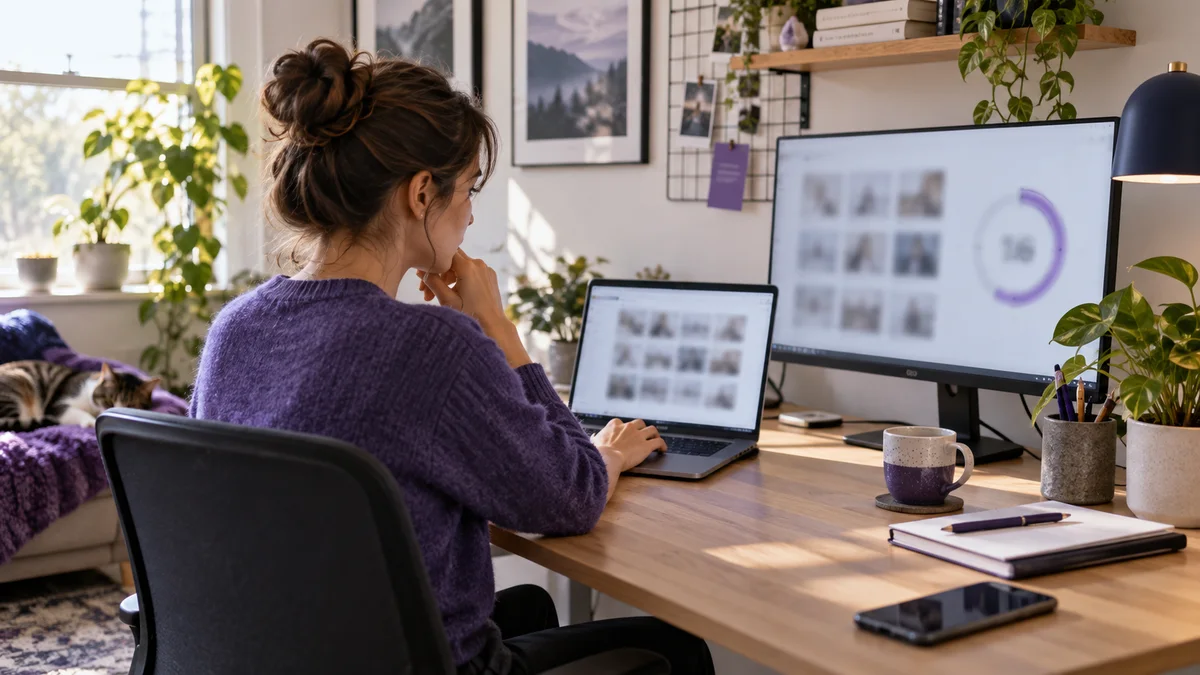
Yes, Clockify can take screenshots, but installing Clockify does not automatically mean your screen is being captured. Screenshot collection depends on your workspace settings and desktop setup. For an employee, the useful questions are which feature is enabled, what the images reveal, and what happens if you need a private capture removed.
This guide focuses on screenshot privacy rather than the whole monitoring suite. It separates vendor-documented behavior from practical precautions you can take during a normal working day. It is a documentation-based guide, not a claim that we tested your employer’s configuration.
Key takeaways
- Check the actual workspace configuration, not just whether a timer appears on your computer.
- Review your own captured images before assuming a blur or a second display protects private material.
- Ask about the effect on recorded time before deleting a screenshot.
- Mouse movement is not a screenshot privacy control.
- Use an agreed process for sensitive work and for explaining misleading snapshots.
Clockify Screenshot Rules: The Short Answer
According to Clockify’s screenshot documentation, capture requires Pro or Enterprise, administrator enablement, an active Windows or Mac desktop app, and a running timer. Members receive an enablement notification. Starting a timer elsewhere does not make an active desktop agent irrelevant.
Clockify describes randomized five-minute intervals, not a dependable exact capture schedule. Images are blurred and low-resolution by default, but owners and admins can increase resolution. Employees can view their own captures; administrators can view the workspace. The documented retention is one year. Offline captures can be stored locally and uploaded later.
Deletion needs care: a regular user’s deletion can subtract associated time; deleting the only screenshot can remove the entry. Locked or approved entries require administrator handling. Administrators can delete screenshots without subtracting time. Deletion is permanent.
How to Check Whether Your Work Is Being Captured
Begin with the account and workspace you actually use for work. People often belong to more than one workspace or switch between a personal account and an employer account. A setting observed in the wrong workspace does not answer the question for the time entry your manager receives.
Look for the screenshot activity area in your account and review a recent day you recognize. You are trying to establish whether images exist, which task they accompany, and whether the surrounding context makes sense. An empty day alone is inconclusive: you might have selected the wrong date, had no qualifying tracked work, or used a different device.
- Identify the workspace. Match its name to the team and projects on your timesheet.
- Check the notice. Review onboarding material and messages about monitoring changes.
- Inspect your own activity. Compare a recognizable task with the images associated with it.
- Ask for configuration confirmation. Your administrator can explain what is enabled and which devices are involved.
- Record the answer. Keep the policy or written explanation somewhere you can find it later.
If you cannot find the relevant page, ask a direct question rather than experimenting with work records: “Is screenshot capture enabled for my workspace, and where can I review what has been collected?” This avoids turning a navigation problem into an unsupported conclusion about privacy.
Blurred Screenshots Are Not a Private Workspace
Think about privacy in terms of what is visible, not just whether individual letters are readable. A document layout, a recognizable avatar, a notification preview, or the shape of a private conversation can reveal context. Blurring can reduce exposure without making everything on the screen anonymous.
A useful precaution is a short start-of-day screen check. Close personal email, private chat windows, password managers, and unrelated browser tabs. Turn off personal notification previews during work. Check the desktop background and open folders if they contain names or material you would not want included in a work record.
Do not assume that moving a sensitive window to another monitor makes it private. This guide does not claim a universal multi-monitor capture rule for every Clockify version and setup. Ask your administrator about the configuration and inspect an approved sample using harmless content. Uncertainty is a reason to keep private information out of the work session, not a reason to guess.
Separating work and personal browser profiles helps organize tabs, accounts, and notifications. It is not a shield against an image of whatever is visible. A personal device, used outside the monitored work session and in line with company policy, is a clearer boundary for personal tasks.
What to Do If a Screenshot Contains Private Information
First avoid creating more copies of the sensitive material. Do not paste the full image into a group chat to explain the problem. Note the approximate time, project, and nature of the exposure without repeating confidential details. Use your organization’s private reporting channel.
Ask who can remove the image and whether related records need adjustment. The aim is to preserve an accurate account of work while dealing with unintended collection. If you were working during that interval, deleting an image should not silently become an unexplained gap in your own understanding of the timesheet.
You can use a message like this: “A screenshot around 10:20 on the research task includes a personal notification. Could you review removal through the administrator process and confirm whether my recorded time changes? I worked on the task throughout that period.” Replace the example with accurate details.
If the exposed information includes a password, customer record, financial detail, or another person’s confidential information, follow the relevant security reporting procedure as well. Removing an image is not the same as addressing every consequence of disclosure. Avoid sending the secret itself as evidence.
After the issue is handled, check the time entry and the response you received. If there is a discrepancy, raise it while the task is still fresh in your memory. Keep a brief factual record of what was corrected, rather than maintaining a personal archive of the sensitive screenshot.
When a Screenshot Makes Real Work Look Like Inactivity
A still image is a sample of a screen, not a measurement of understanding. Reading a specification, thinking through a design, listening to a customer, sketching on paper, or waiting for a build can all produce an unchanged desktop. That does not mean the work did not happen.
The practical response is to provide context in the normal work record. Use a clear task description, a short progress note, or a link to the actual deliverable where appropriate. For example, “Reviewed contract changes and noted three questions for the client” says more than a snapshot of the contract window.
| Work situation | What a snapshot may miss | Useful context |
|---|---|---|
| Reading and research | Comprehension and comparison | Notes, findings, or a decision summary |
| Customer call | Conversation outside the captured window | Meeting entry and follow-up actions |
| Build or rendering task | Work continuing without manual input | Job result and task timestamps |
| Planning on paper | Off-screen reasoning | Agreed plan or resulting work item |
Use records you already create rather than building an elaborate second reporting system. If an organization repeatedly treats still screens as proof of non-work, ask how low-input tasks are supposed to be recorded. An agreed category or workflow is more durable than trying to make each screenshot look busy.
Screenshots, Auto Tracker, and Idle Detection Are Different
Clockify’s data-handling guidance distinguishes shared workspace information from optional auto-tracker and idle-detection data that stays visible only to the user. Do not assume that every detail shown in your desktop app also appears in your manager’s dashboard.
The reverse assumption is also unsafe: a private local feature does not make a separate shared capture private. Ask about each category individually. “Can my manager see my screenshots?” and “Can my manager see my private auto-tracker history?” are different questions with different boundaries.
For the wider feature picture, see our Clockify employee monitoring guide. The Clockify review covers the broader product, while the time-tracker screenshot comparison explains why you should not transfer assumptions from one tool to another.
Can a Mouse Jiggler Stop Clockify Screenshots?
No. Generating mouse input is not a command to disable screen capture. It changes input activity, not the content visible on the display or the workspace’s capture policy. A screenshot can still show the same document, a personal notification, or a window that does not explain the task.
That limitation applies to keyboard simulation and app switching too. More simulated signals do not create a privacy boundary. They can also interfere with an open document or move attention to the wrong window. Treat activity utilities as scoped tools for permitted uses, not as a promise that a monitoring system cannot see you.
If the actual problem is uninterrupted reading or a long-running task, discuss an approved keep-awake setting. If it is sensitive screen content, discuss the monitoring workflow. If it is credit for low-input work, discuss task records. These are separate problems, and none is solved merely by moving a pointer.
Five Questions to Ask Your Employer
- Which workspace and devices collect screenshots during my work?
- Who can view them, and what is the process for reviewing my own?
- How should I handle sensitive client or personal information?
- Who removes an accidental capture while checking the timesheet impact?
- How do we document calls, reading, planning, and other low-input work?
These questions keep the conversation concrete. You do not need to argue about every possible monitoring feature to get clarity about your day-to-day workflow. Ask for an answer that reflects your actual role, devices, and responsibilities.
Frequently Asked Questions
Does Clockify take screenshots automatically?
It can when screenshot capture is configured for the workspace and the required desktop tracking conditions are met. Do not assume that every Clockify installation captures the screen.
Does a blurred screenshot guarantee privacy?
No. Layouts, notifications, and surrounding context can reveal information even when text is difficult to read. Keep sensitive material out of the monitored session.
Should I delete a screenshot containing private information?
Contact the administrator first and ask about both removal and the impact on your recorded time. Avoid spreading the sensitive image while reporting it.
Is a second monitor private?
Do not assume so. Confirm your actual setup with the administrator and inspect an approved harmless sample instead of using a private window as a test.
Can a mouse jiggler prevent screenshots?
No. Simulated input does not disable screen capture or hide the content displayed on your computer.
Does an unchanged screenshot prove I was not working?
No. Reading, calls, planning, and long-running tasks may involve little visible change. Explain the task using ordinary work records and agreed reporting practices.
The Bottom Line
Find out what your workspace collects, inspect the records you can access, and agree on a process for private material and low-input work. The goal is an accurate, understandable work record with clear privacy boundaries—not a desktop arranged to satisfy a snapshot.
Method: official Clockify screenshot and data-handling documentation checked September 16, 2026. Practical examples are illustrative, not test results. Employer settings and policies must be confirmed locally.
Understand the limits before choosing an activity tool
Trick Tack offers configurable mouse, keyboard, scrolling, and app activity. It does not disable screenshots or hide screen content. Use it only where permitted.
Try Free for 7 DaysRead the documentation

