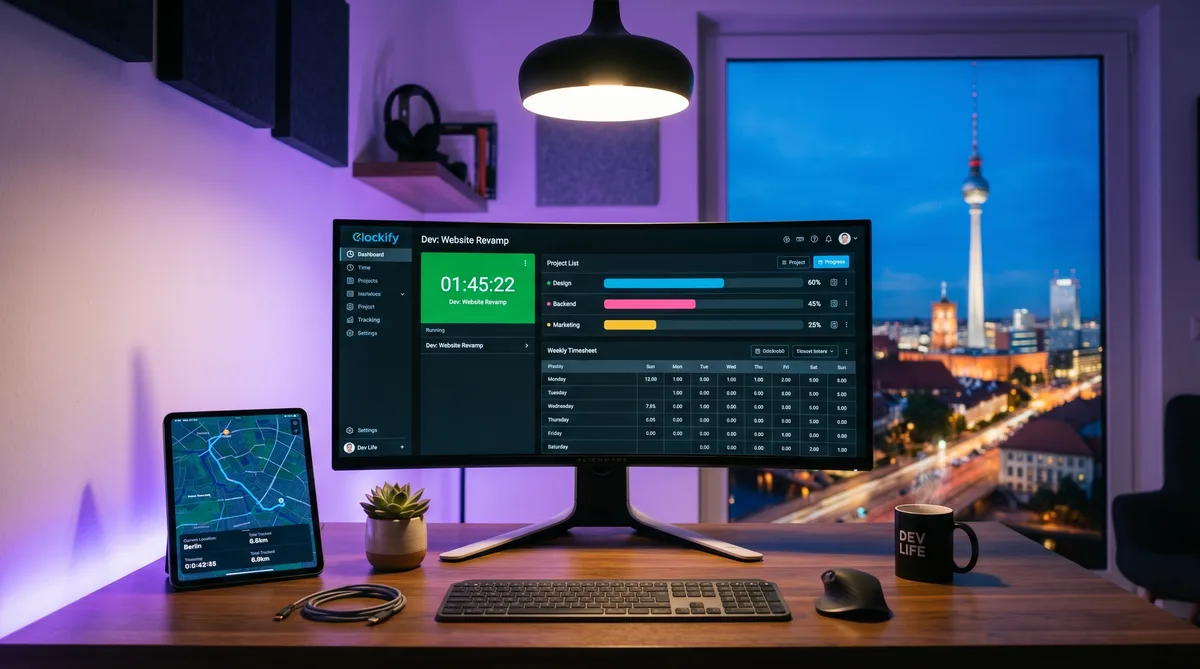
Why People Search for Clockify Hacks
Clockify built its reputation as the most generous free time tracker on the market. For years, it offered unlimited users, unlimited projects, and unlimited tracking at no cost. That made it the default choice for freelancers, startups, and budget-conscious teams who needed time tracking without paying Toggl or Harvest prices.
But Clockify has evolved. Its paid tiers now include screenshots at configurable intervals, GPS location tracking, and idle detection — features that push it closer to employee monitoring territory. As of April 2026, the free plan is also capped at 5 users, nudging larger teams onto paid plans where these monitoring features become available.
That shift is exactly why searches for "clockify hack" and "how to cheat clockify" have grown. Employees who signed up expecting a simple timer are discovering that their employer's Pro plan now captures periodic screenshots of their screen or logs their GPS coordinates through the mobile app. The gap between what Clockify used to be (a lightweight timer) and what it can be (a monitoring tool with screenshots and GPS) catches people off guard.
This guide breaks down every tracking mechanism Clockify uses in 2026, what each pricing tier actually monitors, and how to keep your reports consistent even during legitimate breaks. For a broader view of how different tracking tools work, see our guide on how to cheat time tracking software.
How Clockify Tracks Your Activity
Clockify's monitoring capabilities depend heavily on which plan your employer is using. The free plan is essentially a timer with reports. The Pro plan adds real surveillance features. Understanding which tier your workspace is on determines exactly what you are dealing with.
Timer-Based Time Tracking
At its core, Clockify is a timer-based tracker. You start a timer when you begin working on a task and stop it when you finish. This is fundamentally different from automatic trackers like DeskTime that record everything from the moment your computer turns on.
Clockify offers several ways to track time:
- Start/stop timer — Click the play button in the desktop app, browser extension, or mobile app to begin timing. Click stop when you are done.
- Manual entry — Enter time after the fact by filling in start time, end time, and project. No timer needed.
- Auto-start on login — The desktop app can be configured to start a timer automatically when you log into your computer, similar to how automatic trackers work.
- Browser extension — Integrates with tools like Asana, Jira, Trello, and GitHub so you can start a timer directly from your project management tool.
The timer-based approach means that Clockify only records time when a timer is actively running. If you forget to start the timer, that time is not captured. If you stop the timer and take a break, no data is collected during that break. This is a significant difference from tools like Hubstaff or Time Doctor, which track continuously once activated.
However, if your admin has enabled the auto-start feature on the desktop app, Clockify behaves more like an automatic tracker — the timer begins as soon as you log in and runs until you manually stop it or shut down your computer.
Idle Detection
Clockify's desktop app includes an idle detection feature that monitors mouse and keyboard activity while a timer is running. If you step away from your computer and the app detects no input for a configurable period, it pops up a notification when you return asking what you want to do with the idle time.
You typically get three options:
- Keep the idle time — The full duration stays on the timer as tracked time.
- Discard the idle time — The timer is adjusted backward to remove the period you were away.
- Add idle time as a new entry — The idle period is separated into its own time entry, which you can assign to a different task.
The default idle threshold is typically 10 minutes, though workspace admins can adjust this. The idle detection only works on the desktop app — it does not apply when tracking through the browser extension or mobile app. Importantly, idle detection is a prompt for the employee to categorize their own time. Managers do not see a separate "idle" flag the way they would in Hubstaff or Time Doctor. They see whatever the employee chose to do with the idle period.
Screenshots (Pro Plan)
Starting at the Pro plan ($9.99/user/month), Clockify offers screenshot capture. When enabled by a workspace admin, the desktop app takes periodic screenshots of the employee's screen while a timer is running.
Key details about Clockify screenshots:
- Configurable intervals — Admins set how frequently screenshots are captured (for example, every 5 or 10 minutes).
- Only during active timers — Screenshots are not taken when no timer is running, unlike always-on tools like Teramind or Insightful.
- Employee visibility — Employees can see that screenshots are enabled and can review what was captured.
- Delete option — Depending on workspace settings, employees may be able to delete individual screenshots, though this also deletes the associated time entry.
Screenshots in Clockify are a simpler implementation than what you see in dedicated monitoring tools. There is no blur detection, no OCR text extraction, and no AI-based content analysis. The screenshots are visual records that managers can browse manually. For comparison, tools like Controlio record continuous screen video and apply OCR to extract text from screenshots automatically.
GPS Tracking
Clockify includes GPS location tracking through its mobile app on paid plans. When enabled by a workspace admin, the app records your location at regular intervals while a timer is running on your phone.
GPS tracking features include:
- Route visualization — Managers can view the tracked route on a map in the reports section, showing where you were throughout the workday.
- Location stamps — Each time entry can include GPS coordinates for where you were when you started and stopped the timer.
- Mobile only — GPS tracking requires the Clockify mobile app. The desktop app and browser extension do not track location.
GPS tracking is most relevant for field teams, delivery workers, and companies with mobile employees. If you work from a fixed office or home office, GPS tracking provides limited additional information beyond confirming that you are at your usual location.
Kiosk Mode
Clockify's kiosk mode turns a shared device (tablet, phone, or computer) into a team clock-in/clock-out station. Employees use a PIN to clock in and out, and the system records attendance automatically. This feature is aimed at retail, warehouse, and manufacturing environments where employees share devices rather than having individual computers.
Kiosk mode does not add monitoring capabilities per se, but it does create a verifiable attendance record tied to a physical device location. Managers can see exactly when each team member clocked in and out, which removes the flexibility of tracking from a personal device.
Clockify Pricing in 2026
Clockify offers five tiers, each adding progressively more features. Understanding which plan your workspace is on tells you exactly what monitoring is possible.
Free Plan — $0 (5 users max)
As of April 2026, the free plan is capped at 5 users per workspace. Previously unlimited, this change pushed larger teams to paid plans. The free plan includes:
- Start/stop timer and manual time entry
- Unlimited projects and time entries
- Basic reports (summary, detailed, weekly)
- Browser extension and mobile app
- Idle detection on desktop app
No screenshots, no GPS, no kiosk mode. The free plan is a pure timer with reports.
Basic Plan — $4.99/user/month
Adds administrative and integration features:
- Everything in Free
- Time off management
- Kiosk mode
- QuickBooks and other integrations
- Custom fields and required fields
Still no screenshots or GPS.
Standard Plan — $6.99/user/month
Adds scheduling and invoicing:
- Everything in Basic
- Invoicing and billing rates
- Scheduling and capacity planning
- Budget and estimate tracking
- Timesheet approval workflows
Still no screenshots or GPS.
Pro Plan — $9.99/user/month
This is where monitoring starts:
- Everything in Standard
- Screenshots at configurable intervals
- GPS tracking via mobile app
- Custom reports and data export
- Labor cost and profit tracking
The Pro plan is the first tier with actual surveillance capability. If your employer is on the Pro plan, screenshots and GPS can be enabled.
Enterprise Plan — $14.99/user/month
Adds enterprise administration:
- Everything in Pro
- Single sign-on (SSO/SAML)
- Custom subdomain
- Advanced audit log
- Dedicated account manager
Clockify vs Full Surveillance Tools
Even with its Pro plan features, Clockify sits on the lighter end of the monitoring spectrum. To put it in perspective, here is what Clockify does not do compared to dedicated monitoring tools:
- No activity level percentage — Unlike Hubstaff or Time Doctor, Clockify does not calculate an activity score based on how frequently you move your mouse or type. It tracks time, not intensity.
- No keystroke logging — Clockify does not record what you type. Tools like CleverControl and Teramind log every keystroke.
- No app or website categorization — Unlike DeskTime, which labels apps as productive or unproductive, Clockify does not track which applications you use or which websites you visit.
- No continuous screen recording — Clockify takes periodic screenshots, not continuous video. Controlio and Kickidler record your entire screen as video.
- No stealth mode — Clockify is always visible to the user. It does not hide in the system tray or run silently like some monitoring agents.
- Timer-gated tracking — Monitoring only happens when a timer is running. Stop the timer and Clockify stops collecting data.
This makes Clockify one of the least invasive tools that still offers screenshot capability. For a detailed look at where Clockify falls on the trust-to-surveillance spectrum compared to other tools, see our top time tracking software comparison.
How to Maintain Consistent Activity in Clockify
Because Clockify's monitoring is lighter than full surveillance tools, keeping your reports consistent is more straightforward. The key challenges are idle detection pop-ups (which interrupt your timer if you step away), periodic screenshots (if your employer has the Pro plan), and time gaps in your tracked hours.
Addressing Idle Detection
The idle detection prompt appears after a period of no mouse or keyboard activity on the desktop app. If you are stepping away for a break, this prompt will be waiting when you return, asking what to do with the idle time. The concern is that discarding idle time creates a visible gap in your tracked hours, while keeping it means claiming time you were not at your desk.
Trick Tack handles this directly. By simulating natural mouse movements and keyboard inputs, Trick Tack prevents Clockify's idle detection from triggering during short breaks. The desktop app sees continuous activity, so the idle prompt never appears and your timer keeps running without interruption.
Handling Screenshots
If your workspace is on the Pro plan with screenshots enabled, periodic captures will occur while your timer is running. A static or unchanged screen across multiple screenshots could raise questions.
Trick Tack's application switching and scroll simulation help here by keeping your screen dynamic. When Trick Tack cycles between open applications and scrolls through documents, each screenshot capture shows a different view — a code editor, a browser with documentation, a project management tool — which looks like natural work behavior.
Maintaining Tracked Hours
Since Clockify records time based on active timers, the biggest risk for most users is simply forgetting to run the timer or having gaps between entries. A day with 4 hours tracked when your team averages 7-8 hours stands out regardless of what you were doing during those hours.
Trick Tack keeps the desktop app's timer running by maintaining continuous input signals. Combined with the idle detection prevention, this ensures your tracked hours accumulate steadily throughout the day without gaps from breaks or brief periods away from your desk.
Keep Your Clockify Reports Consistent
Trick Tack prevents idle detection, keeps your timer running, and maintains a natural screen for screenshots. Try it free for 7 days.
DownloadFrequently Asked Questions
Does Clockify take screenshots?
Clockify can take screenshots, but only on the Pro plan ($9.99/user/month) and above. The feature is not enabled by default and must be activated by a workspace admin. When enabled, screenshots are captured at configurable intervals while a timer is running. Employees can see that screenshots are active and can review what was captured. On the Free, Basic, and Standard plans, there is no screenshot capability at all. If your employer is on the Pro plan, check your workspace settings to see whether screenshots have been enabled for your account.
Does Clockify track activity levels like Hubstaff?
No, Clockify does not calculate an activity percentage based on mouse and keyboard usage the way Hubstaff or Time Doctor do. Clockify tracks time, not activity intensity. It records how long your timer was running and can capture screenshots or GPS coordinates on paid plans, but it does not measure how frequently you move your mouse or press keys within a given interval. This makes Clockify significantly less invasive than traditional employee monitoring tools, though it means managers see total hours tracked rather than a detailed activity breakdown.
Can Clockify detect a mouse jiggler?
Clockify itself does not have built-in mouse jiggler detection. Unlike tools such as Hubstaff or Time Doctor that analyze input patterns for repetitive or mechanical behavior, Clockify does not monitor the nature of your mouse movements or keyboard inputs. However, if your employer has enabled screenshots on the Pro plan, those periodic screenshots could reveal a static or unchanged screen, which might raise questions. The screenshots are the primary visual verification method in Clockify, not input pattern analysis.
Does Clockify track GPS location?
Yes, Clockify offers GPS tracking on paid plans through its mobile app. When enabled by a workspace admin, Clockify records your location at regular intervals while a timer is running on your phone. Managers can view tracked routes on a map in the reports section. GPS tracking only works through the mobile app — not the desktop application or browser extension. It is most commonly used by field teams, delivery services, and companies with mobile employees who need to verify location during work hours.
Is Clockify still free in 2026?
Clockify still offers a free plan, but as of April 2026 it is limited to 5 users per workspace. Previously, the free plan supported unlimited users, which was one of Clockify's biggest selling points. The free plan includes basic time tracking, reports, and project management but does not include screenshots, GPS tracking, or advanced features like time off management, scheduling, or kiosk mode. Teams larger than 5 users now need at least the Basic plan at $4.99 per user per month.
Conclusion
Clockify occupies an interesting position in the time tracking market. It started as a pure timer — the free alternative to Toggl — and has gradually added monitoring features that bring it closer to tools like Hubstaff. But even at its most surveillance-capable Pro tier, Clockify remains significantly lighter than dedicated monitoring platforms. There are no activity scores, no keystroke logging, no app categorization, and no continuous screen recording.
The features that matter most for Clockify users are idle detection (which interrupts your timer during breaks), periodic screenshots (Pro plan only), and tracked hour totals (which managers can review in reports). Trick Tack addresses all three by maintaining natural mouse and keyboard activity, cycling between open applications, and keeping your timer running during short breaks.
For deeper comparisons of Clockify with other tools, see our articles on Toggl vs Clockify and Time Doctor vs Clockify. And for a broader look at how monitoring tools work across the industry, check our complete guide to employee monitoring software.
Try Trick Tack Free for 7 Days
Simulate natural mouse, keyboard, and app-switching activity to keep Clockify reports looking consistent. Cancel anytime during your trial.
Download

