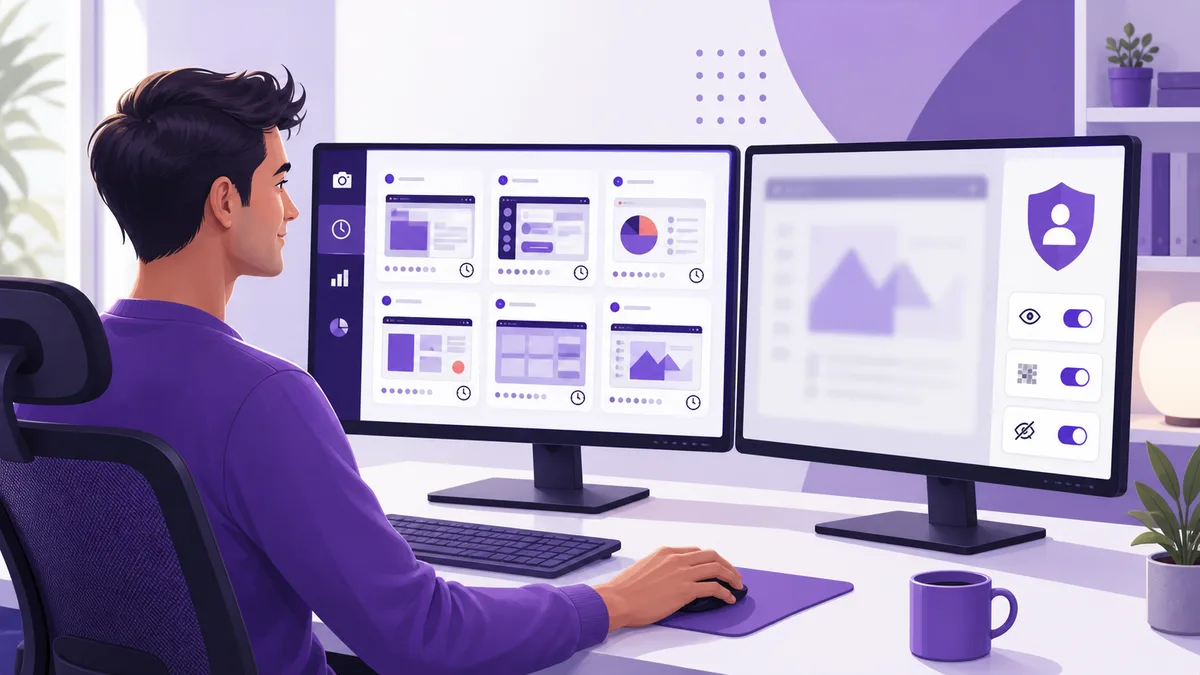
Yes, Insightful takes screenshots when your organization enables the feature. It captures them at randomized intervals based on a manager-selected frequency, can collect more than one display, and can let administrators view, download, zoom, delete, or request on-demand captures. A separate paid add-on can record screen video. What your employer actually uses is configurable, so seeing Insightful installed does not by itself prove that every capture option is active.
That distinction matters if you are trying to understand what your manager can see. “Insightful monitors screens” can mean a few random still images each hour, an on-demand screenshot, or continuous video recording. Each creates a very different record of your workday. This guide separates those layers using Insightful’s current product documentation and explains them from the employee side.
Key takeaways
- Periodic screenshots are randomized. The company chooses a number per hour; the exact capture moments are not a predictable schedule.
- Multiple monitors can be included. Insightful recommends two displays and documents support for up to four, subject to image-size limits.
- Screen recording is separate. Continuous video requires an add-on and can be configured for all activity or task time.
- Your access is permission-based. Employees can view or delete their own screenshots only when an administrator allows it.
- Mouse movement does not stop captures. A jiggler may affect idle time, but screenshots, apps, websites, and work context remain visible signals.
What Does an Insightful Screenshot Capture?
An Insightful screenshot is a still image of the desktop at one moment. It can reveal the application in front, document or message content that is visible, browser tabs, notifications, and whatever else appears on the captured displays. Insightful’s team dashboard can show the preview beside the employee name, capture time, and the app or website that was in focus.
The screenshot is only one layer of Insightful’s record. The agent also collects time, active and idle states, and app and website usage according to the organization’s tracking profile. A manager can therefore compare the image with the foreground application and the surrounding activity timeline. A single capture may be ambiguous; a repeated pattern across several signals is easier to interpret.
Insightful says normal screenshot capture is productivity-focused and tied to user activity states. Idle periods may pause still-image capture, depending on the tracking scenario. Project-based tracking can limit captures to time logged on a task, and administrators can disable screenshots for an entire project. Settings can also be changed for an individual employee.
This is why two coworkers can have different experiences even inside the same organization. One profile might capture six images per hour and allow self-review. Another might disable screenshots for a sensitive project. A company-device profile may run with different visibility and permission rules from a personal-device profile.
How Often Does Insightful Take Screenshots?
The organization chooses the screenshot frequency, but the intervals are randomized. If a manager selects a certain number per hour, Insightful does not promise a capture at the same minute in every block. Random timing makes it difficult to predict which screen state will become the representative snapshot.
Current Insightful support material describes standard tracking settings that can capture up to 30 screenshots per hour. A separate Increased Screenshot Frequency add-on is documented as allowing up to 120 per hour. Those are configuration ceilings, not evidence that your employer selected the maximum. Screenshots can also be disabled entirely.
| Configuration | What it means for an employee | What not to assume |
|---|---|---|
| Screenshots disabled | No scheduled still images should be captured under that setting | Other time, app, website, or activity data may still be collected |
| Low frequency | A small sample of the hour appears in the dashboard | The moments are still randomized rather than fixed |
| Higher frequency | More of the work period is represented by images | More images do not automatically explain why a screen looked unchanged |
| Project or app exception | Captures can be suppressed for selected work | The exception must actually be configured by an administrator |
| On-demand capture | An authorized manager can request a current still image | It is separate from the scheduled per-hour frequency |
Randomized capture creates a common employee concern: a screenshot can land during a short transition and make that moment look more important than it was. One image of a blank document, a personal notification, or a loading screen is not a complete account of an hour. If a capture is questioned, surrounding task history, messages, commits, files, meetings, and deliverables provide necessary context.
Can Insightful See Both Monitors?
Yes, Insightful can capture multiple displays. Its configuration guide says screenshots are collected from the employee’s computer rather than from one traditional display feed. The documentation recommends a two-monitor setup and describes support for up to four monitors at the same time.
There is a practical limit: Insightful lists a maximum screenshot size of 3 MB. With more displays, very high resolutions, or unusual scaling, a combined image can exceed that limit and fail to process. That technical failure is not a privacy setting and should not be treated as a reliable way to exclude a display.
A second monitor is therefore not a private area by default. Moving a password manager, private conversation, medical portal, or personal email to the other screen may still place it in a captured image. The safer approach is to separate personal activity from tracked work time and use an unmonitored personal device when policy permits, rather than relying on screen placement.
Multiple-display capture also changes how a static image can be interpreted. A manager may see a reference document on one monitor and the active work on another. That can provide useful context, but it can also expose unrelated material. Employees who routinely work across several screens should know which privacy, blur, and app-exclusion rules their organization uses.
Scheduled Screenshots, On-Demand Captures, and Screen Recording
Insightful now documents three screen-capture modes that should not be collapsed into one vague “screen monitoring” claim. Scheduled screenshots are still images taken at randomized intervals. On-demand screenshots are still images requested by an authorized administrator or manager. Screen Recording is a separate add-on that creates playable video sessions.
| Feature | Format | When it runs | Important limitation |
|---|---|---|---|
| Scheduled screenshots | Still images | Randomized according to configured frequency and tracking state | A sample, not continuous proof of every action |
| On-demand screenshot | One current still image | Requested by an authorized admin or manager | A blurred capture may take time to appear after processing |
| Screen Recording | Video sessions | All screen activity or only task time, depending on profile | Requires the add-on and explicit enablement |
Insightful’s Screen Recording documentation says recordings are split into one-hour intervals. When enabled for all activity, recording can continue during idle time and stops when the computer sleeps, shuts down, or the employee clocks out under the relevant scenario. An Insightful break pauses recording. A task-only setting starts and stops with tracked project or task work.
The company also states that Screen Recording does not capture microphone or system audio. That is an important boundary: a screen video may show visual activity without recording a conversation. It can still expose messages, documents, video-call windows, and other on-screen information.
Insightful documents 60-day retention for screenshots and screen recordings at the stated point of purchase. Retention policies can change and organizations may have their own exports or records, so employees should consult the company notice rather than assuming every copy disappears on the same date.
Who Can View Insightful Screenshots?
Administrators can configure access for managers and clients within assigned scopes. Manager permissions can include viewing, deleting, taking on-demand screenshots, and unblurring images. Project scope matters too: a manager with access to a project may be able to see captures associated with time logged to that project, even when the employee is outside the manager’s normal team scope.
Employee access is not automatic. Insightful lets administrators decide whether you can see your own screenshots and whether you can delete them. If those permissions are enabled, your dashboard can become a useful audit trail: you can review what was captured, spot sensitive material, and raise a concrete concern. If permissions are off, the absence of screenshots from your employee view does not prove that none exist.
The same permission model applies to the broader employee dashboard. An employer may let you review productivity, apps and websites, time, and screenshots, or it may show only core attendance data. A transparent deployment can support self-analysis; a restricted one can leave the employee with much less context than the manager.
How Do You Know If Insightful Is Taking Screenshots?
Start with the written monitoring notice, employee handbook, onboarding material, or policy acknowledgment. Those documents should describe what is collected, why it is collected, who can access it, and how long it is retained. If the wording says only “activity monitoring,” ask whether that includes scheduled screenshots, on-demand capture, screen recording, or all three.
Insightful supports visible and stealth configurations. Personal-computer profiles are described as visible by default. Company-computer profiles can be configured so the agent is visible or operates in stealth mode. In a visible setup, the Insightful widget appears in the Windows system tray or macOS menu bar. In stealth mode, the employee cannot open that widget or the employee dashboard from it.
A visible icon confirms that an agent is present; it does not reveal the selected capture frequency, blur percentage, exclusions, or recording add-on. A missing icon is also not conclusive on a managed company device. The reliable answer comes from the organization’s tracking settings or from a person authorized to explain them.
- Read the monitoring notice. Look for screenshots, screen recording, multiple displays, app and website capture, and retention.
- Check your employee dashboard. If access is enabled, review screenshot and activity sections rather than relying on assumptions.
- Identify the tracking window. Find out whether monitoring runs continuously, only while clocked in, or only on selected tasks.
- Ask about exceptions. Sensitive projects, apps, and websites may have different screenshot settings.
- Request correction channels. Know how to explain a misleading capture or report an image containing private information.
Insightful Screenshot Privacy Controls and Their Limits
Insightful offers several controls that can reduce exposure: screenshot blurring, application and website exceptions, project-level disabling, employee self-view, employee deletion permission, and on-premise deployment options. These controls are valuable only when the organization enables and administers them thoughtfully.
Blurring is not the same as not collecting. A blurred image can hide text while still revealing layout, application identity, document type, or visual context. On-demand screenshots respect the organization’s blur configuration, but Insightful notes that blurred on-demand images may take up to 30 minutes to appear after processing.
App and website exceptions are more targeted. An organization can mark selected tools so screenshots are not taken while they are in use, and a project can disable capture regardless of an employee-level screenshot setting. This is the better control for payroll, HR, health, legal, credential, or customer systems where the screen itself should not be copied.
Employees still need practical hygiene. Turn off personal notification previews during tracked work. Do not leave password managers, banking pages, medical records, or private chats visible on another monitor. Clock out or start an approved break before personal activity when the tracking scenario supports it. Use separate browser profiles or devices where company policy allows. These steps reduce accidental collection; they do not alter the employer’s monitoring configuration.
A screenshot also has interpretive limits. It cannot prove whether you understood a document, solved a problem away from the keyboard, spoke with a client, drafted on paper, or waited for a build. Good management combines images with work output and conversation. If passive work is repeatedly mislabeled, document the workflow and ask for a measurement method that reflects it.
Can a Mouse Jiggler Stop Insightful Screenshots?
No. A mouse jiggler does not switch off Insightful screenshots or screen recording. It may create input that changes whether a device looks idle, but capture settings operate separately. The image can still show an unchanged document, empty desktop, irrelevant application, or sensitive window. App and website logs can still show the foreground context.
This is the central difference between activity counts and visual evidence. A simple jiggler changes one signal. Insightful can compare that signal with keyboard activity, application use, websites, screenshots, task records, and actual output. The site’s broader Insightful employee monitoring guide explains that multi-signal picture, while the time tracker screenshot comparison shows how Insightful differs from other tools.
If your legitimate work includes reading, meetings, calls, code compilation, rendering, research, or other low-input periods, the durable response is to make that work visible in the correct channel. Use task notes, manual time where allowed, calendar records, commit history, deliverables, or a policy exception. Simulated input cannot make a flawed metric understand the work.
Where an approved keep-awake tool is appropriate, test it conservatively. Avoid automatic clicking or typing in sensitive windows. Keep real work in the foreground when possible. Understand that no activity utility guarantees invisibility, and do not use it to override an explicit workplace control.
Frequently Asked Questions
Does Insightful take screenshots?
Yes. When an organization enables the feature, Insightful captures screenshots at randomized intervals according to the configured number per hour. Screenshots are tied to active tracking states and can be changed or disabled at organization, employee, app, website, or project level.
How often does Insightful take screenshots?
The administrator chooses a frequency and Insightful randomizes the intervals rather than capturing at predictable clock times. Current help documentation describes standard settings up to 30 screenshots per hour and an increased-frequency add-on up to 120 per hour. Your employer may also disable screenshots entirely.
Can Insightful see both monitors?
Yes. Insightful says it captures screenshots from multiple displays because data is collected from the employee computer rather than one selected monitor. Its documentation recommends two monitors and supports up to four, subject to a 3 MB maximum screenshot size.
Can Insightful record my screen continuously?
It can if the separate Screen Recording add-on is active and an administrator enables it. Recording may cover all screen activity or only task time, and the documentation says it records idle time but pauses during an Insightful break. Insightful states that microphone and system audio are not recorded.
Can I see or delete my Insightful screenshots?
Only if an administrator grants those permissions. Insightful can let employees view their own screenshots and may separately allow deletion, but neither access is automatic. In a stealth deployment the employee dashboard and widget are unavailable.
Does Insightful blur screenshots?
It can. Organizations can configure screenshot blurring and can also prevent captures for selected apps, websites, or projects. Blurring reduces readability but does not guarantee that every sensitive detail or the surrounding work context is hidden.
How do I know whether Insightful is taking screenshots?
A visible deployment may show the Insightful widget or tray icon, but that alone does not reveal the exact screenshot policy. Company-device profiles may operate in stealth mode. The reliable sources are the written monitoring notice, your employee dashboard if access is enabled, and confirmation from HR, IT, or your manager.
Can a mouse jiggler stop Insightful screenshots?
No. Mouse movement does not disable screenshot or screen-recording features. A jiggler may affect idle classification, but the captured screen, foreground apps, websites, keyboard balance, and actual work context remain separate signals that a manager can review.
Sources and Method
Current behavior was checked against Insightful’s official guides for screenshot configuration, on-demand screenshots, screen recording, tracking profiles, employee permissions, and manager permissions. Product settings and plan availability can change; verify the active profile and policy in your organization.
The Bottom Line
Insightful can take randomized screenshots, request on-demand captures, and record screen video when the relevant settings and add-on are enabled. It can include multiple monitors, while employee access, deletion, blurring, app exclusions, and visibility all depend on the employer’s configuration. The right employee question is not only “Is Insightful installed?” but “Which capture modes and permissions are active for my profile?”
Need activity that matches more than mouse movement?
Trick Tack can simulate mouse, keyboard, scrolling, and app activity with configurable intensity. Use it only where permitted, keep sensitive windows closed, and test every mode before relying on it.
Try Free for 7 DaysRead the documentation

