Why People Search for Insightful Hacks
Insightful has become one of the most widely deployed employee monitoring platforms for remote and hybrid teams. What makes it particularly comprehensive is the depth of its tracking: Insightful does not just check whether you are online. It captures screenshots, logs every app and website you use, measures your active versus idle time down to the second, and assigns you a productivity score that your manager can review at a glance.
For employees, that level of surveillance can feel overwhelming. A quick phone call, a bathroom break, or five minutes spent thinking through a problem all register as idle time on the Insightful dashboard. The software does not know that you were brainstorming a solution in your head or discussing a project with a colleague across the room. It only knows that your keyboard and mouse were inactive.
That gap between how real work happens and how Insightful measures it is exactly why people search for terms like "how to trick Insightful," "Insightful hack," or "cheat Insightful monitoring." They are looking for ways to keep their activity reports consistent during legitimate breaks so their productivity scores do not take an unfair hit.
In this guide, we will explain exactly how Insightful monitors your activity, what its pricing looks like in 2026, and practical steps to maintain consistent activity reports. For a broader overview, see our complete guide to cheating time tracking software.
From Workpuls to Insightful — What Changed
If the name Insightful sounds unfamiliar but you recognize Workpuls, you are thinking of the same product. Insightful rebranded from Workpuls in 2021, shifting its positioning from pure employee monitoring toward workforce analytics. The core surveillance features — screenshots, app tracking, idle detection — remained the same, but Insightful added deeper analytics dashboards, productivity benchmarking, and more integrations.
If your employer still refers to the tool as Workpuls, everything on this page applies unchanged — the underlying tracking technology is identical, so any "Workpuls hack" is really just an Insightful hack under the old name. This article covers the current 2026 version of Insightful with its updated features and pricing.
How Insightful Tracks Your Activity
Insightful uses multiple overlapping monitoring methods to build a second-by-second picture of your workday. Understanding each layer is essential to keeping your reports consistent. Let us walk through every tracking mechanism.
Screenshots and Visual Monitoring
Insightful captures screenshots at configurable, randomized intervals. These screenshots show exactly what was on your screen at that moment — which application was in the foreground, what document you were editing, or which website you had open. Managers can browse through these captures in a visual timeline alongside your activity data. Our dedicated guide explains when Insightful takes screenshots, multi-monitor capture, retention, and employee privacy controls.
Insightful also offers a separate on-demand screenshot add-on. An authorized manager can request a current capture manually instead of waiting for the next randomized interval. This is a manager-initiated capture, not an automatic screenshot triggered by a suspicious app switch or activity change.
That differs from the scheduled-only workflow most employees expect from tools such as Hubstaff: a capture may happen because a manager requests one, even when the next randomized capture is not due.
App and Website Tracking
Every application you open and every website you visit during work hours is logged by Insightful. The software records which app is in the foreground, how long you spend in each one, and the specific URLs you visit in your browser. This data is available at the individual, team, and company level.
Insightful categorizes apps and websites into productive, unproductive, and neutral buckets based on your employer's configuration. Your code editor might be marked productive while social media is unproductive. The time you spend in each category feeds directly into your productivity score, which we will cover below.
Active vs Idle Time Detection
Insightful monitors your keyboard and mouse activity to determine whether you are actively working or idle. When no input is detected for a configurable threshold — typically a few minutes — the software marks that time as idle. Idle time appears as a gap in your activity timeline and pulls down your overall productivity percentage.
What sets Insightful apart is its second-by-second granularity. The platform provides detailed data about your computer activities at that resolution, which means even brief pauses are recorded. This is more granular than tools like DeskTime that typically measure in minute-level blocks.
Productivity Scoring
All of the data Insightful collects — app usage, website visits, active time, idle time — feeds into a productivity score for each employee. This score is displayed as a percentage on the manager's dashboard, making it easy to compare employees at a glance. A high score means you spent most of your time in apps categorized as productive with minimal idle gaps.
The productivity score is the metric most managers focus on, which means it is also the number most affected when you step away from your desk. Even a 15-minute break can visibly lower your daily score if your employer has set tight productivity expectations.
Stealth Mode
Insightful offers two deployment modes: Visible Mode and Stealth Mode. In Visible Mode, employees can see the Insightful icon in their system tray and know that monitoring is active. In Stealth Mode, the software runs completely invisibly — no tray icon, no visible windows, no indication that it is running.
Stealth Mode is designed for employers who want to detect suspicious or malicious behavior without tipping off the employee. If your employer has deployed Insightful in Stealth Mode, you may not even know it is installed unless you check your running processes or task manager. This makes it critical to assume monitoring is active at all times on a company-managed device.
Activity Alerts
Insightful includes an alert system that notifies managers when employee behavior deviates from expected patterns. These alerts can be triggered by drops in productivity, access to unauthorized websites or applications, or unusual activity patterns that suggest the employee is not genuinely working.
The alert system means that Insightful is not just passively recording your activity — it is actively analyzing your behavior and flagging anything out of the ordinary. A sudden shift from high keyboard activity to mouse-only movement, for example, could trigger an alert even if the raw activity numbers still look acceptable.
Insightful Pricing in 2026
Insightful offers four pricing tiers. All plans include a free trial with no credit card required.
- Employee Monitoring — $8/user/month: Screenshots, app and website tracking, activity monitoring, and basic reporting. This is the entry-level surveillance plan.
- Time Tracking — $10/user/month: Everything in Employee Monitoring plus automatic time tracking, project tracking, and timesheet management.
- Automatic Time Mapping — $15/user/month: Everything in Time Tracking plus automatic time allocation to projects, advanced productivity analytics, and workforce optimization features.
- Enterprise — custom pricing: Everything above plus dedicated support, custom integrations, and advanced security features for large organizations.
For the monitoring features that most employees encounter — screenshots, app tracking, idle detection, and productivity scoring — the $8/user/month Employee Monitoring plan covers everything. The higher tiers add time tracking and project management features rather than additional surveillance capabilities.
What Your Employer Actually Sees
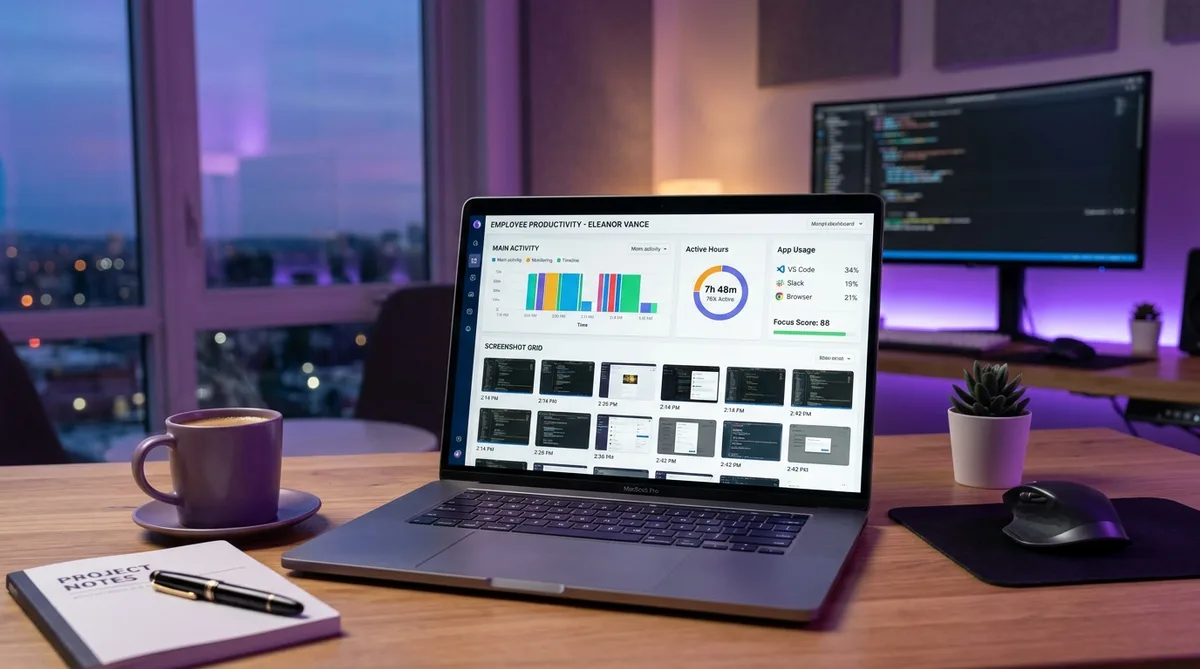
Understanding exactly what appears on your manager's screen helps you anticipate how your activity is evaluated. Insightful's dashboard gives managers a quick overview of team productivity without needing to dig through raw data.
Activity timeline. Your manager sees a color-coded timeline of your entire workday. Green blocks represent active productive time, yellow marks active but unproductive time, and gray shows idle periods. Every gap, every switch to a non-work app, and every idle period stands out visually on this timeline.
Productivity score. Insightful calculates a daily productivity percentage based on how much of your active time was spent on apps and websites classified as productive. This number appears prominently on the team dashboard next to your name. Managers can compare scores across the team and see trends over weeks and months.
Screenshot gallery. Screenshots appear in a chronological grid that managers can scrub through. Each screenshot is tagged with the active application, timestamp, and the productivity classification at that moment. If a screenshot shows a personal website while your activity log says you were productive, the inconsistency is immediately visible.
Automatic Time Mapping reports. On higher-tier plans, Insightful automatically allocates your time to projects based on the apps and websites you use. Managers see how much of your day went to each project without you filling in a timesheet. Time spent in apps that do not map to any project shows up as unaccounted time.
Activity alerts. When your behavior deviates from your established baseline — a sudden drop in activity, access to flagged websites, or unusual patterns — Insightful sends an automatic notification to your manager. These alerts arrive in real time, meaning your manager may notice an anomaly before you have even returned to your desk.
How to Maintain Consistent Activity in Insightful
Insightful's combination of screenshots, app tracking, idle detection, productivity scoring, and activity alerts makes it one of the more comprehensive monitoring platforms to work with. A basic mouse jiggler will not fool it because the software cross-references multiple data points simultaneously. Here is what actually helps.
Keep productive apps in the foreground. Since Insightful scores your productivity based on which application is active, make sure work-related apps are in the foreground before stepping away. Your IDE, email client, or project management tool in the foreground will register as productive time even during brief idle periods.
Be aware of on-demand screenshots. Unlike a scheduled-only setup, Insightful can let an authorized manager request a current capture through the optional add-on. Keep private content closed during tracked time and use the employer's approved exclusions or break workflow when available.
Simulate realistic, multi-dimensional activity. Because Insightful tracks screenshots, app usage, and input activity independently, maintaining consistent reports requires activity that looks genuine across all three dimensions. You need realistic mouse movements, keyboard input, scrolling, and occasional app switching — not just a moving cursor.
This is exactly what Trick Tack is designed for. Unlike simple mouse jigglers, Trick Tack simulates natural mouse movements, keyboard input, scroll behavior, and app switching via Alt+Tab simultaneously. This produces the kind of multi-layered activity profile that Insightful expects from a genuinely active user. You can adjust the intensity of each simulation type across five levels to match your natural work patterns, ensuring that screenshots, app usage logs, and activity metrics all tell a consistent story.
Frequently Asked Questions
Is Insightful the same as Workpuls?
Yes. Insightful was originally called Workpuls and rebranded in 2021. The core monitoring features remained the same, but Insightful added workforce analytics, productivity scoring, and additional integrations. If your employer previously used Workpuls, they are now using Insightful — and everything on this page about how it tracks activity and how to keep your reports consistent applies to the current version.
Does Workpuls take screenshots?
Yes. Workpuls — now called Insightful — captures screenshots at configurable, randomized intervals. Current Insightful configurations can also include a separate on-demand screenshot add-on that lets an authorized manager request a capture. The exact behavior depends on the employer's current settings.
Does Insightful take screenshots?
Yes. Insightful captures screenshots at configurable, randomized intervals. An optional on-demand feature can also let an authorized manager request a current capture. Managers can review screenshots alongside the activity timeline, while blurring and employee access depend on the employer's configuration.
Can Insightful run in stealth mode?
Yes. Insightful offers two modes: Visible Mode where employees know monitoring is active, and Stealth Mode where the software runs invisibly with no tray icon or visible indication. In Stealth Mode, the software does not appear in the taskbar or system tray, making it difficult to detect without checking running processes. Assume monitoring is active on any company-managed device.
Does Insightful track keystrokes?
No. Insightful does not log individual keystrokes or record what you type. It tracks keyboard activity as an engagement metric, measuring whether you are actively typing, but it does not capture the content of your keystrokes. This is a deliberate privacy-focused design choice that helped Insightful earn recognition from Forbes for employee privacy.
Can Insightful detect a mouse jiggler?
A basic mouse jiggler that only moves the cursor will likely be flagged by Insightful's activity alerts. The software tracks app usage, screenshot content, and activity patterns alongside mouse movement. If screenshots consistently show the same static screen while mouse activity is logged, the pattern becomes obvious to managers reviewing the data. More sophisticated tools like Trick Tack that simulate multiple input types are harder to distinguish from genuine activity.
How does Insightful calculate the productivity score?
Insightful divides your active time into productive and unproductive based on which applications and websites are in the foreground. Your productivity score is the percentage of active time spent on apps classified as productive. Default classifications come pre-set (e.g., IDEs and email clients are productive, social media is unproductive), but your manager can customize these for your team. Only active time counts — idle periods are excluded from the calculation entirely, which means a short break does not directly lower your score, but it does reduce your total active hours for the day.
Can Insightful see my screen in real time?
Yes. Insightful offers a real-time screen view feature that allows managers to see what is currently on an employee's monitor without any delay. This is separate from the periodic screenshot feature and gives managers an on-demand window into your desktop at any moment. Whether your manager actively uses this feature depends on their management style, but the capability exists on all monitoring plans.
Does Insightful track activity on personal devices?
Insightful only tracks devices where the agent software is installed. It cannot monitor personal phones, tablets, or computers unless your employer has specifically installed the agent on those devices. If you are using your personal laptop for work and your employer asked you to install Insightful on it, then yes, it tracks that device. But Insightful cannot reach across to unmanaged devices on the same network.
Can Insightful detect a hardware mouse jiggler dongle?
Insightful does not specifically scan for USB devices, so a hardware mouse jiggler dongle will register as mouse input and keep you marked as active. However, Insightful cross-references multiple signals at once. If your mouse activity stays constant while the screenshots show an unchanging screen, the app log shows zero variety, and there is zero keyboard input for hours, a manager reviewing the dashboard will notice the mismatch. Insightful's activity alerts can also flag unusual patterns like sustained high mouse activity with no clicks or keystrokes. A dongle that only nudges the cursor solves one layer but leaves every other layer exposed.
How do you know if Insightful is taking screenshots?
It depends on the deployment mode. In Visible Mode, Insightful shows a tray icon and you can typically see when screenshots are captured. In Stealth Mode, there is no visible indication at all — no tray icon, no taskbar entry, and no pop-up when a screenshot is taken. The only reliable way to confirm Insightful is taking screenshots on your machine is to check your running processes for the Insightful agent, ask your IT department, or review your company's monitoring policy. If you are on a company-managed device and Insightful has been deployed, assume screenshots are active unless you have been told otherwise.
Conclusion
Insightful is a comprehensive workforce monitoring platform that goes well beyond simple time tracking. Its combination of randomized and optional on-demand screenshots, detailed activity logging, app and website categorization, productivity scoring, stealth mode capability, and automated activity alerts makes it one of the more thorough monitoring solutions available in 2026.
The key to maintaining consistent activity reports in Insightful is understanding that the software monitors multiple dimensions simultaneously. Screenshots show what is on your screen. App tracking shows which tools you are using. Idle detection measures your keyboard and mouse input. And activity alerts flag patterns that deviate from your normal behavior. A single-dimension approach like a mouse jiggler fails because Insightful cross-references all of these signals.
Trick Tack was built for exactly this kind of multi-layered monitoring. By simulating natural mouse movements, keyboard input, scrolling, and application switching with adjustable intensity levels, it maintains a realistic activity profile across every metric Insightful tracks. Whether you are stepping out for lunch, taking a personal call, or simply need a mental break, Trick Tack keeps your Insightful reports looking consistent.
For more on working with specific monitoring tools, see our guides on how to cheat Time Champ and how to trick employee monitoring software. You can also read our full Insightful review for an honest look at its features, pricing tiers, pros, cons, and how it compares to alternatives, or see how it lines up against heavy surveillance in our Teramind vs Insightful comparison and against a time-and-payroll tracker in our Hubstaff vs Insightful comparison.
Try Trick Tack Free for 7 Days
Keep your Insightful activity reports consistent while you step away. Cancel anytime during your trial.
Download

