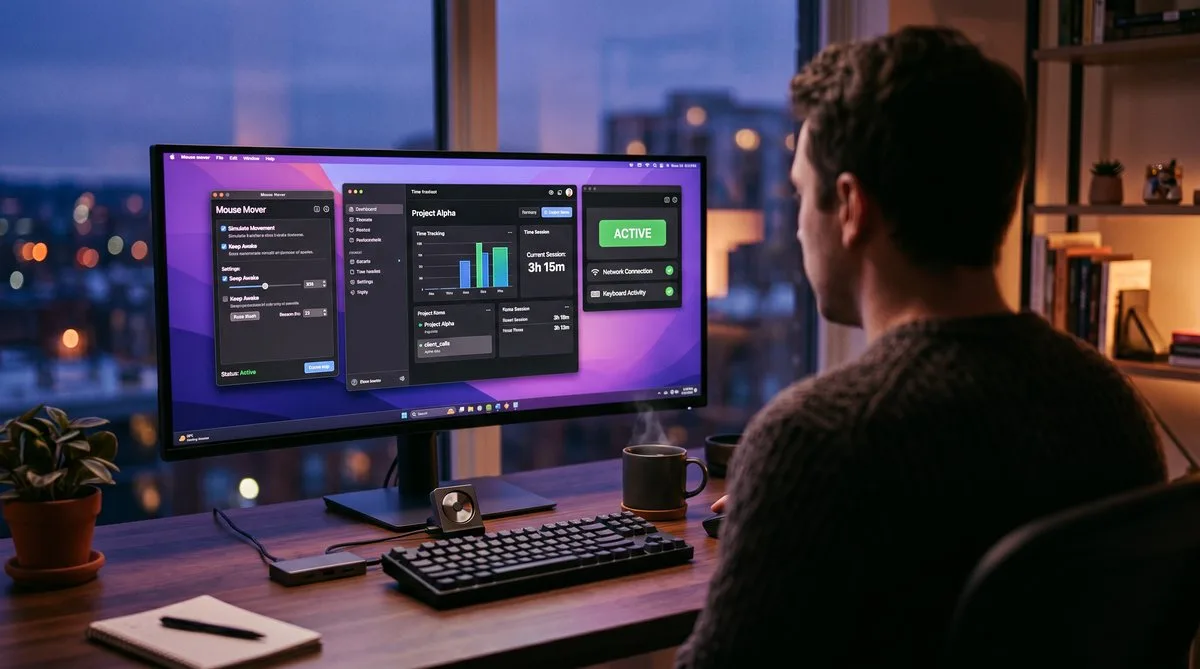
Why People Use Mouse Movers
Mouse mover software keeps your computer awake by simulating input — preventing the screensaver, the locked screen, and the dreaded “Away” status in Teams or Slack. The core use case is simple: you need to step away from your desk without your employer’s monitoring software flagging the gap.
The reasons vary. Some people are on a bathroom break during a timed Hubstaff session. Others are juggling multiple remote jobs and need consistent presence across devices. Some are just tired of re-entering their password every time they get up for coffee.
Whatever the reason, the mouse mover market in 2026 ranges from free open-source utilities to paid multi-channel simulation tools to hardware USB dongles. This guide compares them honestly — including what each one cannot do — so you can pick the right tool for your situation.
How Monitoring Software Detects Mouse Movers
Before choosing a tool, you need to understand what you’re up against. Modern employee monitoring software does not just check whether your cursor is moving. It tracks multiple activity channels simultaneously:
- Mouse movement patterns — velocity, acceleration, path shape, and whether movement is uniform or organic
- Keyboard input — keystrokes per interval (most trackers record frequency, not content)
- Active application — which window has focus and for how long
- Screenshots — periodic or random screen captures, compared for visual change
- Idle gaps — whether the user takes natural breaks (no breaks at all is itself a flag)
A basic mouse mover creates a very specific signature: cursor moves, but nothing else happens. No keystrokes, no app changes, no scrolling, and the screenshots look identical frame after frame. Tools like Hubstaff, ActivTrak, and Teramind flag this pattern automatically.
This is the fundamental problem with single-channel tools. They solve the “keep my screen awake” problem but fail the “look like a real person working” test.
Free Mouse Mover Software
Free tools are fine for preventing sleep mode and keeping your chat status green on unmonitored machines. If your employer runs monitoring software, they come with real detection risks.
1. Move Mouse (Windows) — Best Free Option
Move Mouse is the most popular free mouse mover for Windows. It is open-source, actively maintained (v4.20 released May 2026), and available on the Microsoft Store — which means it installs without admin privileges on most corporate machines.
Features:
- Customizable movement intervals and distances
- Left, right, and double-click simulation
- Invisible mode (moves cursor and returns it to its original position)
- Blackout scheduling — set specific times when it should not run
- App-based triggers — start or stop when specific applications are open
- PowerShell script support for advanced automation
- Dual monitor support
Limitations: Move Mouse moves the cursor and can simulate clicks, but it does not generate keyboard input, switch applications, or vary its behavior to mimic natural work patterns. On a monitored machine, the steady cursor movement with zero typing creates an obvious signature.
Best for: Preventing sleep mode on unmonitored machines. Personal use where no tracking software is installed.
2. Caffeine / KeepingYouAwake (Mac) — Simplest Option
Caffeine is a tiny, free macOS menu bar app. Click the coffee cup icon to prevent your Mac from sleeping, dimming the screen, or starting the screensaver. That is it — no mouse movement, no activity simulation, just a sleep inhibitor.
KeepingYouAwake is the modern successor to Caffeine (which has not been updated in years). Same concept, actively maintained, with timed activation options.
Features:
- One-click toggle to prevent sleep
- Timed mode — keep awake for 30 minutes, 1 hour, etc.
- Menu bar indicator showing active/inactive state
- No configuration needed
Limitations: These apps only prevent sleep. They do not move your cursor, simulate typing, or keep your chat status active. If your employer uses monitoring software, Caffeine alone changes nothing — the tracker still sees zero activity. You would need to combine it with a separate mouse mover, which adds complexity.
Best for: Preventing your Mac from sleeping during downloads, presentations, or long builds. Not useful on its own for activity simulation.
3. PowerToys Awake (Windows) — Microsoft’s Built-In Solution
PowerToys Awake is part of Microsoft’s official PowerToys suite. It keeps your Windows PC awake by signaling to the OS that the system is in use, without modifying your power settings.
Features:
- Indefinite or timed keep-awake modes
- Optional “Keep screen on” toggle
- System tray access and hotkey support
- Microsoft-signed — no corporate install restrictions
Limitations: Like Caffeine, PowerToys Awake only prevents sleep. It does not move the mouse, simulate input, or keep your status active in Teams or Slack. Monitoring software still sees an idle user with no input. It solves the “my laptop locked itself” problem but not the “my tracker shows 0% activity” problem.
Best for: Keeping Windows awake during long tasks. Runs alongside other tools if needed. Installs easily on managed machines since it is a Microsoft product.
Hardware Mouse Jigglers
Hardware mouse jigglers are small USB devices that physically move your cursor without installing any software. They register as a standard USB mouse, so they do not require admin privileges or leave a software footprint.
Popular models:
- HONKID ($25) — budget USB jiggler, moves the cursor in a small circle
- TECH8 USA ($29) — similar functionality, slightly more random patterns
- Liberty Mouse Mover Gen. 4 ($49) — aluminum build, mechanical (no USB connection needed)
- WiggleMouse (~$30) — compact dongle with multiple movement modes
Advantages: No software to install or detect. Works on locked-down corporate machines where you cannot install anything. The mechanical ones (like the Liberty Mover) do not even connect via USB — they physically move a real mouse sitting on top of them.
Serious limitations:
- USB detection — when you plug in a USB jiggler, Windows creates Event Log entries showing the device brand, make, and model. IT departments can set up alerts for new HID device connections.
- Single-channel — hardware jigglers only move the cursor. There is no keyboard input, no app switching, and screenshots show the same static screen. The detection signature is identical to a software mouse mover.
- Real-world consequences — Wells Fargo fired over a dozen employees in 2024 for using hardware mouse jigglers. The company called it “simulation of keyboard activity” that created “the impression of active work” and classified it as gross misconduct.
Best for: Machines where you cannot install any software. Understand that the detection risk is the same as software movers — the cursor moves, but nothing else does.
Other Mouse Mover Apps and Alternatives
Beyond the three free tools above, a long tail of small mouse mover apps and "keep active" utilities exists — programs like KeepActive, Mouse Jiggler, Caffeinated, and a dozen near-identical clones. If you have been searching for a generic application to move the mouse or a mouse moving program, almost all of them work the same way: they nudge the cursor or send a harmless keypress on a timer to stop your screen from locking.
They differ in small details — a tray icon here, an adjustable interval there, Windows-only versus cross-platform — but they share one limitation that matters. Every one of them is single-channel: it moves the cursor (or presses one key) and does nothing else. So while any of them will keep your screen awake, none of them changes what monitoring software actually records — no keyboard input, no application switching, and screenshots that never change. If your goal is only to stop the lock screen, pick whichever has the interface you like. If your employer runs monitoring software, the section below on multi-channel simulation is the part that matters.
Paid Multi-Channel Simulation Tools
The detection problem with free tools and hardware jigglers is the same: they only simulate one channel of activity. Paid tools attempt to solve this by simulating multiple channels simultaneously — mouse, keyboard, app switching, scrolling, and idle variation — to produce patterns that look like genuine work across every metric a tracker records.
TrickTack — Multi-Channel Activity Simulation
TrickTack is a desktop app for Windows, macOS, and Linux that simulates natural work patterns across multiple activity channels. Instead of just moving the cursor, it combines mouse movement, keyboard input, application switching, tab cycling, and scrolling with randomized timing and natural idle variation.
How it works:
- Mouse simulation — realistic cursor paths with natural acceleration, deceleration, and varied destinations (not circular loops)
- Keyboard simulation — generates keystrokes at varied intervals, matching natural typing rhythm rather than mechanical repetition
- App switching — cycles focus between open applications, creating different active windows in screenshot captures (Pro tier)
- Tab switching — switches browser tabs to show different content in consecutive screenshots (Pro tier)
- Scrolling — simulates page scrolling with varied speed and direction
- Idle detection — pauses simulation when you are actively using your computer, resumes when you step away (Premium tier)
- Scheduling — set work hours so simulation runs only during specific times (Premium tier)
Pricing:
- 7-day free trial — full access, no credit card required
- Basic ($7/month) — mouse, keyboard, and scroll simulation
- Pro ($14/month) — adds app switching and tab cycling
- Premium ($18/month) — adds idle detection and scheduling
Platforms: Windows, macOS (Apple Silicon and Intel), Linux (X11 and Wayland).
Best for: Users whose employers run monitoring software that tracks activity levels, takes screenshots, or monitors keyboard input. The multi-channel approach means every metric the tracker records shows realistic activity — not just a moving cursor on a static screen.
Side-by-Side Comparison
| Tool | Price | Mouse | Keyboard | App Switch | Platforms |
|---|---|---|---|---|---|
| Move Mouse | Free | ✓ | ✗ | ✗ | Windows |
| Caffeine | Free | ✗ | ✗ | ✗ | macOS |
| PowerToys Awake | Free | ✗ | ✗ | ✗ | Windows |
| Hardware jiggler | $25–$49 | ✓ | ✗ | ✗ | Any |
| TrickTack | $7–$18/mo | ✓ | ✓ | ✓ | Win/Mac/Linux |
Key takeaway: Free tools and hardware jigglers solve the “keep my screen awake” problem. If your employer runs monitoring software that tracks activity levels, takes screenshots, or logs keyboard input, single-channel solutions create a detectable pattern. Multi-channel simulation addresses every signal the tracker watches.
Which Should You Choose?
No monitoring software installed
Use Move Mouse (Windows) or Caffeine (Mac). They are free, simple, and do the job. You do not need anything more complex if nobody is analyzing your activity data.
Basic Teams/Slack status only
Any mouse mover will keep your status green. Move Mouse or a $25 hardware jiggler is sufficient. Teams and Slack check for OS-level idle time, not activity patterns.
Employer uses Hubstaff, Time Doctor, ActivTrak, or similar
A single-channel tool is a risk. These trackers capture screenshots, measure activity percentages from keyboard and mouse input, and flag uniform patterns. TrickTack or a similar multi-channel tool is the safer choice because it generates realistic data across every metric the tracker records.
Corporate lockdown — cannot install software
A mechanical mouse jiggler (not USB) is your only option. The Liberty Mouse Mover physically moves a real mouse without connecting to your computer. Understand that it only moves the cursor, and if screenshots are being taken, they will show a static screen.
Managing multiple remote jobs
You need consistent activity across multiple machines simultaneously. A paid multi-channel tool on each device, combined with proper hardware separation and calendar management, is the only approach that holds up under monitoring.
Frequently Asked Questions
Can my employer detect mouse mover software?
Yes. Most monitoring tools can detect simple mouse movers by analyzing movement patterns. Software that only moves the cursor produces mechanically regular paths — fixed intervals, identical distances, no acceleration or deceleration. Enterprise tools like Hubstaff, ActivTrak, and Teramind specifically flag this kind of artificial uniformity. Multi-channel tools that also simulate keyboard input, app switching, and idle variation are significantly harder to distinguish from real work.
Are hardware mouse jigglers safer than software?
Not necessarily. Hardware jigglers avoid software-detection scans, but they still produce repetitive cursor patterns with no keyboard input, no app switching, and no meaningful screen changes. IT departments can detect new USB HID devices in Windows Event Logs, and monitoring software flags the same single-channel movement pattern regardless of whether a dongle or a program created it. Wells Fargo fired over a dozen employees in 2024 using hardware jigglers.
Is using a mouse mover legal?
Using mouse mover software is legal in most jurisdictions. However, using one to falsify timesheets or misrepresent hours worked could constitute timesheet fraud, which may violate employment agreements and even local labor laws. The legal risk is not in the software itself but in how it is used — keeping a laptop awake during a lunch break is very different from billing eight hours while not working.
What is the best free mouse mover for Windows?
Move Mouse is the best free option for Windows. It is open source, available on the Microsoft Store, and supports customizable intervals, click simulation, blackout scheduling, and stealth mode. Its main limitation is that it only moves the cursor — there is no keyboard simulation, no app switching, and no idle variation, which makes it detectable by monitoring software that analyzes multi-channel activity.
What is the difference between a mouse mover and activity simulation?
A mouse mover only moves your cursor, keeping the system awake and showing you as “online.” Activity simulation goes further by combining mouse movement with keyboard input, application switching, tab cycling, scrolling, and randomized idle periods. Monitoring software tracks all of these signals together, so a cursor that moves without any typing or app changes stands out as artificial. Multi-channel simulation produces patterns that look like natural work across every metric the tracker records.
Will a mouse mover keep my Teams or Slack status green?
A basic mouse mover will keep your operating system awake, which prevents Teams and Slack from detecting idle time and switching your status to Away. However, Teams also checks for actual user interaction beyond just cursor position — after several minutes of cursor-only movement without keyboard input or app focus changes, some versions may still mark you as idle. A multi-channel tool that includes keyboard simulation is more reliable for maintaining active status across communication apps.
Try TrickTack Free for 7 Days
Multi-channel activity simulation — mouse, keyboard, app switching, scrolling, and idle detection. Windows, macOS, and Linux.
Download for Free

