Why People Search for ActivTrak Hacks
ActivTrak has grown into one of the most widely deployed workforce analytics platforms in 2026. Unlike the heavy-handed surveillance tools that record every keystroke and capture video of your screen, ActivTrak positions itself as a "privacy-first" productivity tool. It does not log keystrokes, access your webcam, or record video. Instead, it focuses on behavioral patterns — which apps you use, which websites you visit, how long you stay focused, and how your work patterns compare to your team.
That privacy-first branding can be misleading, though. ActivTrak still runs a silent agent on your computer that tracks every application switch, every website visit, and every idle period throughout the day. It categorizes all of that activity as productive, unproductive, or undefined, then presents it on a dashboard your manager can review at any time. With the optional Screen Details add-on, it can also capture screenshots.
The result is that employees searching for "ActivTrak hack" or "how to cheat ActivTrak" are typically not dealing with the kind of aggressive screenshot-every-5-minutes surveillance you see with tools like Teramind. They are dealing with something more subtle: a system that builds a behavioral profile of how you work and flags deviations from your normal patterns. That subtlety makes it both less invasive and harder to game.
In this guide, we will cover exactly how ActivTrak monitors your workday, its current pricing, what its privacy-first approach actually means in practice, and how to keep your activity reports consistent. For the broader landscape of monitoring tools, see our guide on how to cheat time tracking software.
How ActivTrak Tracks Your Activity
ActivTrak's monitoring is built around a lightweight desktop agent that runs in the background on your computer. Once installed by your IT department, it collects data continuously and sends it to ActivTrak's cloud dashboard. Here is what it watches.
Application and Website Tracking
ActivTrak's core monitoring function is tracking which applications and websites you use throughout the day. The agent records the active application in your foreground window, the specific URL if you are using a browser, and the title of the document or file you have open. This gives your manager a detailed timeline of your entire workday.
The tracking is automatic and continuous. You do not need to start timers or log activities manually. From the moment your computer is on and the agent is running, every app switch and website visit is recorded. This is similar to how RescueTime and DeskTime operate, though ActivTrak's analytics layer goes deeper with team-level insights and workload balancing data.
ActivTrak captures both the application name and the window title, which means it can differentiate between different projects in the same app. If you have three Chrome tabs open, ActivTrak knows which one is in the foreground based on the page title. If you are in VS Code, it can see the filename in the title bar.
Productivity Classification
Like RescueTime and DeskTime, ActivTrak classifies every application and website into productivity categories:
- Productive — Applications and websites directly related to work. Development tools, project management apps, business communication platforms, and work-specific websites.
- Unproductive — Social media, entertainment, shopping, news, and other non-work activities.
- Undefined — Apps and sites that have not been classified yet. This is ActivTrak's equivalent of "neutral" in other tools.
ActivTrak ships with default classifications for common apps and websites, but managers can customize the categorization to match their team's workflow. A marketing team might classify social media platforms as productive, while a development team would leave them as unproductive.
Your productivity data is aggregated into a daily productivity score that shows the percentage of your active time spent on productive activities. This score is visible to your manager on the ActivTrak dashboard alongside team averages and historical trends. Consistently low scores or sudden drops will trigger attention.
Idle Detection and Active Time
ActivTrak monitors mouse and keyboard input to determine whether you are actively using your computer. When no input is detected for a configurable period, ActivTrak marks that time as idle and stops counting it toward your active hours.
Idle time appears as gaps on your activity timeline, which is visible to managers. Extended or frequent idle periods stand out visually on the dashboard and can trigger automated alerts if the administrator has configured them. Unlike tools like Time Doctor, which actively prompts you with pop-ups when idle time is detected, ActivTrak simply records the gap silently.
ActivTrak also tracks your total active time per day, which managers can compare against expected working hours. If you are supposed to work 8 hours but consistently log only 5–6 hours of active time, that pattern becomes visible in the analytics.
Screenshots (Screen Details Add-On)
Screenshots are not included in ActivTrak's standard plans. They are available only through the Screen Details add-on, which costs an additional $2 per user per month. This add-on unlocks:
- Periodic screenshots of your screen
- Screen views (a broader capture than individual screenshots)
- Full URL tracking (more detailed than the base plan's domain-level tracking)
- Title bar capture
- Website blocking capabilities
- Activity alarms
This modular approach means that whether ActivTrak captures your screen depends entirely on whether your employer has purchased and enabled the add-on. Many companies using ActivTrak run it without screenshots to maintain the privacy-first approach. If you want to know whether screenshots are active on your machine, check with your IT department or look for the ActivTrak agent in your system tray.
Focus and Workload Analysis
One of ActivTrak's more sophisticated features is its focus and workload analytics. The platform analyzes your activity patterns to measure:
- Focus time — Sustained periods of work in a single productive application without switching. ActivTrak considers 20+ minutes of uninterrupted work in one app as a focus session.
- Context switching — How frequently you jump between different applications. High context-switching rates are flagged as a potential productivity concern.
- Workload balance — Whether team members are over-utilized or under-utilized based on their active hours and focus patterns. This helps managers redistribute work.
- Burnout risk — Patterns that suggest excessive work, such as consistently long hours, weekend activity, or declining focus metrics over time.
These analytics go beyond simple "are you active" monitoring. ActivTrak builds a behavioral baseline for each employee and flags deviations. If your normal pattern is 6 hours of active time with 2 hours of deep focus, a week where you drop to 3 hours of active time with no focus sessions will surface in the analytics.
Website Blocking and Alarms
With the Screen Details add-on, ActivTrak can block specific websites and set up activity alarms. Administrators can create a blocklist of distracting sites (social media, streaming, gaming) and block access to them during work hours. They can also configure alarms that trigger when specific conditions are met, such as:
- An employee spending more than 30 minutes on unproductive sites in a single day
- Idle time exceeding a set threshold
- Activity on blocked or flagged websites
- USB device connections or specific application launches
These alarms can send email notifications to managers or trigger real-time dashboard alerts. The combination of blocking and alarms makes ActivTrak's Screen Details add-on significantly more restrictive than the base plan.
What Your Employer Sees in the ActivTrak Dashboard
Understanding what ActivTrak collects is one thing; knowing what actually appears on your manager's screen is another. The dashboard turns all that background data collection into a handful of views your manager reviews regularly. Here is what they see.
Activity Summary View
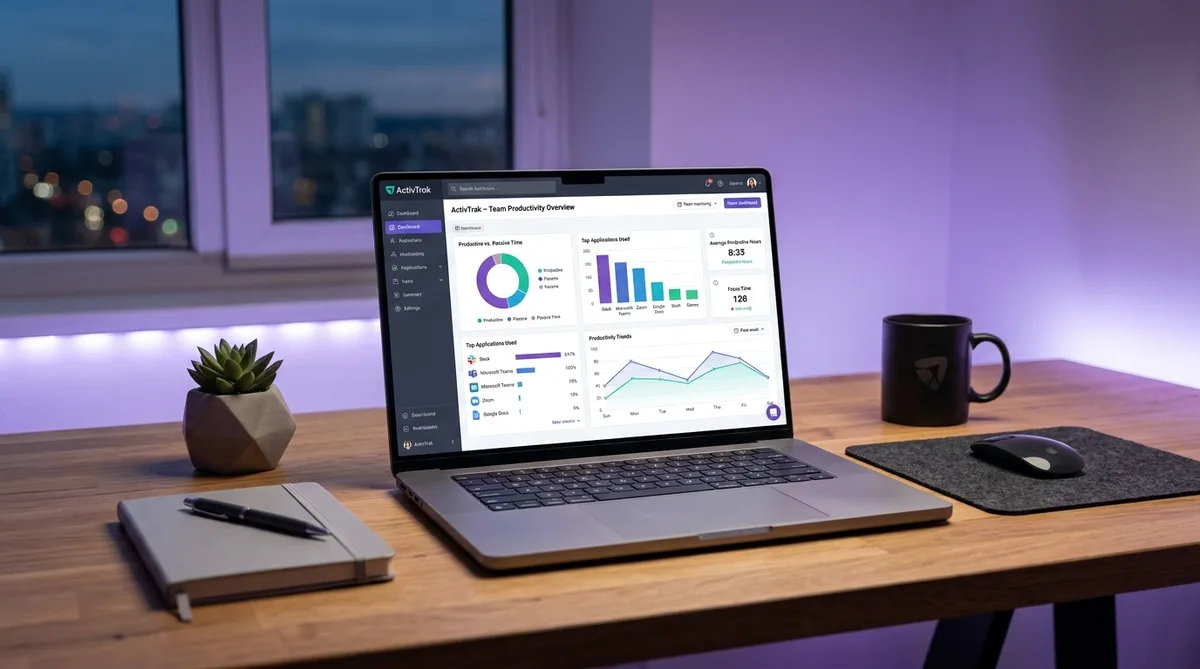
The default view your manager lands on is the activity summary. It shows a daily productivity score broken into productive, unproductive, and undefined hours, your top applications and websites ranked by time spent, and activity trends plotted over weeks or months. Managers can filter all of this by team, department, or drill down to an individual employee. This is the view most managers glance at each morning to see who was active and who was not.
Screenshots (If Enabled)
If your employer has purchased the Screen Details add-on ($2/user/month), the dashboard gains a screenshots view. Most deployments do not use it. When it is enabled, screenshots are triggered by application or URL changes, or captured at set intervals — it is not continuous screen recording. Managers see a filmstrip-style view they can scrub through to review your screen at those captured moments. For a far more screenshot-heavy tool, see how Teramind handles continuous capture.
Focus and Efficiency Metrics
On the Professional tier, the dashboard surfaces focus metrics (deep work versus multitasking), workload balance flags that mark team members as overworked or underutilized, and even burnout risk indicators. Your manager might see an "At Risk" badge next to your name if your hours spike unusually. These metrics are pitched as workforce planning rather than surveillance, but they still put your activity patterns front and center on the dashboard.
What Your Employer Does Not See
Just as important is what the dashboard leaves out. ActivTrak does not log keystrokes, record video, monitor your webcam, track GPS location, or read the content of your emails and chats. It is one of the more privacy-respecting monitors on the market: it watches what apps you use and for how long, but not what you type or say. This is the key distinction from tools like Teramind or EmpMonitor, which capture keystrokes, screen video, and far more granular content.
The practical takeaway: because ActivTrak focuses on application usage time and productivity categories rather than screenshots or keystrokes, the main thing to keep consistent is your active-vs-idle ratio and which applications sit in the foreground. Activity simulation tools keep these metrics steady during low-input work like reading, thinking, or offline meetings, so your dashboard summary stays consistent without keystroke or screen data ever being involved.
ActivTrak Pricing in 2026
ActivTrak uses a per-user, per-month pricing model with all paid plans billed annually.
Free Plan — Up to 3 Users
The free plan includes basic activity tracking, application and website monitoring, and limited reports for up to 3 users. It is a legitimate option for very small teams who want basic visibility without cost.
Essentials — $10/user/month
The entry-level paid plan includes:
- Application and website tracking
- Productivity classification (productive, unproductive, undefined)
- Idle detection and active time tracking
- Basic productivity reports and dashboards
- Data export capabilities
Essentials Plus — $15/user/month
Adds team-level analytics:
- Everything in Essentials
- Team productivity comparisons
- Workload balance analysis
- Focus time and context-switching metrics
- Advanced reporting and scheduled reports
Professional — $19/user/month
The full-featured plan for larger organizations:
- Everything in Essentials Plus
- Burnout risk detection
- Workforce planning tools
- Technology usage optimization
- Advanced integrations and API access
Add-Ons
- Screen Details — $2/user/month — Screenshots, screen views, full URLs, website blocking, alarms
- ActivConnect API — $3/user/month — Data export, BI integrations, detailed activity data
Compared to competitors, ActivTrak is slightly more expensive at the base level than tools like DeskTime ($7/user/month) or Time Doctor ($7/user/month), but offers more sophisticated analytics. The trade-off is that screenshots cost extra rather than being included, which makes the base plan less invasive.
ActivTrak's Privacy-First Approach
ActivTrak markets itself as a "privacy-first" workforce analytics tool, and there is substance behind the marketing. Here is what ActivTrak deliberately does not do:
- No keystroke logging — ActivTrak never records what you type. It sees which apps and websites are active but not the content of your inputs.
- No webcam access — Unlike Time Doctor's optional webcam captures, ActivTrak does not access your camera.
- No video recording — Unlike Teramind, which can record your screen as continuous video, ActivTrak does not record video.
- No email or chat content capture — ActivTrak sees that you are using Slack or Outlook but does not read your messages.
- Screenshots are opt-in — The Screen Details add-on is a separate purchase, not included by default.
This approach makes ActivTrak less invasive than most monitoring tools in its default configuration. However, "less invasive" does not mean "not monitoring." The behavioral analytics, productivity scoring, and focus analysis still provide managers with a detailed picture of how you spend your workday. The privacy-first approach is about how the data is collected (no keystrokes, no video, no content capture), not whether data is collected.
How to Maintain Consistent Activity in ActivTrak
ActivTrak's monitoring focuses on three things: which apps are in your foreground, how long you stay active, and how your patterns compare to your baseline. Maintaining consistent reports requires addressing all three.
Trick Tack is designed to handle exactly this kind of behavioral monitoring. Here is how it addresses each layer of ActivTrak's tracking:
- App switching — ActivTrak tracks which application is in the foreground and classifies it for productivity scoring. Trick Tack rotates between open applications, keeping productive tools visible and contributing to your productivity classification.
- Mouse movement — ActivTrak uses mouse and keyboard activity to determine whether you are active or idle. Trick Tack generates natural, randomized mouse movements that prevent idle detection from triggering.
- Keyboard input — A user who moves the mouse but never types looks unnatural in ActivTrak's analytics. Trick Tack simulates realistic keyboard inputs alongside mouse movement to maintain a balanced activity profile.
- Scrolling — Natural computer use involves scrolling through documents and pages. Trick Tack adds scroll simulation for a more complete activity pattern.
- Baseline consistency — ActivTrak builds behavioral baselines and flags deviations. By running Trick Tack during breaks, you maintain the steady activity pattern that prevents anomaly detection from flagging your account.
The key advantage of Trick Tack over simple mouse mover software and jigglers is that it addresses all four activity dimensions that ActivTrak monitors: mouse, keyboard, scrolling, and foreground application. A USB jiggler keeps you "active" but does nothing about which apps are visible or whether your keyboard activity looks realistic.
Keep Your ActivTrak Reports Consistent
Trick Tack simulates mouse, keyboard, scroll, and app-switching activity — addressing every dimension ActivTrak monitors. Try it free for 7 days.
DownloadFrequently Asked Questions
Does ActivTrak record keystrokes?
No. ActivTrak explicitly does not log keystrokes. This is a deliberate privacy decision that differentiates it from more invasive tools like Teramind and Veriato. ActivTrak focuses on application and website usage patterns rather than capturing what you type. It tracks which apps are active, which websites you visit, and how long you spend in each, but it does not record the content of your keystrokes, emails, or chat messages.
Can ActivTrak take screenshots of my screen?
Screenshots are available in ActivTrak but only through the Screen Details add-on, which costs an additional $2 per user per month on top of the base plan. Screenshots are not enabled by default on any standard ActivTrak plan. If your employer has purchased the Screen Details add-on, ActivTrak can capture periodic screenshots and screen views. You can check with your IT department or look for the ActivTrak agent in your system tray to understand what level of monitoring is active on your machine.
Can ActivTrak see what I type?
No. ActivTrak does not log keystrokes, so it cannot see the words you type, the content of your emails, or your chat messages. This is one of the core differences between ActivTrak and more invasive tools like Teramind or Veriato, which do capture keystroke data. ActivTrak can see that you are typing in a particular application because keyboard input registers as activity, and it can read the window title of the app you are in, but the actual characters you press are never recorded or sent to the dashboard. If your employer needs keystroke-level visibility, they would have to use a different tool entirely.
Does ActivTrak work on personal devices?
ActivTrak can only monitor a device where its agent is installed. It cannot remotely monitor a personal phone, tablet, or computer that does not have the agent on it. In practice this means ActivTrak tracks your company-issued machine, or a personal computer where you (or IT) installed the agent for remote work. If you use a personal device that has never had the ActivTrak agent installed, it is invisible to the platform. Be cautious, though: many remote-work setups require installing the agent on whatever device you use for work, so check your company's policy before assuming a personal laptop is off the radar.
How does ActivTrak calculate productivity?
ActivTrak calculates productivity by categorizing every application and website you use as productive, unproductive, or undefined. Your daily productivity score is the percentage of your active time spent on apps and sites classified as productive. Managers can customize these classifications, so what counts as "productive" varies by team — a designer's time in Figma is productive, while the same time for an accountant might be undefined. ActivTrak only counts active time toward the score; idle periods are excluded. The result is a single percentage your manager sees on the dashboard, alongside team averages and historical trends, which is why sudden drops or consistently low scores attract attention.
Does ActivTrak work on Mac?
Yes. ActivTrak has agents for Windows, macOS, and Chrome OS. The Mac agent provides the same core functionality as the Windows version including application tracking, website monitoring, idle detection, and productivity categorization. ActivTrak also offers a browser extension for Chrome that provides additional website tracking capabilities on any platform. The Mac agent runs in the background and does not require manual interaction after installation.
Can I see what ActivTrak is tracking on my computer?
ActivTrak runs as a background agent that is generally not visible to end users during normal operation. However, you can typically find the ActivTrak agent in your system processes through Task Manager on Windows or Activity Monitor on Mac. Whether the agent is visible in the system tray depends on how your IT department configured it. Some deployments run in stealth mode where the agent is hidden, while others make it visible. Your company's privacy policy should disclose what monitoring tools are in use.
Is there a free version of ActivTrak?
Yes. ActivTrak offers a free plan that allows monitoring of up to 3 users with basic activity tracking features. The free plan includes application and website monitoring, basic productivity reports, and limited data history. It does not include screenshots, advanced analytics, team comparisons, or the workforce planning features available on paid plans. Paid plans start at $10/user/month for Essentials, $15 for Essentials Plus, and $19 for Professional, all billed annually.
Can ActivTrak detect mouse jigglers?
ActivTrak does not have a dedicated mouse jiggler detection feature, but its behavioral analytics make simple jigglers ineffective in practice. ActivTrak builds a baseline of your normal activity patterns and flags deviations. A basic jiggler produces the same repetitive mouse movement pattern for hours, with zero keyboard input, zero app switching, and screenshots that never change — all of which stand out against your established baseline. The activity alerts system can notify managers when patterns deviate from normal. Tools like TrickTack that vary input types, timing, and foreground apps are harder for behavioral analysis to flag because they produce the kind of mixed-signal variation ActivTrak expects from real usage.
What does ActivTrak show in its productivity reports?
ActivTrak's productivity reports show your daily productivity score (percentage of active time on productive apps), a breakdown of time by application and website category, your focus time (sustained 20+ minute sessions in one productive app), context-switching frequency, and comparisons against team averages. On the Professional plan, managers also see burnout risk indicators, workload balance across the team, and AI-generated coaching recommendations. All of this data updates in real time and can be filtered by date range, team, or individual employee.
Does ActivTrak take screenshots of your screen?
Not by default. Screenshots require the Screen Details add-on ($2/user/month on top of the base plan). Even with Screen Details enabled, ActivTrak captures screenshots at intervals or on app changes — not continuous screen recording. Many ActivTrak deployments use only the activity analytics without screenshots.
Conclusion
ActivTrak occupies an interesting middle ground in the employee monitoring space. It is less invasive than tools like Teramind and Time Doctor — no keystrokes, no video recording, no webcam access, no screenshots by default. But it is more analytical than simple time trackers like Toggl or Harvest, building behavioral baselines, measuring focus patterns, and flagging deviations from your normal work patterns.
That behavioral approach is what makes ActivTrak challenging to game with simple hacks. A mouse jiggler might keep you "active," but it does nothing about your productivity classification, focus metrics, or the behavioral baseline ActivTrak builds over time. Maintaining consistent reports requires addressing all of these dimensions simultaneously.
Trick Tack was built for exactly this kind of multi-layered monitoring. By simulating natural mouse movements, keyboard inputs, scrolling, and application switching, it maintains the realistic activity pattern that ActivTrak expects to see. Whether you are on a lunch break, in an offline meeting, or just need time to think without your productivity score dropping, Trick Tack keeps your reports where they should be.
For more on how other monitoring tools work, check out our guides on Insightful, Hubstaff, and the comprehensive time tracking software cheating guide. You can also read our full ActivTrak review for an honest look at its features, pricing, pros, cons, and how it compares to alternatives. To see ActivTrak's privacy-first approach head-to-head, read our Time Doctor vs ActivTrak and Teramind vs ActivTrak comparisons.
Try Trick Tack Free for 7 Days
Simulate natural activity across mouse, keyboard, scrolling, and app switching. Keep your ActivTrak productivity scores consistent. Cancel anytime.
Download

