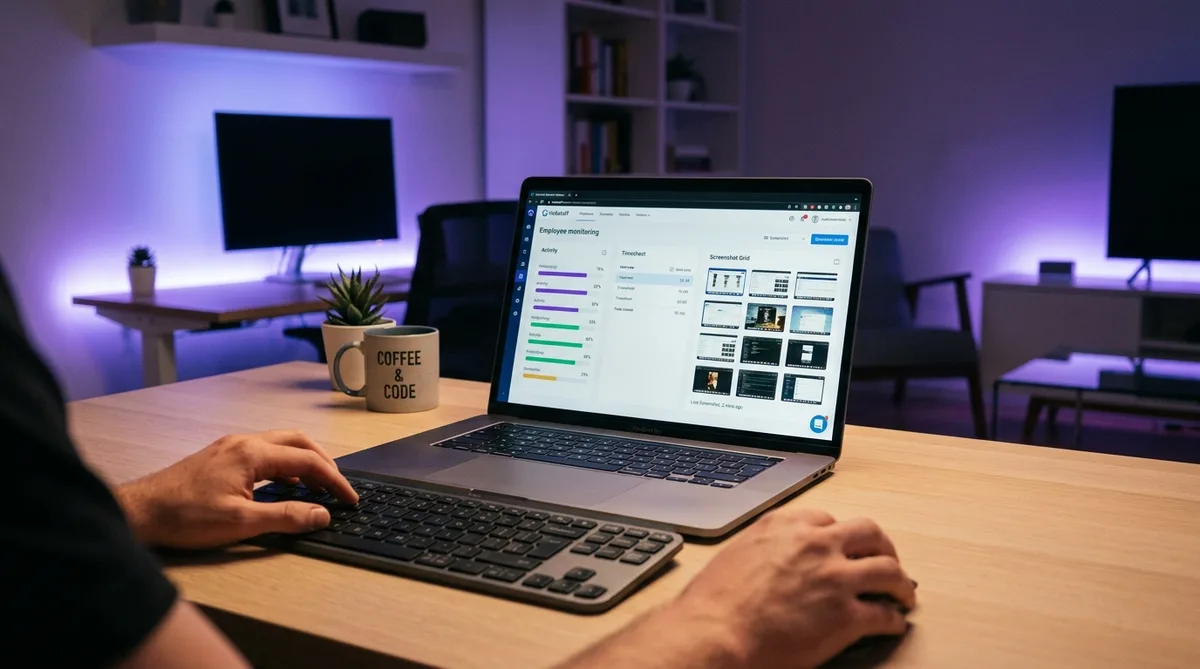
Hubstaff measures an activity percentage from your mouse and keyboard input, takes random screenshots up to three times per 10-minute interval, and logs the apps and URLs you use. Crucially, it records whether input happened, not the pattern of it — so unlike Time Doctor, it has no AI that fingerprints mouse jigglers. That makes the activity number easy to keep up, but the screenshots are the weak point: a high percentage next to a frozen screen is the mismatch a manager actually notices. The reliable approach is to hold activity in a natural 60–80% range while the screen content genuinely changes — varied input plus app and tab switching, not a mouse nudging in a fixed loop.
For a focused employee-side explanation, read Hubstaff Activity Levels: What Your Percentage Means. Understand how Hubstaff activity levels are calculated, why low input can reflect real work, and how employees can explain percentages with useful task context.
Why People Search for Hubstaff Workarounds
Hubstaff is one of the most widely used employee monitoring tools for remote teams. It runs silently in the background, measuring how active you are by tracking mouse movements, keyboard strokes, and the applications you use throughout the day.
The problem most remote workers face is not laziness — it's the gap between actual productivity and measured activity. You might spend 30 minutes reading a complex technical document, thinking through a solution, or sketching on paper. Hubstaff sees zero mouse movement during that time and flags it as idle. Your activity percentage drops, even though you were doing deep, focused work.
This disconnect is why thousands of employees search for ways to keep their Hubstaff activity consistent. They are not trying to avoid work. They are trying to avoid being penalized for working in ways that Hubstaff cannot measure. Because it counts whether input happens rather than analyzing its pattern, Hubstaff is more forgiving than the stealth-screenshot and keystroke-logging suites — though its standard screenshots still keep it in the middle of the pack. You can see exactly where it lands against 26 other tools in our ranking of which time trackers are easiest to trick. For a broader look at this challenge across monitoring tools, see our complete guide to time tracking software.
How Hubstaff Tracks Your Activity
Understanding exactly what Hubstaff monitors is the first step toward managing your reports. The platform uses multiple tracking methods simultaneously, and each one works differently. If you are still deciding whether to use it, our full Hubstaff review covers features, 2026 pricing, and alternatives, and our step-by-step Hubstaff guide shows how each setting is configured.
Activity Percentage Calculation
Hubstaff's core metric is your activity percentage. This number represents how much of your tracked time included detectable mouse or keyboard input. The system divides your work session into 10-minute intervals and samples your input during each window.
If you move your mouse or press keys for 8 out of 10 minutes, your activity for that interval is 80%. Hubstaff considers anything above 60% as normal, while sustained periods below 40% may trigger alerts for your manager. The key detail is that Hubstaff does not measure the quality or relevance of your input — it only measures whether input happened.
Your employer sees an aggregated activity level for each tracked session. They can also drill down into individual 10-minute blocks to identify specific periods where activity dropped. Some managers set minimum thresholds and receive automatic notifications when employees fall below them.
Random Screenshots
Hubstaff captures screenshots at random intervals during tracked time — typically 1 to 3 times per 10-minute window. The randomization means you cannot predict exactly when a screenshot will be taken. Your employer can view these screenshots in the admin dashboard alongside your activity data.
Screenshots show whatever is on your primary monitor at the moment of capture. Some employers use this to verify that you are working on approved tasks. Higher-tier Hubstaff plans also offer optional screen recording, which captures continuous video rather than periodic snapshots.
One important detail: Hubstaff shows you a notification when a screenshot is taken, but only if your employer has enabled that setting. Many employers leave notifications off, meaning captures happen without any visual indicator.
App and URL Tracking
Beyond screenshots and activity levels, Hubstaff logs which applications and websites you use during tracked time. Your manager can see a breakdown showing how many minutes you spent in each application — from your code editor to your browser to messaging apps.
URL tracking captures the specific websites you visit in your browser. This data appears in Hubstaff's reporting dashboard, where managers can filter by date range, project, or team member. The combination of app tracking and URL logging gives employers a detailed picture of how you spend your workday.
Idle Time Detection
Hubstaff monitors your mouse and keyboard continuously. When it detects no input for a configurable period — typically 5 to 20 minutes, depending on your employer's settings — it flags that time as idle. Idle time is not automatically counted toward your billable hours.
When you return from an idle period, Hubstaff prompts you to either keep or discard the idle time. If you keep it, it appears in your timesheet with an idle flag. If you discard it, that time is removed entirely. Frequent idle periods create a pattern that managers can review, and some companies use idle frequency as a performance indicator.
GPS Location Tracking
On mobile devices, Hubstaff includes GPS tracking that logs your location during work hours. This feature is primarily used for field service teams, delivery drivers, and remote workers whose location matters for compliance or client billing. GPS data appears on a map in the employer dashboard, showing movement patterns throughout the day.
Hubstaff also supports geofencing — virtual boundaries that automatically start or stop time tracking when you enter or leave a designated area. This is common in construction, agriculture, and other industries where work happens at specific job sites.
Hubstaff Pricing in 2026
Hubstaff offers several pricing tiers, each with different monitoring capabilities:
- Free — 1 user only. Basic time tracking with limited screenshots and activity monitoring.
- Starter ($4.99/user/month) — Time tracking, activity levels, limited screenshots, basic reporting. No app or URL tracking.
- Grow ($7.50/user/month) — Full screenshots, app and URL tracking, idle detection, detailed reporting, and integrations.
- Team ($10/user/month) — Everything in Grow plus GPS tracking, geofencing, payroll, and advanced scheduling.
- Enterprise (custom pricing) — Dedicated support, custom integrations, SOC 2 compliance, and advanced security features.
The monitoring capabilities your employer has depend entirely on their plan. A Starter plan cannot track your apps or URLs, while a Team plan includes GPS and full screenshot monitoring. You can sometimes identify which plan your company uses by observing which features are active on your Hubstaff client — if there is no GPS on your mobile app, your employer likely uses Grow or below; if you see no app usage reports, they are probably on Starter.
What Your Employer Actually Sees
Understanding the employer dashboard is just as important as understanding the tracking methods. Here is what managers see when they open Hubstaff:
The activity timeline shows a color-coded bar for each employee's day. Green means high activity (60%+), yellow means moderate (40-60%), red means low (below 40%), and gray means idle or no tracking. Managers scan this view first to spot patterns.
Individual employee reports break down each day into 10-minute blocks with the activity percentage, screenshots, and apps used during each block. This is where managers drill in when they see a red or gray period on the timeline.
Automated alerts notify managers when an employee's activity drops below a configured threshold, when idle time exceeds a limit, or when tracked hours fall short of a daily target. Some companies set these aggressively; others do not use them at all.
Weekly summaries aggregate data across the team, showing average activity levels, total hours tracked, and top apps used. Managers use these to compare team members and identify trends over time.
How to Increase Your Hubstaff Activity Percentage
The single most searched question about this tool is the Hubstaff activity cheat — how to raise a stubbornly low activity percentage without working any harder. The frustration is real: you can put in a full, productive day and still see a number that makes it look like you were slacking. Before you can raise it, you need to understand exactly how Hubstaff arrives at that figure.
How the Percentage Is Calculated
Hubstaff samples your keyboard and mouse events within each 10-minute interval. It does not count individual clicks or keystrokes — it counts minutes that contained at least one input event. If a minute has any detectable mouse movement, scroll, or keypress, that minute is "active." If 8 of the 10 minutes contain input, the interval scores 80%. Your daily activity percentage is simply the average of every interval across the session. There is no quality judgment — Hubstaff cannot tell whether you typed a line of code or wiggled the mouse; it only registers that an event happened.
Why the Percentage Drops Even When You're Working
The reason most people want a Hubstaff activity cheat is that the metric punishes legitimate work that produces no input:
- Reading and reviewing — studying a long document, reading a pull request, or reviewing a design generates zero input for minutes at a time.
- Thinking and planning — the most valuable knowledge work often happens while you stare at the screen, not while you type.
- Meetings and calls — a 30-minute video call where you are listening and talking, not typing, can tank an interval to single digits.
- Whiteboarding and paper notes — any work that happens away from the keyboard is invisible to Hubstaff.
None of these are laziness. They are exactly the activities that produce a low activity percentage despite genuine focus, which is why the gap between real work and measured activity is the core problem this tool creates.
Tips to Keep Your Percentage Consistent
You can raise your activity percentage legitimately by generating more input during work that would otherwise register as idle:
- Scroll instead of staring. When reading, scroll the document in small steps rather than leaving a static page open. Each scroll is an input event.
- Take notes as you read. Keep a text editor open and jot points while you review — this turns passive reading into active input.
- Keep a hand on the mouse during calls. Moving the cursor while you listen keeps the interval active without distracting you.
- Use keyboard shortcuts instead of mouse-only navigation. Shortcuts generate more frequent input events per action than clicking through menus. Ctrl+S, Ctrl+Tab, Alt+Tab — each one is a keystroke that Hubstaff counts.
- Aim for steady, not maximum. A consistent 65-80% reads as natural human work. A flat 100% looks artificial and draws more scrutiny than honest variation — see the FAQ below on what a good activity percentage is.
How TrickTack Keeps Activity Steady
For the gaps that legitimate habits cannot cover — bathroom breaks, coffee refills, phone calls, or stepping away to think — TrickTack maintains your input signals so the interval stays active. It simulates natural mouse movement and keyboard input, and its idle detection mode automatically starts when you step away and stops when you return. Because it varies the input rather than producing a robotic flat line, your activity percentage stays in that natural 60-80% range instead of the suspicious 100% that simple mouse mover software and jigglers produce. The result is a consistent number that reflects the work you actually did, not just the minutes you happened to be typing.
How to Maintain Consistent Activity
The most practical approach to managing your Hubstaff activity is to ensure your computer shows consistent input throughout your work session. Here are several strategies that work:
Keep work-related applications in the foreground. Since Hubstaff tracks which apps you use, make sure your active window is always a work tool — your IDE, a document editor, a project management board. Close or minimize personal apps and browser tabs before starting your timer.
Break deep-thinking work into smaller interactive sessions. If you need to read a long document, scroll through it actively rather than reading a static page. Take notes in a text editor as you read. This creates the mouse and keyboard input that Hubstaff needs to register activity.
Use a tool designed for activity consistency. TrickTack simulates natural mouse movement and keyboard activity while you step away from your desk. It runs silently in the background, generating the input signals that Hubstaff monitors. This is useful for bathroom breaks, coffee refills, phone calls, or any short absence where your computer would otherwise show zero activity.
TrickTack supports multiple simulation modes including mouse movement, keyboard input, scrolling, and app switching. You can configure intensity levels to match your natural work patterns. The idle detection feature automatically activates simulation when it detects you have stepped away, and stops when you return — no manual intervention needed.
Schedule your breaks strategically. If your employer tracks in 10-minute intervals, a 3-minute coffee break in the middle of an active interval has less impact than stepping away at the start of a new interval. Plan short breaks during natural transition points in your workflow.
For a comparison of Hubstaff against other popular monitoring tools, check our Hubstaff vs Time Doctor comparison, our Hubstaff vs DeskTime comparison, or our Hubstaff vs Insightful comparison. To see how it stacks up against a simple, surveillance-free invoicing tool, read our Hubstaff vs Harvest comparison.
What Reddit Says About the Hubstaff Activity Cheat
"Hubstaff activity cheat Reddit" is one of the most common ways people arrive at this topic, and the threads on r/overemployed and r/remotework circle the same handful of ideas. Here is what the community actually recommends, and how well it holds up against what this guide covers.
- "A mouse jiggler is enough for Hubstaff." This one is mostly true, and it is the reason Hubstaff comes up so often. Because Hubstaff counts whether input happened rather than analyzing its pattern, a basic jiggler does raise the activity percentage — but it pins you near a suspicious 100% and does nothing for the screenshots.
- "Watch the screenshots, not just the percentage." The sharper Reddit advice. A high activity number paired with screenshots that never change is the mismatch a manager actually notices, so consistent screen content matters as much as the input itself.
- "Aim for a believable number, not a perfect one." Widely repeated and correct. A steady 60–80% reads as real work; a flat 100% for eight hours is the pattern that invites a second look.
- "Do not discuss it on a monitored device." The standard caution, and a fair one — most people who get caught are caught by their own words, not by Hubstaff's detection.
In other words, Reddit's own consensus lines up with the approach here: keeping the activity percentage in a natural range while the screenshots stay believable beats maxing out a single number.
Frequently Asked Questions
Does Hubstaff take screenshots?
Yes, Hubstaff captures random screenshots up to 3 times per 10-minute interval on paid plans. The timing is randomized so you cannot predict when a capture will occur, and managers can view all screenshots on the dashboard. Some plans also support optional continuous screen recording. TrickTack keeps your screen looking active with realistic app switching and input during short breaks, so every random capture shows a natural working session.
Does Hubstaff track mouse movement or just clicks?
Hubstaff tracks both mouse movements and keyboard strokes to calculate your activity percentage. It measures how often you interact with your input devices during each 10-minute interval. If you move your mouse continuously but never click, that still counts toward your activity level. The system does not distinguish between types of input — any detected interaction raises your percentage.
Can my employer see what apps I use in Hubstaff?
Yes. Hubstaff logs which applications and websites you use during tracked time. Your employer can see a breakdown of time spent in each app, along with URLs visited. This data appears in the Activity section of the admin dashboard. The level of detail depends on your plan — higher tiers include more granular app and URL tracking.
How often does Hubstaff take screenshots?
Hubstaff takes screenshots at random intervals, typically 1 to 3 times per 10-minute window. The exact timing is randomized so employees cannot predict when a capture will occur. Employers can adjust the screenshot frequency or disable it entirely. Some plans also support optional screen recording for continuous visual monitoring.
Can my employer see my screen through Hubstaff?
Yes. Hubstaff captures screenshots of your primary monitor at random intervals — typically 1 to 3 times per 10-minute window — while the timer is running. Your employer views these in the admin dashboard alongside your activity data. Higher-tier plans also support optional screen recording, which captures continuous video instead of periodic snapshots. The exact frequency is configurable, and some employers disable screenshots entirely, so what your manager sees depends on how they have set up the account.
Does Hubstaff detect mouse jigglers?
Hubstaff registers whether mouse or keyboard input occurs, but it does not analyze the source or pattern of that input, so a basic mouse jiggler will keep your activity percentage up. The weak point is screenshots: if your activity shows 100% but the screenshots reveal an unchanging screen, a manager may notice the mismatch. That is why simple jigglers are risky and why TrickTack varies its input and adds app and tab switching — combining realistic activity with changing screen content is far harder to distinguish from genuine work than a mouse that nudges in a fixed loop.
What happens when Hubstaff detects idle time?
When Hubstaff detects no mouse or keyboard input for a configurable period (usually 5 to 20 minutes), it flags that time as idle. The idle time is not automatically billed or counted toward your work hours. Your employer sees a notification that idle time was detected, and you may be prompted to explain the gap. Frequent idle periods can trigger alerts on the employer dashboard.
Does Hubstaff work on Mac and Linux?
Yes. Hubstaff has native desktop clients for Windows, macOS, and Linux, as well as mobile apps for iOS and Android. The desktop clients offer the fullest monitoring capabilities including screenshots, app tracking, and activity level monitoring. Mobile apps add GPS location tracking, which is particularly useful for field workers and remote teams spread across multiple locations.
Does Hubstaff track you when the timer is off?
No. Hubstaff only monitors activity, takes screenshots, and tracks location while the timer is actively running. When you stop the timer, all tracking stops immediately. You have full control over when tracking is active. However, some employers require minimum tracked hours per day, so stopping the timer too frequently may raise questions about your total logged time.
Can I delete Hubstaff screenshots before my employer sees them?
Yes. Hubstaff allows employees to delete screenshots they do not want their employer to see. However, the time associated with deleted screenshots is also removed from your timesheet. Your employer can see that screenshots were deleted, and frequent deletion may prompt questions. Some employers disable the screenshot deletion feature through their admin settings.
How do I increase my activity percentage in Hubstaff?
Hubstaff calculates activity as the percentage of each 10-minute interval that includes mouse or keyboard input. To increase it legitimately: scroll through documents instead of staring at static pages, take notes in a text editor while reading, and break deep-thinking work into interactive chunks. If you step away for short breaks, tools like TrickTack can maintain input signals during those gaps. The most common cause of low activity is reading, phone calls, or thinking — legitimate work that produces zero input. Aim for consistent 60-80% rather than artificial 100%, which looks more suspicious than natural variation.
What is a good activity percentage in Hubstaff?
Most employers consider 60% or above as normal for knowledge work. Sustained periods above 90% are actually unusual for genuine human usage — even focused coding or writing naturally includes pauses for thinking, reading, and reviewing. If your activity consistently shows 98-100%, it may look more suspicious than a natural 65-80% range. The key metric managers watch is consistency over time, not peak numbers. A steady 70% every day is better than swinging between 95% and 30%.
Will I get caught using a mouse jiggler on Hubstaff?
Hubstaff does not analyze input patterns the way some competitors do, so a jiggler keeps your activity percentage up without being flagged by any detection algorithm. The real risk is the screenshots: if your activity reads 100% while the captures show an unchanging screen, a manager can spot the mismatch by eye. Keeping the number in a believable 60–80% range and making sure the screen content actually changes — through app and tab switching — is far safer than pinning a perfect score over a frozen screen. That screenshot mismatch, not the input itself, is what gets people noticed.
Does Hubstaff have a keylogger?
No. Hubstaff counts keyboard and mouse input to calculate your activity percentage, but it does not record the individual keys you press, so it is not a keylogger. It measures how much you type, not what you type. It does capture screenshots and, on higher tiers, optional screen recording, so anything visible on your screen can still be seen there — but the specific characters you type are not logged or stored.
Can I pause Hubstaff without my employer noticing?
You can stop the timer at any time and tracking halts immediately — but the stopped time is not logged, so your total hours drop and the gap is visible to your manager. Some employers also set minimum daily tracked hours, which makes frequent pausing stand out. There is no way to keep the timer running while showing no activity, which is why people use an activity simulator like TrickTack to cover short breaks instead of stopping the timer and leaving a hole in the day.
Is there a Hubstaff activity cheat that actually works?
The most common Hubstaff activity cheat is a mouse jiggler, but it only solves half the problem. A jiggler keeps your activity percentage up by registering continuous mouse input, but Hubstaff also captures random screenshots, logs which apps and URLs you use, and records idle gaps. If your activity reads 95% while every screenshot shows the same frozen desktop, a manager will spot the mismatch instantly. An effective Hubstaff activity hack needs to address all four layers at once: input signals, screenshot content, app-usage variety, and idle prevention. That is what tools like TrickTack do — they combine randomized mouse and keyboard input with app switching and scrolling so each 10-minute interval looks like a normal working session across every metric Hubstaff tracks.
Conclusion
Hubstaff is a powerful monitoring platform that tracks activity through mouse and keyboard input, random screenshots, app and URL logging, idle detection, and GPS location. Understanding exactly what it measures — and what it cannot measure — is the key to managing your reports effectively.
The biggest gap in Hubstaff's tracking is its inability to recognize non-digital work. Reading, thinking, phone calls, whiteboarding, and in-person conversations all register as zero activity. Tools like TrickTack bridge that gap by maintaining consistent input signals during these legitimate work activities.
Keep Your Hubstaff Activity Consistent
TrickTack simulates natural mouse and keyboard activity while you step away. Works silently alongside Hubstaff with no conflicts.
Download

