Why People Search for InterGuard Cheats
InterGuard, built by Awareness Technologies, sits closer to the surveillance end of the monitoring spectrum than to the timesheet end. It is sold as much for insider-threat detection and data loss prevention as for productivity tracking — which means the monitoring is correspondingly aggressive.
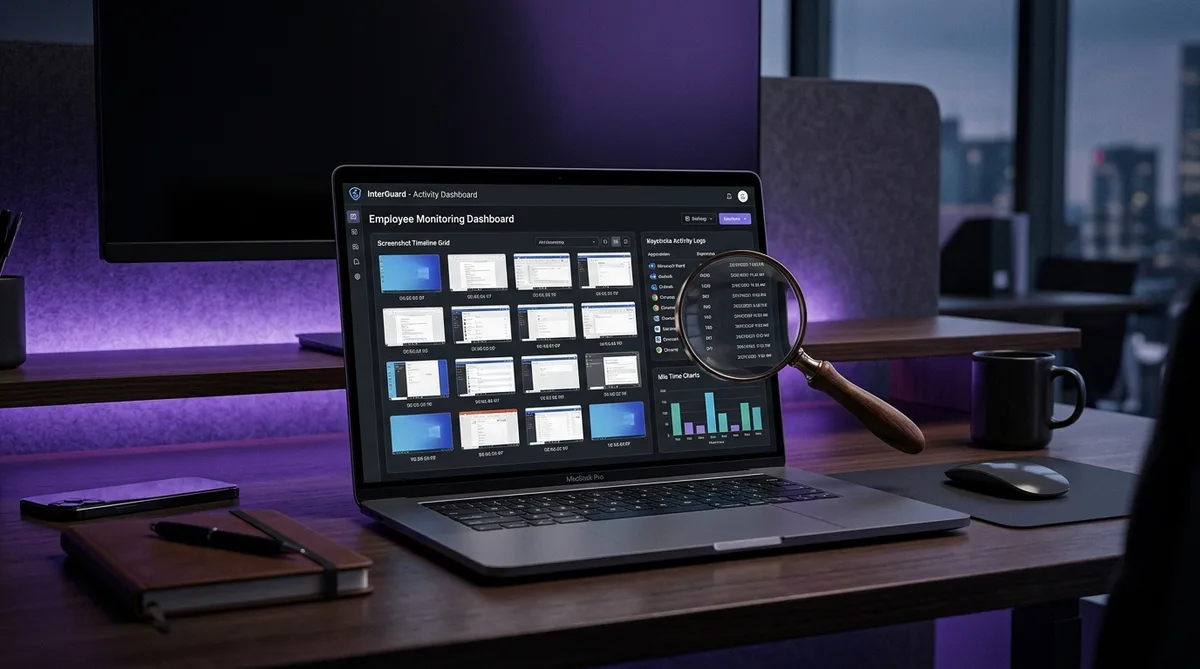
The agent can run silently or visibly depending on how the employer configures it, and what it collects is extensive: continuous screenshots as often as every five seconds that play back like a video of your session, every keystroke across every app and browser — including incognito mode, email and chat content, file transfers, GPS location, and even remote control over the device itself.
Layered onto the raw collection is classification. InterGuard sorts your time into active, idle, or neutral, cross-references your calendar so meetings do not count against you, and lets managers label every app and website as productive or unproductive per team. Alert words and anomaly rules flag anything suspicious for instant review.
Like every monitoring stack, though, it measures input — and real work does not always generate input. Phone calls, reading, whiteboard sessions, and thinking all register as idle. That measurement gap is why people search for "how to cheat InterGuard," and this guide breaks down exactly what the platform watches, what it costs, and how to keep your activity profile consistent when you step away. For the broader picture across all trackers, start with our guide on how to cheat time tracking software.
How InterGuard Tracks Your Activity
InterGuard is modular — employers buy the Employee Monitoring core and bolt on Web Filtering, Data Loss Prevention, or remote device control as needed. It runs on Windows, Mac, Chromebooks, and terminal servers (Citrix, VMware), with cloud and on-premise deployments. Here is what each layer does.
Three Types of Screenshots — Played Back as Video
Most trackers take a screenshot every few minutes. InterGuard runs three separate screenshot systems at once:
- Continuous screenshots — captured at intervals the employer sets, as frequent as every five seconds, and stitched together for playback as a video of your session
- Alert-word screenshots — fired the moment a flagged keyword is typed or appears on screen, attaching visual evidence to the alert
- Smart camera screenshots — triggered automatically when you open specific websites or programs the employer has marked for closer watching
At a five-second interval, the distinction between "periodic screenshots" and "screen recording" essentially disappears. A manager reviewing your day is not sampling moments — they are watching a replay.
Keystroke Logging — Even in Incognito
The agent records every keystroke across all applications and browsers. Private and incognito browsing modes make no difference: those features stop the browser from saving history locally, but InterGuard captures input at the device level, below the browser. Search queries, emails, chat messages, and passwords typed on a monitored machine all land in the logs.
Keystroke data also feeds the activity classification. A stretch of mouse movement with zero typing is plainly visible — a detail that matters when we discuss simulation below.
Active, Idle, and Neutral Time Classification
InterGuard divides your day into active, idle, and neutral time. No input past the configured threshold marks you idle. The system also integrates with your calendar to recognize meeting blocks, and managers can designate every app and website as productive or unproductive per team — a sales rep on LinkedIn counts as working; an engineer on LinkedIn may not.
The dashboard then renders this as per-employee visual reports: hours active, hours idle, productivity breakdowns. As with the AI scoring in Veriato and CleverControl, the interpretation layer is the product — your manager sees the classification, not the raw logs.
Alert Words and Behavior Alerts
Administrators define keywords, policy rules, and anomaly conditions that trigger instant alerts — a resignation-related phrase in a chat, a competitor's name in an email, an unusual volume of file copying. Each alert can arrive with a screenshot attached. This is the insider-threat side of the product, but it means anything you type is potentially one keyword away from a manager notification.
Email, Chat, and Social Media Monitoring
InterGuard logs email activity, instant messages, web chats, and social media use. Conversation content is captured alongside the keystroke record, so both what you sent and what you received can end up in a report. Combined with smart camera screenshots on selected sites, social browsing on a monitored machine is fully visible.
Geolocation, Remote Control, and Data Loss Prevention
Beyond watching, InterGuard can act on the device:
- GPS geolocation — locating a monitored laptop or mobile device on a map
- Remote file retrieval and deletion — administrators can copy or delete any files on the endpoint
- Endpoint lockdown — freezing a device entirely during a suspected breach
- Data loss prevention — blocking or reporting sensitive data leaving via email, web forms, or USB drives
- Web filtering and program blocking — restricting sites and applications outright
Two things InterGuard notably does not do: it has no audio recording, and it cannot stream continuous live video — its visual record is screenshot-based. If your concern is webcam and microphone surveillance, that is CleverControl's territory, not InterGuard's.
InterGuard Pricing in 2026
InterGuard does not publish pricing on its site — quotes come through a demo — but the widely reported structure is modular, per user per month:
- Employee Monitoring (the core module) — from around $8–9 per user per month, cloud-hosted
- Web Filtering — about $2 per user per month
- Data Loss Prevention — about $8 per user per month
- Laptop Cop (remote retrieval, deletion, geolocation) — about $4 per user per month
- Mobile Monitoring — about $8 per user per month
The fine print matters: there is a 5-user minimum, seats are sold only in 5, 10, or 20-user blocks (15 users means paying for 20), and every module requires a minimum 1-year subscription. A 7-day free trial is available, and on-premise or enterprise deployments are priced custom.
The takeaway for employees: a company running InterGuard has made a deliberate, year-long, per-seat investment in monitoring. It is rarely installed casually.
The Screenshot-Video Problem
With a tracker that screenshots every ten minutes, an unlucky capture is survivable noise. InterGuard's five-second continuous mode changes the math entirely: your screen history is effectively a video, and any gap between what your activity log claims and what your screen shows is visible on replay.
That cuts both ways. A frozen spreadsheet sitting unchanged for ninety minutes while the activity meter reads "active" is exactly the kind of inconsistency a replay makes obvious. Conversely, a screen that shows windows changing, content scrolling, and focus moving between applications reads as a working session — because that is what working sessions look like. The signal managers act on is consistency between the input record and the visual record. The full breakdown of how monitoring platforms correlate these signals is in our guide to tricking employee monitoring software.
How to Maintain Consistent Activity Under InterGuard
Keeping a consistent profile under InterGuard means generating activity that holds up across input logs, the active/idle classifier, and a screenshot record dense enough to replay as video. This is the problem Trick Tack was built for.
Trick Tack is a lightweight desktop application that simulates natural computer activity while you are away from your desk. Where a hardware jiggler produces one fake signal, Trick Tack produces the full set:
- Natural mouse movement — randomized, human-like cursor motion instead of the mechanical wiggle that stands out in activity logs. The documentation covers how the simulation engine works.
- Keyboard input simulation — realistic keystroke activity so the keystroke log does not show hours of silence next to a busy mouse trail.
- Application switching — focus cycles between your open applications, so the five-second screenshot reel shows the window changes a real session produces.
- Scrolling simulation — scroll events keep on-screen content moving, so consecutive screenshots show progression rather than one frozen frame repeated for an hour.
- Adjustable intensity — tune each simulation type to match your normal working pace, keeping simulated stretches consistent with your real ones.
Practical tips specific to InterGuard deployments:
- Respect the screenshot density. At five-second intervals, screen content matters more than on any timer-based tracker. Leave real work documents open and let scrolling and app switching keep them visibly in use.
- Keep input channels balanced. The active/idle classifier sees mouse and keyboard separately. Simulate both, at moderate intensity, rather than maxing out one channel.
- Stay away from alert words. Keyword alerts fire on typed and on-screen text with screenshots attached. Anything sensitive typed on a monitored machine is logged — do personal business on a personal device.
- Remember the machine is not yours. InterGuard can geolocate the device, retrieve files, and watch incognito sessions. Treat the entire endpoint as visible, not just the hours you are clocked in.
- Use it for breaks, not for days. Trick Tack keeps your timeline clean through lunch, appointments, and errands. It does not produce deliverables, and no activity tool covers a week of missing output.
Stay Consistent Under Screenshot Surveillance
InterGuard captures your screen every few seconds and logs every keystroke. Trick Tack simulates mouse, keyboard, scrolling, and app switching — so your replay looks like a working session. Try it free for 7 days.
DownloadFrequently Asked Questions
Does InterGuard take screenshots?
Yes, InterGuard captures screenshots as frequently as every five seconds and can play them back as a continuous video of your session. It also supports alert-triggered screenshots when specific keywords, websites, or applications are detected. This near-continuous visual record means managers can reconstruct nearly everything that happened on your screen during the workday. TrickTack keeps your screen active with realistic app switching and input so every capture shows natural work behavior.
Can InterGuard see incognito or private browsing?
Yes. InterGuard captures keystrokes and web activity across all browsers and applications, including incognito and private browsing modes. Because the agent runs at the device level rather than inside the browser, private mode only prevents history from being saved locally — it does nothing to stop endpoint monitoring. Every URL, search query, and typed message is logged the same way regardless of browsing mode.
Does InterGuard record my screen as video?
Effectively, yes. InterGuard does not stream continuous live video, but its continuous screenshot mode can capture the screen as often as every five seconds and then play those frames back as a video of your session. Combined with alert-word screenshots and smart camera captures triggered by specific websites or programs, a manager can reconstruct nearly everything that happened on screen during your workday.
Can InterGuard detect mouse jigglers?
A hardware jiggler defeats the idle timer but fails everywhere else InterGuard looks. The platform classifies time as active, idle, or neutral, logs every keystroke, and captures screenshots frequently enough to play back as video. Hours of cursor wiggling with no typing, no app changes, and a frozen screen produce a timeline that is obviously artificial. Beating the idle classifier convincingly requires simulating mouse, keyboard, scrolling, and application switching together.
Does InterGuard record audio or webcam video?
No audio — InterGuard has no microphone or sound recording capability, and it cannot stream continuous live video; its visual record is built from screenshots. That distinguishes it from tools like CleverControl, which offer live webcam viewing and mic recording. InterGuard's strength is breadth elsewhere: keystrokes including incognito, email and chat content, file movements, GPS geolocation, and remote file deletion on monitored devices.
Conclusion
InterGuard is surveillance-grade monitoring sold by the module: five-second screenshots played back as video, keystroke logging that ignores incognito mode, active/idle/neutral time classification with calendar awareness, keyword alerts with visual evidence, and remote control over the endpoint itself — all from roughly $8 per user per month on a one-year commitment.
The screenshot density is what sets it apart. When your screen history is a replayable video, the only activity strategy that holds up is one that keeps the input record and the visual record telling the same story — balanced mouse and keyboard input, windows that change, content that moves.
Trick Tack delivers exactly that: natural mouse, keyboard, scrolling, and app-switching simulation in a lightweight app you switch on whenever you step away. Your idle log stays empty, your screenshot reel shows a working session, and your activity reports stay consistent.
For more platform-specific guides, see how to cheat CleverControl and how to cheat Teramind, or get the complete overview in how to trick employee monitoring software.
Try Trick Tack Free for 7 Days
Simulate natural mouse, keyboard, scrolling, and app-switching activity to keep your InterGuard reports consistent. Cancel anytime during your trial.
Download

