Why People Search for This
If you are looking up how to cheat Monitask, you are almost certainly not trying to do nothing all day. More often, you are dealing with a metric that does not match how your work actually happens. Monitask reduces your effort to a single number — an activity level percentage — and that number does not care whether you were reading a long specification, thinking through a hard problem, or on a phone call with a client.
Knowledge work simply does not produce continuous mouse and keyboard input. You read. You plan. You talk to people. You wait for builds, renders, and page loads. Every one of those legitimate moments registers as a dip in your Monitask activity score, and over a full day those dips add up to a percentage that makes you look less engaged than you really are.
That mismatch between how work feels and how Monitask measures it is exactly why people search for terms like "Monitask hack," "trick Monitask," or "how to cheat Monitask." The goal is usually fairness — keeping your activity report consistent through normal breaks and thinking time so a blunt percentage does not unfairly drag down your standing.
This guide breaks down precisely how Monitask monitors your workday, what it costs in 2026, and what you can do to keep your activity reports consistent even when you step away. For a wider look at how these tools work across the board, see our guide on how to cheat time tracking software.
How Monitask Tracks Activity
Monitask is a cloud-based time tracking and employee monitoring platform built around a desktop app that runs on the worker's machine. Compared to always-on trackers, its approach has one defining quirk: it only watches while you are clocked in. Within that window, though, it layers several monitoring mechanisms together to build a complete picture. Let us walk through each one.
Activity Level Percentage
The heart of Monitask is its activity level metric. The app checks every 10 seconds whether you used your keyboard or mouse, then calculates the percentage of those checks that registered input across each 10-minute period. If only 3 of those 10 minutes contained activity, your activity level for that block is roughly 30 percent.
Monitask generally treats anything above 50 percent as a healthy activity level. Crucially, the tool does not record the actual keys you press — it is not a keylogger. It only notes whether input happened during each interval. That distinction matters: what keeps your percentage up is the presence of steady mouse and keyboard activity, not what you type or click.
This is a more forgiving model than the productivity-category scoring used by some competitors, but it is also relentless about gaps. A 20-minute stretch of reading a document without touching your mouse will tank that block to near zero, even though you were working the entire time.
Manual Clock In and Clock Out
Unlike always-on tools, Monitask only tracks while you are manually clocked in. Your team downloads the app, presses a button to start, and presses it again to stop. Nothing — no screenshots, no activity levels, no app data — is captured between sessions.
This is fundamentally different from tools like DeskTime, which begin tracking the moment your computer boots up. With Monitask, the clocked-in window is the only time your activity report is being built, which gives you clear control over when monitoring is and isn't happening.
The flip side is that within that window, the expectation of continuous activity is high. Because you deliberately chose to clock in, a long flat stretch of zero activity stands out more sharply than it might on a tool that is simply always running in the background.
Screenshots
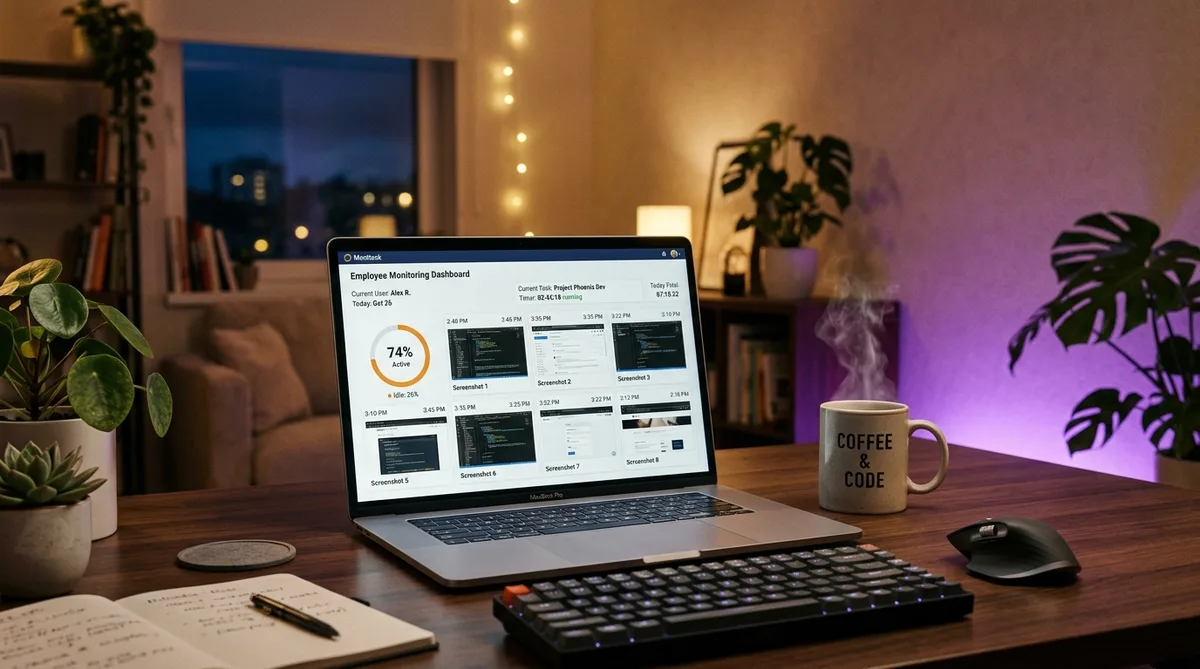
Monitask offers a screenshot feature that captures periodic snapshots of your screen, either at random or at fixed intervals chosen by your employer. When enabled, managers can view these images on the dashboard next to your activity level and time entries, giving them visual proof of what was on screen during the workday.
A few details worth knowing about Monitask screenshots:
- Capture timing can be randomized, so you cannot reliably predict the exact moment a screenshot will be taken.
- Screenshots reflect whatever application or webpage is in view at that instant — a static, unchanging window over many captures looks unnatural.
- Because screenshots are only taken while you are clocked in, the feature never captures anything outside your working sessions.
The screenshot layer is what makes a bare mouse jiggler so easy to expose. Even if your activity meter stays alive, a series of identical screenshots showing the same idle window tells a very different story than genuine work.
App and URL Tracking
Beyond raw activity, Monitask logs the applications you use and the websites you visit while clocked in, along with how long you spend in each. Managers can see not just that you had a browser open, but which sites were loaded and for how long. This is similar to how Hubstaff records app and URL usage to build its reports.
This data feeds into reports that show where your clocked-in time actually went. While Monitask does not assign rigid productive/unproductive labels the way some category-based trackers do, the app and URL log still makes it obvious if your session was spent somewhere unexpected.
Idle Time Detection
Monitask includes idle time detection that automatically flags stretches with no keyboard or mouse input. Administrators can configure the maximum idle period that is permitted before that time is flagged or excluded from the timesheet.
The practical effect is simple but strict: if there is no input, the time is not counted as working time. That lowers both your total logged hours and your activity percentage, and it leaves a visible gap on your timeline. For anyone judged on hours logged as well as activity, idle gaps are just as costly as a low activity score.
Real-Time Live Dashboard
Monitask's Live Dashboard shows managers, in real time, who is currently clocked in, their latest screenshots, their current activity levels, their time entries, and their internet usage. This is not a report you only see at the end of the day — it is a live window into the team's current state.
Because it updates continuously, a sudden, prolonged drop to zero activity is visible right away, not just in a daily summary. That real-time visibility raises the bar for keeping your activity profile steady and natural throughout each clocked-in session.
Monitask Pricing in 2026
Monitask uses a per-user, per-month pricing model with three paid tiers plus a free trial and a limited free version. Annual billing knocks roughly 20 percent off each monthly rate. Here is the 2026 breakdown:
Pro Plan — $5.99/user/month
The Pro plan is Monitask's entry-level tier and covers the core monitoring and time tracking essentials:
- Time tracking with manual clock in and clock out
- Activity level monitoring
- Screenshots
- App and website tracking
- Automated timesheets
- Basic reporting
Billed annually, the Pro plan drops to about $4.99/user/month, making it one of the more affordable options for small teams that want activity tracking and screenshots without enterprise overhead.
Business Plan — $8.99/user/month
The Business plan layers more reporting and project depth on top of Pro:
- Everything in Pro
- Comprehensive reporting
- Unlimited tasks and projects
- Streamlined integrations with popular tools
Billed annually, this falls to roughly $6.99/user/month. It is aimed at growing teams that need richer reports and deeper project tracking.
Enterprise Plan — $19.99/user/month
The Enterprise plan is the most flexible tier, built for larger organizations:
- Everything in Business
- Flexible plan customization
- Priority support
- Bulk packages for companies with 100+ employees
Billed annually, Enterprise comes down to about $15.99/user/month, with custom arrangements available for very large teams.
Free Trial and Free Version
Monitask offers a free trial so teams can test the platform before committing, along with a limited free version. This low entry cost is part of why Monitask shows up frequently in small businesses and remote teams that want monitoring without a heavy budget.
How to Maintain Consistent Activity
Now that you understand Monitask's layers — activity-level scoring every 10 seconds, manual clock in, screenshots, app and URL logging, idle detection, and a real-time dashboard — it is clear that keeping a consistent report takes more than nudging your mouse once in a while.
This is where TrickTack comes in. TrickTack is a lightweight desktop application that simulates natural human activity on your computer while you are away. Unlike a basic mouse jiggler or a one-line script, TrickTack is designed to address the specific signals that monitoring tools like Monitask measure.
Why TrickTack Works Well with Monitask
Because Monitask scores you on whether keyboard and mouse input occurred in each interval, the most important thing is generating realistic, varied activity — not robotic, repeating motion. Here is how TrickTack maps to each part of Monitask's monitoring:
- Mouse movement simulation — TrickTack generates natural, randomized mouse movements rather than predictable straight lines. Because Monitask samples for input every 10 seconds, steady movement keeps your activity-level percentage well above the 50 percent threshold and prevents idle detection from kicking in.
- Keyboard input simulation — Monitask counts keyboard activity alongside mouse activity, so input that is all mouse and no keys looks thin. TrickTack simulates realistic keyboard input to round out a believable activity profile across both methods. You can see the full feature set in the TrickTack documentation.
- App and tab switching — Since Monitask logs which apps and URLs are in use and captures screenshots, keeping the right windows in focus matters. TrickTack can switch between open applications and tabs so your sessions show movement across real work tools instead of one frozen window.
- Scrolling simulation — Real computer use involves scrolling through documents, code, and pages. TrickTack adds scroll simulation so your activity pattern includes the small, natural motions that genuine work produces.
Together, these features mean Monitask sees a pattern that resembles real work: mouse movement, keyboard input, scrolling, and live app switching, all reflected in screenshots that show changing, realistic content. That is far more convincing than a jiggler that leaves the same static window on screen for hours.
Getting Started
Setting up TrickTack for use with Monitask is straightforward:
- Start a free 7-day trial — cancel anytime during the trial.
- Install the application on your Windows PC.
- Open your real work apps before stepping away — since Monitask logs apps, URLs, and screenshots, having genuine tools open gives TrickTack realistic windows to cycle through.
- Activate TrickTack when you need to step away during a clocked-in session, and let it keep your activity profile steady.
The advantage of TrickTack over improvised Monitask hacks is that it was built for exactly this purpose. It understands the patterns time tracking tools look for and produces activity that fits those patterns naturally. For more on working with monitoring platforms generally, see our guide on how to trick employee monitoring software.
Keep Your Monitask Reports Consistent
TrickTack simulates mouse, keyboard, scrolling, and app switching — everything Monitask monitors. Try it free for 7 days.
DownloadFrequently Asked Questions
Does Monitask take screenshots?
Yes, Monitask captures random screenshots during tracked time. The screenshots are taken at unpredictable intervals so you cannot time around them, and they appear alongside your activity percentage on the manager's Live Dashboard. The randomized timing means any given capture could happen at any moment while you are clocked in. TrickTack keeps your screen active with realistic app switching and input during short breaks so every random screenshot shows a natural working session.
Does Monitask track you when you are clocked out?
No. Unlike always-on trackers, Monitask only monitors activity while you are manually clocked in. The desktop app starts capturing screenshots, activity levels, apps, and URLs the moment you press the clock-in button, and it stops the instant you clock out. Nothing is recorded between sessions. This is a key difference from tools like DeskTime, which begin tracking automatically when your computer turns on. With Monitask, you have direct control over when monitoring begins and ends, which means the clock-in window is the only time your activity report is being built.
How does Monitask calculate the activity level percentage?
Monitask checks every 10 seconds whether you used your keyboard or mouse, then calculates the percentage of those checks that registered activity within each 10-minute period. If 3 out of 10 minutes contained input, your activity level for that block is roughly 30 percent. Monitask generally considers anything above 50 percent to be a good activity level. Importantly, Monitask does not log the actual keys you press — it only records whether input happened during each interval, which is why steady, natural mouse and keyboard activity is what keeps the percentage high.
Can Monitask see my screen?
Yes, if your employer has the screenshot feature enabled. Monitask captures periodic screenshots either at random or at fixed intervals, and managers can view them on the Live Dashboard alongside your activity level and time entries. The screenshots show whatever application or webpage is on screen at the moment of capture. Because the timing can be randomized, you cannot reliably predict exactly when a screenshot will be taken, so the safest approach is to keep relevant work content visible during your clocked-in sessions rather than trying to time around captures.
Does Monitask have idle time detection?
Yes. Monitask automatically detects when there is no keyboard or mouse input and flags that time as idle. Administrators can configure the maximum idle period that is allowed before the time is flagged or excluded. If there is no input at all, that stretch is simply not counted as working time, which lowers both your total hours and your activity percentage. This is why stepping away from your keyboard for even a few minutes leaves a visible gap on your Monitask timeline unless something is generating activity in your absence.
Can Monitask detect mouse jigglers?
Monitask does not advertise a dedicated mouse-jiggler detection feature, but a basic jiggler alone is easy to spot. Monitask records activity levels, screenshots, and which apps and URLs are in use. A simple jiggler keeps your activity meter alive but does nothing about the screenshots or about which application is on screen. If your screenshots show the same static window for hours while your mouse appears to move, the pattern looks unnatural to a reviewing manager. Tools like TrickTack that combine realistic mouse movement with keyboard input, scrolling, and app switching produce a far more believable activity profile than a jiggler on its own.
Conclusion
Monitask keeps things simpler than category-based trackers — it scores you on an activity-level percentage sampled every 10 seconds and only watches while you are clocked in. But that simplicity cuts both ways: any quiet stretch of reading, thinking, or talking shows up immediately as a dip in your number, and the real-time dashboard makes those dips visible the moment they happen.
That is exactly why a crude Monitask hack — a mouse jiggler or a key-pressing script — falls short. The activity meter might stay alive, but the screenshots, app logs, and URL history still tell on a frozen, static session.
TrickTack was built to handle this kind of multi-signal monitoring. By simulating natural mouse movement, keyboard input, scrolling, and app switching, it produces the realistic activity profile Monitask expects to see. Whether you are on a break, on a call, or simply away from the keyboard, TrickTack keeps your Monitask reports consistent and your activity level intact.
For more strategies on specific monitoring tools, check out our guides on how to cheat Hubstaff and how to cheat Insightful, or our complete guide to cheating time tracking software.
Try TrickTack Free for 7 Days
Simulate natural mouse, keyboard, scrolling, and app-switching activity to keep Monitask reports looking consistent. Cancel anytime during your trial.
Download

