Why People Look for DeskTime Hacks
DeskTime has established itself as one of the most popular automatic time tracking tools for remote and hybrid teams. Unlike many competitors that require employees to manually start and stop timers, DeskTime runs silently in the background from the moment you turn on your computer. It records every application you use, every website you visit, and every minute you spend idle, then sorts all of that data into productive, unproductive, and neutral categories.
For managers, this level of visibility is a dream. For employees, it can feel like every bathroom break, coffee refill, or moment of quiet thinking is being counted against them. The reality of knowledge work is that not every productive minute happens at the keyboard. You might be sketching ideas on a whiteboard, discussing a problem with a colleague, or simply thinking through a complex architecture decision. None of that registers on DeskTime's dashboard.
That gap between how work actually happens and how DeskTime measures it is exactly why people search for terms like "desktime hack," "how to trick desktime," or "desktime cheat." They are not necessarily trying to slack off. Many are looking for ways to keep their reports consistent during legitimate breaks so their productivity scores do not take an unfair hit.
In this guide, we will break down exactly how DeskTime tracks your activity, what its pricing looks like in 2026, how its productivity categorization system differs from other tools, and what you can do to maintain consistent activity reports even when you step away from your desk. If you are interested in how other tracking tools work, see our broader guide on how to cheat time tracking software.
How DeskTime Tracks Your Activity
Understanding how DeskTime monitors your workday is the first step toward keeping your activity reports in good shape. DeskTime uses several overlapping mechanisms to build a complete picture of your work habits. Let us walk through each one.
Automatic Time Tracking
DeskTime's headline feature is fully automatic time tracking. Once you install the desktop application, it starts recording the moment your computer turns on and stops when you shut it down. There is no timer to start, no button to click, and no timesheet to fill in at the end of the day. The software simply runs in the background and logs everything.
This is fundamentally different from tools like Hubstaff, where employees typically need to start a timer manually (or at least select a project). DeskTime removes that friction entirely, which means there are no gaps in the data. If your computer is on and the app is installed, DeskTime is watching. Other automatic tracking tools like Sapience Buddy and Prohance use the same always-on approach, though their deployment is more common in Indian IT companies than in Western workplaces.
The automatic approach has a clear advantage for accuracy: employees cannot forget to start the timer or conveniently stop it during unproductive stretches. But it also means that every single second of computer use is being categorized and scored, whether you are deep in a coding session or quickly checking the weather.
Productivity Categories
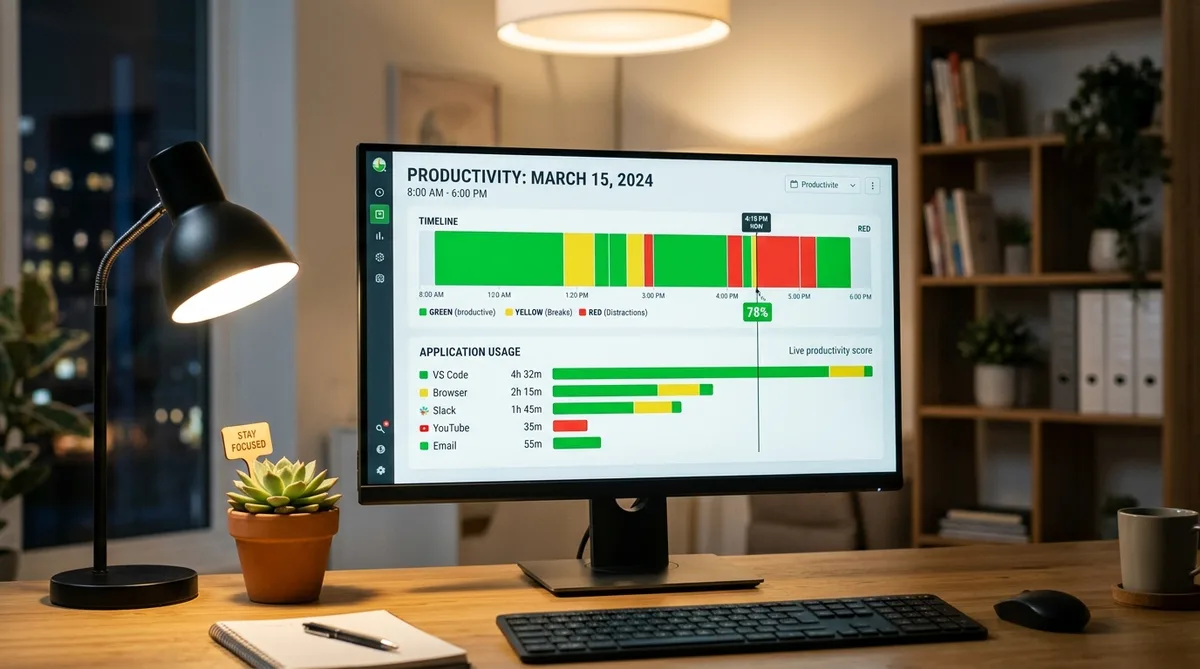
This is where DeskTime truly stands apart from the competition. Instead of simply measuring how much you use your computer, DeskTime attempts to measure how productively you use it. Every application and website you interact with gets classified into one of three categories:
- Productive — Tools and sites directly related to work. For a developer, this might include VS Code, GitHub, and Stack Overflow. For a designer, it might be Figma, Adobe Creative Cloud, and Dribbble.
- Unproductive — Applications and websites that are not work-related. Social media platforms, news sites, streaming services, and shopping websites typically fall into this bucket.
- Neutral — Apps and sites that could go either way depending on context. Email clients, messaging apps like Slack, and search engines are often classified as neutral because they can be used for both work and personal purposes.
DeskTime comes with default categorizations for thousands of popular apps and websites. Managers can also customize these classifications to match their team's actual workflow. For example, a social media marketing team might reclassify Facebook and Instagram as "productive" since those platforms are central to their work.
Your productivity score is calculated as the percentage of your tracked time spent on productive apps versus your total active time. This score is visible to your manager on the team dashboard, often in real time. A high score suggests focused work; a low score suggests distraction.
Optional Screenshots
DeskTime offers an optional screenshot feature that captures periodic snapshots of your screen. This feature is not enabled by default and is only available on the Premium and Enterprise plans. When active, it takes screenshots at set intervals to give managers visual proof of what employees are working on. This is similar to how Time Doctor handles screenshot monitoring, though Time Doctor takes it further with randomized timing and continuous video recording on its Premium plan.
There are a few important details about DeskTime screenshots:
- Screenshots are taken at random or fixed intervals, depending on the configuration chosen by the manager.
- Employees can see when screenshots are being taken and can review what was captured.
- DeskTime includes a Private Time feature that lets employees pause all tracking (including screenshots) for personal activities like online banking or medical appointments.
- Screenshots are stored securely and are only visible to authorized managers.
The screenshot feature adds an extra layer of accountability beyond simple app tracking. Even if your productivity categories look fine, a screenshot of a YouTube video playing behind a minimized IDE would tell a different story. That said, many companies choose not to enable screenshots because they can feel invasive and may hurt employee morale and trust.
Idle Detection
DeskTime's idle detection is straightforward but strict. If the software detects no mouse movement, keyboard input, or scrolling for 3 minutes or more, it marks that time as idle and stops the tracking clock. The timer only resumes when it detects activity again.
This 3-minute threshold is the default, though administrators can configure a longer idle period in the settings. The key implication is clear: if you step away from your computer for even a brief bathroom break, DeskTime will notice and your active time total will reflect the gap.
Idle time is not categorized as "unproductive." It simply does not count at all. Your total tracked hours for the day will be lower, and the gap will be visible on your timeline. For employees who are judged on total hours logged as well as productivity percentages, idle gaps can be just as damaging as unproductive time.
Project and URL Tracking
Beyond app-level monitoring, DeskTime also tracks the specific URLs you visit and the titles of documents and files you have open. This means your manager can see not just that you were using Chrome, but exactly which websites you were on and for how long.
DeskTime also offers project tracking, where employees can assign their time to specific projects or tasks. This feature combines with the automatic tracking data to give managers a detailed view of how team resources are being allocated across different initiatives.
Additionally, DeskTime includes an absence calendar for tracking vacation days, sick leave, and other time off. This helps teams plan around absences and keeps scheduling transparent without requiring a separate HR tool.
DeskTime Pricing in 2026
DeskTime uses a per-user, per-month pricing model with three paid tiers plus a free trial. Here is the current breakdown:
Pro Plan — $7/user/month
The Pro plan is DeskTime's entry-level paid tier and covers the essentials. It includes:
- Automatic time tracking
- App, URL, and document title tracking
- Productivity categorization (productive, unproductive, neutral)
- Idle time detection
- Project and task tracking
- Custom reports and exports
- Integrations with popular tools
At $6.42/user/month when billed annually, the Pro plan offers solid value for small teams that want automatic tracking and productivity scoring without the more invasive monitoring features.
Premium Plan — $10/user/month
The Premium plan adds management and compliance features on top of everything in Pro:
- Everything in Pro
- Automatic screenshots at configurable intervals
- Shift scheduling
- Absence calendar and time-off management
- Personalized onboarding
- IP-based access restrictions
When billed annually, this drops to $9.17/user/month. The Premium plan is designed for teams that need visual verification of activity and basic workforce management features.
Enterprise Plan — Custom Pricing
For larger organizations, the Enterprise plan includes everything in Premium plus:
- Unlimited data history
- Unlimited projects
- Custom API access
- Dedicated account manager
- Employee training and custom onboarding
- VIP support
Pricing for Enterprise is negotiated directly with DeskTime's sales team based on team size and requirements.
Free Trial
DeskTime offers a 14-day free trial, giving teams a chance to test the platform before committing. DeskTime previously offered a free "Lite" plan for single users, but that is no longer available as of 2026.
DeskTime's Unique Approach to Productivity
Most time tracking tools operate on a simple premise: track how many hours you work and, in some cases, how active you are during those hours. Tools like Hubstaff, Time Doctor, and other employee monitoring software primarily measure activity as a percentage, based on how frequently you move your mouse or press keys within a given time interval. If you are weighing these two head-to-head, our DeskTime vs Time Doctor comparison breaks down exactly what each one records and which watches more closely.
DeskTime takes a fundamentally different approach. Instead of asking "How active were you?", DeskTime asks "How productively did you spend your active time?" This distinction matters more than you might think.
Consider two employees who both log 8 hours of active computer time with 95% activity levels. Under a traditional activity-based tracker, they would appear equally productive. But under DeskTime, if Employee A spent 7 hours in development tools and 1 hour in Slack, while Employee B spent 3 hours on Reddit and 5 hours switching between tabs, their productivity scores would be drastically different.
This category-based scoring system means that simply keeping your mouse moving is not enough to maintain a strong DeskTime report. The tool also cares about which applications are in the foreground and which URLs are being visited. A high activity percentage paired with a low productivity score is actually a red flag in DeskTime — it suggests that you are actively using your computer but on the wrong things.
The flip side of this approach is that DeskTime can be more forgiving for certain behaviors. If you take a few short breaks but spend the rest of your time focused in productive applications, your productivity score can still be very high. The tool effectively rewards quality over quantity, at least in theory. In practice, many managers still watch total active hours alongside productivity percentages, which means both metrics need to stay consistent.
Another important detail: DeskTime tracks which application is in the foreground, not just which applications are running. If you have VS Code open but your active window is a browser tab on YouTube, DeskTime will record that time as browser time on YouTube — not as VS Code time. This foreground-focus tracking is what makes DeskTime's categorization system relatively accurate, but it also means that the tool is sensitive to which window you have on top at any given moment.
How to Maintain Consistent Activity in DeskTime
Given everything we have covered about how DeskTime tracks activity — automatic start, productivity categories, idle detection after 3 minutes, foreground app monitoring, and optional screenshots — you can see that maintaining consistent reports requires more than just keeping your mouse from going idle.
This is where Trick Tack becomes especially relevant. Trick Tack is a lightweight desktop application that simulates natural human activity on your computer while you are away. But unlike simple mouse mover software or basic automation scripts, Trick Tack is designed to address the specific monitoring patterns used by tools like DeskTime.
Why Trick Tack Works Well with DeskTime
DeskTime's tracking goes beyond simple activity detection, so a DeskTime hack needs to go beyond simple mouse movement. Here is how Trick Tack addresses each layer of DeskTime's monitoring:
- Mouse movement simulation — Trick Tack generates natural, randomized mouse movements that mimic real human behavior. The movements are not robotic straight lines or predictable patterns. This keeps DeskTime's activity meter running and prevents idle detection from triggering after the 3-minute threshold.
- Keyboard input simulation — DeskTime tracks keyboard activity alongside mouse activity. A user who only moves their mouse but never touches the keyboard looks suspicious. Trick Tack simulates realistic keyboard inputs to maintain a natural activity profile across both input methods.
- App switching — This is where Trick Tack is particularly effective for DeskTime users. Since DeskTime monitors which application is in the foreground and categorizes it as productive, unproductive, or neutral, having the right apps in focus matters. Trick Tack can switch between open applications, ensuring that productive tools remain in the foreground and contribute to your productivity score.
- Scrolling simulation — Natural computer use involves scrolling through documents, code, and web pages. Trick Tack includes scroll simulation to add another layer of realistic behavior to your activity pattern.
The combination of these features means that DeskTime sees a pattern of activity that closely resembles genuine work: mouse movements, keyboard inputs, scrolling, and productive applications in focus. This is significantly more convincing than a basic DeskTime hack like taping something to your mouse or running a simple script.
Getting Started
Setting up Trick Tack for use with DeskTime is straightforward:
- Sign up for a free 7-day trial — Cancel anytime during your trial.
- Install the application on your Windows PC.
- Open your productive work apps before stepping away — since DeskTime tracks foreground applications, having the right tools open gives Trick Tack productive windows to cycle through.
- Activate Trick Tack whenever you need to step away, and let it maintain your activity profile.
The key advantage of Trick Tack over improvised DeskTime hacks is that it was built specifically for this purpose. It understands the patterns that time tracking software looks for and generates activity that fits those patterns naturally. You can read more about how it works with other monitoring platforms in our guide on how to trick employee monitoring software.
Keep Your DeskTime Reports Consistent
Trick Tack simulates mouse movements, keyboard input, scrolling, and app switching — exactly what DeskTime monitors. Try it free for 7 days.
DownloadWhat Reddit Says About Cheating DeskTime
Search "DeskTime Reddit" and you land in threads on r/overemployed, r/remotework, and r/digitalnomad where people trade notes on the tool. Stripped of the noise, the advice there falls into a few recurring buckets — and it is worth knowing which parts hold up.
- "Just use a mouse jiggler." The most upvoted suggestion, and the most incomplete. It keeps you off idle, but as covered above, DeskTime still logs the foreground app and productivity category. A jiggler parked on your desktop for three hours reads as three unproductive hours.
- "Keep a productive app in focus." Better instinct, because DeskTime scores by app. But without input the tool still flags you idle after three minutes, so a focused window alone does not hold your active time.
- "Check whether your company enabled Private Time." Genuinely useful. Many DeskTime deployments include a Private Time toggle that pauses tracking, and a surprising number of employees never realize it is available.
- "Do not brag about it in a work Slack." The most repeated cautionary note, and the Wells Fargo firings are why. Reddit's own consensus is that getting caught is almost always a process failure, not a detection failure.
The through-line across those threads matches what this guide lays out: single-signal tricks keep the screen awake but do not reproduce what DeskTime actually measures. Consistent activity comes from covering input, foreground app, and idle behavior together.
Frequently Asked Questions
Does DeskTime track after working hours?
DeskTime tracks all computer activity from the moment your machine turns on until it shuts down or goes to sleep. However, it does allow administrators to set defined working hours for each employee. Activity outside those hours can be recorded separately or excluded from productivity calculations, depending on the company's configuration. If your employer has not set specific working hours, DeskTime will track everything. You can also use DeskTime's Private Time feature to manually pause tracking at any point during the day, including after hours.
Can DeskTime see my screen?
DeskTime can capture screenshots, but only if your employer has enabled the feature and is on the Premium or Enterprise plan. Screenshots are not available on the Pro plan. When enabled, screenshots are taken at periodic intervals and are visible to your manager on the DeskTime dashboard. You will know if screenshots are active because DeskTime shows a notification, and you can review captured images yourself. If you need privacy for personal tasks, use the Private Time mode to pause all tracking, including screenshots.
Does DeskTime categorize all websites?
DeskTime ships with default categorizations for thousands of popular apps and websites, but it does not cover every website on the internet. When you visit a site that DeskTime has not seen before, it is typically classified as neutral by default. Managers can manually recategorize any app or website as productive, unproductive, or neutral through the DeskTime admin panel. This means that categorization accuracy depends partly on how actively your company's administrators maintain the classification list. Industry-specific or niche tools might remain uncategorized unless someone manually updates them.
Is DeskTime always running?
Once installed, DeskTime is designed to start automatically with your operating system. You do not need to launch it manually each morning. The app runs in the background and begins tracking as soon as your computer boots up. It will continue running until you shut down your computer, put it to sleep, or manually pause tracking using Private Time. There is no "clock in" or "clock out" button in DeskTime's standard workflow — the automation is the entire point. If you want to stop tracking temporarily, Private Time is the official way to do it without uninstalling the software.
Does DeskTime take screenshots?
Optional, screenshots are available on higher-tier plans (Premium and Enterprise) but are not part of DeskTime's core feature set. DeskTime focuses primarily on automatic time tracking and productivity scoring based on foreground app categorization. If your employer has enabled screenshots, they are captured at periodic intervals and visible on the dashboard. TrickTack keeps your foreground apps rotating naturally so both your productivity score and any screenshots reflect a realistic working session.
Can DeskTime detect mouse jigglers?
DeskTime does not have a dedicated mouse jiggler detection feature like Time Doctor's Unusual Activity Report. However, a simple jiggler will not fool DeskTime's productivity scoring. DeskTime tracks which application is in the foreground and categorizes it as productive, unproductive, or neutral. A mouse jiggler keeps you "active" but does nothing about which app is visible or whether your URL and app usage patterns look realistic. If your foreground app never changes and your productivity score stays the same for hours, it will look unnatural to a manager reviewing your timeline. Tools like TrickTack that combine mouse movement with keyboard input, scrolling, and app switching address all the signals DeskTime monitors.
How does DeskTime calculate the productivity score?
Your DeskTime productivity score is the percentage of active time spent on apps classified as productive. DeskTime classifies every app and website into three categories: productive (work tools like IDEs, project management apps, business software), unproductive (social media, streaming, gaming, shopping), and neutral (email, Slack, search engines). The score is calculated in real time and visible to your manager. For example, if you log 7 hours of active time and 5 of those hours are in productive apps, your score is roughly 71%. The critical detail: DeskTime measures the foreground app only. Having VS Code open in the background while Chrome with YouTube is in focus counts as Chrome/YouTube time, not VS Code time.
How do you trick DeskTime into showing productive time?
DeskTime measures productivity by tracking which foreground application is active and whether it is classified as productive, unproductive, or neutral. A mouse jiggler keeps you marked as "active" but does nothing about which app is in the foreground, so your productivity score stays flat or drops if the wrong app is showing. To trick DeskTime effectively, you need to keep productive applications rotating in the foreground while maintaining realistic mouse and keyboard input. TrickTack handles both: it generates varied input signals and cycles between open applications, so DeskTime sees time spread across productive tools with natural activity patterns rather than hours locked on one static screen.
What are the best DeskTime hacks for staying active?
The most effective DeskTime hacks work with how DeskTime actually measures activity, not against it. DeskTime tracks three things: active time (mouse and keyboard input detected), productivity score (percentage of time in productive apps), and idle time (no input for the configured threshold). The best hacks address all three simultaneously. Keep multiple productive apps open so the foreground can rotate naturally. Use a text editor or note-taking app alongside your main work tool so keyboard input stays varied. For breaks, use an activity simulator like TrickTack rather than pausing DeskTime, which creates visible gaps in your timeline that managers can review.
Conclusion
DeskTime is one of the more sophisticated time tracking tools available in 2026. Its automatic tracking, productivity categorization, and foreground app monitoring make it harder to game than simpler activity-based trackers. The software does not just check whether you are moving your mouse — it checks what you are doing and scores it accordingly.
That sophistication is exactly why a simple DeskTime hack like a mouse jiggler or a script that presses a key every few minutes will not cut it. DeskTime looks at the full picture: which apps are active, which URLs are loaded, and whether your activity pattern includes realistic keyboard and mouse behavior.
Trick Tack was designed to handle exactly this kind of multi-layered monitoring. By simulating natural mouse movements, keyboard inputs, scrolling, and application switching, it maintains the kind of realistic activity profile that DeskTime expects to see. Whether you are taking a lunch break, stepping out for an appointment, or simply need a mental reset, Trick Tack keeps your DeskTime reports consistent and your productivity scores intact.
For more strategies on working with specific monitoring tools, check out our articles on how to trick Hubstaff and our comprehensive guide to cheating time tracking software. You can also read our full DeskTime review for an honest look at its features, pricing, pros, cons, and how it compares to alternatives, or see the two head-to-head in our Hubstaff vs DeskTime comparison.
Try Trick Tack Free for 7 Days
Simulate natural mouse, keyboard, and app-switching activity to keep DeskTime reports looking consistent. Cancel anytime during your trial.
Download

