Why People Search for This
If you have ever stared at your screen wondering whether the next random screenshot will catch you mid-stretch, mid-coffee, or simply thinking, you are not alone. Searching for how to cheat Screenshot Monitor usually is not about avoiding work — it is about not being unfairly penalized for the natural rhythm of a real workday. Knowledge work involves reading, thinking, planning, and stepping away to clear your head, and none of that shows up well in a tool that grades you on a random snapshot of your screen.
Screenshot Monitor (found at screenshotmonitor.com) is one of the more straightforward employee monitoring tools on the market. Its entire identity is built around one feature: taking random screenshots of your screen, up to 30 times an hour, while you have the timer running. Add an activity-level meter that watches your keyboard and mouse, plus app and website logging, and you have a tool that can make a quiet hour of reading documentation look like an hour of doing nothing.
The gap between how work actually happens and what a random screenshot captures is exactly why people look for ways to keep their reports consistent. A single unlucky capture during a bathroom break or a phone call can drag down an otherwise productive day. If you want the bigger picture across every major monitoring platform, start with our broader guide on how to cheat time tracking software.
In this guide we will break down exactly how Screenshot Monitor tracks your activity, what its pricing looks like in 2026, and what you can do to keep every screenshot and activity report looking like genuine work even when you step away from your desk.
How Screenshot Monitor Tracks Activity
Screenshot Monitor keeps its tracking model deliberately simple compared to heavyweight platforms. There is no AI risk scoring and no hidden background daemon — the employee installs the desktop app, logs in, picks a project, and presses start. From that point on, several layers of monitoring work together to build a record of the work session. Let us walk through each one.
Random Screenshots
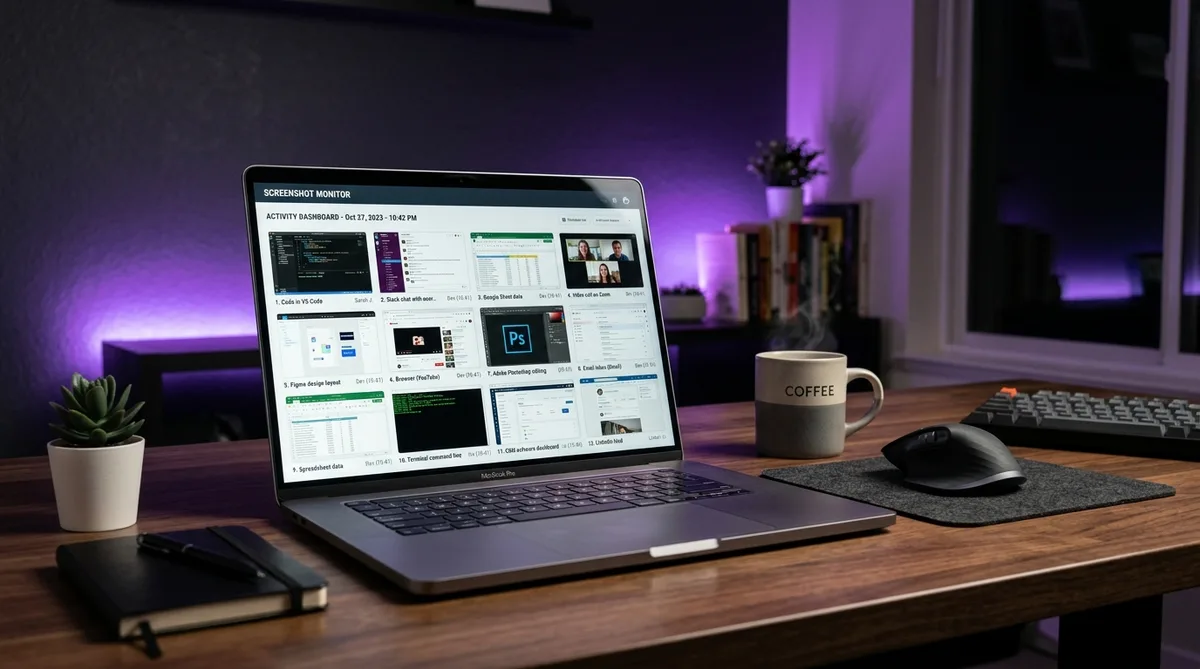
The headline feature, and the namesake, is random screenshot capture. While the timer is running, Screenshot Monitor takes snapshots of your screen at unpredictable intervals — up to 30 per hour on the top plan, which averages out to about one capture every two minutes. The randomized timing is intentional: because you cannot predict when the shutter will fire, you cannot quickly tidy up your screen right before each capture.
Each screenshot is uploaded to the manager's dashboard in near real time and attached to your timeline. Managers can scroll through a visual record of your day, screenshot by screenshot. Unlike tools such as Kickidler that can stream live video of your screen, Screenshot Monitor sticks to still images, but the frequency on the Professional plan is high enough that gaps are short.
The implication is straightforward: it is not enough to have the right app open during one lucky moment. Every random capture needs to show something that looks like genuine work, because a manager can see all of them side by side. A timeline where every screenshot for two hours is identical is the single biggest red flag this tool can surface.
Activity Level Tracking
Sitting right next to each screenshot is an activity level percentage. Screenshot Monitor measures how frequently you use your keyboard and mouse during each tracked interval and converts that into a simple score. A burst of typing and clicking produces a high activity level; a stretch where you only read or watch produces a low one.
This pairing is what makes the tool more demanding than it first appears. A screenshot showing your code editor looks great on its own, but if the activity level next to it reads 4%, the combination suggests the editor was open while you were somewhere else entirely. Conversely, a high activity level with a screen full of a personal browsing session tells its own story. Both signals have to agree for the timeline to read as real work.
This is the same activity-percentage logic used by activity-first monitors like Insightful, except that Screenshot Monitor anchors every reading to a visible screenshot. You cannot game the percentage in isolation, because the picture is right there beside it.
App and URL Tracking
Beyond the visual record, Screenshot Monitor logs the applications you run and the websites you visit, along with how much time you spent in each. On your timeline a manager can see not just that Chrome was open, but which sites you were on and for how long. This adds a third data layer on top of the screenshots and the activity meter.
The app and URL log is what catches the difference between "looked busy in a screenshot" and "actually spent the hour productively." If your screenshots show a productive app but your URL history is full of unrelated sites, the two records contradict each other. Keeping the right applications in the foreground throughout the session is what keeps these logs consistent with the screenshots above them.
Idle Detection and Manual Start
Screenshot Monitor's idle handling is one of the more important differences between it and always-on trackers. The software automatically stops tracking when it detects no activity for a period of time, so you are not billed for stretches where you walked away. This sounds employee-friendly, and in one sense it is — but it also means that any idle gap shows up as a hole in your timeline.
Just as important, tracking only happens while you have manually started the timer. Screenshot Monitor does not begin recording the instant your computer boots, the way tools like DeskTime do. You press start when you begin work and stop when you finish. That gives you genuine control over when monitoring is active, but it also means that once the timer is running, every idle gap is conspicuous against the surrounding activity.
The practical takeaway is that short breaks during a tracked session leave visible gaps — both in the screenshot stream and in your total tracked hours. For employees judged on logged hours as well as activity, those gaps can be just as damaging as a screenshot of the wrong app.
Offline Tracking and Reports
The desktop client also works offline. If your internet connection drops, Screenshot Monitor keeps recording time, screenshots, and activity locally, then uploads everything automatically once the connection is restored. You cannot dodge a screenshot simply by pulling the network cable — the captures are still taken and synced later.
On the management side, Screenshot Monitor generates detailed reports and timesheets. Managers can filter by employee, choose a date range, view data grouped by day or as a detailed timeline, and export everything to Excel for payroll or client invoicing. Because the tool is popular with agencies billing clients by the hour, these reports are often tied directly to money, which raises the stakes on keeping your timeline clean and consistent.
Screenshot Monitor Pricing in 2026
Screenshot Monitor uses a per-user, per-month pricing model with a genuinely useful free tier and two paid plans. The plans differ mainly in screenshot frequency and how long your data is stored. Here is the current breakdown.
Free — $0 (up to 3 users)
The Free plan covers a single owner plus two employees and is surprisingly full-featured. It includes:
- Time tracking
- Screenshot monitoring at up to 3 screenshots per hour
- Activity level tracking
- App and URL tracking
- 2-week data storage
This makes the Free plan popular with freelancers and very small teams who want screenshots and activity tracking without paying anything. The lower screenshot frequency and short storage window are the main trade-offs.
Standard — $6/user/month
The Standard plan steps up the screenshot frequency and storage:
- Everything in Free
- Screenshot monitoring at up to 6 screenshots per hour
- Activity level tracking
- App and URL tracking
- 3-month data storage
At $6 per user per month (or roughly $499 per user for an extended annual term), Standard suits small teams that want more frequent captures and a longer record than the free tier allows.
Professional — $9/user/month
The Professional plan unlocks the tool's full screenshot capability:
- Everything in Standard
- Screenshot monitoring at up to 30 screenshots per hour
- Activity level tracking
- App and URL tracking
- 1-year data storage
At $9 per user per month, Professional is the plan most companies that take monitoring seriously will choose, because the 30-per-hour capture rate leaves very little room for gaps in the visual record.
Free Trial
New accounts get 14 days of full Professional features to test the platform. When the trial ends, the account automatically downgrades to the Free plan unless a paid option is selected. There are no contracts or cancellation fees, and seats are prorated when team members are added or removed mid-month.
How to Maintain Consistent Activity
Now that you understand the three layers Screenshot Monitor stacks together — random screenshots up to 30 times an hour, an activity-level meter watching your keyboard and mouse, and an app/URL log — you can see why a single trick is never enough. The captures, the percentage, and the logs all have to tell the same story, or the timeline reads as inconsistent.
This is exactly where Trick Tack earns its place. Trick Tack is a lightweight desktop application that simulates natural human activity on your computer while you are away. Unlike a basic mouse jiggler or a one-trick script, it is designed to address every signal a tool like Screenshot Monitor watches at once.
Why Trick Tack Works Well with Screenshot Monitor
Because Screenshot Monitor pairs a visible screenshot with an activity reading and an app log, a Screenshot Monitor hack has to keep all three consistent. Here is how Trick Tack addresses each layer:
- Mouse movement simulation — Trick Tack generates natural, randomized mouse movements that mimic real human behavior rather than robotic straight lines. This keeps your activity level from collapsing to zero between captures and prevents the automatic idle-stop from kicking in mid-session.
- Keyboard input simulation — Because the activity meter weighs keyboard use alongside the mouse, movement alone is not enough. Trick Tack simulates realistic keystrokes so the activity percentage next to each screenshot looks like genuine work, not a stuck cursor.
- App switching — This is what addresses the screenshots themselves. Trick Tack can cycle between your open applications, keeping productive tools in the foreground so that each random capture lands on a screen that looks like real work — and so the app and URL log stays consistent with what the screenshots show.
- Scrolling simulation — Genuine computer use involves scrolling through documents, code, and pages. Trick Tack adds natural scrolling to round out the activity pattern, so captures show movement and progress rather than a frozen screen.
Taken together, these features mean that every random screenshot lands on a believable scene, the activity level beside it stays healthy, and the app log lines up with what is on screen. That is dramatically more convincing than a jiggler that keeps the cursor twitching but leaves every single screenshot showing the same idle desktop.
Getting Started
Setting up Trick Tack for use alongside Screenshot Monitor is straightforward:
- Sign up for a free 7-day trial — Cancel anytime during your trial.
- Install the application on your Windows PC.
- Open your productive work apps before stepping away — since the screenshots and app log key off your foreground window, having the right tools open gives Trick Tack productive windows to cycle through.
- Activate Trick Tack whenever you need to step away, and let it keep your screenshots, activity level, and app log consistent.
The advantage of Trick Tack over an improvised Screenshot Monitor hack is that it was built specifically for multi-layered monitoring. It understands the signals these tools look for and generates activity that fits them naturally. You can read more about how it works across platforms in our guide on how to trick employee monitoring software, and learn how to set it up in the documentation.
Keep Your Screenshot Monitor Reports Clean
TrickTack keeps productive apps in focus and simulates natural mouse, keyboard, and scrolling activity — so every screenshot looks like real work. Try free for 7 days.
DownloadFrequently Asked Questions
Does Screenshot Monitor take screenshots?
Yes -- it is specifically built for this purpose. Screenshot Monitor can capture up to 30 screenshots per hour at random intervals, giving managers a detailed visual record of your workday. The timing is randomized so you cannot predict when the next capture will occur. Screenshots appear alongside your activity level on the manager's dashboard. TrickTack keeps your screen showing realistic work activity with varied app switching and input so every capture looks natural.
How often does Screenshot Monitor take screenshots?
Screenshot Monitor captures screenshots at random intervals rather than on a fixed timer. The maximum frequency is up to 30 screenshots per hour, which works out to roughly one capture every two minutes on average. The actual rate depends on which plan your employer is on: the Free plan is limited to 3 per hour, the Standard plan allows up to 6 per hour, and the Professional plan supports the full 30 per hour. Because the timing is randomized, you cannot predict exactly when the next screenshot will fire, which is the entire point of the feature.
Can Screenshot Monitor run in stealth or spy mode?
No. Screenshot Monitor is explicitly built around transparency, and the company states there is no way to run it in stealth or spy mode by design. The employee always knows the program is running because they install it, log in, and press a start button to begin tracking time and screenshots for a project. There is no keylogging and no covert surveillance. This is a deliberate difference from many other monitoring tools, and it means you will always be aware when tracking is active.
Does Screenshot Monitor track me when the timer is stopped?
No. Unlike always-on tools that start tracking the moment your computer boots, Screenshot Monitor only records time, screenshots, and activity while you have manually started the timer for a project. When the timer is stopped, no screenshots are taken and no activity is recorded. The software also automatically stops tracking if it detects no activity for a period of time, so idle stretches are not billed. This manual start/stop model gives you more control than fully automatic trackers like DeskTime.
Does Screenshot Monitor measure keyboard and mouse activity?
Yes. Alongside screenshots, Screenshot Monitor records an activity level based on how often you use the keyboard and mouse during tracked time. This activity percentage appears on your timeline next to each screenshot, so a manager can see both what was on your screen and how active you were when the capture was taken. A screenshot of a productive app paired with a very low activity level can still look suspicious, which is why simply leaving an app open is not enough on its own.
Can Screenshot Monitor detect a mouse jiggler?
Screenshot Monitor does not have a dedicated mouse jiggler detection feature, but a basic jiggler will not hold up against its screenshot system. A jiggler can keep your activity level from dropping to zero, but it does nothing about the actual screenshots. If every random capture over a two-hour stretch shows the exact same idle screen, a manager reviewing your timeline will notice immediately. Beating Screenshot Monitor requires both realistic activity and a screen that looks like genuine work, which is why tools like TrickTack that combine mouse movement, keyboard input, scrolling, and app switching are far more effective than a simple jiggler.
Conclusion
Screenshot Monitor keeps its approach simple, but that simplicity is exactly what makes it hard to fool with a single trick. The tool stacks three signals on top of each other: a random screenshot up to 30 times an hour, an activity level reading next to every capture, and a log of the apps and websites you used. For a timeline to read as genuine work, all three have to agree.
That is why a basic mouse jiggler or a key-pressing script falls short. A jiggler might keep your activity percentage off the floor, but it does nothing for the screenshots, and a wall of identical idle captures is the clearest red flag this tool can produce.
Trick Tack was designed for exactly this kind of multi-layered monitoring. By simulating natural mouse movements, keyboard inputs, scrolling, and application switching, it keeps your activity level healthy, lands every random screenshot on a believable screen, and keeps your app log consistent with what the captures show. Whether you are on a lunch break, taking a call, or simply need a mental reset, Trick Tack keeps your Screenshot Monitor reports clean.
For more strategies on working with specific monitoring tools, check out our guides on how to cheat Insightful and how to cheat Kickidler, or the comprehensive overview in how to cheat time tracking software.
Try Trick Tack Free for 7 Days
Simulate natural mouse, keyboard, scrolling, and app-switching activity to keep your Screenshot Monitor captures looking consistent. Cancel anytime during your trial.
Download

