Why People Search for Kickidler Hacks
Kickidler — recently rebranded to KeepActive in late 2025 — is one of the most comprehensive employee monitoring tools available. Originally founded in 2013, the software has grown to cover over 5,000 organizations and more than one million monitored employees. If you have landed on this page searching for "Kickidler hack" or "how to cheat Kickidler," you are likely dealing with one of the more aggressive monitoring setups an employer can deploy.
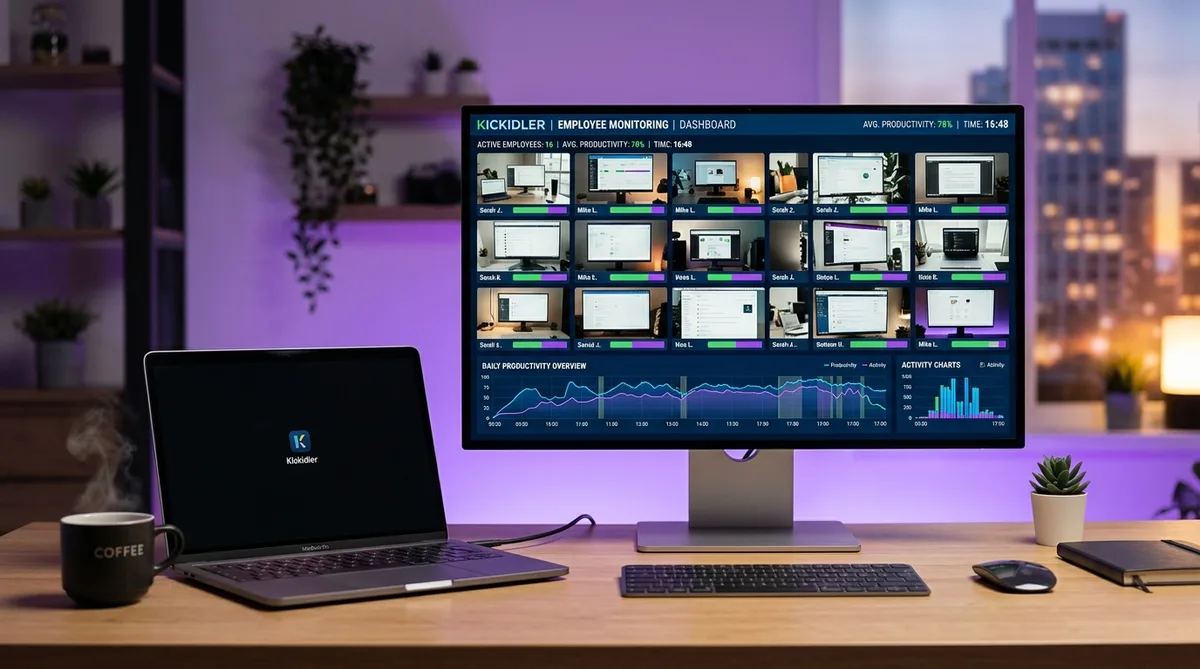
Unlike lighter tools such as ActivTrak or RescueTime that focus on productivity analytics without capturing content, Kickidler records continuous screen video, logs every keystroke, and can even capture audio. It does not take periodic screenshots every few minutes like Hubstaff or Time Doctor. Instead, it records your entire screen as a continuous video stream throughout the workday, synchronized with your keyboard input and application events.
That level of surveillance makes Kickidler significantly harder to work around than most monitoring tools. A simple mouse jiggler that moves the cursor every few seconds might fool a screenshot-based tool, but Kickidler’s continuous video recording will show exactly what is — or is not — happening on screen. Understanding what it tracks and how it operates is essential before you consider any strategy for maintaining consistent activity.
In this guide, we will cover exactly how Kickidler monitors your workday, its stealth and visible deployment modes, its current pricing tiers, and how to keep your activity reports looking natural. For the broader landscape of monitoring tools, see our guide on how to cheat time tracking software.
How Kickidler Tracks Your Activity
Kickidler uses a three-component architecture. The Grabber is the agent installed on each monitored computer. The Server stores all collected data. The Viewer is the admin interface where managers watch screens, review recordings, and generate reports. Only Grabbers require licenses — companies can install unlimited Servers and Viewers. Kickidler supports both cloud and on-premise deployment, with on-premise keeping all monitoring data on the company’s own infrastructure.
The Grabber runs on Windows (Vista through 11, plus Server 2003–2025), macOS (11.0 through 15.0 on Apple Silicon and Intel), and GNU/Linux (Debian, Ubuntu, Mint, and other distributions). It has minimal hardware requirements — just 1 GHz CPU and 256 MB RAM — meaning it runs with virtually no impact on your machine’s performance.
Continuous Screen Video Recording
This is Kickidler’s flagship feature and its biggest differentiator. While most monitoring tools take periodic screenshots every 5–10 minutes, Kickidler records continuous, full-day screen video. Everything that appears on your screen is captured as a video stream, not a series of static images.
Managers can watch this video in real time through the Viewer component or review historical recordings later. They can search and jump to specific moments by event type — for example, jumping to when you opened a specific application, visited a particular website, or typed certain keywords. The video is synchronized with keystroke logs and application events, creating a complete, timestamped record of your workday.
This is fundamentally different from what tools like Insightful or DeskTime capture. With screenshot-based monitoring, there are gaps between captures. With Kickidler, there are no gaps. If you spend 30 seconds looking at something on screen, the video shows all 30 seconds. That continuity makes it one of the hardest monitoring systems to game, since any irregularity in your screen activity is captured and reviewable.
Keystroke Logging
Kickidler includes a built-in keylogger that records every keystroke on the monitored computer. This goes well beyond what most employee monitoring tools capture. Tools like ActivTrak and RescueTime explicitly do not log keystrokes. Teramind and Veriato offer keystroke logging, but Kickidler’s implementation is notable because it synchronizes keystrokes with the screen video.
That synchronization means a manager reviewing your activity can not only read what you typed but also watch the exact moment you typed it, in the context of what was on screen. If you typed something in a chat window, the video shows the chat window and the keystroke log shows the content simultaneously.
Keystroke logging is available on the Employee Monitoring and DLP plans but not on the basic Time Tracking plan. If your employer is running Kickidler with keystroke logging enabled, every key press — including passwords typed in visible fields, messages, searches, and document content — is recorded and stored.
Application and Website Tracking
Like most monitoring tools, Kickidler tracks which applications and websites you use throughout the day. The Grabber records the active foreground application, the URL of the website you are visiting, and how long you spend in each. This data feeds into Kickidler’s productivity analysis, which categorizes your activity as productive, non-productive, or neutral.
Managers can define which applications and websites count as productive for each team or role. A developer’s IDE would be marked productive, while social media would be unproductive. The productivity analysis generates reports showing daily productivity percentages, time spent in each category, and trends over time.
Unlike simpler tools that only track app names, Kickidler’s app tracking is layered with the continuous video recording. Your manager does not just see that you had Chrome open for 2 hours — they can review the video to see exactly what you were doing in Chrome during those 2 hours.
Idle Detection and Time Tracking
Kickidler monitors mouse and keyboard input to determine whether you are actively using your computer. When no input is detected, the system marks that time as idle. Idle periods appear as gaps in your activity timeline and reduce your productive time count.
The automatic time tracking feature records when you start and stop working each day, calculates total active time, and generates work time reports. Managers can compare actual active time against expected working hours to identify employees who are consistently under their target.
Because Kickidler also records video during idle periods, it captures exactly what is on your screen when you stop interacting. If your screen shows a document with no mouse movement for 20 minutes, that looks different from a productivity analytics perspective than if the screen shows a locked desktop or a screensaver. The video context makes idle detection more informative — and harder to explain away — than in tools that only track input events.
Autokick Self-Monitoring
One of Kickidler’s more distinctive features is Autokick, a self-monitoring system that gives employees visibility into their own productivity data. With Autokick enabled, employees see a personal productivity dashboard showing their work time, productive vs. non-productive activity percentages, and idle time statistics.
Autokick can also send automatic pop-up notifications when employees violate defined policies — for example, visiting a blocked website, spending too long on unproductive apps, or falling below a productivity threshold. These notifications act as real-time nudges rather than after-the-fact disciplinary reports.
In some deployments, Autokick allows employees to turn the Grabber agent on and off, which is particularly useful for BYOD (bring your own device) scenarios where employees use personal computers for work. When the Grabber is off, no monitoring data is collected. This opt-in model is the closest Kickidler gets to a privacy-conscious deployment.
DLP, Remote Access, and Audio Recording
Kickidler’s highest tier adds a Data Loss Prevention (DLP) suite that monitors for sensitive data leaving the organization. The DLP features include OCR (optical character recognition) to scan on-screen content, file transfer monitoring and blocking, and alerts triggered by policy violations involving sensitive data.
All tiers include remote desktop access, allowing managers to connect to an employee’s computer and control it remotely through the Viewer component. This is marketed as an IT support feature but also functions as a direct surveillance capability.
Kickidler also supports audio recording, capturing sound from the monitored computer’s microphone alongside the screen video. This means that in addition to seeing what is on your screen and reading what you type, Kickidler can record ambient audio and conversations happening near your computer. Audio and microphone monitoring is a Windows-only feature — the macOS and Linux agents do not capture audio or support voice-to-text.
Stealth Mode vs Visible Mode
Kickidler’s Grabber agent can be deployed in two modes, selected during installation:
- Visible (transparent) mode — The Grabber runs openly. Employees can see it in the system tray, Task Manager, and running processes. This is the recommended mode for organizations that want to be transparent about monitoring and comply with privacy regulations.
- Stealth (hidden) mode — The Grabber hides from Task Manager and running processes. It does not appear in the system tray and transmits data continuously in small packets to avoid detectable network spikes. Kickidler recommends placing the working folder in system directories like
C:\ProgramData\rather than standard Program Files locations, since standard Windows search does not look in system folders.
There is a critical platform limitation: stealth mode is only available on Windows. On macOS and Linux, the Grabber always operates in visible mode. If you are on a Mac or Linux machine running Kickidler, you will be able to see the agent in your processes.
The legal implications of stealth mode vary by jurisdiction. In the EU under GDPR, stealth monitoring typically requires specific legal authorization or is prohibited entirely. In many US states, employers can monitor company-owned devices without notification, though some states require employee consent. Kickidler recommends informing employees about monitoring but acknowledges that covert monitoring is a valid option in certain situations.
Kickidler Pricing in 2026
Kickidler uses a per-user, per-month pricing model with three product tiers. Prices decrease significantly with longer commitment periods.
Time Tracking — $4.90/user/month
The entry-level plan focuses on work time recording:
- Automatic time tracking (start, stop, breaks)
- Work time reports and attendance monitoring
- Basic productivity analytics
- Application and website tracking
- Lower effective rate on longer commitments (see discounts below)
Employee Monitoring — $9.99/user/month
The core monitoring plan adds the full surveillance capabilities:
- Everything in Time Tracking
- Continuous screen video recording
- Keystroke logging
- Live screen monitoring (real-time viewing)
- Remote desktop access
- Autokick self-monitoring and notifications
- Productivity analysis with categorization
- Lower effective rate on longer commitments (see discounts below)
DLP — $19.99/user/month
The enterprise tier for data protection:
- Everything in Employee Monitoring
- Data Loss Prevention with OCR
- File transfer monitoring and blocking
- Policy violation alerts and automated responses
- Audio recording
Additional Pricing Details
- Term discounts — Longer commitments lower the price: roughly 10% off for 3 months, 20% for 6 months, 30% for 1 year, and up to 40% for a 3-year term
- On-premise deployment — Costs 20% more than cloud pricing
- Perpetual licenses — Available as a one-time purchase alternative to subscriptions
- Free trial — 14 days (7 days without providing a phone number), no credit card required
- Free version — After the trial, a limited free mode remains available for monitoring a single computer
Compared to competitors, Kickidler’s pricing is competitive at the monitoring tier. Teramind starts at roughly $15/user/month for similar surveillance capabilities. Hubstaff starts at $7/user/month but does not include keystroke logging or video recording. ActivTrak starts at $10/user/month but deliberately excludes keystroke logging, video recording, and webcam access. Kickidler offers more aggressive monitoring at a lower price point than most of its direct competitors.
Keep Your Kickidler Reports Consistent
Trick Tack simulates mouse, keyboard, scroll, and app-switching activity — addressing every input dimension Kickidler monitors for idle detection. Try it free for 7 days.
DownloadHow to Maintain Consistent Activity in Kickidler
Kickidler is one of the most challenging monitoring tools to work around because of its continuous video recording. With screenshot-based tools, you only need activity at the moment the screenshot is taken. With Kickidler, every second is recorded. That said, Kickidler’s idle detection still relies on the same core signals as every other monitoring tool: mouse movement, keyboard input, and foreground application activity.
Trick Tack addresses those input signals directly. Here is how it maps to what Kickidler monitors:
- Mouse movement — Kickidler uses mouse and keyboard input to determine active vs. idle time. Trick Tack generates natural, randomized mouse movements that prevent idle detection from triggering. These movements appear realistic in the screen video, mimicking natural cursor behavior rather than mechanical patterns.
- Keyboard input — A user who moves the mouse but never types looks unnatural, especially when Kickidler’s keystroke log shows zero keystrokes for extended periods. Trick Tack simulates realistic keyboard inputs alongside mouse movement to maintain a balanced activity profile.
- App switching — Kickidler tracks which application is in the foreground and classifies it for productivity scoring. Trick Tack rotates between open applications, keeping productive tools visible and contributing to your productivity classification.
- Scrolling — Natural computer use involves scrolling through documents and pages. Trick Tack adds scroll simulation for a more complete activity pattern that looks realistic in the recorded video.
- Active time consistency — Kickidler generates reports showing total active time per day. By running Trick Tack during breaks, you maintain the steady active time count that prevents anomaly detection from flagging your account.
One important consideration with Kickidler is the video recording dimension. While Trick Tack addresses all the input signals Kickidler uses for idle detection and productivity scoring, the continuous video recording means that what is on your screen matters too. Having productive applications open in the foreground — which Trick Tack’s app switching handles — is essential for maintaining a natural-looking video record.
Try Trick Tack Free for 7 Days
Simulate natural activity across mouse, keyboard, scrolling, and app switching. Keep your Kickidler productivity scores consistent. Cancel anytime.
DownloadFrequently Asked Questions
Does Kickidler take screenshots?
Yes, but Kickidler goes further than periodic screenshots. It records continuous screen video throughout the entire workday, capturing every second of your desktop activity rather than just periodic snapshots. Managers can search the video timeline by event type and jump to specific moments. This makes Kickidler one of the most visually invasive monitoring tools available. TrickTack helps by maintaining realistic mouse, keyboard, scrolling, and app-switching activity during breaks so the video record looks like a natural working session.
Does Kickidler record keystrokes?
Yes. Kickidler includes a built-in keylogger that records every keystroke on the monitored computer. Unlike tools such as ActivTrak that deliberately avoid keystroke logging, Kickidler captures all keyboard input and synchronizes it with the screen video recording. This means managers can not only see what you typed but also watch the exact moment you typed it. Keystroke logging is available on the Employee Monitoring and DLP plans but not on the basic Time Tracking plan.
Does Kickidler record video of my screen?
Yes. Kickidler records continuous, full-day screen video rather than periodic screenshots. This is one of its key differentiators from competitors like Hubstaff and ActivTrak, which rely on periodic screenshots taken every few minutes. Kickidler’s video recording captures everything that happens on your screen throughout the workday, and managers can search and jump to specific moments by event type. The video is synchronized with keystroke logs and application events for a complete activity record.
Can Kickidler run in stealth mode?
Kickidler’s agent (called the Grabber) supports stealth mode on Windows, where it hides from Task Manager and running processes. The stealth option is selected during installation. However, stealth mode is only available on Windows. On macOS and Linux, the Grabber agent operates in visible or transparent mode only. In jurisdictions covered by GDPR and similar privacy laws, stealth monitoring may require specific legal authorization or employee consent.
Does Kickidler work on Mac and Linux?
Yes. Kickidler supports Windows (Vista through 11, plus Server editions 2003 through 2025), macOS (11.0 through 15.0 on both Apple Silicon and Intel), and GNU/Linux (Debian, Ubuntu, Mint, and other distributions using X.Org). The core monitoring features including screen recording, keystroke logging, and application tracking work across all three platforms. However, the stealth or hidden mode is only available on Windows. macOS and Linux agents always run in visible mode.
Is there a free version of Kickidler?
Kickidler offers a 14-day free trial (7 days if you do not provide a phone number) with no credit card required. After the trial expires, a limited free mode remains available for monitoring a single computer. Paid plans start at $4.90/user/month for Time Tracking, $9.99 for Employee Monitoring, and $19.99 for DLP. Longer commitments lower the price — roughly 10% off for 3 months up to 40% for a 3-year term — and perpetual license options exist for organizations that prefer a one-time purchase over monthly subscriptions.
What are the best Kickidler (KeepActive) alternatives?
The main alternatives to Kickidler are Teramind (similar full-surveillance approach with keystroke logging and screen recording), Hubstaff (lighter monitoring with activity tracking and screenshots), and ActivTrak (privacy-first workforce analytics without keystroke logging). For a full comparison of monitoring levels, see our guide to which trackers are easiest to trick.
Conclusion
Kickidler sits at the heavy end of the employee monitoring spectrum. Its continuous screen video recording, keystroke logging, and optional audio capture put it alongside Teramind and Veriato as one of the most comprehensive surveillance tools available. The rebrand to KeepActive in late 2025 was a marketing change, not a technical one — the monitoring capabilities remain the same.
What makes Kickidler particularly challenging is the continuous video dimension. With screenshot-based tools, you only need to look active at the capture moment. With Kickidler, there is no gap — every second of your workday is recorded and reviewable. Combined with keystroke logging and application tracking, it creates a complete record that is difficult to game with simple hacks.
The flip side of that aggressiveness is that Kickidler’s idle detection and productivity scoring still rely on standard input signals: mouse movement, keyboard input, and foreground application activity. Trick Tack was built to simulate exactly these signals naturally and consistently. By generating realistic mouse movements, keyboard inputs, scrolling, and application switching, it maintains the activity patterns that Kickidler expects to see — keeping your productivity scores and active time reports where they should be, even during breaks and offline meetings.
For more on how other monitoring tools work, check out our guides on Teramind, Clever Control, and the comprehensive time tracking software cheating guide.
Try Trick Tack Free for 7 Days
Simulate natural activity across mouse, keyboard, scrolling, and app switching. Keep your Kickidler productivity scores consistent. Cancel anytime.
Download

