Why People Search for Time Champ Hacks
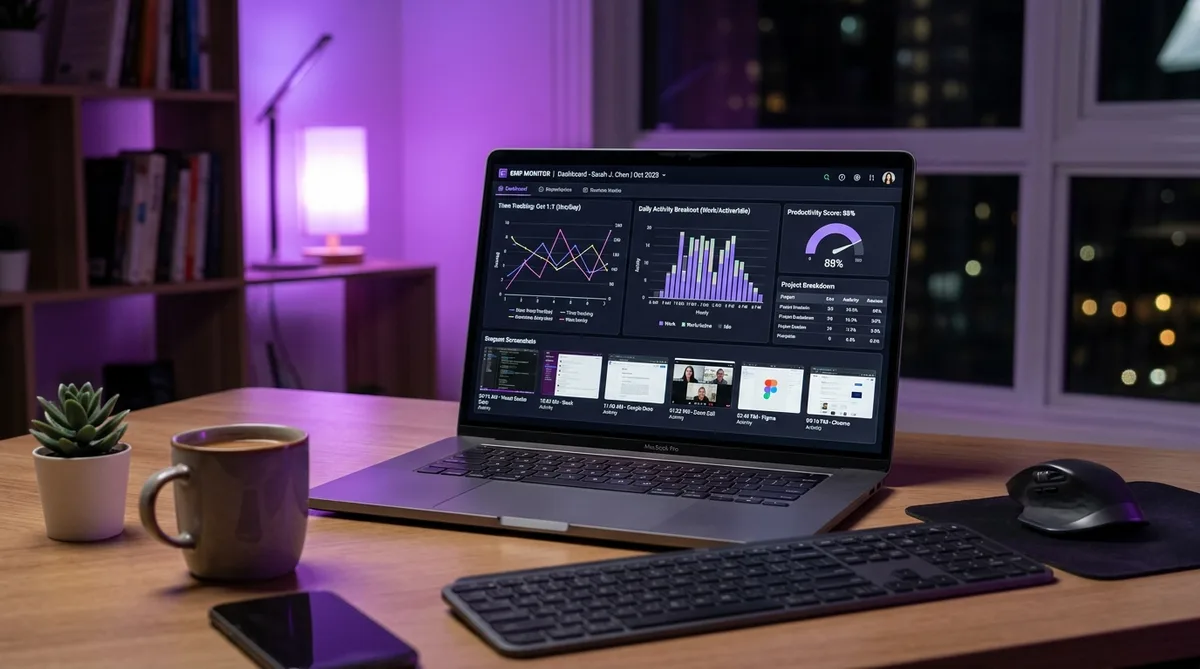
Time Champ has grown into one of the more feature-rich employee monitoring platforms on the market. It combines automatic time tracking with real-time screenshots, app monitoring, idle detection, and detailed activity timelines — all running silently in the background from the moment your computer starts. For managers, this level of visibility provides a complete picture of how employees spend their work hours.
For employees, though, that same visibility can feel excessive. Time Champ does not just check whether you are at your desk — it records exactly which apps you are using, takes periodic screenshots of your screen, and tracks how often you touch your keyboard and mouse. A five-minute coffee break, a phone call with a client, or a moment spent thinking through a complex problem all register as idle time on the dashboard.
That disconnect between how knowledge work actually happens and how Time Champ measures it is why people search for terms like "how to cheat Time Champ," "Time Champ hack," or "trick Time Champ activity." Most are not looking to slack off. They want their reports to reflect consistent work even during legitimate breaks when they step away from the keyboard.
In this guide, we will break down exactly how Time Champ monitors your activity, what its pricing looks like in 2026, and what you can do to maintain consistent activity reports without triggering alerts. If you want a broader view of how monitoring tools work, start with our complete guide to cheating time tracking software.
How Time Champ Tracks Your Activity
Time Champ uses multiple overlapping monitoring methods to build a comprehensive picture of your workday. Understanding each one is the first step toward keeping your reports in good shape. Let us walk through every tracking mechanism.
Automatic Time Tracking
Time Champ's desktop application starts tracking the moment your computer turns on. There is no timer to start, no project to select, and no button to click. The software captures your login time, logout time, breaks, and total active hours automatically. This is fundamentally different from manual tools like Toggl where you start and stop timers yourself.
The automatic approach means there are no gaps in the data. Every second between login and shutdown is accounted for — either as active time, idle time, or break time. If your computer is on and Time Champ is installed, it is recording.
Automated Screenshots
Time Champ takes screenshots at configurable intervals, typically every few minutes. These captures show exactly what was on your screen at that moment — which application was open, what document you were working on, or which website you were browsing. Managers can review these screenshots in the Time Champ dashboard alongside your activity data.
Some Time Champ plans also include live screen recording, which goes beyond periodic snapshots to capture continuous video of your desktop. This makes it significantly harder to hide what you are doing during work hours, since a single misleading screenshot can be cross-referenced against the full recording.
This is similar to how Hubstaff handles screenshots, though Time Champ's live recording feature adds an extra layer of surveillance that Hubstaff does not offer by default.
App and Website Tracking
Every application you open and every website you visit during work hours is logged by Time Champ. The software records which app is in the foreground, how long you spend in each one, and which URLs you visit in your browser. This data feeds into productivity scoring — Time Champ categorizes apps and websites as productive, unproductive, or neutral based on your employer's configuration.
For example, your code editor might be categorized as productive, while social media sites are marked unproductive. Time spent in each category is calculated as a percentage of your total work time and displayed on the manager's dashboard. This is the same approach used by DeskTime, though Time Champ provides more granular URL-level tracking.
Idle Time Detection
Time Champ monitors your keyboard and mouse activity to determine whether you are actively working or idle. When no input is detected for a configurable period — typically three to five minutes — the software marks that time as idle. Idle time appears as a gap in your activity timeline and lowers your overall productivity score.
Unlike some simpler tools that just check for any mouse movement, Time Champ tracks the intensity of your keyboard and mouse usage. A single mouse nudge every few minutes will not produce the same activity score as genuine typing and clicking. The system is looking for patterns that resemble real work, not just proof that someone is sitting at the desk.
Keyboard and Mouse Monitoring
Beyond idle detection, Time Champ specifically tracks keyboard and mouse intensity as separate metrics. The platform identifies employees who appear online but are not actively engaged by measuring how frequently keys are pressed and how often the mouse moves. This is designed to catch the exact scenario where someone uses a basic mouse jiggler or a script that presses a single key every few seconds.
Time Champ's dashboard displays this data as an activity percentage — the ratio of time with genuine keyboard and mouse input versus total logged time. Managers can see at a glance whether an employee's activity level is consistent or suspiciously low.
Activity Timeline
All of the above data feeds into a minute-by-minute activity timeline for each employee. This timeline shows exactly which apps were used, which tasks were worked on, and how much time was spent on each. Managers can drill down into any segment of the day to see screenshots, productivity scores, and input activity for that specific period.
The timeline also includes suspicious activity alerts that flag unusual patterns: unexpected logins, unauthorized app access, or anomalous data transfers. This means Time Champ is not just passively recording — it is actively analyzing behavior for anything out of the ordinary.
Time Champ Pricing in 2026
Time Champ offers three pricing tiers, all billed annually. Every plan includes a 14-day free trial with no credit card required.
- Basic — $3.20/user/month: Automatic time tracking, attendance management, project tracking, and basic reports. No screenshots or monitoring features.
- Standard — $6.90/user/month: Everything in Basic plus employee monitoring with screenshots, app and URL tracking, productivity scoring, keyboard and mouse activity monitoring, and suspicious activity alerts. This is the tier most employers choose.
- Enterprise — custom pricing: Everything in Standard plus on-premises deployment, custom roles, hierarchical analytics, SSO, and a dedicated customer success manager. Designed for organizations with 200 or more employees.
For the monitoring features that matter most — screenshots, app tracking, idle detection, and activity scoring — you need at least the Standard plan at $6.90/user/month. The Basic plan only covers time tracking and attendance without any surveillance capabilities.
What Your Employer Actually Sees
Knowing exactly what appears on your manager's dashboard helps you understand how your workday is evaluated. Time Champ gives managers a real-time view of their team that goes beyond simple timesheets.
Live screen viewer. On the Standard plan and above, managers can watch your screen in real time. This is not a screenshot taken every few minutes — it is a live feed of what is on your monitor at that exact moment. If your manager happens to check during a break, they see exactly what is on your screen.
Activity timeline with intensity bars. Time Champ displays your entire workday as a visual timeline where each segment is color-coded by activity intensity. High-intensity periods (frequent keyboard and mouse input) appear as full green bars, while low-intensity periods show as partial or yellow bars. Extended idle periods appear as gray gaps. Managers can click any segment to see the screenshot captured at that time.
Keyboard and mouse intensity charts. Unlike tools that only measure whether input happened, Time Champ tracks how intensely you use your keyboard and mouse separately. Your manager sees charts showing input frequency over time. A period with mouse movement but zero keyboard input looks very different from a period with both — and Time Champ highlights these discrepancies.
Suspicious activity alerts. Time Champ's alert system flags patterns that suggest artificial activity. Perfectly consistent mouse movement with no variation, keyboard input at impossibly regular intervals, or a sudden shift from your normal activity baseline can all trigger alerts. These notifications go directly to your manager with the specific data that triggered the flag.
App and website breakdown. Managers see a detailed list of every application and website you used during the day, sorted by time spent. Each entry is classified as productive, unproductive, or neutral. Spending 45 minutes on a news site when your normal pattern shows 5 minutes is immediately visible in this breakdown.
How to Maintain Consistent Activity in Time Champ
Time Champ's multi-layered monitoring makes it more sophisticated than a simple timer. A basic mouse jiggler will not fool it because the software tracks keyboard input, app usage, and mouse movement patterns independently. Here is what actually works to keep your reports consistent.
Keep productive apps in the foreground. Since Time Champ scores your productivity based on which application is active, make sure work-related apps (your IDE, email client, project management tool) are in the foreground rather than a browser tab showing social media. This alone can significantly improve your productivity score.
Use your break time wisely. If Time Champ is configured with an official break system, use it. Logging breaks through the proper channel means that time does not count against your productivity percentage. Check with your employer whether Private Time or scheduled breaks are available in your Time Champ configuration.
Simulate realistic activity patterns. Because Time Champ monitors keyboard and mouse intensity separately, maintaining consistent reports requires activity that mimics genuine work — not just a cursor moving in circles. You need realistic mouse movements, keyboard input, scrolling, and occasional app switching that matches the natural rhythm of someone actually working.
This is where Trick Tack becomes useful. Unlike simple mouse jigglers, Trick Tack simulates multiple activity types simultaneously: natural mouse movements with varied speed and range, keyboard input, scroll behavior, and even app switching via Alt+Tab. The combination produces the kind of multi-dimensional activity that Time Champ's monitoring expects to see from a real user. You can fine-tune the intensity of each simulation type through five adjustable levels, matching the natural activity patterns of your typical workday.
Frequently Asked Questions
Does Time Champ take screenshots?
Yes, Time Champ automatically captures periodic screenshots alongside its activity tracking. Screenshots are taken at configurable intervals and stored in the admin dashboard for manager review. Combined with live screen recording on higher plans, Time Champ creates a visual record of your workday. TrickTack keeps your screen showing realistic work activity during breaks so every capture looks natural.
Does Time Champ record keystrokes?
Time Champ tracks keyboard activity intensity — how frequently keys are pressed — but does not log the specific keys you type. The software measures whether you are actively using the keyboard as an engagement metric, not to capture passwords or message content. This is an important distinction: it knows that you are typing, but not what you are typing.
Can Time Champ detect a mouse jiggler?
A basic hardware mouse jiggler that only moves the cursor in small circles will be flagged by Time Champ as suspicious. The software tracks keyboard and mouse activity as separate metrics and analyzes the pattern of movement. A cursor that moves predictably with zero keyboard input and no app changes does not look like real work. Time Champ's intensity tracking is specifically designed to catch this kind of artificial activity.
Does Time Champ work on Mac and Linux?
Yes. Time Champ supports Windows, macOS, and Linux desktop applications, as well as mobile apps. The monitoring features are consistent across platforms, though some advanced features like live screen recording may vary by operating system. Check with your employer which platform they have deployed.
Can I pause Time Champ tracking?
Time Champ does not offer a user-facing pause button in most configurations. The software is designed to run continuously from login to shutdown. However, some deployments include a break or private time feature that allows employees to temporarily stop tracking during personal time. This depends entirely on how your employer has configured the system — check your company's Time Champ policy.
What is the difference between Time Champ and Hubstaff?
Hubstaff focuses primarily on activity percentage tracking with periodic screenshots, while Time Champ adds real-time screen recording, detailed keyboard and mouse intensity metrics, and suspicious activity alerts. Time Champ is generally more surveillance-heavy, whereas Hubstaff leans more toward productivity measurement. Time Champ is also significantly cheaper per user, starting at $3.20 versus Hubstaff's higher per-seat pricing.
Can Time Champ watch my screen in real time?
Yes. On the Standard plan and above, Time Champ includes a live screen viewer that lets managers watch your desktop in real time. This is not a replay of recordings — it is a live feed. Your manager can open it at any point during the workday without notifying you. This is one of Time Champ's more aggressive features and one reason a static screenshot-based workaround is not enough.
How does Time Champ's suspicious activity detection work?
Time Champ analyzes your keyboard and mouse input patterns against your established baseline. It flags activity that looks artificial: perfectly regular mouse movement intervals, keyboard input at a constant rate with no variation, or mouse-only activity with zero keyboard input for extended periods. When a pattern triggers the system, your manager receives an alert with the specific data — the time range, the input metrics, and why it was flagged. The detection is specifically designed to catch mouse jigglers and simple automation scripts.
Does Time Champ track activity after work hours?
Time Champ tracks activity whenever the agent is running on your computer. Most employers configure monitoring schedules that limit tracking to business hours, but this is an admin setting — not a default. If no schedule is configured, Time Champ records everything from the moment you log in until you shut down. Check your company's Time Champ policy or ask your IT department whether after-hours tracking is enabled on your machine.
Conclusion
Time Champ is one of the more comprehensive employee monitoring platforms in 2026. Its combination of automatic time tracking, periodic screenshots, live screen recording, app and URL monitoring, keyboard and mouse intensity tracking, and suspicious activity alerts makes it significantly harder to game than simpler time trackers.
The key to maintaining consistent activity reports in Time Champ is understanding that the software tracks multiple signals simultaneously. A single-dimension approach like a mouse jiggler will not work because Time Champ cross-references mouse movement against keyboard input, app usage, and overall activity patterns.
Trick Tack was built for exactly this kind of multi-layered monitoring. By simulating natural mouse movements, keyboard input, scrolling, and application switching with adjustable intensity levels, it maintains the realistic activity profile that Time Champ expects from a genuine user. Whether you are stepping out for lunch, taking a personal call, or simply need a mental break, Trick Tack keeps your Time Champ reports looking consistent.
For more strategies on working with specific monitoring tools, check out our articles on how to hack DeskTime and our complete guide to tricking employee monitoring software.
Try Trick Tack Free for 7 Days
Keep your Time Champ activity reports consistent while you step away. Cancel anytime during your trial.
Download

