Why People Search for Toggl Track Hacks
Toggl Track is one of the most popular time tracking tools in the world, with over 5 million users across freelancers, agencies, and remote teams. Unlike heavier employee monitoring tools that silently record your screen and log every keystroke, Toggl Track is built around a much simpler concept: you start a timer when you begin working and stop it when you finish.
So why do people search for "toggl hack" or "how to trick toggl" if the tool is so lightweight? The answer comes down to one feature: idle detection. The Toggl Track desktop app watches for periods of no mouse or keyboard input and flags them when you return. If you step away for a coffee, a phone call, or just to think through a problem, the idle popup appears and asks you to account for that time. Repeatedly discarding idle periods or having visible gaps in your tracked hours can raise questions from managers who review summary reports.
The other common reason is confusion. People search "does toggl take screenshots" or "does toggl track activity" because they have heard about invasive monitoring tools and assume Toggl works the same way. It does not. Understanding what Toggl Track actually monitors — and what it deliberately chooses not to monitor — is the first step toward keeping your time entries clean. For a broader overview of how different monitoring tools work, see our complete guide to cheating time tracking software.
How Toggl Track Monitors Your Time
Understanding what Toggl Track actually records is the key to keeping your time entries in good shape. Compared to full surveillance platforms like Hubstaff or Time Doctor, Toggl Track’s monitoring footprint is remarkably small. Let us walk through each mechanism.
Manual Timer-Based Tracking
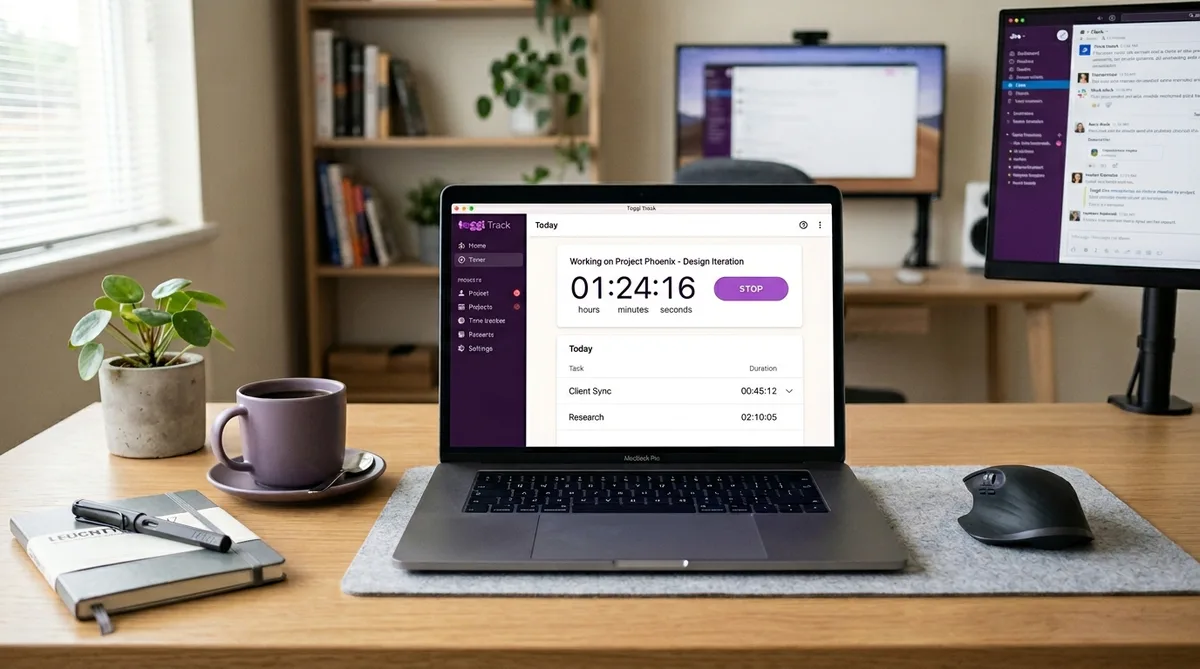
Toggl Track’s core feature is a one-click timer. You start it when you begin a task and stop it when you finish. There is no automatic background monitoring of your applications, websites, or keystrokes. What you track is entirely in your hands.
Each time entry can be tagged with a project, client, and custom tags. Managers see which projects consumed time and how many hours each team member logged, but they do not see what you did during that time beyond the description you write. If you type "Drafting Q3 proposal" on a two-hour entry, that label is all your manager reads.
This manual approach is fundamentally different from tools like DeskTime, which tracks automatically from the moment your computer turns on. Toggl puts the employee in control of what gets recorded, which is why it feels so much lighter — but it also means that gaps where no timer was running are visible in reports.
Browser Extension and Integrations
Toggl Track connects with over 100 tools including Asana, Jira, Trello, Notion, Slack, and Google Calendar. The browser extension lets you start timers directly from within these tools without switching tabs.
The extension can optionally detect which website you are on and suggest timer entries based on the site, but this is an opt-in convenience feature, not a monitoring tool. It does not report your browsing history to anyone. Its purpose is to reduce the friction of starting timers — nothing more.
On the Starter plan and above, Toggl includes a calendar view that overlays your time entries onto your Google or Outlook calendar. This makes gaps in tracked time visible at a glance, both to you and to workspace admins. If you forgot to run a timer during a meeting that appears on your calendar, the gap will be obvious.
Timeline (Desktop Only — Private to You)
The Toggl Track desktop app (available for Windows, macOS, and Linux) includes a Timeline feature that records which applications and websites you use throughout the day. This sounds invasive, but there is a critical distinction: this data is completely private to you.
Timeline data is stored locally and is never shared with workspace admins or included in team reports. It exists only to help you retroactively create time entries for periods you forgot to track. If you realize at 5 PM that you forgot to start a timer for a two-hour coding session, you can look at your Timeline, see that VS Code was in the foreground from 1 PM to 3 PM, and create a time entry from that data.
Your manager cannot see your Timeline. There is no admin toggle to make it visible. This is a personal productivity feature, not a monitoring feature.
Idle Detection
This is the one Toggl Track feature that matters most for anyone searching for a Toggl hack. The desktop app includes an idle detection system that monitors your keyboard and mouse activity while a timer is running.
When the app detects no input for a configurable threshold (default: 5 minutes), it does not immediately stop the timer. Instead, it waits for you to return and then shows a popup with three options:
- Keep the idle time — the full period stays in your time entry as if you were working.
- Discard the idle time — the idle period is removed and your entry is adjusted backward to when you stopped being active.
- Discard and continue — the idle period is removed and a new timer starts from the moment you came back.
The idle threshold can be adjusted in Settings > Timer > Idle Detection. Setting it higher (10–15 minutes) gives you more buffer for short breaks before the popup appears. Some users disable it entirely, though this is a per-user setting that workspace admins may or may not allow.
Critically, idle detection only runs in the desktop app. The web timer, browser extension, and mobile apps have no idle detection whatsoever. If you track time exclusively through the web interface, the timer will continue running indefinitely regardless of whether you are at your computer.
What Toggl Track Does NOT Do
This is the section most readers are here for. Understanding what Toggl Track does not do is just as important as knowing what it does — especially if you came from a workplace that used more invasive tools. Here is what Toggl Track explicitly lacks:
- No screenshots. Toggl Track does not take screenshots of your screen on any plan. This is not a missing feature or a cost-saving decision — it is a deliberate product philosophy. Tools like Teramind, Time Champ, and Time Doctor take periodic or triggered screenshots. Toggl has no screenshot capability whatsoever.
- No keystroke logging. Toggl does not record what you type. It only knows that keyboard activity occurred (for idle detection purposes) and immediately discards the data. There is no log of your keystrokes anywhere.
- No activity levels or productivity scores. Tools like Hubstaff calculate an “activity percentage” based on mouse and keyboard input per 10-minute interval. Insightful tracks second-by-second activity. Toggl has no concept of activity levels or productivity scoring.
- No app or website monitoring for managers. The Timeline feature records your app usage, but as covered above, that data is private to you. Your manager cannot see it, period.
- No stealth mode. Toggl Track cannot be installed silently or hidden from the user. You always know it is running, and you control when the timer runs.
- No GPS or location tracking. Unlike Hubstaff or TSheets (QuickBooks Time), Toggl does not track your physical location.
This makes Toggl Track one of the least invasive time tracking tools available in 2026. It is designed for time accountability and billing, not employee surveillance.
Toggl Track Pricing in 2026
Toggl Track offers four pricing tiers. The pricing changed in early 2026, so here is the current breakdown:
Free — $0 (Up to 5 Users)
The free plan includes unlimited time tracking across web, desktop, and mobile, plus basic reports, the Pomodoro timer, and 100+ integrations. It covers up to 5 users, with one workspace admin. You get idle detection in the desktop app, but not project time estimates, billable rates, or calendar integration.
Starter — $9/user/month (billed annually)
The Starter plan ($11.35/user/month billed monthly) adds project time estimates, billable rates, project templates, calendar integration, fixed fee projects, and time rounding. This tier is aimed at freelancers and small teams who need project-level financial tracking on top of basic time tracking.
Premium — $18/user/month (billed annually)
The Premium plan ($22.70/user/month billed monthly) includes everything in Starter plus time audits, required fields, locked time entries, scheduled reports, project forecasts, labor cost tracking, and profitability reports. This is the tier that larger teams and agencies typically use for financial oversight.
Enterprise — Custom Pricing
For organizations with 100+ users, the Enterprise plan adds custom integrations, dedicated account management, priority support, and enhanced security features. Pricing is negotiated directly with Toggl’s sales team.
All paid plans include a 30-day free trial of the Premium tier, so you can test the full feature set before committing. Compared to monitoring-focused tools like Insightful ($8–$15/user/month) or ActivTrak ($10–$19/user/month), Toggl Track is priced similarly but delivers a fundamentally different product — it tracks time allocation, not employee behavior. For our full breakdown, see the Toggl Track review.
What Your Employer Actually Sees
Because Toggl Track is a manual time tracker rather than a surveillance tool, what your manager sees is dramatically more limited than what tools like Insightful or Teramind expose. There are no screenshots to scrub through, no productivity score, and no activity heatmap. Your manager only sees the time entries you choose to create.
Summary reports. The default view is total hours broken down by project, client, and team member over a chosen date range. A week showing 38 tracked hours across three projects is the level of detail they see. There is no breakdown of what happened within those hours.
Detailed time entries. Drilling into the detailed report shows every individual time entry: start time, stop time, the description you wrote, the project, client, and tags. If you wrote “Drafting Q3 proposal” on a two-hour entry, that label is what your manager reads. Empty or vague descriptions are visible too, so consistent, plausible descriptions matter more than anything else.
Team dashboard (live). Workspace admins have a Team Dashboard that shows who is currently tracking time and against which project, updated in real time. If your timer is running, your manager can glance at the dashboard and see your active entry with its description. If your timer is stopped, you simply show as not currently tracking — there is no alert and no flag, just the absence of an active timer.
Idle detection results. Your manager does not see the idle popup itself. They only see the final adjusted entry. But if you regularly discard idle periods, the resulting gaps or shortened entries can be visible in the detailed report. A day with six separate entries averaging 45 minutes each, with 15-minute gaps between them, tells a story even without screenshots.
What they cannot see. Your manager cannot see your screen, your keystrokes, your app usage (Timeline is private), your browsing history, your activity level, or your location. They see the story you tell through your time entries — nothing more, nothing less.
How to Maintain Consistent Time Entries
Since Toggl Track relies on manual timers with idle detection, the challenge is straightforward: keep the idle detection popup from appearing in the desktop app while you take breaks. Unlike heavier tools where you need to fool screenshot capture and activity scoring, with Toggl the bar is much lower — any mouse or keyboard input within the idle threshold keeps the timer running cleanly.
This is where TrickTack becomes useful. TrickTack is a lightweight desktop application that simulates natural human input — mouse movements, keyboard presses, scrolling, and app switching — to prevent idle detection from triggering while you step away.
Why TrickTack Works with Toggl Track
Toggl Track’s idle detection checks for two things: mouse movement and keyboard input. As long as either occurs within the configured threshold, the idle popup does not appear. TrickTack addresses this directly:
- Mouse movement simulation — TrickTack generates natural, randomized mouse movements that prevent the idle detection timer from starting. The movements mimic real human behavior, not robotic straight-line paths.
- Keyboard input simulation — Periodic keyboard input ensures Toggl’s idle detector sees both types of activity, matching how people naturally work. This also prevents your operating system from triggering a screensaver or lock screen.
- Scrolling simulation — Natural scrolling adds another dimension of realistic activity. This is less critical for Toggl specifically, but keeps your Timeline data (visible only to you) looking natural if you review it later.
- App switching — TrickTack can rotate between open applications, which prevents any single app from appearing idle for unnaturally long periods on your private Timeline.
Getting Started
- Download TrickTack and sign up for a free 7-day trial.
- Start your Toggl timer as usual for the task you are working on.
- Activate TrickTack when you need to step away — it will maintain mouse and keyboard activity to prevent the idle detection popup from appearing.
- Return and deactivate when you are back at your desk. Your Toggl time entry will show continuous tracked time with no idle gaps.
Because Toggl Track only checks for input activity (not screenshots, not app categories, not productivity scores), TrickTack is particularly effective here. There are fewer monitoring layers to address compared to tools like DeskTime or Insightful, which means even TrickTack’s Basic plan handles the job. For comparisons of Toggl with other trackers, see Toggl vs Clockify.
Keep Your Toggl Track Reports Consistent
TrickTack simulates natural mouse and keyboard activity to prevent Toggl Track’s idle detection from triggering during breaks. Try it free for 7 days.
DownloadFrequently Asked Questions
Does Toggl Track take screenshots?
No. Toggl Track does not take screenshots of your screen and never has. This is a deliberate product decision, not a missing feature. Toggl positions itself as a trust-based time tracker rather than an employee surveillance tool. Unlike Hubstaff, Time Doctor, or Insightful, which capture periodic or triggered screenshots, Toggl Track only records the time entries you create. There is no visual monitoring, no screen recording, and no webcam access on any plan.
Does Toggl Track monitor my activity levels?
No. Toggl Track does not calculate activity percentages based on mouse and keyboard input the way tools like Hubstaff or Time Doctor do. The only activity-related feature is idle detection in the desktop app, which watches for periods of no input and then asks whether you want to keep or discard that idle time. There is no activity score, no productivity percentage, and no heatmap of your input patterns visible to your manager. Your manager sees time entries, not activity metrics.
Can my employer see what apps I use with Toggl Track?
No — not in any way your manager can access. The Toggl Track desktop app includes a Timeline feature that records which applications and websites you open throughout the day, but this data is completely private to you. It is stored locally and never shared with workspace admins or included in team reports. The Timeline exists only to help you retroactively create time entries for periods you forgot to track. Your manager sees only the time entries you create, the projects they are assigned to, and the descriptions you write.
How does Toggl Track detect idle time?
The Toggl Track desktop app monitors keyboard and mouse activity while a timer is running. When it detects no input for a configurable period (default is 5 minutes), it shows an idle detection popup when you return. The popup asks whether you want to keep the idle time, discard it, or discard it and start a new timer. This feature only exists in the desktop app — the web timer, browser extension, and mobile apps have no idle detection, so the timer runs indefinitely regardless of whether you are at your computer.
Is Toggl Track free?
Yes. Toggl Track offers a free plan for up to 5 users that includes unlimited time tracking, basic reports, the Pomodoro timer, and integrations with over 100 tools. The Starter plan costs $9 per user per month billed annually and adds project time estimates, billable rates, and calendar integration. The Premium plan costs $18 per user per month billed annually and includes time audits, required fields, locked time entries, and project forecasts. All paid plans come with a 30-day free trial of the Premium tier.
Can my boss see my Toggl entries in real time?
Yes. Workspace admins have access to a Team Dashboard that shows who is currently tracking time and against which project, updated live. If your timer is running, your manager can see the active entry and its description. If your timer is stopped, you simply appear as not currently tracking — there is no alert or flag, just the absence of an active timer. Completed entries also appear in summary and detailed reports for any date range your manager selects.
What is the difference between Toggl Track and Toggl Plan?
Toggl Track is a time tracking tool that records how long you spend on tasks and projects. Toggl Plan is a separate project management tool with visual timelines, task boards, and team planning features. They are different products with separate pricing and subscriptions, though they integrate with each other. If your employer uses Toggl Track, that does not mean they also have Toggl Plan or vice versa.
Is it "Toggl" or "Toggle" time tracking?
The product is spelled Toggl — no "e". "Toggle time tracking," "toggle time tracker," and "toggle timer" are extremely common misspellings, so if you have been searching for the toggle time tracking app, Toggl Track is the software you are looking for. Everything in this guide — the idle detection, the private Timeline, the pricing, and the ways to keep your entries consistent — applies to Toggl Track.
Conclusion
Toggl Track occupies a unique position in the time tracking market. Unlike Hubstaff, Teramind, or RescueTime, it does not silently monitor your applications, capture screenshots, or calculate activity percentages. Everything it records comes from the timers you start and stop yourself. The one monitoring mechanism that matters is idle detection in the desktop app, which watches for periods of no mouse or keyboard input and asks you to account for them.
That single feature is where a tool like TrickTack makes a practical difference. By keeping natural-looking mouse and keyboard input flowing during breaks, the idle popup never appears and your time entries stay continuous. Because Toggl does not check screenshots, productivity categories, or foreground apps, there are fewer layers to address than with heavier monitoring tools — making Toggl one of the simplest trackers to keep consistent.
For more on how Toggl compares to other tools, read our Toggl vs Clockify comparison, our Harvest vs Toggl comparison, or the comprehensive guide to cheating time tracking software.
Try TrickTack Free for 7 Days
Simulate natural mouse and keyboard activity to prevent Toggl Track’s idle detection from triggering during breaks. Cancel anytime during your trial.
Download

