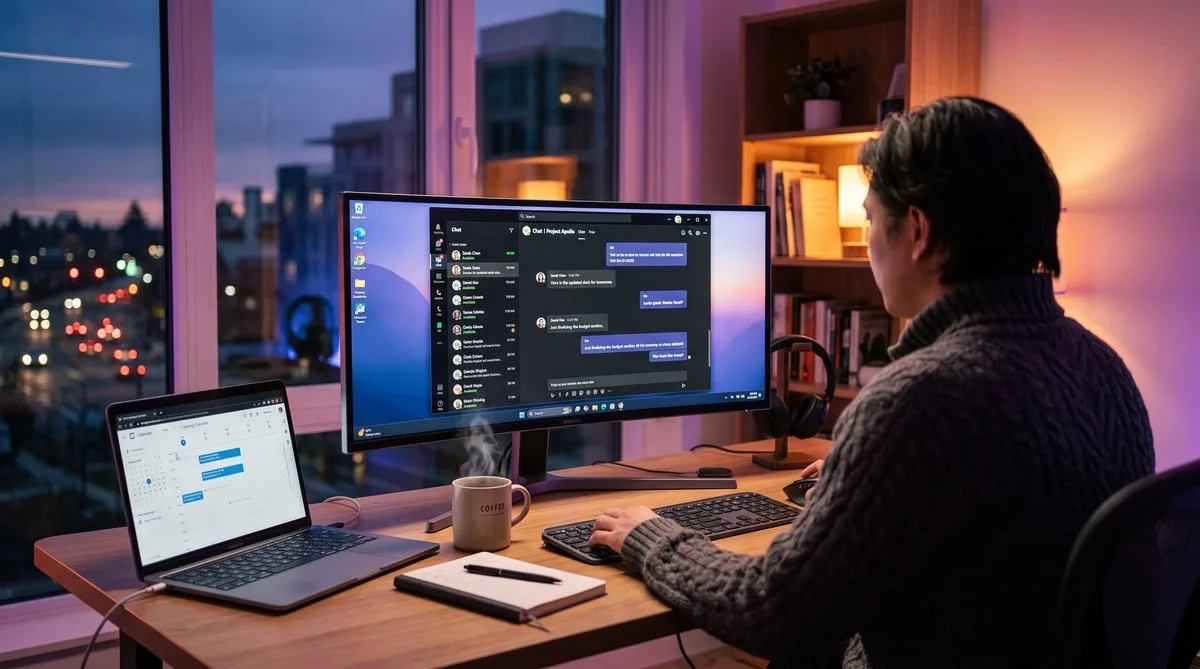
How Teams Decides Your Status
Microsoft Teams uses a 5-minute inactivity timer to determine your presence status. If Teams detects no mouse movement, keyboard input, or application focus changes for 5 consecutive minutes, it automatically switches your status from Available (green) to Away (yellow).
This timer is hardcoded. Microsoft does not provide a setting to extend it to 10, 15, or 30 minutes. There is no admin-level control for it either — your IT department cannot change it even if they wanted to. Teams is the strictest of the major apps; for how its 5-minute window compares to Slack, Zoom, and others, see our cross-app guide to keeping your status active.
Teams monitors three signals:
- OS-level input — mouse movement and keyboard input reported by the operating system
- Screen state — whether your display is locked or in sleep mode (instant Away)
- Calendar events — Teams automatically sets your status to “In a meeting” or “Busy” during Outlook calendar events
If your screen locks or your computer sleeps, Teams does not wait 5 minutes — it switches to Away immediately. This is why power settings matter as much as activity simulation.
Built-In Settings That Help
Before reaching for third-party tools, adjust these settings that directly affect your Teams status:
1. Status Duration Setting
Teams lets you manually set your status with a time-based duration. Click your profile picture, select your current status, and choose Duration. You can set your status to Available for a specific period — 30 minutes, 1 hour, 4 hours, “Today,” “This week,” or a custom date and time.
Important limitation: this prevents calendar-based status changes (your status will not automatically switch to “Busy” during meetings), but it does not prevent idle-based changes. If your computer reports no input for 5 minutes, Teams will still show you as Away even if you set your status to “Available until Friday.”
2. Status Message
You can set a status message that persists even when your presence changes. Go to your profile and select Set status message. Write something like “Working remotely — may be slow to respond” and set it to clear after a specific duration. This does not keep you green, but it provides context when your status does change.
3. Quiet Hours and Focus Time
Teams supports Quiet Hours (suppresses notifications) and Focus Time (via Viva Insights, blocks your calendar). Neither directly prevents the Away status, but blocking calendar time with Focus sessions gives you stretches where colleagues expect you to be heads-down and unavailable.
Manual Status with Duration
The simplest approach: manually set your status to Available with a duration before you step away. This works as a signal to colleagues and shows in chat, but remember that the actual presence indicator (the green dot) still responds to your computer’s activity level.
How to do it:
- Click your profile picture in the top right
- Click the status indicator (Available, Busy, etc.)
- Select Duration
- Choose Available and set the time period
This is a light-touch fix. It tells Teams “I want to be Available for the next 4 hours” and prevents calendar events from overriding your status. But the 5-minute idle timer still runs underneath.
The Personal Meeting Method
A widely shared workaround: start a personal meeting with yourself. When you are in a Teams meeting, your status shows as “In a call” (red with a phone icon) or “Busy,” which some people prefer to Away since it implies you are actively working.
How to do it:
- Open Teams Calendar
- Click Meet Now (top right)
- Start the meeting without inviting anyone
- Mute your microphone and turn off your camera
- Minimize the meeting window
Limitations: Your status shows as Busy or In a Call, not Available (green). Colleagues may hesitate to message you during a “meeting.” Some organizations log meeting activity, and a 4-hour solo meeting with no participants may attract attention. Your computer still needs to stay awake (the meeting will end if your screen locks).
Preventing Sleep and Screen Lock
The most common reason Teams shows Away is not lack of activity but your computer going to sleep or locking. Fix this first:
Windows
- Open Settings > System > Power & sleep
- Set “Screen” to Never (or a long timeout like 30 minutes)
- Set “Sleep” to Never
- If on a laptop, do this for both “On battery” and “Plugged in”
You can also use PowerToys Awake (a free Microsoft utility) to temporarily keep your PC awake without changing your permanent power settings. See our mouse mover software comparison for details.
Mac
- Open System Settings > Displays > Advanced
- Set “Turn display off” to Never (or drag the slider to a long duration)
- Disable “Require password after screen saver begins” in Lock Screen settings
Note: Some corporate-managed machines enforce screen lock policies through MDM (Mobile Device Management). If your IT department mandates a 15-minute lock timeout, you cannot override it. In that case, you need an activity solution that generates input before the lock timer fires.
Mouse Movers and Activity Tools
When settings alone are not enough — because your company enforces screen lock policies or you need to step away for longer than 5 minutes — activity simulation tools fill the gap.
How They Work with Teams
Teams checks the OS for input activity. If the operating system reports mouse movement or keyboard input, Teams considers you “active” and keeps your status green. Any tool that generates OS-level input events will prevent the 5-minute timer from triggering.
Free Options
- Move Mouse (Windows, free) — moves the cursor at set intervals. Available on the Microsoft Store. Keeps the OS reporting activity, which keeps Teams green.
- Caffeine / KeepingYouAwake (Mac, free) — prevents sleep only. Does not generate mouse or keyboard input, so Teams may still mark you as Away if the app does not detect interaction.
- PowerToys Awake (Windows, free) — keeps the screen on but does not generate input. Prevents sleep-based Away transitions but not idle-based ones.
Paid Options
TrickTack generates multi-channel activity — mouse, keyboard, scrolling, and app switching — keeping your Teams status green while also producing realistic activity data for any monitoring software that may be running alongside Teams.
Why Mouse-Only Solutions Sometimes Fail
Here is the catch most guides do not mention: newer versions of Microsoft Teams do not rely solely on cursor position. Teams also checks for application focus, keyboard events, and whether the user is actually interacting with windows — not just whether the cursor is drifting across the screen.
In practice, this means a simple mouse mover will keep you green most of the time. But some users report that after extended periods (30+ minutes) of cursor-only movement with zero keyboard input and no application focus changes, Teams still transitions to Away on certain builds.
If you are relying on staying green for more than a short bathroom break, a tool that generates keyboard input alongside mouse movement eliminates this edge case entirely. This is why multi-channel tools like TrickTack exist — they cover every signal Teams checks, not just cursor position.
What Your Employer Can Actually See
Understanding what is visible to your manager helps you assess the risk of each approach:
- Teams presence history — Microsoft 365 admin center shows presence reports (Available, Away, Busy, Offline) over time. Gaps in availability are visible to admins.
- Message response times — your manager can see timestamps on messages and calculate how long you took to respond. Being “green” but not responding for 2 hours raises more questions than an honest Away status.
- Activity reports — Microsoft Productivity Score and Viva Insights show aggregate usage patterns (messages sent, meetings attended, files edited). These are available to admins on enterprise plans.
- Monitoring software — if your employer runs tools like Hubstaff, Time Doctor, or ActivTrak, they capture far more than Teams status. They track screenshots, app usage, keyboard/mouse activity levels, and idle time. Keeping Teams green while a tracker shows 0% activity creates a visible mismatch.
The most effective approach combines staying green on Teams with maintaining realistic activity across all channels — Teams status, response times, and whatever monitoring tools your employer uses.
Frequently Asked Questions
How long before Teams shows me as Away?
Microsoft Teams changes your status from Available to Away after exactly 5 minutes of inactivity. This timer is based on OS-level input detection — mouse movement, keyboard input, and application focus. There is no setting to change this 5-minute threshold. If your computer enters sleep mode or you lock the screen, Teams switches to Away immediately.
Can I permanently set my Teams status to Available?
You can manually set your status to Available with a duration (up to a custom date and time), but Teams will still override it if your computer reports no input for 5 minutes. The manual setting prevents calendar-based status changes (like Busy during meetings) but does not prevent idle-based changes. The only reliable way to stay green is to keep your computer active.
Does the Teams mobile app keep me active?
Partially. If the Teams mobile app is in the foreground on your phone, it shows you as Available on mobile. However, your desktop status is separate. If your desktop Teams client detects no input, your desktop status still changes to Away, which is what most colleagues and managers see. Running Teams on your phone does not keep your desktop status green.
Can my employer see when I manually change my status?
Microsoft 365 admin reports do not currently show a log of manual status changes. However, if your employer uses monitoring software alongside Teams, the tracker can detect discrepancies between your status (Available) and your actual activity (zero input). Some enterprise compliance tools also log Teams presence changes. The safest approach is actual input activity rather than manual status overrides.
Will a mouse mover keep my Teams status green?
A basic mouse mover will keep your operating system reporting activity, which prevents the 5-minute idle timer from triggering. However, newer versions of Teams also consider whether the application has focus and whether there is keyboard input — not just cursor movement. A multi-channel tool that simulates both mouse and keyboard activity is more reliable for keeping Teams green consistently.
Keep Teams Green While You Step Away
TrickTack simulates mouse, keyboard, and app activity — keeping your status green on Teams, Slack, and any monitoring tool your employer runs.
Try Free for 7 Days

