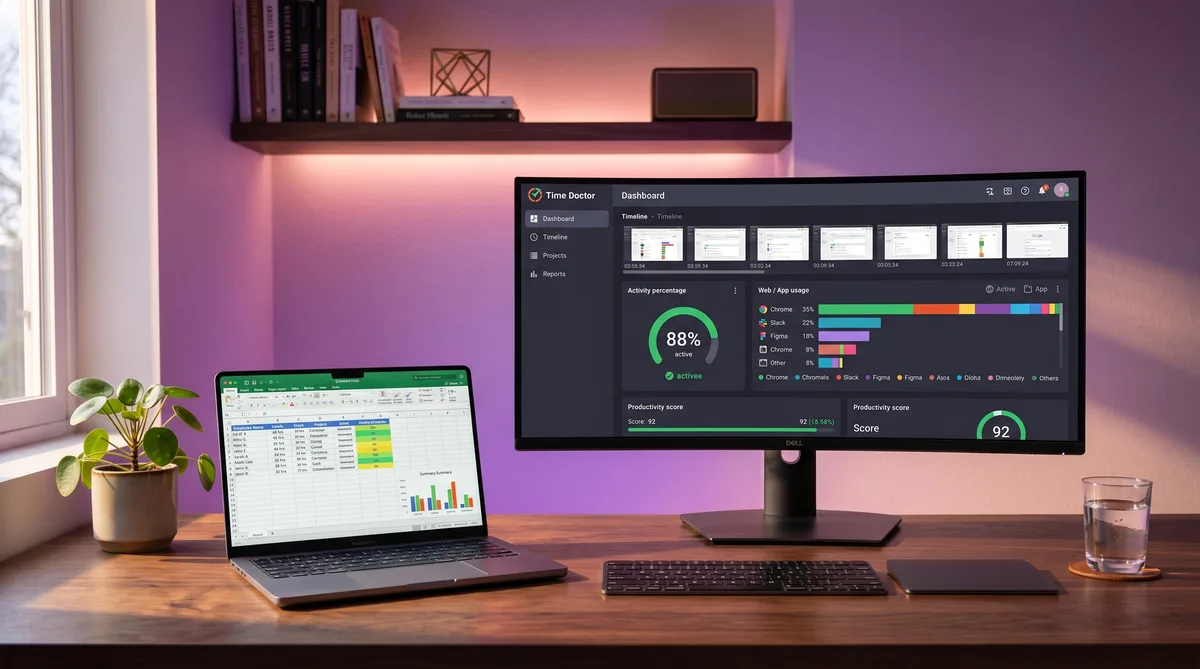
Time Doctor watches several layers at once — screenshots, a mouse-and-keyboard activity percentage, idle detection, app and URL logging, and, on the Premium plan, an AI-powered Unusual Activity Report built to flag mouse jigglers. Beating any single layer is easy; the hard part is staying consistent across all of them at the same time. A basic jiggler or auto-clicker keeps the timer running but leaves a robotic, single-signal footprint that the AI is designed to catch, and it does nothing for the screenshots. The reliable approach is a tool that generates varied mouse movement, clicks, keystrokes, scrolling, and app switching at randomized intervals, so your activity score sits in a natural range and each screenshot shows a genuine-looking working session.
For a focused employee-side explanation, read Time Doctor Audio Recording: An Employee Privacy Guide. Does Time Doctor record audio? Separate microphone activity from sound recording, understand screen-capture risks, and check what your employer has enabled.
What Is Time Doctor and Why People Look for Workarounds
If you have landed here searching for how to cheat Time Doctor, you are not alone. Before you try any Time Doctor hack, it helps to understand exactly how the software works, because Time Doctor is one of the most widely used employee monitoring and time tracking platforms on the market. Built for remote and hybrid teams, it gives managers real-time visibility into how employees spend their working hours through a combination of screenshots, activity-level tracking, idle detection, and website and application monitoring.
For employers, it is a powerful accountability tool. For employees, it can feel like a constant presence watching every click, every keystroke, and every minute of every day. That tension is exactly why "how to cheat Time Doctor" has become one of the most searched phrases in the employee monitoring space.
The reasons people search for Time Doctor hacks vary. Some remote workers want to take a short break without their activity score dropping. Others deal with time zone mismatches, personal errands during the day, or simply the stress of knowing that screenshots are being captured every few minutes. In many cases, employees are fully productive and hit their targets, but the constant monitoring creates unnecessary anxiety about brief periods of inactivity. The same frustration drives searches for workarounds to similar tools like QuickBooks Time (TSheets) and other clock-based trackers.
Whatever the reason, understanding exactly how Time Doctor works is the first step. For a broader overview, our guide on how to cheat time tracking software covers general strategies across multiple platforms, and our full Time Doctor review covers features, pricing, and alternatives, while our guide on how to use Time Doctor walks through setup and settings. In this article, we focus specifically on Time Doctor's monitoring mechanisms and how to maintain consistent activity reports.
How Time Doctor Tracks Your Activity
So how does Time Doctor work? Time Doctor uses a multi-layered monitoring system to build a detailed picture of how employees spend their time: it captures screenshots, measures mouse and keyboard activity levels, detects idle time, and logs the websites and applications you use. Understanding each layer is essential before attempting any workaround, because failing to account for even one tracking method can create inconsistencies that are easy for a manager to spot. Other automatic tracking tools like DeskTime use similar layered approaches, but Time Doctor's implementation is among the most aggressive.
If you want to understand monitoring software as a category, our guide to employee monitoring software explains how these tools work at a fundamental level. Below, we break down the specific mechanisms Time Doctor relies on.
Screenshots
Time Doctor captures screenshots of your screen at configurable intervals, typically set to every 3, 5, 10, or 15 minutes. However, the exact moment the screenshot is taken within each interval is slightly randomized. This means you cannot predict exactly when the capture will happen, which makes it harder to time your breaks around screenshot cycles.
Managers can review these screenshots in a timeline view that shows exactly what was on your screen throughout the day. On the Premium plan, Time Doctor goes a step further with video screen recording, which captures continuous footage of your desktop in three-minute segments. This is significantly harder to work around than static screenshots because it provides a full motion picture of your activity.
It is worth noting that managers have the option to blur or disable screenshots for specific users or entire teams. If your employer has chosen not to enable this feature, screenshot capture obviously is not a concern. But in most monitored environments, it is turned on by default.
Activity Levels (Mouse & Keyboard)
Time Doctor tracks your mouse movements, mouse clicks, and keyboard inputs throughout each tracked interval. It calculates an activity percentage for each period, which reflects how much of that time window included physical interaction with your computer.
For example, if you are typing and moving your mouse consistently during a ten-minute window, your activity level for that period might be 85-95%. If you walk away for five minutes and only move the mouse for the other five, it could drop to 40-50%. Managers can view these activity percentages in detailed reports and quickly spot patterns of low engagement.
Time Doctor also has an Unusual Activity Report (currently available as a feature in Time Doctor 2) that uses AI to flag suspicious patterns. It looks for indicators like "unusually high keystrokes," "unusually consistent mouse clicks," and "long periods of mouse movement with no clicks." This is specifically designed to detect mouse jigglers and automated input tools that produce artificial, repetitive patterns.
Idle Detection
When Time Doctor detects no mouse or keyboard input for a configurable period (typically three to five minutes), it triggers its idle detection system. In interactive mode, a pop-up appears on your screen asking "Are you still working?" If you do not respond within a set time, Time Doctor automatically stops tracking and puts you on break.
This means that simply walking away from your desk does not just lower your activity percentage; it can completely halt your tracked hours. The idle time is logged separately, and managers can see exactly how long you were idle and how many times idle detection was triggered during the day.
In silent mode (more on that below), idle detection still works, but without the pop-up notification. Time Doctor will simply stop counting time and record the gap, which managers can review later.
Web & App Monitoring
Time Doctor logs every website you visit and every application you open while the tracker is running. It records the domain name, the time spent on each site, and the application name alongside its usage duration. This data appears in detailed reports that managers can filter by date, employee, and category.
Websites and applications are categorized as productive, unproductive, neutral, or unrated. Managers can customize these categories to fit their team's workflow. For instance, a marketing team might have social media sites listed as productive, while a development team would not.
This tracking layer is particularly important because it provides context for your activity levels. Even if your mouse and keyboard activity is high, spending the entire day on YouTube or Reddit will show up clearly in web monitoring reports.
Distraction Alerts
Time Doctor includes a distraction alert system that nudges employees when they visit sites categorized as unproductive. When you navigate to a blacklisted website (such as Facebook, Netflix, or a news site) while the timer is running, a pop-up appears asking "Are you working on [project name]?"
This is not a punishment mechanism; it is designed as a gentle redirect. You simply click the alert to dismiss it. However, every distraction alert is logged. Managers can see which sites triggered alerts, how often, and for how long the employee remained on the unproductive site before dismissing the pop-up. Frequent distraction alerts can become a topic of conversation during performance reviews.
Managers can customize which websites and applications trigger distraction alerts, and they can set different rules for different teams or individuals.
Silent Mode vs. Interactive Mode
Time Doctor operates in two distinct modes, and it is important to know which one your employer uses:
- Interactive Mode: The employee sees the Time Doctor desktop application, can manually start and stop the timer, select tasks, and receives pop-up notifications for idle time and distraction alerts. This is the most common mode for remote workers who use their personal or mixed-use devices.
- Silent Mode (Automatic App): There is no visible user interface. Time Doctor runs in the background with no timer, no pop-ups, and no notifications. It starts automatically when the computer turns on and tracks everything during company-defined working hours. The employee may not even realize tracking is happening. This mode is typically used on company-owned devices in office settings.
In silent mode, all the same data is collected: screenshots, activity levels, web and app usage, and idle time. The difference is purely in the employee experience. If you are on silent mode, you have no visual indicators of when screenshots are being taken or whether idle detection has been triggered.
Unusual Activity Report (AI Detection)
This is Time Doctor's most sophisticated detection layer and the one most people underestimate. The Unusual Activity Report (available on the Premium plan) uses AI and machine learning to analyze your input patterns and flag behavior that does not look like genuine human work. It specifically watches for five patterns:
- Excessive keystrokes per second — typing faster than a human can sustain, which indicates a keyboard macro or auto-typer
- Mouse movement with zero clicks — a cursor that drifts continuously but never clicks anything, the signature of a basic mouse jiggler
- Sudden spikes in click activity — a burst of rapid clicks that does not match your normal pattern, typical of an auto-clicker
- Repeated consistent patterns over extended periods — identical timing loops that a human would never produce naturally
- Keystrokes without any accompanying mouse movement — keyboard-only input with a perfectly stationary cursor, which real work almost never produces
The report compares your current patterns against your own historical baseline. If your typical day shows 40-60% activity with bursts of typing and browsing, and one afternoon suddenly shows 95% activity with perfectly uniform mouse movement, the AI flags it. Managers receive an alert and can drill into the specific time period to review screenshots alongside the flagged activity data.
This is why basic mouse jigglers and auto-clickers fail against Time Doctor Premium: they produce exactly the single-signal, repetitive patterns this report is designed to catch. Effective tools need to simulate multiple input types (mouse, keyboard, clicks, scrolling) with randomized timing and variation to stay within the bounds of what the AI considers normal human behavior.
Document Tracking
A tracking layer that often goes unmentioned: Time Doctor can monitor activity within Microsoft Office and Google Docs. It tracks which documents you have open, how long you spend in each one, and whether you are actively editing or just have the file open in the background. This means having a Word document open on screen does not automatically register as productive work — Time Doctor can tell the difference between a document you are actively typing in and one that is just sitting open.
This layer matters because some people assume that opening a work-related document is enough to make screenshots look productive. If the document tracking shows zero edits over a 30-minute period while your screenshots show the same unchanged document, the inconsistency is visible in your manager's reports.
Time Doctor 2 vs. Classic
If you have used Time Doctor before, be aware that Time Doctor 2 (the current version) is significantly more sophisticated than the original. The classic version relied primarily on screenshots and basic idle detection. Time Doctor 2 added the Unusual Activity Report, enhanced silent mode, real-time dashboards, video screen recording, and deeper integration APIs. Methods that may have worked against the classic version — simple mouse jigglers, predictable auto-clickers — are exactly the patterns that Time Doctor 2's AI detection was built to catch. If your employer recently upgraded from Classic to TD2, your risk profile has changed.
Time Doctor Pricing Plans in 2026
Understanding Time Doctor's pricing helps clarify which monitoring features your employer might be using, since certain tracking capabilities are only available on higher-tier plans.
Basic Plan — $7 per user/month
The Basic plan covers the essentials. It includes time tracking, screenshots, activity-level monitoring, and idle detection. However, it does not include payroll integration or third-party app integrations. For small teams that only need core monitoring, this is the entry point. If your employer is on the Basic plan, you are dealing with screenshots and activity percentages but not video recording or advanced detection.
Standard Plan — $10 per user/month
The Standard plan adds payroll, integrations, and more granular management controls. It includes everything in Basic plus the ability to connect Time Doctor with project management tools like Asana, Trello, and Jira. Managers get more detailed reporting and team-level oversight. Web and app monitoring with distraction alerts is fully available at this tier.
Premium Plan — $20 per user/month
The Premium plan is the full surveillance package. It adds video screen recording (continuous desktop capture in three-minute segments), the Unusual Activity Report with AI-powered detection of mouse jigglers and artificial input patterns, SSO (Single Sign-On), open API access, and a dedicated customer success manager. If your employer is on the Premium plan, the monitoring is significantly more sophisticated.
All plans include a 14-day free trial with full Premium features. Annual billing offers a roughly 20% discount across all tiers.
For a side-by-side look at how Time Doctor stacks up against its closest competitors, see our Hubstaff vs. Time Doctor comparison or our DeskTime vs Time Doctor comparison, which weighs it against DeskTime's lighter, analytics-first approach. For a privacy-first alternative, our Time Doctor vs ActivTrak comparison shows how the two differ on screenshots and surveillance.
Keep Your Activity Reports Consistent
Trick Tack simulates natural mouse, keyboard, and app-switching activity to maintain realistic reports while you step away.
DownloadCommon Methods People Use to Cheat Time Doctor
Before we get into the most effective approach, let's look at the methods people commonly try and why most of them fall short when used against Time Doctor's multi-layered monitoring system.
Mouse Jigglers (Hardware & Software)
What they are: Hardware mouse jigglers are small USB devices or platforms that physically move your mouse. Software mouse jigglers are lightweight programs that move your cursor in small, repeating patterns at set intervals. We compare the most common options in our guide to the best mouse mover software.
Why people use them: They are cheap, easy to set up, and prevent idle detection from triggering. A basic mouse jiggler can keep your Time Doctor timer running by ensuring the cursor never stays still.
Why they often fail with Time Doctor: Time Doctor's Unusual Activity Report is specifically designed to catch mouse jigglers. It analyzes activity patterns and flags "long periods of mouse movement with no clicks" and "mouse clicks unusually consistent." A hardware jiggler that just wobbles your cursor produces an obvious pattern: continuous, small movements with zero clicks and zero keyboard input. That combination stands out in the data. Additionally, if screenshots are enabled, they will show the same unchanged screen for extended periods despite the reported mouse activity. This screenshot-versus-activity mismatch is a clear red flag.
Auto-Clickers & Macro Scripts
What they are: Software tools that automatically generate mouse clicks or keyboard inputs at defined intervals. Some are simple single-click repeaters; others are more advanced macro recorders that replay recorded sequences of clicks and keystrokes.
Why people use them: They go a step beyond jigglers by producing clicks and keystrokes, not just movement. This creates a more varied activity profile.
Why they often fail with Time Doctor: Basic auto-clickers produce unnaturally regular patterns. Clicking exactly every 5 seconds, or pressing the same key at a perfect interval, is immediately flagged by the Unusual Activity Report as "unusually high keystrokes" or "unusually consistent mouse clicks." Screenshots also become a problem: the clicks may be happening in random locations on screen, but the actual content shown in screenshots will not reflect meaningful work. More sophisticated macros can replay realistic-looking sequences, but they lack the ability to switch between applications naturally or respond to on-screen changes, so the screenshot evidence still does not match the reported activity.
Virtual Machines
What they are: Running Time Doctor inside a virtual machine (like VirtualBox or VMware) while using your host operating system for personal tasks. The idea is that Time Doctor only monitors the VM environment, so you can work or browse freely on the host.
Why people use them: In theory, it separates your monitored activity from your personal activity completely. Time Doctor only sees what happens inside the VM.
Why they often fail with Time Doctor: This approach requires significant technical knowledge to set up and maintain. The VM needs to look like a real working environment with all your work applications installed. Performance is often sluggish, especially if your hardware is not powerful enough to run two operating systems simultaneously. Time Doctor may also detect that it is running inside a virtual machine, and some organizations' IT policies explicitly block VM usage. Additionally, you still need to generate realistic activity within the VM, which brings you back to the same problem as jigglers and auto-clickers.
Second Device or Remote Desktop
What they are: Using a second computer or remote desktop connection (like TeamViewer or Chrome Remote Desktop) to keep your Time Doctor machine active while you are physically elsewhere.
Why people use them: It allows you to physically be somewhere else while still interacting with the monitored computer when needed.
Why they often fail with Time Doctor: This requires owning a second device and maintaining a stable internet connection to both machines. The latency of remote desktop connections can make your interactions look unnatural. If Time Doctor takes a screenshot while you are remotely connected, the remote desktop client interface itself may appear in the capture, which is a dead giveaway. And again, without a tool generating realistic activity, you are just moving the same problem to a different machine.
Each of these approaches addresses one or two of Time Doctor's monitoring layers but fails to handle them all simultaneously. That is where a comprehensive activity simulator comes in.
How Trick Tack Works with Time Doctor
The core problem with the methods listed above is that they all produce artificial, detectable patterns. A mouse jiggler only moves the cursor. An auto-clicker only clicks. A macro script only replays the same sequence. None of them produce the varied, unpredictable mix of inputs that a real human generates while working.
Trick Tack is a desktop application designed specifically to simulate natural human activity across multiple input channels simultaneously. Instead of repeating a single pattern, Trick Tack generates a realistic combination of:
- Mouse movements — Not simple jiggling in a small circle, but varied movements across different areas of your screen with natural acceleration and deceleration curves.
- Mouse clicks — Random left-clicks at varying intervals, preventing the "long mouse movement with no clicks" pattern that Time Doctor's Unusual Activity Report flags.
- Keyboard inputs — Simulated keystrokes at irregular, human-like intervals. This ensures that your activity profile shows a mix of mouse and keyboard usage, not just one input type.
- Scrolling — Occasional scroll events that mimic reading a document or browsing a webpage, adding another layer of realism to the activity data.
- Application switching — Trick Tack can switch between open applications, which changes the content visible on screen. This is critical for screenshot monitoring because it means each captured screenshot can show a different application window, mimicking the way a real person moves between tasks throughout the day.
The combination of all these input types, generated at randomized, non-repeating intervals, produces an activity profile that closely mirrors a real working session. Time Doctor's activity percentage stays in a natural range (typically 70-90%), the mouse and keyboard activity mix looks organic, and the screenshots show different applications rather than a frozen screen.
This multi-channel approach is what separates Trick Tack from basic jigglers and auto-clickers. When Time Doctor's Unusual Activity Report analyzes the data, it sees the kind of input variety it expects from a real user, not the telltale patterns of a single-purpose automation tool.
Trick Tack runs natively on Windows and works alongside Time Doctor (or any other time tracking software like Hubstaff) without conflicting with it. You start it when you need to step away, and it quietly maintains your activity reports until you return.
Getting Started with Trick Tack
- Sign up for the free 7-day trial — Cancel anytime during your trial.
- Install the application — It is a lightweight desktop app that takes less than a minute to set up.
- Configure your preferences — Choose which types of activity simulation you want (mouse, keyboard, scrolling, app-switching) and adjust the intensity to match your normal working style.
- Activate when you step away — Start the simulation before you take your break. Trick Tack handles the rest.
Your time tracking software continues recording activity exactly as it would if you were sitting at your desk. When you return, simply stop the simulation and resume your work.
How to Keep Your Time Doctor Activity Percentage Consistent
Your activity percentage is the number managers glance at first, so it is worth understanding what a healthy one looks like. Time Doctor calculates it as the share of each tracked interval that contained mouse or keyboard input — it counts whether you interacted, not the quality of the work. A full, focused day of reading, calls, and thinking can still produce a low number, which is exactly the gap most people are trying to close.
The instinct is to push the percentage as high as possible, but that backfires. A flat 100% for hours on end is a red flag, not a gold star — genuine human work naturally includes pauses, so a perfectly maxed-out score stands out against your own historical baseline and invites the Unusual Activity Report to take a closer look. The goal is a believable, steady range, not a perfect one.
Practical ways to keep the number consistent without working any harder:
- Scroll instead of staring. When you read a document or review a page, scroll in small steps rather than leaving a static screen open. Each scroll registers as input and also changes what the next screenshot captures.
- Take notes as you think. Keep a text editor open and jot points while you read or plan. This turns invisible knowledge work into the mouse-and-keyboard mix Time Doctor expects.
- Keep a work app in the foreground. Because app and document tracking runs alongside screenshots, make sure the active window is a work tool rather than a personal tab when a capture lands.
- Aim for 70–90%, not 100%. A steady figure in this band reads as real focused work. Consistency across the week matters more to managers than any single peak.
- Cover the unavoidable gaps. Bathroom breaks, coffee refills, and phone calls produce zero input by nature. An activity simulator like Trick Tack keeps the interval alive during those moments so your percentage does not crater every time you step away.
Will You Get Caught Cheating Time Doctor?
This is the real question behind most searches, so here is an honest answer: it depends far less on luck than on which signals you leave behind. Time Doctor almost never catches people through a single dramatic alert. It catches them through mismatches that a manager notices in the reports. The three most common ways people get flagged:
- The screenshot-versus-activity mismatch. Your activity shows steady movement, but the screenshots reveal the same frozen screen for 30 minutes. This is the single most obvious tell, and it does not require any AI to spot — a manager sees it at a glance.
- The single-signal pattern. On the Premium plan, the Unusual Activity Report compares your input against your own baseline and flags mouse movement with zero clicks, keystrokes with no mouse movement, and unnaturally consistent timing. A basic jiggler or auto-clicker produces exactly one of these signatures.
- Talking about it. More people are caught by mentioning a workaround on a monitored device or in a company chat than by any detection feature. Time Doctor logs the apps and URLs you use, so the conversation itself becomes evidence.
Your actual risk also depends heavily on your employer's plan. On Basic and Standard, there is no AI detection at all — the only real exposure is the screenshot mismatch. On Premium, the Unusual Activity Report raises the bar, which is why single-purpose tools fail there. That AI layer makes Time Doctor the hardest of the mid-tier trackers to keep consistent — not a stealth keylogger suite, but the toughest of the tools that rely on visible screenshots and activity scores. You can see exactly where it ranks against every other tool in our guide to which time trackers are easiest to trick.
The way to stay on the safe side of all three tells at once is to generate activity that looks like a real person rather than a script: varied input across mouse, keyboard, clicks, and scrolling, plus app switching that actually changes the screen so the screenshots and the activity data tell the same story. That multi-channel realism is the entire reason Trick Tack holds up where a jiggler does not.
Frequently Asked Questions
Does Time Doctor take screenshots?
Yes. Time Doctor captures screenshots at configurable intervals of 3, 5, 10, or 15 minutes. The exact timing within each interval is slightly randomized so employees cannot predict the precise moment. On the Premium plan, Time Doctor can also record continuous video of your screen in three-minute segments. Managers can optionally blur or disable screenshots for specific users or the entire company.
Can Time Doctor detect mouse jigglers?
Yes. Time Doctor's Unusual Activity Report uses AI-based pattern analysis to detect mouse jigglers and other artificial input tools. It flags patterns like long periods of mouse movement with no clicks, unusually consistent click timing, and excessive keystrokes per second. A basic hardware or software mouse jiggler that only moves the cursor will produce exactly the kind of single-signal pattern this report is designed to catch. Tools that simulate multiple input types (mouse, keyboard, clicks, scrolling) with randomized timing produce activity profiles that are harder to distinguish from genuine human usage.
Is Time Doctor always recording?
It depends on the mode. In interactive mode, Time Doctor only tracks when the employee manually starts the timer. In silent mode, Time Doctor runs automatically in the background during company-defined working hours with no user interface. There is no start/stop button, and the employee may not have any visible indication that tracking is active. Check with your employer or IT department to find out which mode is deployed.
Does Time Doctor track after hours?
In interactive mode, Time Doctor only tracks when you manually start the timer, so after-hours tracking does not happen unless you start it yourself. In silent mode, tracking is tied to the working hours configured by the administrator. If your manager has set working hours as 9 AM to 5 PM, silent mode will only track during that window. However, administrators can set any hours they want, so if silent mode is configured for extended hours, it will track during those extended periods. Time Doctor does not track personal computer usage outside of defined working hours.
What happens when Time Doctor detects idle time?
When Time Doctor registers no mouse or keyboard input for the configured idle threshold (typically 3–5 minutes), it responds differently depending on the mode. In interactive mode, a pop-up appears asking if you are still working. If you do not respond, Time Doctor stops the timer and marks the period as idle time. In silent mode, there is no pop-up, but Time Doctor stops counting the time and logs the gap. In both cases, managers can see exactly how long you were idle, when idle periods occurred, and how frequently they happen throughout the day.
Does Time Doctor record audio or webcam?
Time Doctor does not record audio from your microphone or capture webcam footage. It focuses on screen-based monitoring: screenshots, optional video recording of your screen (not your camera), app and URL tracking, and activity levels. Your voice, your face, and your physical surroundings are not captured. Tools like Teramind can optionally record audio on Enterprise plans, but Time Doctor deliberately avoids it.
Does Time Doctor work on Mac?
Yes. Time Doctor has native desktop apps for Windows, macOS, and Linux (Ubuntu/Debian). The Mac app includes all the same monitoring features: screenshots, activity-level tracking, idle detection, and web/app monitoring. Silent mode is also available on Mac. The main difference is that macOS security permissions require the employee to grant Screen Recording and Accessibility access during installation, which means you will know the app is installed — it cannot be deployed on a Mac completely silently without the user approving those permission prompts.
What is Time Doctor's Unusual Activity Report?
The Unusual Activity Report is an AI-powered detection feature on the Premium plan that flags five specific patterns: excessive keystrokes per second, mouse movement without any clicks, sudden spikes in click activity, repeated consistent patterns over extended periods, and keystrokes without any accompanying mouse movement. It compares your current activity against your own historical baseline. A basic jiggler that only moves the mouse with zero clicks is the easiest pattern for this report to flag. Tools that simulate multiple input types with varied timing are harder to detect because they produce the kind of mixed-signal activity the report considers normal.
How does Time Doctor work?
Time Doctor works by running a desktop agent that monitors your activity across several layers at once. It captures screenshots at configurable intervals, measures activity levels from your mouse movements, clicks, and keystrokes, runs idle detection when there is no input for a few minutes, and logs every website and application you use. On the Premium plan it records continuous video of your screen and runs the AI-powered Unusual Activity Report. All of this data flows into reports your manager can review by day, project, or employee.
Is Time Doctor safe to use?
Yes, Time Doctor is generally considered safe from a data-handling perspective. The company is SOC 2 Type II compliant and GDPR compliant, and it encrypts data both in transit and at rest. Screenshots and tracking data are stored on secured servers, and administrators control retention and access. The main "safety" question for most employees is about privacy rather than security: Time Doctor is a legitimate, well-established product, but it does collect detailed activity data, so it is worth understanding what your employer has enabled.
Is there a Time Doctor hack that actually works?
The most reliable approach is not a single trick but a tool that generates realistic, multi-channel activity. Basic mouse jigglers and auto-clickers produce repetitive patterns that the Unusual Activity Report is built to flag. An application like Trick Tack instead simulates varied mouse movement, clicks, keystrokes, scrolling, and app switching at randomized intervals, so your activity percentage and screenshots stay consistent with a normal working session. That combination holds up across all of Time Doctor's monitoring layers rather than just one.
How do I increase my activity percentage on Time Doctor?
Time Doctor's activity percentage is the share of each tracked interval that contains mouse or keyboard input. To raise it honestly, scroll through documents in small steps instead of leaving a static page open, keep notes in a text editor while you read or think, and keep a work application in the foreground. Aim for a steady 70–90% rather than a flat 100%, which looks artificial and draws scrutiny. For the short breaks that naturally produce zero input, an activity simulator like Trick Tack keeps the interval active so your percentage does not crater every time you step away from the desk.
Will I get caught using a mouse jiggler on Time Doctor?
It depends on your employer's plan. On the Basic and Standard plans, a jiggler mainly risks a screenshot-versus-activity mismatch: your activity shows movement while the screenshots show the same frozen screen. On the Premium plan, the AI-powered Unusual Activity Report is specifically built to flag jiggler patterns such as continuous mouse movement with zero clicks, so a single-signal jiggler is the easiest thing for it to catch. Tools that vary mouse, keyboard, clicks, scrolling, and app switching at randomized intervals produce the mixed-signal activity the report treats as normal human work.
Does Time Doctor record my keystrokes like a keylogger?
No. Time Doctor measures how much you type to calculate your activity level, but it does not log the actual characters you press, so it is not a keylogger in the traditional sense. It records the volume of keyboard activity, not the content. It does, however, capture screenshots and — on Premium — screen video, so any text visible on your screen can still be read there even though your individual keystrokes are not stored.
How do I pause Time Doctor without my manager knowing?
In interactive mode you can stop the timer yourself, but the stopped time simply is not tracked, so your total logged hours drop and the gap is visible in your manager's reports. In silent mode there is no pause button at all. There is no legitimate way to make Time Doctor keep counting time while showing no activity, which is exactly why people rely on an activity simulator to keep a session looking consistent during short breaks rather than stopping the timer and leaving an obvious hole in the day.
Does Time Doctor still track me when I am offline?
Yes. The desktop app continues tracking time, activity levels, screenshots, and app usage while your internet connection is down, storing the data locally on your machine. As soon as the connection returns, it syncs everything to your manager's dashboard. Going offline does not pause or hide tracking — it only delays when the data appears.
How do you cheat Time Doctor without getting caught?
The short answer is that you need to beat every layer at once, not just one. Time Doctor monitors activity levels, screenshots, app and URL usage, idle time, and (on Premium) AI-powered pattern analysis. A mouse jiggler only covers the activity layer — the screenshots still show a frozen screen, the app log shows zero variety, and the Unusual Activity Report flags the repetitive input pattern. To cheat Time Doctor without getting caught, you need a tool that generates varied mouse movement, keyboard input, clicks, scrolling, and app switching at randomized intervals so every monitoring layer sees what looks like a real working session. TrickTack handles all of these simultaneously, producing mixed-signal activity that passes both human review and automated detection.
Conclusion
Time Doctor is a comprehensive monitoring platform that tracks far more than simple clock-in and clock-out times. Between screenshots, activity-level analysis, idle detection, web and app monitoring, distraction alerts, and AI-powered unusual activity detection, it builds a detailed profile of how you spend every minute of your workday.
Basic workarounds like mouse jigglers and auto-clickers address individual tracking layers but create detectable patterns that Time Doctor's reporting tools are specifically designed to flag. Virtual machines and second devices add complexity without solving the fundamental problem of generating realistic, multi-channel activity.
Trick Tack takes a different approach by simulating the full range of human computer interaction: mouse movements, clicks, keyboard inputs, scrolling, and application switching, all at randomized intervals that mirror natural usage. This produces activity reports that are consistent, realistic, and hold up across all of Time Doctor's monitoring layers.
If you are looking for a reliable way to maintain consistent activity reports while stepping away from your desk, Trick Tack is purpose-built for exactly that scenario.
Try Trick Tack Free for 7 Days
Simulate natural mouse, keyboard, and app-switching activity while you step away. Cancel anytime during your trial.
Download

