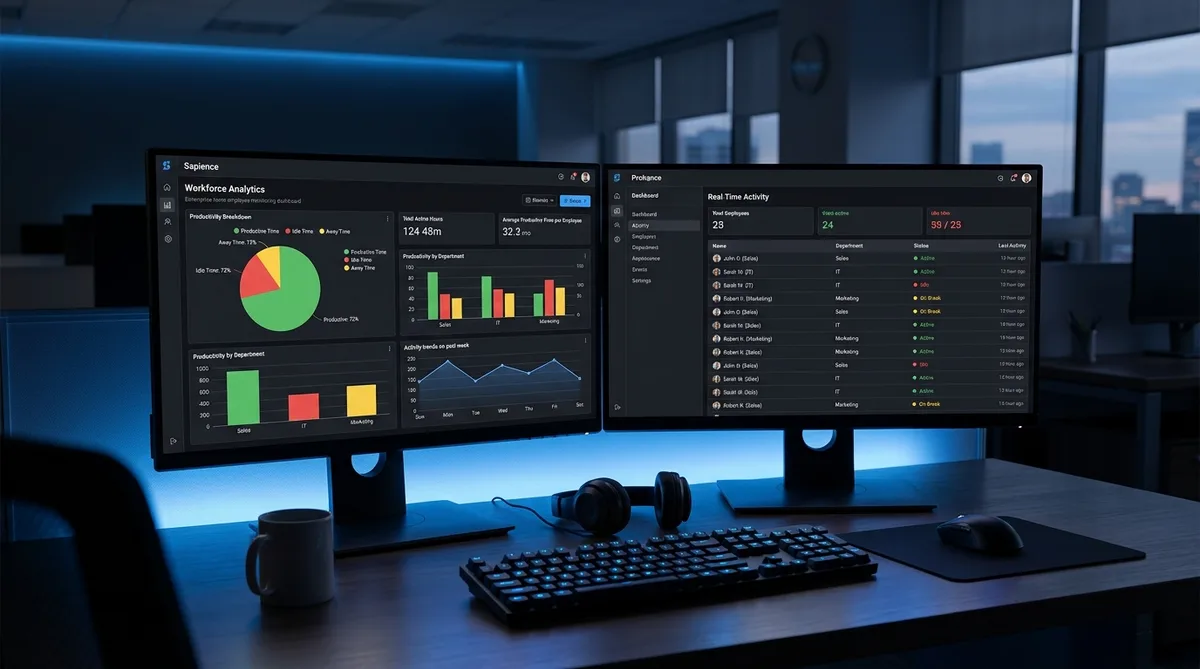
What Are Sapience Buddy and Prohance?
If you work at an Indian IT services company, there is a very good chance you have encountered Sapience Buddy or Prohance on your work laptop. These two employee monitoring tools have become almost unavoidable across major IT firms like HCL Technologies, TCS, Infosys, Wipro, and Cognizant. They run silently in the background, tracking your active hours, the applications you use, and how much of your day the software considers "productive."
Among employees, Sapience Buddy has earned several nicknames. The most popular one is "Nippon Buddy" — a name that has spread across internal Slack channels, anonymous forums like Glassdoor and Grapevine, and even TikTok. Whether the nickname comes from an internal project codename, a mispronunciation, or something else entirely, the term "Nippon Buddy" has become shorthand for the monitoring tool that thousands of Indian IT employees deal with every day.
Both Sapience Buddy and Prohance belong to a category of employee monitoring software that goes beyond simple time tracking. Unlike tools such as Hubstaff or Insightful, which are more common in Western remote-work settings, Sapience and Prohance are deeply embedded in the Indian corporate IT infrastructure. They are typically installed by the IT department without the employee having a choice, and the data they collect feeds directly into management dashboards, appraisal discussions, and sometimes even billable-hours calculations for client projects.
This article breaks down exactly how each tool works, what data it collects, where it is deployed, and what you can do to maintain consistent activity reports even when you need to step away from your desk.
How Sapience Buddy Works
Sapience Buddy is developed by Sapience Analytics (now operating as part of the SapienceIQ workforce intelligence platform). The software is a lightweight agent that installs on your Windows PC or laptop and automatically tracks your work patterns throughout the day without requiring any manual input from you. There are no timers to start, no buttons to press. It simply watches what you do on your machine.
The core principle behind Sapience is straightforward: it monitors whether you are actively interacting with your computer (moving the mouse, pressing keys, switching windows) and which application currently has focus on your screen. From this data, it builds a detailed picture of how you spent every minute of your workday.
Active Time vs Idle Time
Sapience Buddy divides your day into two primary categories:
- Active Time — Periods when the software detects mouse movement, keyboard input, or other interaction with the computer. As long as the tool registers input activity, you are considered "active" and your time is logged.
- Idle/Inactive Time — If no mouse or keyboard activity is detected for approximately 5 minutes, Sapience marks you as "offline" or "idle." This idle period is counted separately and is visible to managers in the dashboard. Extended idle time stands out in reports and can trigger questions during reviews.
This 5-minute idle threshold is one of the most discussed aspects of Sapience Buddy. A quick trip to the restroom, a phone call, or even reading a printed document can push you into "idle" territory. The tool has no way of knowing that you are doing legitimate work away from your screen — it only sees whether your mouse and keyboard are being used.
Sapience also integrates with your calendar system. If you are offline and there is a matching meeting in your calendar during that time, the software can recognize it as meeting time rather than idle time. This is helpful for scheduled calls, but it does not cover impromptu discussions, whiteboard sessions, or any offline work that is not on the calendar.
App and URL Categorization
Beyond simply detecting whether you are active, Sapience Buddy tracks which application has focus on your screen at any given moment. This is a critical distinction that many employees miss. The software does not just check if your mouse is moving — it checks where your mouse is moving.
Applications are categorized into groups that your employer defines:
- Productive/Business — Applications considered work-related, such as Visual Studio, Eclipse, JIRA, ServiceNow, Outlook, Microsoft Teams, or specific client tools.
- Unproductive/Personal — Applications and websites that the company considers non-work-related, such as social media, streaming services, shopping sites, or personal messaging apps.
- Neutral — Applications that could be either work or personal, such as a web browser (which could be used for research or for browsing Reddit), file explorers, or text editors.
The categorization also extends to URLs visited in the browser. If you have Chrome or Edge open, Sapience can identify whether you are visiting a client documentation site (productive) or YouTube (unproductive). Your employer sets these rules, and they may vary from project to project.
This means that even if you keep your computer "active" by jiggling your mouse, Sapience still knows that the focused application is Notepad and not your development environment. A report showing eight hours of active time but seven of those hours spent in Notepad will raise more red flags than a few minutes of idle time would.
Dashboard and Reports
All of this data flows into a visual management dashboard that is accessible to team leads, project managers, and sometimes HR. The dashboard presents:
- Daily time breakdown — A timeline view showing active, idle, and meeting time throughout the day.
- Application usage summary — Pie charts or bar graphs showing which applications consumed the most time.
- Productivity score — A percentage calculated from the ratio of time spent on "productive" applications versus total active time.
- Trend reports — Weekly and monthly trends that let managers compare your patterns over time.
One important aspect of Sapience: according to the company, the tool does not capture screenshots, record keystrokes, or log the actual content of what you type. It tracks which window has focus and whether there is activity, but it does not record the specifics of what you are writing in an email or what code you are editing. This is a deliberate privacy choice by Sapience Analytics, and they reportedly require customers to deploy the tool transparently rather than in stealth mode.
How Prohance Works
Prohance is another workforce analytics platform that is widely deployed in Indian IT companies, BPOs, and Global Capability Centers (GCCs). While Sapience Buddy focuses primarily on time and application tracking, Prohance takes a broader approach by combining time tracking with workforce analytics, capacity planning, and operational intelligence.
Prohance is developed by the Jaykay Group and serves industries including IT/ITeS, BPO, BFSI (Banking, Financial Services, and Insurance), and healthcare. The platform manages tens of thousands of employees across multiple countries, including India, the Philippines, and China.
Real-Time Activity Tracking
Like Sapience, Prohance installs an agent on employee workstations that automatically tracks work time with no manual entry required. The system monitors:
- Active workstation time — Time spent interacting with the computer through mouse and keyboard activity.
- Away-from-desk time — Periods when no activity is detected and the employee is considered to be away from their workstation.
- Value-added work — Time spent on applications and tasks that are classified as directly contributing to project deliverables.
- Non-value-added work — Time spent on internal administrative tasks, training portals, or other activities that do not count toward billable hours.
- Personal time — Time spent on applications or sites categorized as personal use.
Prohance provides all of this data in real-time, meaning a manager can open the dashboard at any point during the day and see which team members are currently active, which are idle, and what applications they are using at that exact moment. This real-time visibility is one of the features that distinguishes Prohance from tools that only generate end-of-day reports.
Workforce Analytics and Capacity Planning
Where Prohance goes further than Sapience is in its analytics and operational management capabilities:
- Team productivity benchmarking — Prohance can compare productivity metrics across teams, locations, and even service providers. If a company outsources work to multiple vendors, Prohance helps them compare which vendor is delivering more efficiently.
- Capacity planning — The platform analyzes historical data to predict how many employees are needed for a given workload, helping managers plan staffing levels.
- Workforce utilization — Prohance calculates utilization rates that show how much of an employee's paid time is spent on actual productive work versus overhead.
- 200+ built-in reports — The platform offers over two hundred pre-built reports covering monthly, quarterly, and yearly trends, along with drill-down views for churn analysis, distraction patterns, and competency mapping.
- Screen recording — Unlike Sapience, Prohance offers an optional screen recording module that can capture what is happening on an employee's screen. Whether this module is enabled depends on the employer.
- Billing and contract management — For companies that bill clients on a time-and-materials basis, Prohance provides accurate time data that feeds directly into invoicing.
Prohance also tracks software license utilization, monitoring whether paid tools like Adobe, Microsoft Office, or development IDEs are actually being used. This helps companies avoid paying for licenses that sit idle. From a management perspective, Prohance is not just an employee monitoring tool — it is a full operational intelligence platform.
Where These Tools Are Used
Sapience Buddy and Prohance are most heavily deployed in India's IT services and BPO sector. The companies that use them include some of the largest employers in the country:
- HCL Technologies — One of the most widely reported deployments of Sapience Buddy (and the source of much of the "Nippon Buddy" discussion online).
- Tata Consultancy Services (TCS) — Has reportedly used Sapience for workforce analytics across multiple projects.
- Infosys — Uses productivity tracking tools as part of its workforce management strategy.
- Wipro — Deployed monitoring tools especially during the shift to work-from-home during and after 2020.
- Cognizant — Has been reported to monitor employee laptop usage time with tools in this category.
- Capgemini — Also reported to use Sapience-based tracking.
- BPO companies — Virtually every major BPO operation in India uses Prohance, Sapience, or a similar tool, because client contracts often require proof of active work time.
These are not the only options in this space. Many IT and BPO firms run comparable tools such as DeskTrack, which logs applications, URLs, and screenshots and often runs in a silent background mode. If your employer uses one of those instead, the way it tracks activity, and the way to keep your reports consistent, is much the same as with Sapience.
Why are these tools more common in Indian IT than in Western companies? Several factors contribute:
- Billable hours model — Indian IT services companies often bill clients for the exact number of hours worked on a project. This creates a strong business need for accurate time tracking, as discrepancies can affect revenue and client relationships.
- Large workforce scale — Companies like TCS employ over 600,000 people. Managing productivity across hundreds of thousands of employees requires automated tools rather than personal check-ins.
- Work-from-home policies — The post-2020 shift to remote and hybrid work accelerated the adoption of monitoring tools. Managers who previously relied on physical presence needed a digital way to verify working hours.
- Client requirements — Many Western clients who outsource work to Indian IT companies contractually require evidence that their project teams are working during agreed-upon hours. Monitoring tools provide this evidence.
- Cultural factors — The management culture in large Indian IT companies tends to be more hierarchical and metrics-driven, making monitoring tools a natural fit for existing processes.
In Western countries, similar monitoring exists (tools like Hubstaff, Insightful, and Time Doctor are popular), but it is more common in freelancing and agency settings rather than as mandatory corporate installations for salaried employees. DeskTime is another Western alternative that shares Sapience's automatic tracking and productivity categorization approach.
Sapience Terminology Explained
Sapience Analytics uses a set of enterprise terms that appear throughout its dashboards, reports, and admin settings. If you have ever looked at your Sapience Buddy dashboard and seen references to CTAs, availability probes, or email analytics, these are the internal concepts the platform uses to classify your workday. Understanding what each term means helps you make sense of the data your manager sees — and why certain parts of your day are scored the way they are.
CTA Selection Rules
In Sapience, CTA stands for Category and Time Allocation — the set of rules that determines how every minute of your workday is classified. When your organization deploys Sapience, the IT or HR team creates a mapping of every application and website into specific activity categories: development tools might map to a "Core Development" activity, Outlook maps to "Communication," YouTube maps to "Personal," and so on.
CTA selection rules are the logic that Sapience uses to decide which category a given time block falls into. When you switch between applications, Sapience checks the foreground window against the organization's CTA mapping and assigns that time to the corresponding category. These rules govern everything downstream — your productivity score, your core-versus-non-core ratio, and the time allocation charts your manager reviews.
The important thing to understand is that CTA rules are configured by your employer, not by Sapience itself. Different organizations categorize the same applications differently. For example, one company might classify Slack as "Core Communication" while another treats it as "Non-Core Collaboration." Your manager cannot override these rules for individual employees — they apply uniformly across a job family or department. If an application you use for legitimate work is classified as personal or non-core under your company's CTA rules, that time will count against your productivity score regardless of what you were actually doing.
Email Paragraph Analysis
Email analytics in Sapience track the volume and flow of your email activity rather than the content of your messages. The platform integrates with your organization's email system (typically Outlook or Exchange) and measures several metadata-level metrics: the number of emails you send, receive, and read each day, your unread backlog rate, and the ratio of internal versus external communication.
The term "email paragraph analysis" that appears in enterprise searches refers to how Sapience breaks down your email engagement patterns — how much of your workday is consumed by email, whether your email load is distributed evenly or clustered into bursts, and how your email habits compare to your team. The "paragraph" concept relates to the depth of analysis Sapience performs on email interaction data: it goes beyond a simple count to analyze read-versus-unread ratios, response timing, and whether email is crowding out time that should be spent on core activities.
Crucially, Sapience does not read your email content. It does not scan the body text, attachments, or subject lines of your messages. What it measures is the behavioral pattern: how frequently you check email, how long you spend in your mail client, and whether your email volume suggests you are primarily communicating rather than doing deep work. This email time feeds into your CTA breakdown — if email is classified as "Non-Core" under your company's rules, heavy email usage will reduce your core-time percentage even though responding to messages is a legitimate part of your job.
Availability Probe
The availability probe is the mechanism Sapience uses to determine whether you are present and active at your workstation. Every few seconds, the Sapience agent checks for mouse movement, keyboard input, or any other device interaction. If the probe detects activity, you are marked as "available" and your work time continues accumulating. If the probe detects no input for approximately 5 minutes (the exact threshold depends on your organization's configuration), you are marked as "unavailable" and your time shifts to idle or unaccounted.
Think of the availability probe as a continuous heartbeat check. It is not a single poll that happens once and moves on — it runs persistently, sampling your device state at high frequency. This is how Sapience achieves its fine-grained idle detection: the probe can pinpoint exactly when you stopped interacting with your computer and exactly when you came back, down to the minute.
The availability probe is also why reading a document on screen without touching the mouse looks identical to being away. The probe only sees device interaction, not screen attention. If you are reading a long PDF, reviewing a spec, or watching a training video without scrolling, the probe registers no activity and your time starts counting as idle. This gap between genuine work and measured work is one of the most common frustrations that employees report with Sapience deployments.
Core Time vs Work Time
Work Time in Sapience is the total time you spend interacting with applications and websites that your organization has classified as work-related. This includes everything from your IDE to your email client to internal wikis — any tool that the CTA rules map to a work activity. All other application usage defaults to Private Time, which covers anything not explicitly whitelisted by the organization.
Core Time is a subset of Work Time. Your organization defines certain activities as "Core" for your job role — for a developer, that might be time in Visual Studio, JIRA, and Git; for a project manager, it might be time in MS Project, Excel, and Teams. Core Time measures how much of your workday is spent on the activities that directly define your role, as opposed to general work tasks like email, HR portals, or internal documentation that count as work but not as core.
The Core Time vs Work Time ratio is one of the most scrutinized metrics in Sapience dashboards. A developer who logs 8 hours of work time but only 2 hours of core time is spending 75% of their day on non-core activities — meetings, email, browsing documentation — which may trigger questions from management about how their time is being allocated. Understanding this distinction matters because keeping a productive-looking foreground application in focus directly affects which bucket your time falls into.
Unaccounted Time
Unaccounted Time is the gap between your total scheduled hours and the time Sapience can actually classify. Sapience divides your day into four buckets: Work, Private, OOO (Out of Office), and Unaccounted. If you are logged in but the system cannot confidently assign your activity to any of the first three categories — perhaps because your device was on but no application had clear focus, or because you were in an unrecognized application — that time falls into the Unaccounted bucket.
Sapience allows employees to manually edit unaccounted time slots by assigning them to a specific activity after the fact. For example, if you spent an hour on a phone call with a client and your computer sat idle, you could log that as a meeting or client work. These edits are tracked separately in the Modified Unaccounted Time report, which shows managers how much time employees are reclassifying and which activities they are assigning it to.
Large amounts of unaccounted time in your reports suggest to management that you were either away from your desk, using unrecognized tools, or offline for extended periods. While it is not scored as negatively as "Private" time, it is not scored positively either — it is simply a blank spot in your day that invites questions.
Common Workarounds People Try
If you search for "how to cheat Sapience Buddy" or "Nippon Buddy hacks" on Glassdoor, Grapevine, or Reddit, you will find dozens of threads from employees sharing tricks they have tried. Some of these approaches work to varying degrees, while others are easily caught. Here is what people commonly attempt:
1. Physical Mouse Jigglers
These are small USB devices or mechanical platforms that move your mouse at regular intervals. You can find them on Amazon for a few hundred rupees. They keep the mouse pointer moving, which prevents the screen from locking and can keep Sapience from marking you as idle.
Problem: A hardware mouse jiggler moves the cursor in a predictable pattern — small circles, back-and-forth lines, or random vibrations. Sapience does not just track whether the mouse moved. It tracks which application has focus. If your mouse is jiggling but the focused application is your desktop or a blank Notepad window for three hours, the tool will log three hours of non-productive time. The mouse is moving, but the activity report still looks terrible.
2. Keeping Specific Apps Open
Some employees try to leave a "productive" application like Visual Studio or Outlook in the foreground while they step away, hoping that Sapience will count the focused application as productive time even without activity.
Problem: Without any mouse or keyboard input, Sapience will mark you as idle after approximately 5 minutes, regardless of which application is in the foreground. Having Visual Studio open does not help if the tool sees zero activity for extended periods.
3. PowerShell or VBScript to Simulate Keys
Technically inclined employees write small scripts that send keystrokes (like pressing the spacebar every few seconds) to keep the system registering activity.
Problem: According to discussions on Quora and other forums, simple SendKeys scripts do not always register in Sapience's time allocation. The software may differentiate between genuine user input and programmatic input, or it may require input to be directed at a specific application to count. A script pressing the spacebar in a minimized Notepad window may not produce the expected results in the Sapience dashboard.
4. Caffeine Apps (Move Mouse, Caffeine, etc.)
Caffeine-style applications prevent the screen from locking by simulating a key press (typically F15 or Shift) at set intervals. They are easy to install and run.
Problem: These apps solve the screen lock problem but not the productivity tracking problem. Sapience will see that you are active (the key presses register as input), but the focused application is still whatever was last in the foreground. If that happens to be your email client, you will show hours of "email" time. If it is your desktop, you will show hours of unclassified time. Neither looks natural.
5. Playing a Video in Media Player
Some employees open a long YouTube video or media file, assuming it will count as active screen time.
Problem: Video playback does not generate mouse or keyboard input. Sapience tracks user interaction, not screen content. A playing video will result in idle time detection after 5 minutes unless you are also periodically interacting with the computer. Additionally, media players and YouTube are typically categorized as "unproductive" applications.
The common thread across all of these workarounds is that they fail to address the two things Sapience and Prohance actually measure: (1) genuine-looking input activity, and (2) the right applications being in focus at the right times. A successful approach needs to handle both simultaneously.
Nippon Buddy Hacks: What HCL Employees Actually Search For
Because HCL Technologies runs one of the largest Sapience deployments in the world, a whole vocabulary of "Nippon Buddy hacks" and "Nippon Buddy tricks" has grown up on Grapevine, Glassdoor, and Reddit. If you arrived here searching for one of those phrases, here is the direct answer: Nippon Buddy is the same software as Sapience Buddy, so every workaround listed above — and every reason it succeeds or fails — applies to it identically. There is no HCL-specific loophole hiding in a forum thread. What the threads call a "Nippon Buddy bypass" is almost always one of the five workarounds covered earlier, usually a mouse jiggler or a SendKeys script, with the same weaknesses.
How to Increase Time in Nippon Buddy
"Increasing time" in Nippon Buddy means raising the active hours and core-time percentage the agent logs for your shift. Three things move that number:
- Continuous input. The availability probe flips you to idle after roughly 5 minutes without mouse or keyboard input. Every idle block subtracts directly from your active hours, so eliminating unintentional idle time — reading without scrolling, phone calls, short breaks — is the fastest gain.
- The right apps in focus. Time only counts toward your core percentage when the foreground application matches your team's CTA selection rules. Hours spent in an uncategorized tool land in unaccounted time instead, even if you were genuinely working.
- Reclassifying unaccounted time. Sapience lets you manually reclassify unaccounted blocks after the fact, but those edits appear in a separate Modified Unaccounted Time report that managers can read. Heavy manual editing draws attention rather than deflecting it.
An activity simulator like Trick Tack addresses the first two automatically: it keeps realistic mouse and keyboard input flowing and rotates focus between the applications your CTA rules classify as core work, which is what actually raises the logged time in the dashboard your manager sees.
Keep Your Sapience Reports Consistent
Trick Tack simulates natural mouse movement, keyboard input, and app switching — the three things Sapience Buddy and Prohance actually track.
DownloadHow Trick Tack Helps
The reason basic workarounds fail against Sapience Buddy and Prohance is that these tools do not just check for any activity — they check for realistic activity patterns across multiple applications. This is exactly what Trick Tack is designed to provide.
Trick Tack is a lightweight desktop application that simulates natural human activity on your computer while you are away. Unlike a simple mouse jiggler or a Caffeine app, Trick Tack addresses all three dimensions that Sapience and Prohance monitor:
Mouse Movement
Trick Tack generates natural, human-like mouse movements rather than the mechanical circles or jitters produced by hardware jigglers. The cursor moves in varied, randomized patterns that mimic how a person actually uses a mouse — pausing, hovering, clicking, and scrolling at natural intervals. This activity registers as genuine mouse input in Sapience's activity detection.
Keyboard Input
Beyond mouse movement, Trick Tack simulates keyboard activity with realistic typing patterns. This includes varied key presses with natural timing gaps, not a robotic spacebar press every 30 seconds. This is important because Sapience tracks both mouse and keyboard input as indicators of active work.
Application Switching
This is the feature that makes Trick Tack fundamentally different from basic jiggler tools, and it is critical for fooling Sapience Buddy and Prohance. Trick Tack can switch between applications on your computer, changing which window has focus over time. Instead of showing eight straight hours in a single application, your Sapience report will reflect a natural pattern of switching between different tools — the way a real working session looks.
Remember: Sapience tracks focused application time. A natural work pattern involves switching between your IDE, browser, email, Teams, and documentation tools throughout the day. Trick Tack replicates this pattern, which means the app usage breakdown in your Sapience dashboard looks realistic rather than suspiciously monotonous.
Scrolling
Trick Tack also simulates scroll wheel activity, which adds another layer of realism. When a person is actively reading documentation or reviewing code, they scroll. Sapience can detect scroll input as part of its activity tracking, and Trick Tack includes this behavior naturally.
The combination of mouse movement, keyboard input, app switching, and scrolling produces an activity fingerprint that closely resembles a real working session. For Sapience Buddy and Prohance, which are looking at these exact signals, the generated activity is indistinguishable from a person sitting at the desk and working.
For a broader overview of how activity simulation works against various time tracking tools, check out our comprehensive guide.
Frequently Asked Questions
What is Nippon Buddy?
Nippon Buddy is a nickname that employees (especially at HCL Technologies) use to refer to Sapience Buddy, the time tracking and productivity monitoring tool. The name has spread widely across employee forums like Glassdoor, Fishbowl, and Grapevine. The exact origin of the "Nippon" name is unclear — it may stem from an internal project name, a deployment codename, or simply a colloquial variation that caught on. Regardless of what you call it, Nippon Buddy and Sapience Buddy refer to the same software: a tool that automatically tracks your active time, idle time, and application usage throughout the workday.
Does Sapience Buddy take screenshots?
No. According to Sapience Analytics, the tool does not capture screenshots, screen recordings, or video of your desktop. This is a deliberate design decision. Sapience focuses on metadata — which application has focus, how long it had focus, and whether there was user input — rather than capturing the actual content on your screen. This is different from some other monitoring tools (like Hubstaff or Time Doctor) that periodically take screenshots. However, Prohance does offer an optional screen recording module, so if your company uses Prohance, screenshots or screen recordings may be possible depending on your employer's configuration.
Can Sapience track what I type?
No. Sapience explicitly states that it does not perform keystroke logging. The tool detects whether keyboard input is occurring (to determine if you are active), but it does not record what keys are pressed or what you are typing. Your manager cannot see the content of your emails, chat messages, or code through Sapience. The distinction is important: Sapience knows you were typing in Outlook for 45 minutes, but it does not know what you typed. That said, always be aware that your company may have other monitoring tools in addition to Sapience that could have different capabilities.
Is Prohance the same as Sapience?
No, they are different products from different companies. Sapience Buddy is made by Sapience Analytics (SapienceIQ), while Prohance is developed by the Jaykay Group. Both tools track employee activity and productivity, and both are widely used in Indian IT companies, but they have different feature sets. Prohance is generally considered more comprehensive, offering workforce analytics, capacity planning, screen recording, asset management, and 200+ built-in reports on top of basic time tracking. Sapience focuses more narrowly on time and application tracking with a stronger emphasis on employee privacy (no screenshots, no keystroke logging). Some companies use one or the other, and some companies use both on different projects.
Does Sapience track after work hours?
Sapience Buddy runs as long as your computer is on and the agent is active. If you continue using your work laptop after your official shift ends, Sapience will continue tracking your activity. However, most deployments are configured with shift schedules, and the data is typically analyzed within the context of your defined working hours. Time logged outside your shift may still appear in raw data but is usually separated in reports. The safest approach is to close your work laptop or log off when your shift is over. If the Sapience agent is running and you are browsing personal sites on your work machine at 10 PM, that data is still being captured and categorized.
Can Sapience Buddy detect mouse jigglers?
A basic hardware mouse jiggler that only moves the cursor will be partially effective but has limitations. Sapience tracks which application is in the foreground and whether there is genuine keyboard and mouse input, not just cursor movement. If your foreground app never changes and there is zero keyboard activity while the mouse moves continuously, that pattern can look suspicious in the productivity reports — your manager may see 8 hours of "active time" with 100% in a single application and no keyboard input, which does not match how real work looks. Tools that simulate multiple input types (mouse, keyboard, app switching) are harder for Sapience to distinguish from genuine activity.
Does Sapience Buddy work offline?
Yes. Sapience Buddy tracks your activity locally on your machine even when you are not connected to the internet. It stores the data locally and syncs with the server once your connection is restored. This means working offline does not create a gap in your activity data — your manager will eventually see the full picture of your offline workday once the data uploads. This also means you cannot avoid tracking by simply disconnecting your Wi-Fi.
How accurate is Sapience Buddy's idle detection?
Sapience marks time as idle when it detects no mouse or keyboard input for a configurable period, typically 3 to 5 minutes depending on your employer's settings. The idle detection is binary: you are either providing input or you are not. Reading a long document on screen without scrolling or touching the mouse will be classified as idle time, even though you are actively working. This is the core frustration that drives employees to search for workarounds — genuine focused reading looks identical to being away from your desk.
What are CTA selection rules in Sapience?
CTA stands for Category and Time Allocation. CTA selection rules are the mappings your organization configures in Sapience to classify every application and website into activity categories like "Core Development," "Communication," or "Personal." When you switch between apps, Sapience checks the foreground window against these rules and assigns your time to the matching category. The rules are set by your employer's IT or HR team, not by Sapience itself, and they apply uniformly across job families or departments. Your CTA classification directly drives your productivity score and core-time percentage in management dashboards.
What is Sapience's availability probe?
The availability probe is Sapience's continuous check for device activity. The agent samples your mouse and keyboard input every few seconds to determine whether you are present and working. If the probe detects no interaction for roughly 5 minutes (configurable by your employer), your status flips from "available" to "idle" and your active-time clock stops. The probe runs persistently in the background, which is why it catches even short absences — and why quiet activities like reading a document without scrolling register as idle time even though you are doing real work.
Does Sapience read my email content?
No. Sapience's email analytics track volume and flow, not content. The platform measures how many emails you send, receive, and read, your unread backlog rate, and how your email time compares to your team's. It does not scan subject lines, body text, or attachments. The "email paragraph analysis" concept refers to the depth of behavioral analysis Sapience performs on your email patterns — how email clusters in your day, whether it crowds out core activities, and your read-versus-unread ratio — not to reading the actual paragraphs of your messages.
What is unaccounted time in Sapience?
Unaccounted time is the portion of your scheduled hours that Sapience cannot classify into Work, Private, or Out of Office. It typically appears when your device was on but no application had clear focus, when you were using an unrecognized tool, or when you were away from your desk without a matching calendar event. Sapience lets you manually reclassify unaccounted time slots after the fact, and those edits appear in a separate Modified Unaccounted Time report visible to managers. Large amounts of unaccounted time invite questions, so minimizing it by keeping recognized applications in focus helps your reports look complete.
How do you increase active time in Nippon Buddy?
Active time in Nippon Buddy (Sapience Buddy) increases when the agent detects steady mouse or keyboard input while a categorized application holds focus. Avoid input gaps longer than about 5 minutes, keep your core work applications in the foreground, and minimize unaccounted time. Activity simulation tools raise logged active time the same way — by generating realistic input across the applications your employer's CTA rules count as productive work.
Do Nippon Buddy hacks from Grapevine and Glassdoor work?
Mostly no. The popular tricks — hardware mouse jigglers, Caffeine-style key pressers, and SendKeys scripts — keep the screen awake but produce activity patterns Sapience can flag: one application in focus for hours, zero keyboard input, or programmatic keystrokes that never register in time allocation. Approaches that simulate all the signals Sapience measures (mouse, keyboard, scrolling, and app switching) hold up because the resulting reports look like a normal working day.
How do you trick Sapience Buddy into showing active time?
Sapience Buddy measures active time through its availability probe, which samples your mouse and keyboard input every few seconds. If the probe detects no interaction for roughly 5 minutes, your status flips to idle and your active-time clock stops. To trick Sapience Buddy, you need to keep the probe seeing regular input while also rotating the foreground application so your CTA (Category and Time Allocation) report shows time spread across productive apps rather than locked on a single window. A mouse jiggler alone keeps you "available" but produces a suspicious pattern: one app in focus for hours with zero keyboard input. Tools like TrickTack feed the availability probe with varied mouse, keyboard, and scrolling input while switching between foreground apps, so your Sapience dashboard shows realistic active time across multiple productive categories.
Conclusion
Sapience Buddy and Prohance are deeply embedded in the Indian IT industry, and they are not going away anytime soon. Whether you know them as Sapience, Nippon Buddy, or Prohance, these tools track a combination of active time, idle time, and focused application usage to build a picture of your workday that goes directly to your managers.
Basic workarounds like mouse jigglers, Caffeine apps, or keeping a single application open fail because they only address part of what these tools measure. Sapience and Prohance are looking at which application is in focus and whether the activity pattern looks natural — not just whether the mouse is moving.
Trick Tack is built specifically for this challenge. By simulating natural mouse movement, keyboard input, scrolling, and application switching, it produces activity patterns that look like a real working session in Sapience and Prohance dashboards. When you need to step away for a break, a personal errand, or simply to recharge, your activity reports stay consistent.
For more tips on staying ahead of employee monitoring software in general, explore our other guides covering tools like Hubstaff, Insightful, and our comprehensive time tracking cheat guide.
Try Trick Tack Free for 7 Days
Keep your Sapience Buddy and Prohance activity reports looking natural while you step away. Cancel anytime during your trial.
Download

