Why People Search for DeskTrack Hacks
If you have landed here searching for "DeskTrack hack" or "how to cheat DeskTrack," there is a good chance the software is already running on your work laptop, quietly logging your day. DeskTrack is common across IT services, BPO, and outsourcing companies, and it often runs in a silent mode where there is no window and no tray icon to tell you it is there.
The frustration that drives these searches is familiar. Not every productive minute happens with your hands on the keyboard. You read a long specification, think through a problem, join a call on your phone, or step away for five minutes. DeskTrack sees none of that as work. It sees an idle timer, an unchanged screen, and an app category that does not match your target. Your productivity percentage drops even though you were doing real work.
This guide breaks down exactly what DeskTrack records, how its silent mode and pricing tiers work, which common workarounds fail and why, and how to keep your activity reports looking like a normal working day. For the wider picture across every major monitoring tool, see our guide on how to cheat time tracking software.
What Is DeskTrack?
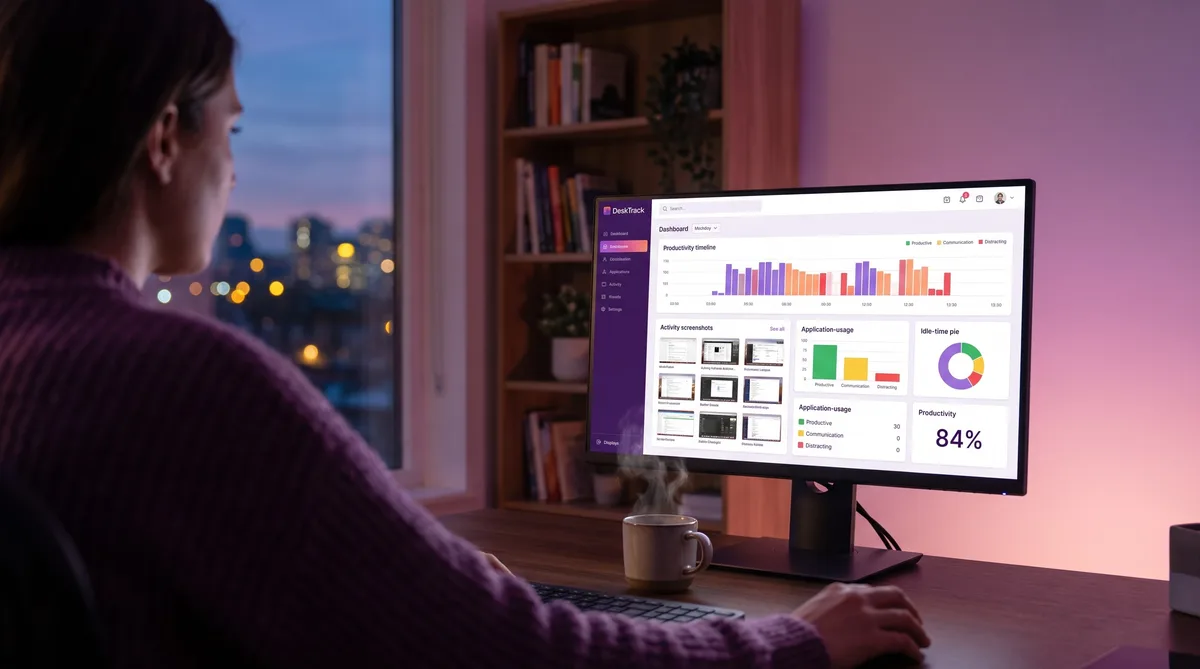
DeskTrack is an employee monitoring and time tracking tool that records the applications and websites you use, captures automated screenshots, logs idle versus active time, and scores your activity as productive or unproductive. It is developed by Aryavrat Infotech under the TimenTask brand, and it installs a lightweight agent on each machine that syncs data to a central manager dashboard in real time.
DeskTrack runs on Windows, macOS, and Linux, with mobile apps for iOS and Android that add GPS tracking for field teams. It is popular with IT, BPO, and outsourcing firms that manage large remote or hybrid workforces and want detailed activity data without walking the floor. The agent is designed to be light, installs in a couple of minutes, and in its default configuration runs invisibly so the person being monitored does not necessarily see it.
That last point matters. Unlike a punch-clock app you actively start and stop, DeskTrack frequently runs in a silent background mode. Many employees only discover it is there when a manager references a report. Knowing what it collects is the first step to keeping your numbers consistent.
How DeskTrack Tracks Your Activity
DeskTrack builds its picture of your workday from several overlapping data streams. None of them is exotic, but together they are enough to make a simple mouse mover useless. Here is each layer.
Application and URL Tracking
The core of DeskTrack is the desktop activity log. The agent records every application you open, every website URL you visit, and how long each stays in the foreground. This runs continuously and feeds a timeline your manager can filter and export. It is the same category of tracking used by Sapience Buddy and Insightful, and it is why simply keeping the screen awake is not enough: DeskTrack does not just ask whether you were active, it asks which app you were active in.
DeskTrack also offers automatic time-to-project mapping, where the agent analyzes the files, folders, and URLs you touch and assigns your time to the matching project. For teams that bill clients by project, this is how your hours get attributed, so an afternoon spent in the wrong application does not just look unproductive, it can land against the wrong budget line.
Automated Screenshots
DeskTrack captures automated screenshots at an interval your employer sets. Each screenshot is timestamped and tied to the application and URL data from that moment, so a manager reviewing your timeline sees both the log entry and a picture of what was on screen. Screenshot capture is included even on the entry-level plan, so assume it is on.
This is the layer that catches basic tricks. A mouse jiggler keeps the timer running, but the screenshots taken during that time show the same static screen over and over. A row of identical screenshots against a running clock is one of the clearest signals a reviewer can spot, which is why anything that leaves the screen unchanged tends to fail.
Idle Time Detection
DeskTrack watches mouse and keyboard input to decide whether you are active. When it sees no input for a configurable period, it marks that stretch as idle. Idle time appears as a gap in your timeline and is subtracted from your active hours, and DeskTrack can even attach a cost figure to idle time to show managers what those gaps are worth.
The idle threshold is the single most common source of frustration. Reading a document without scrolling, thinking through a design, or taking a phone call all register as idle, because from the agent's point of view there is no input. Genuine focused work and being away from the desk look identical.
Productivity Categorization
Every app and website DeskTrack logs is sorted into a category: productive, unproductive, or neutral. Your employer defines the rules, so a developer's IDE or a designer's editor counts as productive while social media counts as unproductive. Your daily productivity percentage is the share of active time spent in the productive category.
This is why keeping the screen awake in the wrong app backfires. If a mouse mover holds your desktop or a media player in the foreground for two hours, DeskTrack logs two hours of neutral or unproductive time. The number your manager sees gets worse, not better, even though the clock kept running.
Silent (Stealth) Mode
DeskTrack's silent working mode runs the agent invisibly. There is no window, no system-tray icon, and nothing that signals monitoring is active. This mode is the default on the DeskLite and Stealth plans, which is why so many employees do not realize DeskTrack is installed until a report surfaces. The higher Tagger plan flips to a visible working mode with manual login and logout, where you can see when tracking is on.
If you are not sure which mode you are on, that uncertainty is worth resolving. Check your installed programs and background processes, or ask IT what the monitoring policy is. On a company-owned machine in most of the US, employers can monitor without notice; in the EU and several other regions, covert monitoring faces tighter legal limits. Either way, assume that on a silent-mode deployment everything in this article is being recorded whether or not you can see the agent.
DLP, USB, and Attendance Integrations
Beyond the core tracking, DeskTrack's higher tiers and add-ons bring data-loss-prevention features: USB device monitoring, file-transfer tracking, and website blocking. It also integrates with biometric and attendance hardware such as ZKTeco, eSSL, and Suprema, tying your computer activity to your physical clock-in. For field staff, the mobile apps add GPS location tracking.
The takeaway is that DeskTrack can be a light time tracker or a heavy surveillance suite depending on how your employer configures it. Do not assume the minimal setup. If DLP is on, plugging in a USB drive or moving files is itself logged, separate from anything to do with activity simulation.
DeskTrack Pricing in 2026
DeskTrack uses a per-user, per-month model with three cloud tiers. Knowing which one your employer runs tells you a lot about what is being captured.
DeskLite — $5.99/user/month
The entry plan, aimed at small teams (with a 2-user free-forever option). It includes:
- Silent, invisible working mode
- Desktop activity logs
- Application tracking
- URL tracking
- Automated screenshots
- Roster management
Stealth — $8.99/user/month
Marked as the most popular plan, aimed at mid-sized teams. It adds:
- Everything in DeskLite
- Admin, manager, and user logins
- Cost-analysis reports (including idle-time cost)
- Meeting-app categorization
Tagger — $9.99/user/month
The most flexible tier, aimed at larger businesses. It adds:
- Everything in Stealth
- Visible working mode with manual login and logout
- File-path tracking
Additional Pricing Details
- Free trial — 15 days, no credit card required
- Add-ons — mobile app tracking, call-log tracking, remote installations, API integration, and a dedicated account manager are available on yearly deals
- On-premise — offered as an add-on for teams that want data on their own infrastructure
Compared with its peers, DeskTrack sits at the affordable end. Hubstaff starts around $4.99/user/month, Time Doctor around $7, and Teramind around $15 for heavier surveillance. DeskTrack's draw is broad activity tracking, screenshots, and silent deployment at a low price, which is exactly why it shows up so often in high-headcount IT and BPO teams.
Keep Your DeskTrack Reports Consistent
Trick Tack simulates mouse, keyboard, scroll, and app-switching activity — the exact signals DeskTrack uses for idle detection and productivity scoring. Try it free for 7 days.
DownloadCommon Workarounds People Try
Search around and you will find the same handful of DeskTrack workarounds repeated on forums and Reddit. Most of them address one signal while ignoring the rest, which is why they tend to fail. Here is what people try and where each falls short.
1. Hardware and Software Mouse Jigglers
The most popular suggestion. A mouse mover or USB jiggler nudges the cursor so the idle timer never trips.
Problem: It only solves idle detection. DeskTrack still logs the foreground app, still takes screenshots of an unchanged screen, and still records zero keyboard input. You get active time attributed to whatever app happened to be open, with a row of identical screenshots to match. That combination reads as artificial.
2. Keeping a Productive App in Focus
Leaving your IDE or a spreadsheet in the foreground so the productivity category stays green while you step away.
Problem: Without input, DeskTrack marks you idle after the configured threshold regardless of which app is on top. A focused app with no activity is still idle time, and the screenshots still show a frozen screen.
3. A Second Monitor or Second Device
Doing personal things on a second screen or a personal laptop while the work machine sits on a "productive" window.
Problem: This does keep your personal activity off the record, but it does nothing for the work machine's idle timer. If you are not generating input on the monitored device, it logs idle time and static screenshots the whole while.
4. Scripts and Macro Tools
AutoHotkey or a macro recorder set to press a key or move the mouse on a loop.
Problem: Simple scripts produce mechanical, perfectly regular patterns. The same movement at the same interval, or one key pressed on a fixed timer, does not look like a person. It keeps you off idle, but the uniformity is exactly what stands out when someone reviews the timeline and screenshots together.
The common thread is that DeskTrack measures more than one thing. It watches input for idle detection, the foreground app for productivity scoring, and the screen itself through screenshots. Anything that handles only one of those leaves the other two exposed.
How Trick Tack Helps
The reason single-signal tricks fail against DeskTrack is that its idle detection and productivity scoring look at mouse movement, keyboard input, and which application is in focus together. Trick Tack is built to cover all of those at once, which is what keeps a report looking like real work.
- Mouse movement — Trick Tack generates natural, randomized cursor motion rather than the mechanical circles a hardware jiggler produces, so idle detection never trips and the movement looks human in the screenshots.
- Keyboard input — Moving the mouse while never typing is a giveaway. Trick Tack simulates realistic keyboard activity alongside the mouse so your input profile stays balanced.
- App switching — This is the piece basic movers miss entirely. Trick Tack rotates focus between the applications your employer classifies as productive, so your DeskTrack productivity category reflects a natural working pattern instead of eight hours frozen in one window.
- Scrolling — Real work involves scrolling through documents and pages. Trick Tack adds scroll activity so the screenshots and activity log show movement, not a static screen.
- Idle and scheduling control — Idle detection mode starts activity when you step away and stops when you return, and scheduling keeps your active-time totals steady across the day so nothing spikes or flatlines.
Because DeskTrack scores the app in focus, the app-switching behavior is the part that matters most here. Keeping productive tools visible and rotating between them is what turns "the clock kept running" into "the report looks like a normal day." For the broader approach across every tracker, our guide to cheating time tracking software compares the major platforms.
Try Trick Tack Free for 7 Days
Simulate natural activity across mouse, keyboard, scrolling, and app switching. Keep your DeskTrack productivity scores consistent. Cancel anytime.
DownloadFrequently Asked Questions
What is DeskTrack?
DeskTrack is an employee monitoring and time tracking tool from Aryavrat Infotech that records the applications and websites you use, takes automated screenshots, logs idle versus active time, and classifies your activity as productive or unproductive. It runs a lightweight agent that can operate silently in the background and syncs everything to a manager dashboard in real time. It is widely used by IT services, BPO, and outsourcing companies to monitor remote and in-office staff.
Does DeskTrack take screenshots?
Yes. DeskTrack captures automated screenshots at intervals your employer configures, and stores them alongside the matching application and URL logs so a manager can see what was on screen at a given moment. Screenshot capture is included even on the entry-level DeskLite plan. Because the screenshots are tied to your activity timeline, a static screen that never changes while the clock keeps running is one of the easiest things for a reviewer to spot.
Can DeskTrack run in stealth mode?
Yes. DeskTrack has a silent or invisible working mode where the agent runs in the background with no visible window or tray icon, so many employees do not know it is installed. This silent mode is the default on the DeskLite and Stealth plans. The Tagger plan adds a visible working mode with manual login and logout instead. If you are unsure whether DeskTrack is running on your machine, check your installed programs and background processes, or ask your IT department about the monitoring policy.
Does DeskTrack log keystrokes?
DeskTrack's advertised feature set centers on application usage, URL tracking, automated screenshots, idle detection, and productivity scoring rather than full keystroke logging. It does not market a keylogger the way tools like Teramind or Kickidler do. That said, monitoring configurations vary by employer, and DeskTrack's higher tiers add data-loss-prevention features such as USB monitoring and file-transfer tracking, so treat anything you type on a work machine as potentially recorded.
Can DeskTrack detect a mouse jiggler?
A basic mouse jiggler that only moves the cursor will keep DeskTrack from marking you idle, but it does not address what else DeskTrack records. The foreground application stays the same, the screenshots show an unchanged screen, and there is no keyboard activity, which is a pattern a manager can recognize. Approaches that simulate several input types at once — mouse movement, keyboard input, scrolling, and application switching — hold up far better because the resulting reports look like a normal working session.
Does DeskTrack work on Mac and Linux?
Yes. DeskTrack runs on Windows, macOS, and Linux, and also offers mobile apps for iOS and Android with GPS location tracking for field teams. The core desktop features — application and URL tracking, automated screenshots, idle detection, and productivity classification — work across the desktop platforms, though exact capabilities can vary between the Windows, Mac, and Linux builds.
How much does DeskTrack cost?
DeskTrack's cloud plans are DeskLite at $5.99 per user per month, Stealth at $8.99 per user per month (marked most popular), and Tagger at $9.99 per user per month. DeskLite covers silent working, desktop activity logs, application and URL tracking, and automated screenshots. Stealth adds admin and manager logins, cost-analysis reports, and meeting-app categorization. Tagger adds a visible working mode, manual login and logout, and file-path tracking. There is a 15-day free trial with no credit card required.
Conclusion
DeskTrack is a capable, affordable monitor that punches above its price, and its silent mode means plenty of people are being tracked by it without realizing. It records the apps and sites you use, takes timestamped screenshots, watches for idle time, and scores every minute as productive or not. Depending on your employer's plan, it can also monitor USB devices, file transfers, and attendance hardware.
The reason simple tricks fail against it is that DeskTrack measures three things at once: input for idle detection, the foreground app for productivity scoring, and the screen itself through screenshots. A mouse jiggler answers one of those and leaves the other two exposed. What holds up is activity that covers all three together.
That is what Trick Tack is built for. By simulating natural mouse movement, keyboard input, scrolling, and application switching, it keeps your DeskTrack active time and productivity scores where they should be, even while you are away from the desk. For related tools common in the same IT and BPO settings, see our guides on Sapience Buddy and Prohance, Insightful, EmpMonitor, and the full time tracking cheat guide.
Try Trick Tack Free for 7 Days
Simulate natural activity across mouse, keyboard, scrolling, and app switching. Keep your DeskTrack productivity scores consistent. Cancel anytime.
Download

