Why People Search for This
CurrentWare is different from most monitoring tools covered in our guide to cheating time tracking software. It is not primarily a time tracker — it is a web filtering and endpoint security suite that happens to include activity monitoring. Many employees encounter it without warning: one day their favorite news site is blocked, and they start wondering what else the software sees.
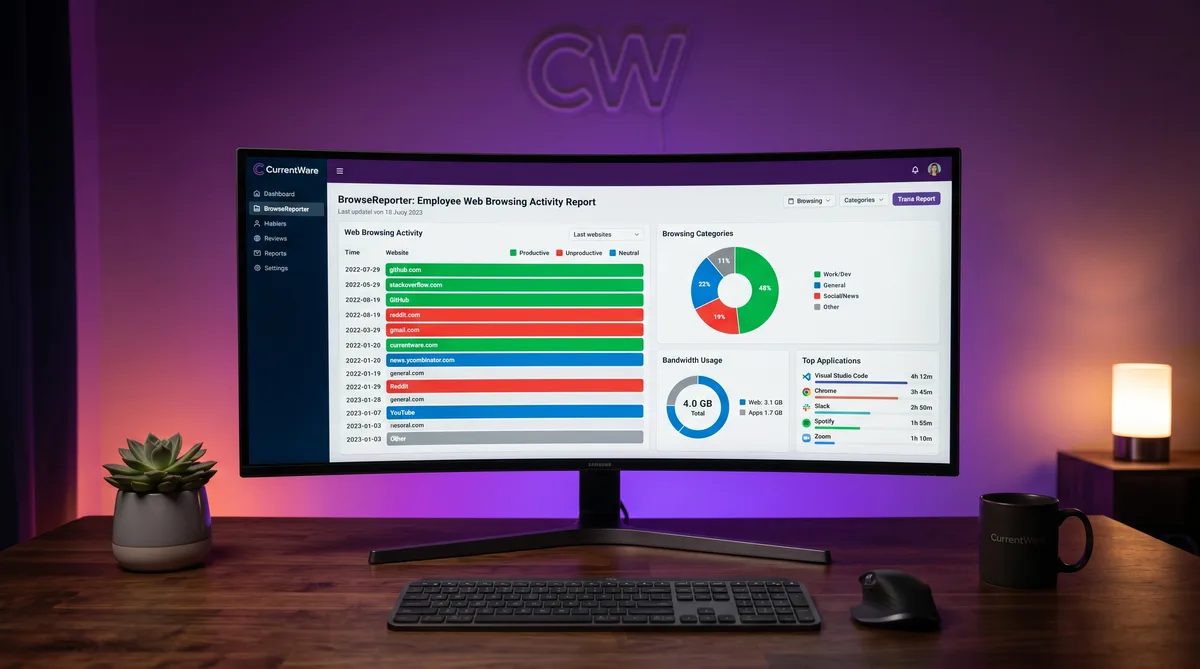
The gap between real work and measured work hits differently with CurrentWare. You might spend 30 minutes researching a solution on Stack Overflow, but if your admin categorized that domain as “unproductive,” it shows up in red on the BrowseReporter dashboard. A coffee break that takes eight minutes instead of five triggers an idle flag. The tool is doing what it was configured to do — the problem is that its view of productivity is only as good as its configuration.
This article explains exactly what CurrentWare monitors, what it blocks, and practical ways to keep your activity reports looking consistent while you work.
What Is CurrentWare?
CurrentWare is a Canadian company founded in 2003 that builds a modular endpoint management suite. Rather than selling one monolithic product, it offers four separate modules that organizations can mix and match:
- BrowseReporter — Employee activity monitoring (web history, app usage, bandwidth, screenshots)
- BrowseControl — Web content filtering and URL blocking
- AccessPatrol — USB and peripheral device control (block flash drives, enforce read-only access)
- enPowerManager — Remote power management (shutdown, restart, wake-on-LAN)
The suite is Windows-only and deploys through a lightweight agent installed on each monitored computer. All data flows to an on-premise or cloud-hosted console managed by IT. CurrentWare was acquired by Gulmohar Capital Partners in March 2025 and serves over 1,000 organizations worldwide including enterprises like Raytheon and Honeywell.
For employees, the important thing to understand is that your company may be running one module, all four, or any combination. BrowseControl blocking your sites does not necessarily mean BrowseReporter is also logging your activity — but it often does, since many organizations deploy both together.
How CurrentWare Tracks Activity
BrowseReporter — Activity Monitoring
BrowseReporter is the surveillance module. It runs silently in the background and records:
- Web browsing history — Every URL visited, with timestamps, duration, and bandwidth consumed. Sites are automatically categorized as productive, unproductive, or neutral based on admin-defined rules.
- Application usage — Which desktop apps you open, how long each is in focus, and when you switch between them. This creates a detailed timeline of your workday.
- Bandwidth consumption — Total data transferred per site and per app, broken down by web versus application traffic.
- Active vs. idle time — BrowseReporter detects when the keyboard and mouse go silent and logs idle periods. Admins see exactly when you stepped away and for how long.
- Search queries — What you search for in Google, Bing, and other search engines is captured and logged separately from general browsing.
All of this feeds into detailed reports with charts, timelines, and exportable data. The dashboard shows top visited sites, top apps, browsing categories in a pie chart, and bandwidth usage — giving managers a complete picture of how each employee spends their screen time.
BrowseControl — Web Filtering
BrowseControl is the blocking module. It actively prevents access to websites and web content based on admin-configured rules:
- URL blacklists and whitelists — Block specific URLs or entire domains. Admins can also create a whitelist-only mode where only explicitly approved sites are accessible.
- Category filtering — Block entire categories of websites (social media, streaming, gambling, adult content) using a constantly updated database of categorized domains.
- Application blocking — Prevent specific desktop applications from launching (games, personal messaging apps, unauthorized software).
- Scheduled policies — Different rules for different times. An admin might allow social media during lunch hours but block it during work hours.
- Port and protocol filtering — Block specific network ports or protocols (like BitTorrent) at the endpoint level.
Unlike monitoring-only tools, BrowseControl actively interferes with your workflow. If your admin blocked a domain you need for legitimate work, you will see a block page instead of the site. The only fix is requesting an exception from IT.
AccessPatrol — USB & Device Control
AccessPatrol controls what physical devices can connect to your computer:
- USB storage blocking — Block flash drives, external hard drives, and other removable storage entirely, or enforce read-only access.
- Peripheral control — Manage access to Bluetooth devices, printers, scanners, and other peripherals.
- Device whitelisting — Allow only specific approved devices (by serial number) to connect while blocking all others.
- File transfer logging — Log every file copied to or from USB devices, including file names, sizes, and timestamps.
This module is primarily a data loss prevention (DLP) tool. It is less about monitoring productivity and more about preventing employees from copying sensitive files to personal drives. If you plug in an unauthorized USB stick, AccessPatrol can block it, alert IT, and log the attempt.
Screenshots — Event-Triggered Capture
CurrentWare takes a different approach to screenshots than tools like Hubstaff or Time Doctor, which capture random screenshots at fixed intervals. BrowseReporter uses event-triggered screenshots:
- Website triggers — A screenshot is captured when you visit a specific flagged website.
- Application triggers — A screenshot is captured when you launch a blocked or monitored application.
- Keyword triggers — A screenshot is captured when you search for a sensitive keyword.
- Periodic capture — Admins can also configure regular interval-based screenshots as a fallback.
Screenshots can be stored in high resolution or compressed to save space, and older screenshots are automatically deleted based on retention policies. The event-triggered approach means you might go hours without a screenshot if you are browsing approved sites — but the instant you visit something flagged, the screen is captured.
Notably, CurrentWare does not log keystrokes, record webcam footage, or capture screen video. Its monitoring is focused on what you do (sites, apps, files) rather than how you do it (typing patterns, mouse movements).
CurrentWare Pricing
| Plan | Price (Annual Billing) | What’s Included |
|---|---|---|
| Single Module | $6 /user/month | Any one module (BrowseReporter, BrowseControl, AccessPatrol, or enPowerManager) |
| Full Suite | $14 /user/month | All four modules bundled |
Pricing is per device, billed annually. A 14-day free trial is available with full access to all modules. Discounts are available for education, nonprofits, managed service providers, and multi-year commitments. There is no free tier.
At $6/user for a single monitoring module, CurrentWare sits in the mid-range — cheaper than Teramind ($15+/user) but more expensive than basic tiers from Time Doctor ($6.70/user) which includes screenshots from day one.
How to Maintain Consistent Activity
CurrentWare’s monitoring is primarily passive — it watches what you browse and which apps you use rather than measuring mouse and keyboard activity levels like Hubstaff does. That shapes the approach to staying consistent.
Keep Productive Applications in Focus
BrowseReporter tracks which application has focus and for how long. If you step away, leaving a work application (IDE, spreadsheet, document editor) in the foreground means the active-app report still shows productive software. Minimizing to desktop or leaving a browser on a social media tab during a break changes the category breakdown in your report.
Understand Your Organization’s Category Rules
The productive/unproductive categorization is admin-configured, not universal. Stack Overflow might be “productive” at a software company and “unproductive” at a law firm. If a site you need for work is categorized incorrectly, request a recategorization from IT rather than trying to work around it — that is a legitimate request, not a red flag.
Manage Idle Time Gaps
BrowseReporter logs idle periods when there is no keyboard or mouse input. Short breaks of a few minutes are normal and expected. Longer gaps stand out in the timeline report. TrickTack keeps your session registering input activity during breaks by simulating natural mouse movements and keyboard events at randomized intervals, so idle detection never flags extended silence. Check our documentation for setup details.
Be Aware of Screenshot Triggers
Since screenshots are event-triggered rather than random, you can largely predict when they happen: visiting flagged sites, launching flagged apps, or searching flagged keywords. The safest approach is to keep personal browsing on your phone (using mobile data, not company Wi-Fi) and keep your work computer focused on work applications.
USB Activity Is Logged Separately
If AccessPatrol is deployed, plugging in personal USB devices is logged and may be blocked. Do not attempt to use unauthorized removable storage — unlike browsing habits, USB policy violations are typically treated as security incidents rather than productivity issues.
Frequently Asked Questions
Does CurrentWare take screenshots?
Yes. BrowseReporter includes event-triggered screenshot capture. Instead of taking screenshots at random intervals like Hubstaff or Time Doctor, CurrentWare captures screenshots when specific events occur: visiting a flagged website, launching a blocked application, or searching for a sensitive keyword. Admins can also configure periodic screenshots. Screenshots can be stored in high resolution or compressed, and older screenshots are automatically deleted based on retention settings.
Does CurrentWare log keystrokes?
No. CurrentWare explicitly does not include keystroke logging. The company positions itself as a non-invasive monitoring tool that tracks web browsing, application usage, and bandwidth consumption without recording what you type. This is a deliberate design choice that distinguishes it from tools like Teramind or Veriato which do capture keystrokes.
Can CurrentWare see what I do on my personal phone?
No. CurrentWare is a Windows-only agent that monitors activity on the computer where it is installed. It cannot see anything on your personal phone, tablet, or any other device. If you browse on your phone using mobile data rather than the company network, CurrentWare has zero visibility into that activity.
Can I tell if CurrentWare is installed on my computer?
CurrentWare runs as a Windows service called cwClientSvc. You can check for it in Task Manager under the Services tab or by running services.msc. The installation directory is typically C:\Program Files\CurrentWare. However, admins can configure the agent to run in stealth mode where it does not appear in the system tray, making it less obvious without checking system services directly.
How does TrickTack work with CurrentWare monitoring?
TrickTack simulates natural mouse movements and keyboard input at randomized intervals in the background. Since CurrentWare tracks active versus idle time and can capture screenshots, TrickTack keeps your session appearing active during short breaks. The simulated input registers as normal desktop activity in BrowseReporter, and any screenshots captured during that time show a normal-looking active desktop rather than an idle screen.
Conclusion
CurrentWare is a different kind of monitoring tool. Where Hubstaff and Time Doctor are built around time tracking with surveillance bolted on, CurrentWare is built around web filtering and endpoint security with activity monitoring as one module in a larger suite. It does not log keystrokes or record video, but it does see every website you visit, every app you open, your bandwidth usage, and your USB device connections — and it can block any of them.
The most effective approach is understanding exactly which modules your organization runs. If only BrowseControl is deployed, your browsing is filtered but not necessarily logged. If BrowseReporter is also running, everything is recorded. Check for the cwClientSvc service to confirm installation, and keep personal browsing on your personal device.
For keeping your activity reports consistent during short breaks, TrickTack handles idle detection and keeps your session active in the background. For more tool-specific guides, see our articles on CleverControl, InterGuard, and our complete guide to employee monitoring software.
Try TrickTack Free for 7 Days
Keep your activity consistent while CurrentWare monitors your desktop. Simulates natural input so idle detection and screenshots stay clean. Cancel anytime.
Download

