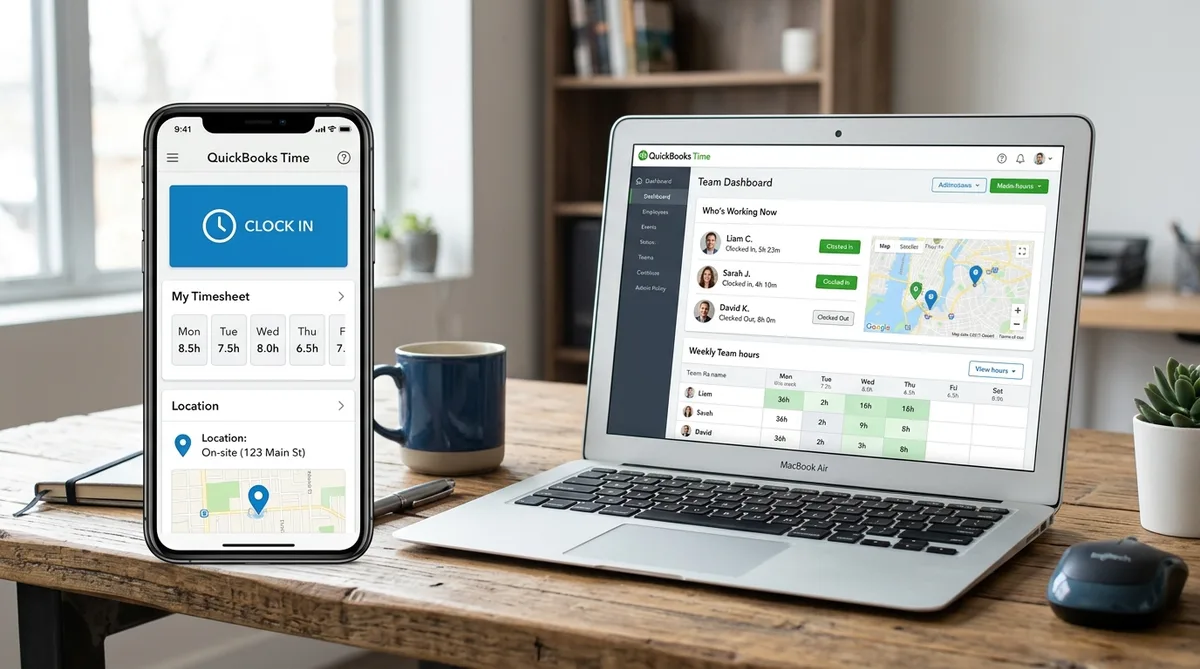
What Is TSheets (QuickBooks Time)?
TSheets, now known as QuickBooks Time, is a cloud-based time tracking and scheduling platform designed for businesses that need to monitor when and where their employees are working. If you have ever clocked in on a phone app, been prompted by a geofence reminder when you arrived at a job site, or had your manager approve your weekly timesheet online, there is a good chance the software behind it was TSheets.
If you have landed here looking for how to cheat TSheets, the first thing to understand is what the platform actually measures. You cannot meaningfully trick TSheets until you know whether it is watching your location, your clock-in times, or your computer screen — and the answer surprises most people. This guide walks through every tracking mechanism and the practical limits of any so-called TSheets hack.
Today the product is officially called QuickBooks Time, but most people in the field still refer to it as TSheets. The two names are interchangeable — same code, same features, same login. The only thing that changed was the branding on the box.
TSheets was rebranded to QuickBooks Time in 2021 and is now officially called QuickBooks Workforce. The monitoring features remain the same regardless of which name your employer uses. This guide covers all versions.
Unlike desktop monitoring tools such as Hubstaff or Time Doctor, TSheets does not take screenshots of your computer or log which applications you use. Its focus is squarely on clock-in/clock-out times, GPS breadcrumbs, and location-based accountability. That distinction matters, and we will explore it in detail later in this article.
The Intuit Acquisition and Rebrand
TSheets was founded in Boise, Idaho and grew rapidly among construction crews, field service companies, and distributed teams who needed a simple mobile punch clock. In January 2018, Intuit acquired TSheets for approximately $340 million to bolster the QuickBooks ecosystem. The logic was straightforward: QuickBooks already handled invoicing, accounting, and payroll for millions of small businesses. Adding a first-party time tracking tool meant tighter integrations and fewer third-party plugins.
For three years after the acquisition, the product kept the TSheets name. Then, in 2021, Intuit officially rebranded it to QuickBooks Time. The underlying product did not change — no features were removed or added specifically because of the rename. It was a pure branding exercise to bring everything under the QuickBooks umbrella.
Regardless of what it is called, the product remains one of the most widely deployed time tracking solutions for small and mid-sized businesses in North America. The rebranding also introduced a new mobile app name — QuickBooks Workforce — which is the employee-facing app used for clocking in, GPS tracking, and viewing schedules.
Who Uses TSheets Today?
QuickBooks Time is popular across a wide range of industries, but it is especially dominant in field-based sectors where employees move between job sites throughout the day:
- Construction and trades — electricians, plumbers, HVAC technicians
- Field service and maintenance — cleaning crews, landscaping, pest control
- Healthcare and home care — visiting nurses, therapists, caregivers
- Professional services — consultants, accountants, agencies billing by the hour
- Retail and hospitality — shift-based workers using the kiosk time clock
The common thread is that these businesses need to know when someone clocked in, where they were when they did it, and how long they stayed. QuickBooks Time delivers exactly that, and it ties directly into payroll and invoicing without any manual data entry.
How TSheets Tracks Your Time
Understanding how TSheets actually monitors you is the first step toward managing your time tracking reports effectively. The platform uses a combination of mobile GPS, geofencing, biometric kiosks, and manager approval workflows to build a complete picture of your workday. Let's break down each component.
GPS Tracking
GPS tracking is the backbone of QuickBooks Time's location monitoring. When you clock in using the QuickBooks Workforce mobile app (available on both iOS and Android), the software records your geographic coordinates. Here is exactly when GPS points are captured:
- At clock-in and clock-out — your location is logged each time you punch in or out
- When you open the app — a GPS point is saved whenever you launch QuickBooks Workforce
- When switching job codes — changing from one task or project to another triggers a location stamp
- Periodically while on the clock — the app collects GPS breadcrumbs at intervals throughout your shift, creating a trail of your movements
Managers can view these GPS breadcrumbs on a map in the admin dashboard. They see who is on the clock, which job site each employee is at, and which project or task they are currently working on. The breadcrumb trail gives managers a rough route replay of an employee's day.
There are some practical limitations worth noting. GPS points do not always update instantly in areas with weak cellular or Wi-Fi coverage. However, the points are still recorded on the device and sync once connectivity is restored — so being in a dead zone does not erase your trail, it just delays when your manager sees it. The breadcrumb trails are less continuous than what you would get from a dedicated fleet tracking system, and the route replay feature can load slowly with limited detail. Still, for most employers the data is more than sufficient to confirm that you were at the right job site at the right time.
One important privacy detail: QuickBooks Time does not track your location when you are off the clock. Admins cannot access employee location data outside of active work sessions. The moment you clock out, GPS tracking stops.
Geofencing (Auto Clock In/Out)
Geofencing is one of the more sophisticated features in the QuickBooks Time Elite plan. A geofence is a virtual boundary drawn around a physical location — a job site, office, warehouse, or client address. When an employee's phone enters or exits that boundary, the system takes action.
Here is how geofencing works in practice:
- Arrival reminders — when you drive into a geofenced job site, QuickBooks Time sends a push notification reminding you to clock in
- Departure reminders — when you leave the geofenced area, another notification reminds you to clock out
- Manager visibility — admins can see which employees are inside a geofenced zone at any given time
- Compliance documentation — the entry and exit timestamps serve as an additional layer of proof that an employee was on-site
Geofencing does not automatically clock you in or out by default. It sends reminders, and the employee still needs to confirm. However, some employers configure tighter policies around these alerts, expecting employees to act on them immediately. The radius of a geofence can be adjusted by the admin, typically ranging from a few hundred feet to several miles depending on the job site.
One important nuance: for geofencing to work, the QuickBooks Workforce app needs to access your location even when you are off the clock to determine whether you have entered a geofenced area. Your employer may require you to set the app's location permission to "Always" on your phone, which is a common friction point for employees. This is different from the standard GPS tracking, which only records points during active work sessions. The off-the-clock GPS checks are used solely for triggering arrival and departure reminders — those location points stay on your device and are not saved to Intuit's servers or shared with your manager. Still, the "Always" location requirement feels intrusive to many employees, even if the data is not actually transmitted.
Photo Capture Time Clock Kiosk
For on-site teams that share a single location — think a warehouse, restaurant, or construction trailer — QuickBooks Time offers a digital kiosk time clock. Instead of everyone installing the app on their personal phone, the employer sets up a tablet at the entrance and employees clock in there.
The kiosk includes two identity verification options:
- 4-digit PIN — each employee enters their unique code to clock in or out
- Photo capture — the kiosk snaps a photo using the tablet's camera at each clock event
The photo capture feature exists specifically to deter buddy punching — the practice of one employee clocking in on behalf of another. When enabled, the kiosk takes a photo at every clock-in and clock-out. There is also a facial recognition mode that compares the captured photo against the employee's stored profile photo. However, it is important to understand the limits: on a mismatch, the kiosk does not block the clock-in. Instead, it flags the entry and notifies the manager by email. The employee still punches in successfully — it is up to the manager to review the flagged photo and take action later.
This distinction matters. Tools with true biometric access control reject an unrecognized face immediately. QuickBooks Time's kiosk is closer to a security camera at the punch clock — it records who was there and alerts the manager, but it does not enforce anything in real time. Both photo capture and facial recognition are optional features that the admin chooses to enable. Some jurisdictions have specific laws around biometric data collection and workplace photography, so not every employer turns these features on.
Scheduling and Manager Approval Workflows
Beyond the clock itself, QuickBooks Time wraps time entries in a multi-step approval workflow that gives managers control over what ultimately gets sent to payroll:
- Shift scheduling — managers create and publish schedules in advance, assigning employees to specific shifts, jobs, and locations
- Real-time monitoring — the "Who's Working" dashboard shows a live view of all currently clocked-in employees, their locations, and their active job codes
- Timesheet review — at the end of a pay period, employees submit their timesheets for approval. Managers review the entries, compare them against schedules and GPS data, and approve or reject them.
- Edit audit trail — every modification to a time entry is logged, including who made the change and when
- Overtime alerts — managers receive notifications when an employee is approaching overtime thresholds
This layered approach means that even if an employee manages to submit an inaccurate time entry, there are multiple checkpoints before that entry flows into payroll. The combination of GPS data, geofence logs, and manager review makes it one of the more thorough clock-in/clock-out systems on the market.
What Managers Actually See in the Dashboard
Understanding exactly what your manager can view helps you anticipate which parts of your timesheet will get scrutinized. Here is what the QuickBooks Time admin dashboard exposes:
- "Who's Working" live view — a real-time feed showing every employee currently on the clock, which job code they are working under, how long they have been clocked in, and their last known GPS location. Managers can open this at any time during the day to see who is active.
- GPS map overlay — an interactive map plotting each employee's GPS breadcrumbs over their shift. Managers can click on individual employees to see a trail of location pins and compare them against assigned job sites. The trail updates as new breadcrumbs sync from the mobile app.
- Timesheet review screen — a tabular view of every time entry for the pay period. Each row shows start time, end time, duration, job code, location pin, and any notes the employee attached. Entries flagged for review (overlapping punches, missing clock-outs, manual edits) are highlighted.
- Audit trail — every modification to a time entry is logged with a timestamp and the name of the person who made the change. If you edit a clock-in time from 8:00 to 7:45, the audit trail shows exactly when you made that edit and what the original value was. Managers use this to spot patterns of retroactive adjustments.
- Kiosk photos — if photo capture is enabled, each clock event includes a thumbnail photo. Managers can scroll through a gallery of clock-in and clock-out photos for any given day.
- Reports and exports — payroll summaries, job costing breakdowns, overtime reports, and CSV exports for accounting software. Elite plans add project tracking with estimated-vs-actual hours, so managers can compare quoted hours to actual labor costs.
The key takeaway is that nothing you do in TSheets is invisible to your manager. Every clock event, location point, and edit is recorded and accessible. The system is designed for transparency, not stealth — which means the most effective strategy is keeping your timesheets clean and consistent, not trying to hide anything.
QuickBooks Time Pricing in 2026
QuickBooks Time offers two main pricing tiers, both structured as a monthly base fee plus a per-user charge. Intuit implemented a $2-per-employee-per-month price increase effective July 1, 2026, so the numbers below reflect the current rates.
Time Premium — $20/month base + $10/user/month
- Time tracking via mobile app, desktop, and kiosk
- GPS tracking with breadcrumb trails
- Timesheet approvals and manager dashboards
- Scheduling and shift management
- QuickBooks Online and QuickBooks Payroll integration
- Real-time reports and exportable data
- 30-day free trial available
Time Elite — $40/month base + $12/user/month
- Everything in Premium, plus:
- Geofencing with automatic clock-in/out reminders
- Project tracking with estimated vs. actual hours
- Activity feed with photos and progress updates
- Advanced job costing and labor cost reports
- Mileage tracking
- Signature capture
Bundled Plans with Payroll
For businesses that also need payroll processing, Intuit offers combined packages:
- Time Premium + Payroll Premium — $85/month base + $9/employee/month
- Time Elite + Payroll Elite — $130/month base + $11/employee/month
QuickBooks Time is no longer available as a standalone product. It requires an active QuickBooks Online, QuickBooks Online Payroll, or QuickBooks Desktop subscription. This is a change from the original TSheets, which was fully independent — after the Intuit acquisition, the product was progressively locked into the QuickBooks ecosystem. A 30-day free trial is available for both tiers.
For a small team of five employees, the monthly cost works out to roughly $70/month on Premium or $100/month on Elite. For a 25-person team, expect to pay around $270/month (Premium) or $340/month (Elite). The per-user pricing means costs scale linearly, which can add up quickly for larger teams.
Keep in mind the real total cost is higher than the QuickBooks Time fees alone. Since a QuickBooks Online subscription is required, businesses that do not already use QuickBooks need to factor in an additional $38–$115/month for QBO (depending on the tier) before adding per-user time tracking charges on top. For a 10-person team without an existing QuickBooks account, the all-in cost can reach $200/month or more.
QuickBooks Workforce and the 2026 Rebrand
In May 2026, Intuit unveiled QuickBooks Workforce — an all-in-one Human Capital Management (HCM) platform that bundles time tracking, payroll, time-off management, benefits, hiring, and compliance into a single product. This is the third name change for TSheets: TSheets → QuickBooks Time → QuickBooks Workforce.
Here is what this means in practice: new customers who signed up after May 13, 2026 go through time tracking setup directly inside QuickBooks, not through a separate QuickBooks Time portal. Existing QuickBooks Online Payroll subscribers are being automatically migrated to the new QuickBooks Workforce tiers (Payroll, Premium, and Elite). The mobile app has already been renamed — it is now called QuickBooks Workforce on both iOS and Android, where it combines time tracking with pay stubs, tax documents, and schedule access in a single app.
The "QuickBooks Time" name still appears in Intuit's help documentation and on their time-tracking landing page, and third-party review sites still title their 2026 reviews "QuickBooks Time." But the direction is clear: the standalone QuickBooks Time brand is being absorbed into the Workforce umbrella, the same way TSheets was absorbed into QuickBooks Time. For employees on the ground, nothing changes in terms of what is tracked or how — it is a branding and packaging shift, not a feature change.
TSheets vs Desktop Monitoring Tools
One of the most common misconceptions about TSheets is that it works like desktop employee monitoring software. It does not. Understanding the difference is crucial if you are trying to figure out how your employer tracks your work.
What TSheets Does
- Tracks clock-in and clock-out times
- Records GPS location during active work sessions
- Enforces geofence boundaries around job sites
- Verifies identity via PIN or facial recognition at kiosks
- Manages schedules and timesheet approvals
What TSheets Does NOT Do
- Does not take screenshots of your computer screen
- Does not log applications or websites you visit
- Does not record keystrokes or mouse movement patterns
- Does not measure "activity levels" based on input frequency
- Does not capture webcam photos during desktop work sessions
This is a fundamental difference. Tools like Hubstaff, Time Doctor, and ActivTrak are built to monitor what you do on your computer while you are clocked in. They capture random screenshots every few minutes, log which apps and URLs are in focus, and calculate an "activity percentage" based on how often you move your mouse or press keys. If your activity drops below a threshold, the manager gets an alert. For a full comparison of which time trackers take screenshots and how often, see our dedicated guide.
TSheets, by contrast, is a punch clock with GPS. It cares about when and where, not what. Once you clock in at the correct location and your timesheet looks reasonable, TSheets has done its job. It does not peek at your screen or judge how you spend every minute between clock-in and clock-out.
That said, many employers use TSheets alongside a separate desktop monitoring tool. A construction company might use QuickBooks Time for field crews and Hubstaff for office-based project managers. If your employer runs both, you are dealing with two different sets of tracking — location from TSheets and desktop activity from the monitoring software.
For a deeper look at how time tracking software works across the board, check out our comprehensive guide. It covers the full spectrum from basic timesheets to aggressive screenshot-based surveillance and ranks the top time tracking tools by their monitoring intensity.
Using TSheets with Desktop Monitoring?
If your employer pairs QuickBooks Time with a screenshot tool like Hubstaff or Time Doctor, Trick Tack keeps your desktop activity consistent while you step away.
DownloadWorkarounds and Tips
Now that you understand exactly how TSheets tracks your time, let's talk about practical strategies for managing your time tracking reports. The approach depends on which aspect of TSheets you are dealing with: the GPS/location component, the clock-in/clock-out workflow, or the desktop activity monitoring that your employer may be running alongside QuickBooks Time.
Location-Based Workarounds
GPS tracking and geofencing are TSheets' primary enforcement mechanisms. Here are some things to keep in mind:
- Understand the geofence radius — geofences are not always tight. Some employers set large radii (up to several miles) around job sites, which means you may be counted as "on-site" even if you are at a nearby location. Knowing the approximate boundary helps you understand how much flexibility you actually have.
- Wi-Fi vs cellular GPS — GPS accuracy depends on signal quality. In areas with weak cellular coverage, location pins can drift significantly. Indoor locations, parking garages, and dense urban areas with tall buildings are all known to produce less precise readings.
- Clock in at the right time — since GPS is captured at clock-in, make sure you are physically at or near the job site when you punch in. The clock-in location is often the data point managers scrutinize most closely.
- Off-the-clock privacy — remember that QuickBooks Time does not track you when you are clocked out. Your employer cannot see your location outside of active work sessions. If you are worried about being tracked on your personal time, clocking out is all you need to do.
Clock-In Strategies
The clock-in/clock-out workflow in TSheets has several nuances that you can use to your advantage:
- Use job codes strategically — if your employer has set up multiple job codes (meetings, travel, admin, etc.), use the correct one for each activity. Switching job codes throughout the day shows that you are actively managing your time, which builds trust with managers reviewing your timesheets.
- Add notes to time entries — QuickBooks Time allows employees to attach notes to their clock events. Documenting what you accomplished during each block of time makes your timesheets more credible during the approval review.
- Submit timesheets promptly — do not let time entries pile up. Submitting at the end of each day or the end of each week (depending on your company's policy) reduces the chance of discrepancies and shows proactive engagement.
- Review before submitting — check your timesheet for gaps, overlaps, or entries that look unusual before your manager sees them. It is much better to correct a mistake yourself than to have your manager flag it during review.
- Leverage the mobile app settings — the QuickBooks Workforce app has settings for notification preferences. Make sure geofence reminders are turned on so you never accidentally forget to clock in when you arrive at a job site.
Maintain Consistent Timesheets
Beyond gaming the system, the single best strategy for staying under the radar with TSheets is maintaining clean, consistent timesheets that do not draw scrutiny during manager review. Patterns matter more than any individual entry:
- Avoid large bulk edits — correcting a week's worth of time entries at once creates a cluster of audit trail entries that stands out during review. Fix mistakes the same day they happen.
- Keep break patterns realistic — if you consistently take exactly zero breaks across an 8-hour shift, that looks unusual. Short, regular breaks are normal and expected. What draws attention is erratic patterns — alternating between no breaks on some days and multiple long gaps on others.
- Match your GPS trail to your job codes — if you clock in at Site A but your GPS shows you at Site B, the discrepancy is immediately visible to any manager who reviews the map view. Make sure job codes accurately reflect where you are.
- Submit on time, every time — late timesheet submissions are one of the most common triggers for closer scrutiny. Submitting on schedule signals that you are managing your time proactively.
How Trick Tack Helps with Desktop Activity
Here is where the distinction between TSheets and desktop monitoring becomes critical. TSheets itself does not monitor your computer activity. But if your employer also uses a desktop monitoring tool — Hubstaff, Time Doctor, ActivTrak, Teramind, or similar — then you have a second layer of tracking that measures your mouse movements, keyboard inputs, and screen activity.
This is exactly the scenario where Trick Tack becomes useful. Desktop monitoring tools like DeskTime go even further by automatically categorizing your app usage as productive or unproductive, making consistent activity even more important. Trick Tack is a lightweight desktop application that simulates natural human activity on your computer:
- Mouse movement simulation — realistic, randomized cursor movements that mimic how a person naturally navigates their screen
- Keyboard input simulation — periodic keystrokes that register as genuine typing activity
- Scroll simulation — natural scrolling patterns that keep browser-based monitoring tools from flagging you as idle
- App switching — automatic window switching between open applications, simulating multitasking behavior
When you step away from your desk for a break, a meeting, or any other reason, Trick Tack keeps your desktop activity metrics consistent. The monitoring software continues to see mouse movement, keyboard input, and active window changes — exactly what it would see if you were working normally.
This matters for hybrid setups where your employer uses TSheets for clock-in/clock-out and location, plus a separate tool for desktop surveillance. TSheets will show that you are clocked in at the right location. Trick Tack ensures the desktop monitoring tool does not flag a gap in activity during your break.
To get started:
- Sign up for a free 7-day trial — cancel anytime during your trial
- Install Trick Tack on your Windows PC
- Configure the simulation settings (mouse speed, keystroke frequency, app switching interval)
- Activate Trick Tack whenever you need to step away
The application runs quietly in the background without interfering with your other software. When you return to your desk, simply pause or close Trick Tack and resume working normally.
Try Trick Tack Free for 7 Days
Keep your desktop activity reports consistent while you take a break. Works alongside any time tracking or employee monitoring software. Cancel anytime during your trial.
DownloadFrequently Asked Questions
Does QuickBooks Time take screenshots?
No, QuickBooks Time does not take screenshots. This is one of the most common misconceptions about the platform. TSheets is a clock-in/clock-out and GPS tracking tool, not a desktop surveillance tool. It does not capture screenshots, log application usage, monitor websites, record keystrokes, or measure desktop activity levels. If your employer is taking screenshots of your computer, they are using a separate tool such as Hubstaff, Time Doctor, ActivTrak, or Teramind — not TSheets. See our guide on how to handle employee monitoring software for strategies specific to screenshot-based tools.
Can QuickBooks Time track my location?
Yes, but only while you are clocked in. The QuickBooks Workforce mobile app uses your phone's GPS to capture location pins at clock-in, clock-out, job-code switches, and periodically throughout your shift. Employers on the Elite plan can also set up geofencing, a virtual boundary around a job site that triggers clock-in and clock-out reminders when you arrive or leave. The key limit is that location tracking stops the instant you clock out — the app cannot see where you go on personal time. GPS points are stored on the device and synced when connectivity is available, so even working in areas with weak signal does not permanently hide your location. If you want to confirm this on your own device, you can review or revoke the location permission for the QuickBooks Workforce app in your phone settings while off the clock.
Is QuickBooks Time going away?
No, QuickBooks Time is not being discontinued. The confusion comes from Intuit sunsetting QuickBooks Desktop 2023 on May 31, 2026 — that is a completely different product. QuickBooks Time (formerly TSheets) is a cloud-based service that remains actively developed and sold. In fact, Intuit raised per-user prices by $2/month effective July 1, 2026, which signals continued investment rather than a wind-down. The product now requires a QuickBooks Online subscription or can be bundled with QuickBooks Payroll, but it is not going anywhere.
How does TSheets geofencing work?
Geofencing is an Elite plan feature that lets administrators draw a virtual boundary around a physical location — a job site, office, or client address. When your phone enters or exits that boundary, the QuickBooks Workforce app sends a push notification reminding you to clock in or out. The geofence does not automatically clock you in by default; it sends reminders, and you still need to confirm. Administrators set the radius, which can range from a few hundred feet to several miles depending on the job site. Managers can see which employees are inside a geofenced zone at any given time, and the entry and exit timestamps provide an additional layer of on-site verification.
Is TSheets the same as QuickBooks Time?
Yes. TSheets and QuickBooks Time are the same product under two names. Intuit acquired TSheets in January 2018 and rebranded it to QuickBooks Time in 2021, but the features, interface, and underlying code remain identical. There was no migration to perform — existing TSheets accounts simply changed their name and logo. If a job listing, manager, or coworker mentions "TSheets" while your app says "QuickBooks Time" or "QuickBooks Workforce," they are all referring to the same platform. The TSheets name persists in everyday use because field crews adopted it years before the rebrand.
Can you edit time entries in TSheets?
Yes, but edits flow through an approval workflow rather than being final. Employees can correct their own time entries — adjusting start and end times, adding missed punches, switching job codes, or attaching notes — before they submit a timesheet. Once submitted, a manager or admin reviews each entry against the schedule and GPS data and either approves or rejects it. Crucially, every edit is recorded in an audit trail that shows who changed what and when, so retroactively altering hours is visible to anyone reviewing the timesheet. The cleanest approach is to correct entries promptly and add a short note explaining any change before your manager sees it.
Can TSheets detect fake GPS apps?
QuickBooks Time does not have built-in fake GPS detection, but that does not mean spoofing is risk-free. GPS spoofing apps (like Fake GPS Location on Android) work by overriding your phone's location services with a fabricated set of coordinates. While the QuickBooks Workforce app itself does not flag mock locations the way some fleet tracking apps do, there are practical risks. First, spoofed GPS pins tend to be perfectly stationary — a real person's GPS drifts by a few meters naturally, so a pin that never moves looks suspicious on the map. Second, your GPS trail will show impossible jumps if you forget to update the spoofed location when switching job sites. Third, Android and iOS periodically warn about mock location usage in developer settings, and some enterprise mobile device management (MDM) solutions can detect it outright. If your employer uses MDM alongside QuickBooks Time, a fake GPS app is likely to be flagged.
Does QuickBooks Time work without QuickBooks?
No, not anymore. The original TSheets product was a fully standalone time tracker that worked independently of any accounting software. After Intuit's acquisition and the rebrand to QuickBooks Time, the product was progressively integrated into the QuickBooks ecosystem. As of 2026, QuickBooks Time requires an active QuickBooks Online, QuickBooks Online Payroll, or QuickBooks Desktop subscription. You cannot sign up for QuickBooks Time without first having a QuickBooks account. This is one of the most common complaints from former TSheets users who liked the standalone simplicity. If you need a standalone time tracker without the QuickBooks dependency, alternatives include Clockify, Harvest, and Toggl Track.
Does TSheets use facial recognition?
Yes, but not the way most people expect. The QuickBooks Time kiosk can capture a photo at clock-in and compare it against the employee's stored profile photo. However, on a mismatch, it does not block the clock-in. Instead, the entry is flagged and the manager is notified by email — the employee still punches in successfully. Think of it as a security camera at the punch clock that alerts the manager, rather than a biometric lock that rejects unauthorized access. This means buddy punching is deterred and flagged, but not actively prevented in real time. Both photo capture and facial recognition are optional features that employers can enable or disable, and some jurisdictions have laws restricting biometric data collection that may prevent their use.
How do you cheat TSheets time tracking?
TSheets (QuickBooks Time) tracks time differently from desktop monitoring tools. It focuses on GPS location, geofencing, and clock-in/clock-out records rather than screenshots or activity levels. That means the "cheat" methods that work against tools like Hubstaff or Time Doctor do not apply here. What matters with TSheets is your location at clock-in, consistent timesheet submissions, and matching GPS breadcrumbs to job codes. The most common issues are geofence alerts (clocking in outside the designated area), inconsistent break patterns that trigger manager review, and bulk edits to timesheets that leave an audit trail. Maintaining realistic, prompt clock-in patterns and matching your reported location to your actual GPS data is what keeps TSheets reports clean.
Can you trick TSheets GPS tracking?
TSheets captures GPS coordinates at clock-in, clock-out, job code switches, and periodically throughout the shift. Fake GPS apps (location spoofing) can override the reported coordinates on some Android devices, but TSheets on the Elite plan uses geofencing with push notifications that cross-reference your location against the job site boundary. If the geofence does not detect you entering the zone, the discrepancy between your spoofed coordinates and the missing geofence trigger can raise a flag. Additionally, TSheets logs whether the device is using GPS, Wi-Fi, or cell-tower triangulation for its coordinates — location spoofers typically only override GPS, which can leave inconsistencies in the data. The safest approach is to clock in from the actual job site.
Conclusion
TSheets — now QuickBooks Time — is a powerful time tracking platform built around GPS tracking, geofencing, and structured clock-in/clock-out workflows. It excels at answering three questions for employers: When did you start? Where were you? When did you stop? Compared to aggressive desktop monitoring tools, TSheets takes a more targeted approach that focuses on location and schedule compliance rather than constant screen surveillance.
Understanding how each tracking mechanism works — from GPS breadcrumbs and geofence boundaries to kiosk photo capture and manager approval workflows — puts you in a better position to manage your time reports accurately and avoid unnecessary flags during timesheet review.
If your employer uses TSheets in combination with a desktop monitoring tool, the gap you need to address is on the desktop activity side. That is where Trick Tack fits in. It keeps your mouse, keyboard, and window-switching activity consistent while you step away, ensuring that the monitoring software does not register idle time during breaks.
Keep Your TSheets Setup Running Smoothly
If your employer pairs QuickBooks Time with desktop monitoring, Trick Tack simulates natural mouse, keyboard, scrolling, and app-switching activity. Try it free for 7 days.
Download

