Why People Search for Harvest Hacks
Harvest is not a surveillance tool. It does not take screenshots, log keystrokes, or track which websites you visit. So why do people search for "how to cheat Harvest" or "Harvest time tracking hack"?
The answer is timesheet accountability. Harvest is built for teams that bill clients by the hour — agencies, consultancies, law firms, and freelancers. Every hour you log in Harvest is potentially an hour that gets invoiced to a client. That creates a different kind of pressure than activity-based monitoring. You are not being watched for mouse movements; you are being watched for how many billable hours you report and whether those hours make sense against project budgets.
A developer who logs 6 hours against a 10-hour project estimate but the work is not done raises a question. An employee who consistently logs fewer hours than their teammates stands out in Harvest's team reports. The "cheat" people are looking for is not about fooling a screenshot monitor — it is about maintaining consistent, plausible time entries even during breaks, slow days, or when they get pulled away from their desk.
This guide covers everything Harvest actually tracks, what it explicitly does not monitor, how its pricing has changed under new ownership, and how to keep your timesheets consistent. For a broader view of time tracking tools, see our guide on how to cheat time tracking software.
How Harvest Tracks Your Activity
Harvest's tracking model is fundamentally different from employee monitoring platforms. It tracks what you tell it, not what it observes. Understanding that distinction is key to understanding what you are actually dealing with.
Timer-Based Time Tracking
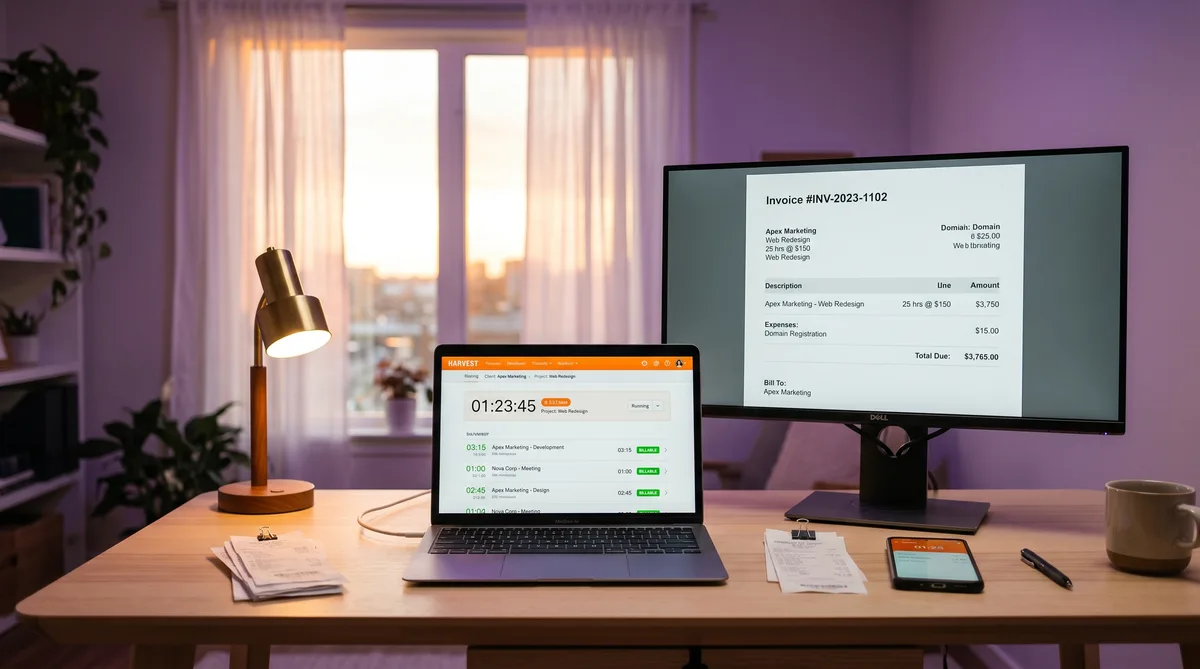
Like Toggl, Harvest is a timer-based tool. You start a timer when you begin work, select a project and task, and stop the timer when you are done. The recorded time can then be marked as billable or non-billable.
Harvest offers multiple ways to track time:
- Start/stop timer — The desktop app, web app, and mobile app all feature a one-click timer. Select your project and task, hit start, and Harvest begins counting.
- Manual entry — Enter hours directly on a timesheet grid. Choose the date, project, task, and enter the number of hours. No timer involved.
- Weekly timesheet view — A grid showing all your projects and tasks for the week. Fill in hours per day for each row. This is the view most teams use for end-of-week time entry.
- Mobile app — Start timers on the go, add expenses with receipt photos, and review your week from your phone.
The critical difference from monitoring tools is that Harvest only records what you create. If you work for two hours without starting a timer, Harvest has zero record of it. If you manually enter 8 hours of work without running a timer at all, Harvest accepts that as valid data. The tool trusts the user to report accurately, which is both its strength (minimal friction) and its limitation (no verification).
Idle Reminders
Harvest's desktop app includes an idle reminder system, though it works differently from idle detection in tools like DeskTime or Hubstaff.
Here is how it works: if the desktop app detects that you are using your computer but no timer is currently running, it sends a reminder notification nudging you to start tracking. The reminder essentially says "Hey, it looks like you're working — do you want to start a timer?"
This is the opposite of how most monitoring tools handle idle time. Tools like Hubstaff and Time Doctor detect when you stop working and flag the idle period. Harvest detects when you are working but not tracking and reminds you to start. The focus is on capturing billable time, not on proving you are active.
Key details:
- Reminders only appear when no timer is running and the app detects computer activity.
- You can dismiss the reminder without consequence — it is a notification, not a report.
- Managers do not see idle reminder data. The reminders are a personal productivity tool for the employee.
- The reminder frequency and schedule can be customized in the desktop app settings.
Timesheet Approval & Locking
Harvest's most significant "monitoring" feature is not technical surveillance — it is managerial review of timesheets. On the Enterprise plan, managers can require employees to formally submit timesheets for approval.
The approval workflow works as follows:
- Automated reminders — Harvest sends email reminders to employees to submit their timesheets by a configured deadline (for example, every Friday at 5 PM).
- Employee submission — The employee reviews their time entries for the period and clicks "Submit for Approval."
- Manager review — The manager reviews the submitted timesheet, looking at projects, tasks, hours, and notes.
- Approval or rejection — The manager can approve the timesheet (which locks it from further edits) or reject it with comments requesting changes.
Once a timesheet is approved, the entries are locked and cannot be modified by the employee. This creates an audit trail for client billing and compliance. Managers can also configure time entries to require notes, which means you need to briefly describe what you worked on for each entry — not just log the hours.
The approval process is the main place where inconsistencies get caught. A manager who knows a project should take 20 hours will question a timesheet showing 40. An entry with no notes or vague descriptions like "general work" can be rejected and sent back for clarification.
Project Budgets & Capacity Alerts
Harvest includes project budgeting features that create indirect pressure on time entries. When a project has a budget (measured in hours or dollars), Harvest tracks progress against that budget in real time.
- Budget percentage — Managers see how much of a project's budget has been consumed. If a project is at 80% budget with 50% of the work remaining, that is a red flag.
- Budget alerts — Automatic email notifications when a project reaches configurable budget thresholds (for example, 75%, 90%, 100%).
- Capacity reports — Show how many hours each team member has available versus how many are booked. Over-allocated employees appear highlighted.
- Cost rates — Each team member can have an internal cost rate, so Harvest calculates not just hours but cost to the company for each project.
These features mean that even though Harvest does not monitor your screen, your time entries are being cross-referenced against budgets, estimates, and team capacity. Logging time that does not align with project expectations raises flags through the budgeting system rather than through surveillance.
Browser Extensions & Integrations
Harvest integrates with over 70 tools including Asana, Jira, Trello, GitHub, Slack, and Basecamp. The browser extension adds a "Track time" button directly inside these project management tools, making it easy to start a timer from a specific task without switching to the Harvest app.
While integrations do not add monitoring per se, they create context links between your time entries and specific tasks in your project management system. A time entry started from a Jira ticket automatically includes a reference to that ticket, which makes it easier for managers to verify that the logged hours correspond to actual work items.
What Harvest Does NOT Track
This is where Harvest differs dramatically from tools like Time Doctor, Insightful, or Teramind. Harvest explicitly does not include:
- Screenshots — No periodic or random screen captures at any pricing tier.
- Keystroke logging — No recording of what you type.
- App and website tracking — No monitoring of which applications are open or which URLs you visit.
- Activity percentage — No mouse/keyboard activity scoring. Harvest does not know how "active" you were during tracked time.
- GPS tracking — No location monitoring through the mobile app.
- Screen recording — No video capture of your desktop.
- Automatic time tracking — Harvest does not track time unless you explicitly start a timer or enter hours manually.
- Idle detection as punishment — The idle reminders are optional notifications, not surveillance flags visible to managers.
Harvest is designed for trust-based teams that bill clients. It assumes employees will honestly report their time and focuses its features on making that process easy and billable. For a visual comparison of where Harvest falls on the monitoring spectrum compared to other tools, see our time tracking market infographic.
Harvest Pricing in 2026
Harvest was acquired by Bending Spoons in July 2025, and pricing has been restructured since. The new tiers as of 2026:
Free Plan — $0 (1 seat, 2 projects)
The free plan is extremely limited, allowing only a single user with up to 2 active projects. It includes basic time tracking, invoicing, and expense tracking. This plan is suitable for individual freelancers testing the platform, but teams will outgrow it immediately.
Pro Plan — $11/user/month
The standard team plan that includes:
- Unlimited users and projects
- Start/stop timers and manual entry
- Project budgets and estimates
- Invoicing and expense tracking
- Team reports and analytics
- Integrations (Asana, Jira, Slack, etc.)
- Browser extension and mobile apps
Premium Plan — $14/user/month
Adds management and compliance features:
- Everything in Pro
- Timesheet approval workflows
- Profitability reporting
- Activity log (audit trail)
- Required notes on time entries
- Custom reports and exports
Enterprise — Custom Pricing
Adds enterprise security and administration:
- Everything in Premium
- SAML-based single sign-on (SSO)
- Dedicated account manager
- Priority support
- Custom onboarding
The pricing increase from the pre-acquisition era (Harvest previously charged $10.80/user on a single plan) has been noted by existing customers. The functionality is largely the same, but features like timesheet approval that were previously included for all users are now gated behind the Premium tier.
How to Maintain Consistent Time Entries
Since Harvest does not monitor your screen or track your activity, the challenge is different from what you face with tools like Hubstaff or DeskTime. With Harvest, the challenge is maintaining consistent tracked hours and plausible time entries rather than fooling a surveillance system.
Keeping Your Timer Running
The most common issue Harvest users face is gaps in tracked time. You start working, forget to start the timer, step away for a break without stopping it, or simply lose track of which project you should be logging against. These gaps create inconsistencies in your daily and weekly totals.
Trick Tack helps by keeping your computer active during short breaks, which prevents Harvest's idle reminders from piling up and keeps your desktop session alive. If you have a Harvest timer running and step away, Trick Tack's mouse movement and keyboard simulation prevent your computer from locking or going to sleep, so the timer continues running uninterrupted.
Handling Timesheet Review
If your team uses the Premium plan's timesheet approval, your manager reviews your hours before they are locked. Entries that look sparse, inconsistent, or missing notes may be sent back for revision. The best defense here is having accurate total hours for each day.
By keeping your Harvest timer running during short breaks (5-15 minutes for coffee, bathroom, stretching), you avoid the accumulating gaps that make a day look like 5.5 hours when you actually worked a full 8-hour day with normal breaks. Most employers expect a full workday to include reasonable breaks — the issue is when those breaks create visible holes in the timer record.
The Broader Picture
Because Harvest does not have screenshots, activity scores, or app monitoring, total hours and project allocation are the primary metrics your manager sees. A consistent 7-8 hours per day logged across appropriate projects is all that most Harvest-based teams expect. Trick Tack helps maintain that consistency by keeping your timer alive during the brief, legitimate breaks that are a normal part of any workday.
Keep Your Harvest Timers Running
Trick Tack prevents your computer from idling during short breaks, so your Harvest timer keeps accumulating hours. Try it free for 7 days.
DownloadFrequently Asked Questions
Does Harvest take screenshots?
No, Harvest does not take screenshots at any pricing tier. It is a time tracking and invoicing tool, not an employee monitoring platform. Harvest records the hours you log against projects and tasks, but it has no capability to capture your screen, record your desktop, or visually verify what you are working on. If your employer needs screenshot monitoring, they would use a separate tool like Hubstaff, Time Doctor, or Insightful alongside or instead of Harvest.
Does Harvest track what apps or websites I use?
No, Harvest does not track which applications you use or which websites you visit. It does not monitor your desktop activity in any way. Harvest only records the time entries you create, either through the start/stop timer or by manually entering hours. The tool knows what project and task you assigned your time to because you selected those when starting the timer, not because it monitored your screen. This makes Harvest fundamentally different from tools like DeskTime or Hubstaff that automatically track app and URL usage.
Can my manager see when I'm not working in Harvest?
Your manager can see your submitted timesheets and total hours tracked per day, but Harvest does not show real-time activity or idle status. If you tracked 3 hours on Monday when your team typically logs 8, that gap is visible in reports. However, Harvest cannot tell your manager whether you were at your desk, away from your computer, or simply forgot to run the timer. The visibility is limited to the time entries you create and submit. On Premium plans with timesheet approval, managers can also reject entries that seem incorrect and request revisions.
What happens if I forget to start the Harvest timer?
If you forget to start the timer, Harvest has no record of that work period. Unlike automatic trackers that record everything from the moment your computer turns on, Harvest only captures time when you actively start a timer or manually enter hours. The desktop app sends idle reminders if it detects you are using your computer without a timer running, nudging you to start tracking. You can also add time entries retroactively by manually entering the start time, end time, project, and task after the fact.
Is Harvest owned by Bending Spoons now?
Yes, Harvest was acquired by Bending Spoons in July 2025. Since the acquisition, Harvest has restructured its pricing into three tiers: Pro at $11 per user per month, Premium at $14 per user per month, and Enterprise with custom pricing. Some users have reported price increases compared to the pre-acquisition rates. The free plan, which previously offered 1 seat and 2 projects, is still available but may have reduced functionality. The core product features remain the same: time tracking, expense management, invoicing, and project budgets.
Conclusion
Harvest sits firmly on the trust-based end of the monitoring spectrum. It does not watch your screen, score your activity, or track your keystrokes. What it does is create a structured system for logging billable hours, with timesheet approval, project budgets, and team reports that make inconsistencies visible through the numbers rather than through surveillance.
For most Harvest users, the "hack" is not about fooling a monitoring system — it is about keeping your tracked hours consistent so your timesheets do not have gaps from normal breaks and transitions throughout the day. Trick Tack helps by keeping your computer active during those brief breaks, ensuring your Harvest timer continues running and your daily totals stay where they should be.
For a full breakdown of Harvest's features, pricing tiers, and alternatives, see our Harvest review. For comparison with tools that do include active monitoring, see our articles on Harvest vs Toggl and how to work with more invasive platforms like Hubstaff or Time Doctor. And for a broader look at the entire time tracking landscape, check our top time tracking software comparison.
Try Trick Tack Free for 7 Days
Keep your Harvest timers running and your daily hours consistent while you step away. Cancel anytime during your trial.
Download

