Introduction
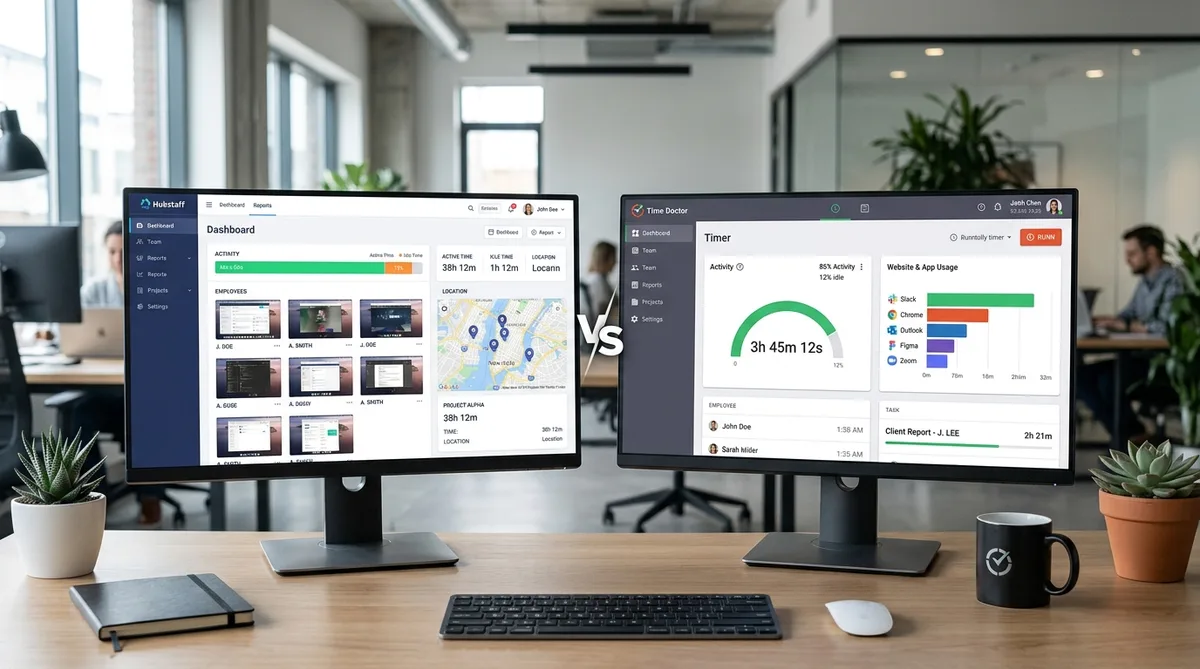
If your employer uses employee monitoring software, two names probably come up more than any other: Hubstaff and Time Doctor. Both tools dominate the remote-work surveillance market in 2026, and both promise managers detailed visibility into what their teams do during working hours. Screenshots, activity percentages, idle detection, app tracking — the feature lists overlap so much that picking between them can feel like splitting hairs.
But the overlap is deceptive. Beneath the surface, Hubstaff and Time Doctor take meaningfully different approaches to monitoring. One leans into operational management — GPS, scheduling, payroll — while the other doubles down on behavioral surveillance with distraction alerts, productivity scores, and screen recordings. Which one watches you more? Which one gives managers a more granular view of your day?
These questions matter whether you're a manager building a monitoring stack or an employee who just found out one of these tools is being installed on your work computer. The level of surveillance varies not just between the two products but between their individual pricing tiers — a detail that most comparison articles gloss over.
In this head-to-head comparison, we break down every monitoring feature, compare pricing tier by tier, and explain exactly what each tool tracks so you know what you're dealing with. Whether you're an employer evaluating options or an employee trying to understand what's being recorded, this guide covers it all.
For a broader look at how monitoring tools work, check out our complete guide to employee monitoring software.
Hubstaff Overview
Hubstaff launched in 2012 as a time tracking tool for remote teams and has since grown into a full workforce management platform. Today it serves over 95,000 businesses globally and positions itself as an operations-first tool that happens to include monitoring, rather than a surveillance product with time tracking bolted on.
Key Features
- Time tracking — Desktop, mobile, and browser-based timers with automatic and manual entry options.
- Screenshots — Randomized screen captures at configurable intervals (1 to 10 per 10-minute window). Off by default; admins must enable them.
- Activity levels — Each second is labeled active or inactive based on keyboard and mouse input, then rolled into a percentage for every 10-minute segment.
- App and URL tracking — Logs which applications and websites employees use during tracked time.
- GPS and location tracking — Full route tracking, geofencing, and location-based time entries. A standout feature for field teams.
- Idle detection — Triggers after five minutes of inactivity (configurable), then prompts the user to discard or keep that idle time.
- Scheduling and attendance — Shift planning, attendance tracking, overtime, and time-off management.
- Invoicing and payroll — Built-in payments via PayPal, Wise, or Payoneer based on tracked hours.
Who Uses It
Hubstaff is popular with agencies, construction companies, and distributed tech teams that need more than just monitoring. The GPS and geofencing capabilities make it particularly attractive for businesses with field workers who clock in from job sites. It's also common among outsourcing firms that bill clients by the hour and need verifiable timesheets.
Monitoring Philosophy
Hubstaff frames monitoring as a transparency and accountability tool. Screenshots are disabled by default, activity data is visible to employees in their own dashboards, and the platform's marketing emphasizes trust over surveillance. That said, when all monitoring features are turned on — screenshots, app tracking, URL logging, keystroke-based activity levels — the result is still a comprehensive picture of an employee's workday.
For a deeper dive into how Hubstaff tracks activity, read our guide to staying active with Hubstaff, or see our full Hubstaff review for features, pricing, and pros and cons.
Time Doctor Overview
Time Doctor, founded in 2012, markets itself as a workforce analytics platform designed to improve productivity through data. Where Hubstaff bundles monitoring with operations tools, Time Doctor is laser-focused on understanding exactly how employees spend every minute of the workday — and nudging them when they stray.
Key Features
- Time tracking — Task-level time tracking with interactive (manual start/stop) and silent (automatic) modes.
- Screenshots — Configurable screenshot intervals at 3, 9, 15, or 30 minutes. Available on all plans with no monthly cap.
- Screen recording — Full video recording of employee screens (Premium plan), providing a continuous visual log instead of isolated snapshots.
- Activity tracking — Measures keyboard and mouse activity to determine active vs. idle time. Does not record specific keystrokes, only counts.
- Web and app monitoring — Every application opened and every website visited is logged, categorized as productive or unproductive, and measured by active time spent.
- Distraction alerts — Real-time pop-up notifications when an employee spends too long on a site flagged as unproductive (e.g., social media, news sites). Customizable per team.
- Productivity scoring — Combines all monitoring data into a composite productivity rating for each employee, turning raw numbers into an at-a-glance performance metric.
- Unusual activity detection — Flags anomalies such as prolonged identical activity patterns or potential use of automation tools (Premium plan).
- Payroll integration — Calculates pay based on tracked hours with export options for payroll processors.
Who Uses It
Time Doctor is widely adopted by BPO firms, call centers, and large remote teams — organizations where managers need to verify that hundreds of employees are staying on task during their shifts. It's also popular with companies that bill clients for outsourced work and need granular proof-of-work documentation.
Monitoring Philosophy
Time Doctor's approach is more interventionist than Hubstaff's. The distraction alerts actively interrupt employees in real time, the productivity scoring system assigns a number to each person's performance, and the unusual activity detection is explicitly designed to catch people gaming the system. The tool is transparent about this: its marketing pitches a "22% productivity boost" as a primary selling point, which tells you exactly where the emphasis lies.
To understand what Time Doctor tracks in detail, see our complete Time Doctor guide.
Monitoring Feature Comparison
This is where the rubber meets the road. Below is a feature-by-feature comparison of every monitoring capability in both tools. If you want to know exactly what each platform records, this table has the answers.
| Monitoring Feature | Hubstaff | Time Doctor |
|---|---|---|
| Screenshots | 1-10 per 10 min; 500/mo cap on lower plans, unlimited on Team+ | Every 3, 9, 15, or 30 min; unlimited on all plans |
| Activity level tracking | Per-second mouse/keyboard measurement, 10-min segment percentages | Keyboard/mouse counts to determine active vs. idle time |
| Idle detection | 5-min default (configurable); prompts user to keep or discard idle time | Automatic idle detection; pauses tracking after inactivity threshold |
| GPS tracking | Full GPS with geofencing, route tracking, and location-based entries | Basic mobile location tracking only; no geofencing or routes |
| Web/URL monitoring | Logs visited URLs during tracked time (Team plan and above) | Logs and categorizes all URLs as productive or unproductive |
| App monitoring | Records active applications during tracked time (Team plan and above) | Records all apps, categorizes them, and measures active time per app |
| Distraction alerts | Not available | Real-time pop-ups when visiting flagged non-work sites |
| Screen recording | Not available | Continuous video screen recording (Premium plan) |
| Keystroke logging | Counts keystrokes for activity level calculation; does not record actual keys | Counts keystrokes for activity measurement; does not record actual keys |
| Productivity scoring | Activity percentage only | Composite productivity rating combining all data sources |
| Unusual activity detection | Not available | Flags anomalous patterns and potential automation (Premium) |
A few takeaways stand out. Hubstaff has the clear edge in location-based monitoring — its GPS, geofencing, and route tracking are in a different league from Time Doctor's basic mobile location. But Time Doctor pulls ahead in behavioral monitoring: distraction alerts, screen recording, productivity scores, and unusual activity detection are all capabilities Hubstaff simply doesn't offer.
Both tools measure keystrokes in the same way — counting them for activity calculations without recording the actual keys pressed. Neither tool is a keylogger in the traditional sense.
Pricing Comparison
Pricing matters because certain monitoring features are locked behind higher tiers. Here's what each plan costs and what monitoring capabilities it includes.
Hubstaff Pricing (per user/month, billed annually)
| Plan | Price | Monitoring Included |
|---|---|---|
| Free | $0 (1 user) | Basic time tracking only |
| Starter | $4.99 | Time tracking, 500 screenshots/mo, activity levels |
| Grow | $7.50 | Everything in Starter + reporting, 1 integration |
| Team | $10 | Unlimited screenshots, unlimited app/URL tracking, payroll, scheduling |
| Enterprise | $25 | Everything in Team + HIPAA/SOC 2 compliance, higher API limits |
Time Doctor Pricing (per user/month, billed annually)
| Plan | Price | Monitoring Included |
|---|---|---|
| Basic | $6.70 | Time tracking, unlimited screenshots, project tracking |
| Standard | $11.70 | Everything in Basic + productivity ratings, web/app monitoring, scheduling, 60+ integrations |
| Premium | $16.70 | Everything in Standard + screen recording, unusual activity detection, SSO, 2-year data retention |
At the entry level, Hubstaff's Starter plan ($4.99) is slightly cheaper than Time Doctor Basic ($6.70), but Hubstaff caps screenshots at 500 per month while Time Doctor offers unlimited screenshots from day one. If your employer wants full monitoring on a budget, Time Doctor's Basic plan delivers more surveillance per dollar.
At the mid-tier, Hubstaff Team ($10) goes head-to-head with Time Doctor Standard ($11.70). Hubstaff adds GPS, scheduling, and payroll at this level, while Time Doctor adds productivity ratings and web/app categorization. The right choice depends on whether operations features or productivity analytics matter more.
At the top tier, Time Doctor Premium ($16.70) is considerably cheaper than Hubstaff Enterprise ($25), but they serve different audiences. Hubstaff Enterprise targets compliance-heavy organizations, while Time Doctor Premium adds screen recording and unusual activity detection for maximum visibility.
Both tools offer a 14-day free trial with full features. It's worth noting that pricing for both platforms changes periodically — Hubstaff restructured its tiers in late 2025, and Time Doctor has adjusted its pricing multiple times over the past two years. Always verify current rates on each vendor's website before committing to an annual contract.
Which Monitors More?
The short answer: Time Doctor monitors more intensely.
While both tools capture screenshots, track activity levels, log apps and URLs, and detect idle time, Time Doctor goes further in several important ways:
- Distraction alerts — Time Doctor actively interrupts your workflow with pop-up warnings when you visit sites it considers unproductive. Hubstaff has no equivalent. This is not passive logging; it's real-time behavioral intervention.
- Screen recording — Time Doctor's Premium plan records continuous video of your screen, not just periodic snapshots. Hubstaff does not offer screen recording at any tier.
- Productivity scoring — Time Doctor assigns every employee a composite productivity number based on their combined monitoring data. Hubstaff shows activity percentages but doesn't synthesize a single performance score.
- Unusual activity detection — Time Doctor Premium can flag patterns that suggest an employee is using automation tools or otherwise gaming the system. Hubstaff has no comparable feature.
- Unlimited screenshots on all plans — Even on Time Doctor's cheapest plan, there's no screenshot cap. Hubstaff limits screenshots to 500/month on Starter and Grow plans.
That said, Hubstaff monitors more in the physical world. Its GPS tracking with geofencing and route mapping is far more advanced than anything Time Doctor offers. If your employer needs to know where you are — not just what's on your screen — Hubstaff is the more invasive option.
The bottom line: Time Doctor is the heavier monitor for desk-based and remote workers. Hubstaff is the heavier monitor for field workers and mobile teams. If you sit at a computer all day, Time Doctor is watching more closely.
Stay Active Under Any Monitoring Tool
Trick Tack simulates natural mouse movements, keyboard input, and app-switching to keep your activity reports consistent while you're away from your desk.
DownloadPros and Cons
Hubstaff Pros
- Best-in-class GPS tracking — Geofencing, route tracking, and location-based time entries make it ideal for field teams.
- Built-in payroll and invoicing — Pay contractors directly through the platform without third-party tools.
- Screenshots off by default — More privacy-friendly out of the box; admins have to actively enable surveillance features.
- Scheduling and attendance — Shift management, overtime tracking, and time-off requests are built in.
- Free plan available — A single-user free tier for freelancers or solo operations.
- Employee-visible dashboards — Workers can see their own activity data, which supports a transparency-first culture.
Hubstaff Cons
- Screenshot cap on lower plans — 500 screenshots per month on Starter and Grow can run out quickly for full-time employees.
- No distraction alerts — No way to flag or interrupt unproductive browsing in real time.
- No screen recording — Only static screenshots, no video capture at any tier.
- App/URL tracking locked to Team plan — Starter and Grow users miss out on detailed application monitoring.
- Enterprise plan is expensive — At $25/user/month, the top tier is notably pricier than Time Doctor Premium.
Time Doctor Pros
- Unlimited screenshots on all plans — No monthly caps, even on the cheapest tier.
- Distraction alerts — Real-time pop-ups that actively discourage non-work browsing.
- Productivity scoring — Composite metrics that give managers a quick snapshot of team performance.
- Screen recording — Continuous video capture provides full context, not just frozen moments.
- Unusual activity detection — Catches patterns that suggest automation or system gaming (Premium).
- Web/app categorization — Automatically sorts sites and apps into productive vs. unproductive categories.
Time Doctor Cons
- Weak GPS tracking — Basic mobile location only; no geofencing, no route tracking.
- More intrusive by design — Distraction alerts and productivity scoring can feel punitive and damage employee trust.
- No free plan — Only a 14-day trial; no permanent free tier for small teams.
- Screen recording eats storage — Video capture generates significantly more data than screenshots.
- Data retention varies by plan — Basic retains data for only 3 months, Standard for 6 months, Premium for 2 years.
- No built-in payroll — Calculates pay but requires third-party tools to process payments.
Managing Your Activity with Either Tool
Whether your employer uses Hubstaff or Time Doctor, the core monitoring mechanics are similar: both measure keyboard and mouse activity, both take screenshots, and both log active vs. idle time. The challenge is the same — if you step away from your desk for a break, a phone call, or anything that takes your hands off the keyboard, your activity levels drop and idle detection kicks in.
This is where Trick Tack comes in. Trick Tack is a lightweight desktop application that simulates natural human activity — mouse movements, keyboard inputs, scrolling, and app-switching — to keep your time tracking reports consistent while you're away from your computer. It works with both Hubstaff and Time Doctor because it generates the same inputs both tools measure.
How Trick Tack Works
- Mouse simulation — Natural, randomized cursor movements that mimic real browsing behavior.
- Keyboard simulation — Generates keystroke activity at human-like intervals.
- App switching — Cycles between open applications to simulate multitasking.
- Scrolling — Simulates page scrolling in active windows.
Because both Hubstaff and Time Doctor measure activity through mouse and keyboard input — not through what you're actually doing — Trick Tack keeps your activity percentage high and prevents idle detection from triggering.
We've written dedicated guides for both tools:
- How to stay active with Hubstaff — Covers Hubstaff's specific activity thresholds, screenshot intervals, and idle timeout settings.
- How to stay active with Time Doctor — Covers Time Doctor's distraction alerts, activity monitoring, and unusual activity detection.
You can also explore our roundup of the top time tracking tools to see how other monitoring platforms compare, or our DeskTime vs Time Doctor comparison if you want to see how Time Doctor stacks up against a lighter, analytics-first tracker.
Frequently Asked Questions
Does Hubstaff record your screen?
Hubstaff takes randomized screenshots at configurable intervals — between 1 and 10 captures per 10-minute window — but it does not record continuous video of your screen. Screenshots are disabled by default and must be turned on by an admin. On Starter and Grow plans, screenshots are capped at 500 per month. The Team and Enterprise plans offer unlimited screenshots along with app and URL tracking.
Does Time Doctor take random screenshots?
Yes. Time Doctor captures screenshots at intervals you or your admin can configure: every 3, 9, 15, or 30 minutes. Unlike Hubstaff, there is no monthly screenshot cap on any Time Doctor plan — even the Basic tier includes unlimited screen captures. On the Premium plan, Time Doctor also offers continuous screen recording (video), which goes well beyond periodic screenshots.
Which is cheaper for small teams?
For a small team of five on annual billing, Hubstaff Starter costs roughly $25/month ($4.99 x 5) while Time Doctor Basic costs about $34/month ($6.70 x 5). Hubstaff is slightly cheaper at the entry level, but the Starter plan caps screenshots and excludes app/URL tracking. If you need those features on Hubstaff, you'll need the Team plan at $10/user ($50/month for five), which is more expensive than Time Doctor Standard at $11.70/user ($58.50/month for five). The best value depends on which monitoring features your team actually needs.
Can managers see my activity in real time?
Both tools offer near-real-time activity visibility, but in different ways. Hubstaff provides a real-time dashboard that shows who's currently tracking time, their active/idle status, and their current activity levels. Time Doctor offers a similar real-time view with an added layer: managers can see which applications and websites employees are currently using, and the distraction alert system operates in real time. In both cases, managers don't see a live stream of your screen — they see activity metrics and status updates that refresh frequently.
Conclusion
Hubstaff and Time Doctor are both powerful employee monitoring tools, but they serve different priorities. Hubstaff is the better all-around workforce management platform — it combines monitoring with GPS tracking, scheduling, payroll, and invoicing, making it the natural choice for teams that need operational tools alongside time tracking. Time Doctor is the more intensive monitor — distraction alerts, productivity scoring, screen recording, and unusual activity detection give managers deeper insight into exactly how employees spend their screen time.
For employers, the decision comes down to what you value more: breadth of workforce management features or depth of behavioral monitoring. Companies that need a single platform for tracking, paying, and scheduling their team will find Hubstaff more complete. Companies whose primary concern is ensuring remote workers stay focused and productive will find Time Doctor's monitoring toolkit harder to beat.
If you're an employer choosing between them: pick Hubstaff if you manage field workers or need built-in payments; pick Time Doctor if your primary goal is maximizing visibility into how remote desk workers use their computers. If neither tool fits because you need a lighter-touch time tracker rather than a full monitoring platform, our Toggl vs Clockify comparison and Harvest vs Toggl comparison cover the best options for trust-based time tracking without surveillance features.
If you're an employee working under either tool, the reality is that both track your keyboard, mouse, and screen throughout the workday. The specific features differ, but the effect on your daily routine is similar — every idle moment gets noticed.
Trick Tack helps you maintain consistent activity reports with either platform. It simulates the natural mouse movements, keyboard inputs, scrolling, and app-switching that both tools measure, so your tracked time stays steady even when you step away.
Try Trick Tack Free for 7 Days
Keep your activity reports consistent with Hubstaff, Time Doctor, or any time tracking tool. Cancel anytime during your trial.
Download

