Why People Search for EmpMonitor Hacks
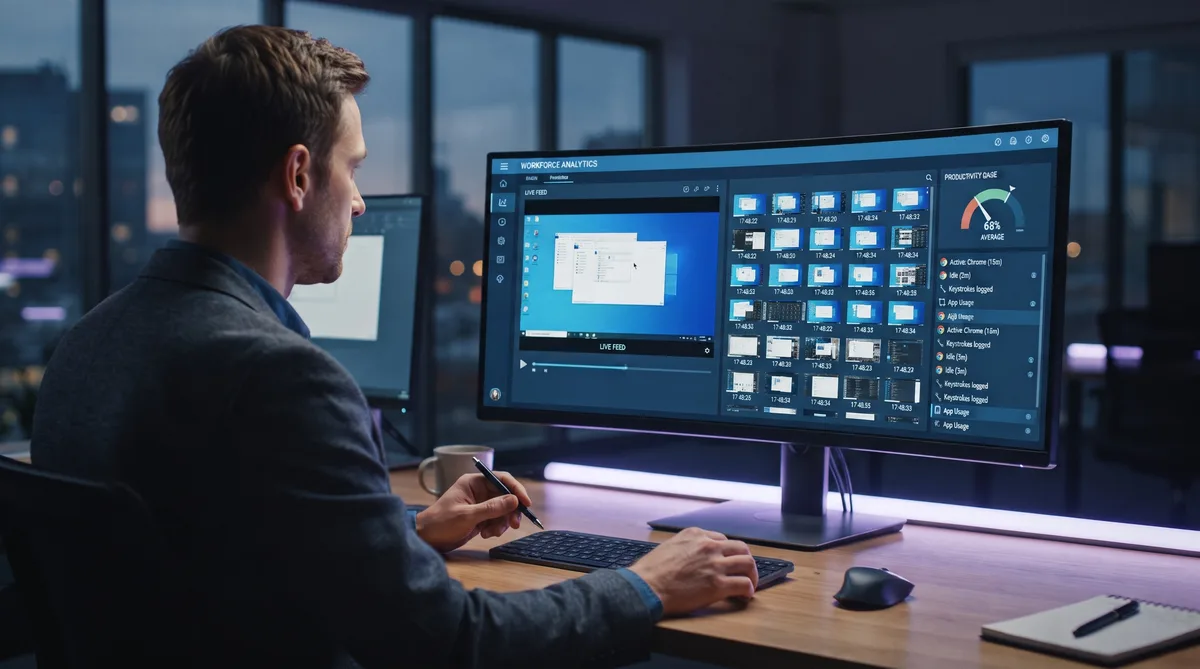
If you searched "EmpMonitor hack" or "how to cheat EmpMonitor," the software is probably already on your work computer, and it is one of the heavier monitors you can be assigned. EmpMonitor does not just watch whether you are active. It logs your keystrokes, records your screen, and can take a screenshot as often as every 15 seconds, frequently from a hidden mode you cannot see.
The reason people look for a workaround is the usual one. Real work is not a constant stream of clicks and keystrokes. You read a long document, think through a problem, join a call on your phone, or step away for a few minutes. EmpMonitor reads that as idle time, a frozen screen, and an app that does not match your target, and your productivity score falls even though you were working.
This guide is honest about what EmpMonitor captures and, importantly, about what any activity tool can and cannot do against it. We will cover its screenshots and screen recording, its keystroke logging, its stealth mode, its 2026 pricing, which common workarounds fail and why, and where activity simulation genuinely helps. For the wider picture, see our guide on how to cheat time tracking software.
What Is EmpMonitor?
EmpMonitor is a cloud-based employee monitoring and productivity platform that records the apps and websites you use, logs your keystrokes, captures frequent screenshots, records live screen sessions, tracks idle versus active time, and scores your productivity. It advertises use across more than 15,000 companies in over 100 countries, and installs a lightweight agent that syncs everything to a central manager dashboard in real time.
EmpMonitor runs on Windows and macOS. It is popular with IT services, BPO, and outsourcing firms that manage large remote or hybrid teams and want deep visibility, not just a timer. The agent installs quickly and, in its stealth configuration, hides itself from both the installed programs list and Task Manager, so the person being monitored often has no idea it is there.
That combination of depth and concealment is what sets EmpMonitor apart from lighter tools. Where DeskTrack centers on activity and screenshots, EmpMonitor sits closer to heavy surveillance suites like Teramind, because it captures the content of your work through keystroke logging and screen recording. Knowing exactly what it records is the first step to keeping your numbers consistent without kidding yourself about what stays private.
How EmpMonitor Tracks Your Activity
EmpMonitor builds its picture of your day from several data streams that overlap and cross-check each other. That overlap is the whole point: any trick that fixes one signal but not the others gets caught by the mismatch. Here is each layer.
Screenshots and Live Screen Recording
EmpMonitor captures automated screenshots at an interval your employer sets, and on aggressive configurations that can be as often as every 15 seconds. Each capture is timestamped and tied to the app, URL, and keystroke data from that moment. On top of periodic screenshots, EmpMonitor offers live screen recording, where a manager can pull up recorded sessions of your screen and watch back what happened.
This is the layer that defeats the simplest tricks outright. A mouse jiggler keeps the timer moving, but the screenshots and the recorded video both show the same static screen the entire time. A run of identical captures against a running clock, or a recording of a screen that never moves, is about as clear a signal as a reviewer can get.
Keystroke Logging
EmpMonitor includes a keystroke logger. The agent records what you type and ties it to the application you typed it in. This is a meaningful step beyond activity tracking, because it captures the content of your work, not just the fact that you were busy. A tool without a keylogger, like DeskTrack, only knows you were typing; EmpMonitor knows what you typed.
The practical takeaway is blunt: on a machine running EmpMonitor, treat everything you type as recorded, including messages, notes, and searches. No activity simulator can undo a keystroke log, because the keystrokes it records are real ones you pressed. Simulated typing keeps your input profile from flatlining while you are away, but it cannot hide what you actually write when you are working. For which tools log this content versus only count your typing, see our guide on how to beat keystroke monitoring.
App, URL, and Browser History Tracking
The agent records every application you open and every website you visit, along with how long each stays in the foreground. It also pulls browser history, and EmpMonitor advertises the ability to recover browsing records even after you delete them from your device. All of this feeds a timeline your manager can filter, sort, and export.
This is why keeping the screen awake is not enough. EmpMonitor does not only ask whether you were active, it asks which app and which site you were active in, and it categorizes each as productive or not. An hour spent in the wrong application is logged as an hour in the wrong application, no matter how much the cursor moved.
Idle Time and Productivity Scoring
EmpMonitor watches mouse and keyboard input to decide whether you are active, and marks stretches with no input as idle. Idle time is subtracted from your active hours and shows up as a gap in your timeline. Every app and site is then sorted into productive, unproductive, or neutral, and your productivity percentage is the share of active time in the productive category.
The idle threshold is the everyday frustration. Reading, thinking, or taking a call on your phone all count as idle, because the agent sees no input. And leaving a productive app open while you step away does not help, because without input EmpMonitor marks you idle regardless of which window is on top. Focused work and being away from the desk look identical to it.
Stealth Mode
EmpMonitor's stealth mode is among its most concealed. In this mode the agent does not appear in the installed programs list and is not visible in Task Manager, so the usual ways of checking whether monitoring is running come up empty. Many employees never learn EmpMonitor is on their machine until a manager references something only the software could have seen.
If you cannot find it, that is by design, and it does not mean it is absent. On a company-owned machine in most of the US, an employer can monitor without notice; in the EU and several other regions, covert monitoring faces tighter legal limits. Either way, the safe assumption on a work device is that everything in this article is being recorded whether or not you can see the agent.
USB, DLP, Geolocation, and Attendance
Beyond the core tracking, EmpMonitor adds data-loss-prevention features: USB device detection, restrictions on specific applications, and controls on file movement. It uses geolocation to log user information including IP addresses, and it ties computer activity to attendance and timesheets through login and logout times. For teams that need it, this turns EmpMonitor from a productivity tracker into a compliance and security tool.
The point is that EmpMonitor can be configured light or extremely heavy. Do not assume the minimal setup. If DLP is on, plugging in a USB drive or moving a file is logged on its own, separate from anything to do with activity, and geolocation ties your session to a place as well as a time.
EmpMonitor Pricing in 2026
EmpMonitor uses a per-user, per-month model that gets cheaper as headcount grows. Knowing which tier your employer runs tells you how large the deployment is, though every paid tier includes the same monitoring features, keystroke logging and screenshots included.
Annual Billing
- Bronze — $4.66/user/month, for 1 to 10 users
- Silver — $3.83/user/month, for 11 to 50 users
- Gold — $3.00/user/month, for 51 to 200 users
- Diamond — custom quote, for 200+ users
Monthly Billing
- Bronze — $6/user/month, for 1 to 10 users
- Silver — $5/user/month, for 11 to 50 users
- Gold — $4/user/month, for 51 to 200 users
- Diamond — custom quote, for 200+ users
Additional Pricing Details
- Free trial — 15 days for up to five users, no credit card required
- Same features across tiers — the plans differ by user band and price, not by monitoring capability
Compared with its peers, EmpMonitor is priced at the low end for the depth it offers. DeskTrack starts around $5.99/user/month, Time Doctor around $7, and Teramind around $15 for comparable surveillance. Getting keystroke logging, screen recording, and stealth deployment for a few dollars a head is exactly why EmpMonitor turns up so often in high-headcount IT and BPO teams.
Keep Your EmpMonitor Activity Consistent
Trick Tack simulates mouse, keyboard, scroll, and app-switching activity — the exact signals EmpMonitor uses for idle detection and productivity scoring. Try it free for 7 days.
DownloadCommon Workarounds People Try
The same handful of EmpMonitor workarounds circulate on forums and Reddit, and against a tool this heavy most of them fail even faster than usual. Here is what people try and where each falls short.
1. Hardware and Software Mouse Jigglers
The most popular suggestion. A mouse mover or USB jiggler nudges the cursor so the idle timer never trips.
Problem: It only solves idle detection. EmpMonitor still records the foreground app, still captures screenshots and screen video of an unchanged screen, and still logs zero keyboard input in its keystroke record. Against a screen recorder, a frozen screen is obvious on playback, so a bare jiggler is one of the weakest options here.
2. Keeping a Productive App in Focus
Leaving your IDE, CRM, or a spreadsheet in the foreground so the productivity category stays green while you step away.
Problem: Without input, EmpMonitor marks you idle after the threshold no matter which app is on top, and the screenshots and recording still show a static screen. A green category with no activity underneath it does not hold up.
3. A Second Device for Personal Work
Doing personal things on a phone or personal laptop while the work machine sits on a "productive" window.
Problem: This does keep your personal activity off EmpMonitor's record, which is genuinely useful, but it does nothing for the work machine's idle timer or productivity score. If you generate no input on the monitored device, it logs idle time and static captures the whole time.
4. Scripts and Macro Tools
AutoHotkey or a macro recorder set to move the mouse or press a key on a loop.
Problem: Simple scripts produce mechanical, perfectly regular patterns. The same movement at the same interval, or one key on a fixed timer, does not read as a person, and against a keystroke log and screen recording that regularity stands out immediately. It keeps you off idle, but the uniformity is exactly what a reviewer notices.
The common thread is that EmpMonitor measures several things at once, and cross-checks them. Input drives idle detection, the foreground app drives productivity scoring, and screenshots plus recording plus the keystroke log show what actually happened. Anything that handles only one of those leaves the rest to contradict it.
How Trick Tack Helps (and What It Can't Do)
Here is the honest version, because EmpMonitor deserves it. Trick Tack is built to keep the activity signals consistent, the ones that drive idle detection and productivity scoring: mouse movement, keyboard input, scrolling, and which app is in focus. Against those, it works well, because it covers all of them together instead of just nudging the mouse.
- Mouse movement — natural, randomized cursor motion instead of the mechanical circles a hardware jiggler makes, so idle detection never trips and the movement looks human in the screenshots.
- Keyboard input — moving the mouse while never typing is a giveaway on a tool that logs keystrokes. Trick Tack simulates realistic keyboard activity so your input profile stays balanced.
- App switching — rotating focus between the applications your employer marks as productive, so your EmpMonitor productivity category reflects a normal working pattern rather than hours frozen in one window.
- Scrolling — scroll activity through documents and pages so the screenshots and screen recording show movement, not a static frame.
- Idle and scheduling control — idle detection starts activity when you step away and stops when you return, and scheduling keeps your active-time totals steady across the day.
Now the part other pages will not tell you: no activity tool can defeat a keylogger or live screen recording of real work. When you are actually at the keyboard, the keystrokes EmpMonitor logs are yours, and the screen it records is your real screen. Trick Tack keeps your idle, active, and productivity metrics looking like a normal day while you are away from the desk. It does not, and cannot, conceal the content EmpMonitor captures while you work. Anyone selling you a product that claims to make an EmpMonitor deployment fully undetectable is not being straight with you.
Used with that understanding, activity simulation is still the right tool for the one job it does. For the broader approach across every tracker, our guide to cheating time tracking software compares the major platforms, and if your real concern is working more than one job, see how employers detect overemployment.
Try Trick Tack Free for 7 Days
Simulate natural activity across mouse, keyboard, scrolling, and app switching. Keep your EmpMonitor idle and productivity metrics consistent. Cancel anytime.
DownloadFrequently Asked Questions
What is EmpMonitor?
EmpMonitor is a cloud-based employee monitoring and productivity platform used by more than 15,000 companies. It records the applications and websites you use, logs keystrokes, captures frequent screenshots, records live screen sessions, tracks idle versus active time, and scores productivity, syncing everything to a central dashboard in real time. It runs a lightweight agent on Windows and macOS that can operate in a hidden stealth mode, and it is common in IT services, BPO, and outsourcing companies that monitor remote and hybrid staff.
Does EmpMonitor take screenshots?
Yes. EmpMonitor captures automated screenshots at intervals your employer configures, and on aggressive setups it can take one as often as every 15 seconds. Each screenshot is timestamped and tied to the matching application, URL, and keystroke data, so a manager sees both the log entry and a picture of what was on screen. Because the captures are so frequent, a static screen that never changes while the clock keeps running stands out quickly.
Does EmpMonitor log keystrokes?
Yes. Keystroke logging is one of EmpMonitor's core features. The agent records what you type and ties it to the application you typed it in, which means the content of your work, not just your activity level, can be reviewed. This is a heavier form of surveillance than tools like DeskTrack that focus on activity and screenshots without a keylogger. Treat anything you type on a monitored machine as recorded.
Can EmpMonitor run in stealth mode?
Yes. EmpMonitor has a stealth mode where the agent does not appear in the installed programs list and is not visible in Task Manager, so many employees never know it is running. This makes it one of the more concealed monitoring tools. If you are unsure whether EmpMonitor is on your machine, you may not be able to spot it through normal means, so it is safest to assume that on a company-owned device everything described here is being recorded.
Can EmpMonitor detect a mouse jiggler?
A basic mouse jiggler keeps EmpMonitor from marking you idle, but it does nothing about the rest of what EmpMonitor records. The screenshots and live screen recording show an unchanged screen, there is no keyboard input in the keystroke log, and the foreground app never changes. That combination is easy to recognize. Simulating several input types together — mouse movement, keyboard input, scrolling, and application switching — produces a far more natural activity report, though it cannot conceal content that screen recording or keystroke logging captures while you are actually working.
Does EmpMonitor record my screen?
Yes. Beyond periodic screenshots, EmpMonitor offers live screen recording, where a manager can review recorded sessions of your screen. It also tracks browser history, including records it can recover even after you delete them from your device. Because live recording and keystroke logging capture actual content, no activity tool can hide what you type or what is genuinely on screen. Activity simulation only keeps your idle, active, and productivity metrics consistent while you are away from the desk.
How much does EmpMonitor cost?
EmpMonitor's cloud plans on annual billing are Bronze at $4.66 per user per month for 1 to 10 users, Silver at $3.83 for 11 to 50 users, and Gold at $3 for 51 to 200 users, with a custom Diamond quote above 200 users. On monthly billing the same tiers are $6, $5, and $4 per user. All paid tiers include the same monitoring features, including keystroke logging and screenshots. There is a 15-day free trial for up to five users with no credit card required.
Conclusion
EmpMonitor is one of the heavier monitors you can be assigned, and its stealth mode means plenty of people are being tracked by it without knowing. It records the apps and sites you use, logs your keystrokes, takes screenshots as often as every 15 seconds, and can record your screen live. Depending on your employer's setup, it also watches USB devices, recovers deleted browser history, and ties your activity to geolocation and attendance.
Simple tricks fail against it because it measures several things at once and cross-checks them, and because two of those things, keystrokes and screen recording, capture real content that nothing can undo. The honest position is the useful one: an activity tool keeps your idle, active, and productivity metrics consistent while you are away, and it cannot hide what you actually type or show on screen while you work.
Within that scope, Trick Tack does its job well, simulating natural mouse movement, keyboard input, scrolling, and application switching so your EmpMonitor activity looks like a normal working day. For related tools common in the same IT and BPO settings, see our guides on DeskTrack, Teramind, and Sapience and Prohance, or the full time tracking cheat guide.
Try Trick Tack Free for 7 Days
Simulate natural activity across mouse, keyboard, scrolling, and app switching. Keep your EmpMonitor idle and productivity metrics consistent. Cancel anytime.
Download

