Introduction
Shortlist a time tracker and two very different names keep coming up: Hubstaff and DeskTime. Both track hours, both score productivity, and both have run for over a decade. Line up the marketing pages and they blur together. Use them for a week and the difference is obvious.
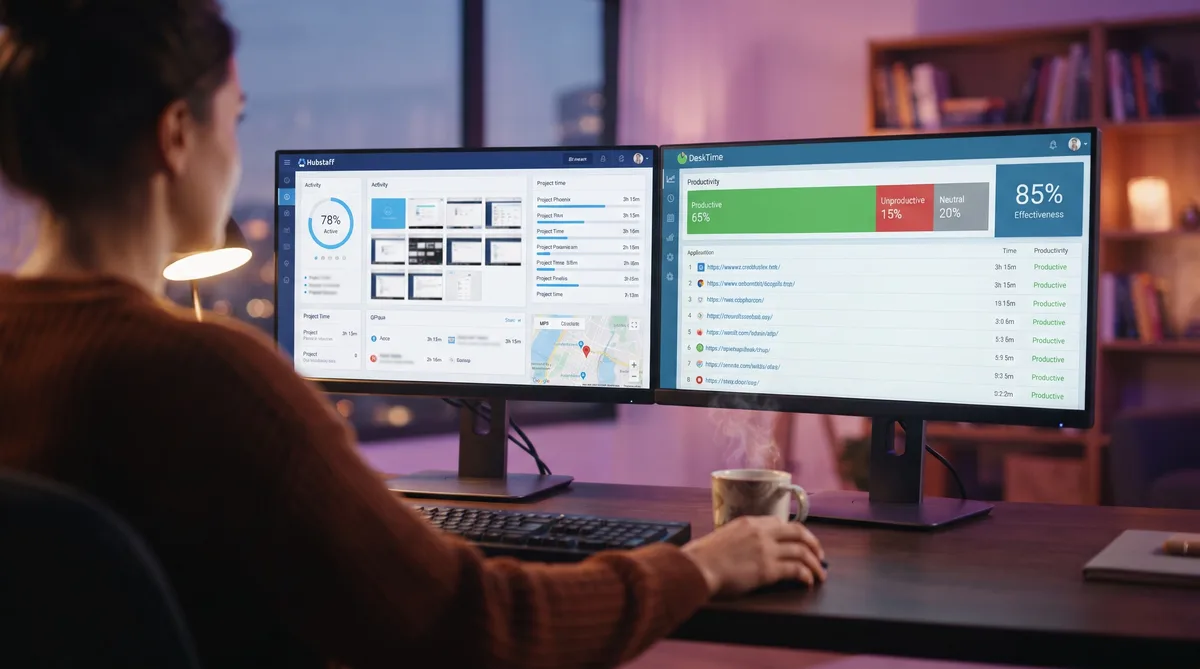
Hubstaff is a workforce-management suite. It tracks time with an active timer, takes optional screenshots, and adds the thing almost no desk tracker offers: GPS location and geofencing, plus native payroll. That makes it a proof-of-work tool for field crews, agencies, and distributed teams. DeskTime is an automatic desk analytics tool. It starts the moment the computer boots, sorts every app and site into productive or unproductive, and hands managers a clean productivity percentage, no timer required.
The right pick depends less on which is "better" and more on where your people work and what you need to prove. This guide breaks down exactly what each tool records, compares pricing tier by tier, and helps you choose. For the bigger picture, start with our complete guide to employee monitoring software.
Hubstaff Overview
Hubstaff launched in 2012 and grew into a full workforce-management platform. Its pitch: track time, verify activity, and pay people from one app. It suits teams that need to confirm work happened, especially when those people are spread across cities or out in the field. For the full breakdown, see our Hubstaff review.
Key Features
- Time tracking — An active timer the worker starts and stops, or automatic tracking by schedule. Runs on desktop, mobile, and web.
- Activity levels — Measures keyboard and mouse activity as a percentage to gauge how "active" tracked time was. It counts input, it does not log the actual keys you press.
- Screenshots — Optional captures on paid plans, with configurable frequency and an optional blur to hide sensitive content.
- GPS and geofencing — Location tracking on mobile, plus job-site geofences that can auto clock workers in and out. This is Hubstaff's signature feature.
- App and URL tracking — Logs applications and websites used during tracked time (higher tiers and add-ons).
- Idle detection — Detects idle time and can prompt the user or discard it from the timesheet.
- Payroll and invoicing — Native pay runs, budgets, timesheet approvals, and client invoicing.
- Integrations — 30+ connections including Asana, Trello, QuickBooks, Slack, and PayPal.
Who Uses It
Hubstaff is popular with field-service businesses, agencies, and remote teams that bill clients and run payroll off tracked hours. The GPS and geofencing draw in construction, cleaning, delivery, and other crews who work away from a desk, while the payroll tools appeal to companies that want tracking and pay in one place.
Monitoring Philosophy
Hubstaff sits in the middle of the surveillance spectrum. It leans on activity percentages, optional screenshots, and location rather than screen video or keystroke logging, so it is lighter than the heaviest monitors. But the location layer makes it more invasive for mobile workers than a pure desk tracker. To see exactly how it measures activity, read our Hubstaff activity guide.
DeskTime Overview
DeskTime launched in 2011 out of Latvia and became one of the most widely used automatic time trackers, with a strong following among agencies and productivity-focused teams. Its pitch is simple: install it once and it tracks everything automatically, with no timers to start. For a full breakdown, see our DeskTime review.
Key Features
- Automatic time tracking — Starts when the computer turns on and runs silently. No manual start or stop.
- App and URL tracking — Logs every app and site, then sorts each as productive, unproductive, or neutral. Managers customize the labels per role.
- Productivity calculation — Rolls categorized activity into a single productivity percentage per person and team.
- Document title tracking — Records the titles of documents and files opened during tracked time.
- Idle and Private Time — Separates idle from productive time, and Private Time lets employees pause tracking for personal breaks without managers seeing what they did.
- Screenshots — Optional automatic captures, available only on Premium and Enterprise.
- Projects and cost calculation — Assigns time to projects and estimates labor cost.
- Pomodoro timer — Reminds users to take breaks, reinforcing DeskTime's work-life-balance positioning.
Who Uses It
DeskTime is popular with creative agencies, software teams, and small-to-mid-size businesses that want visibility into where desk time goes without turning the workplace into a surveillance operation. The set-and-forget design appeals to teams that dislike fiddly manual timers.
Monitoring Philosophy
DeskTime markets itself around productivity and balance rather than control. Screenshots are off by default and locked to higher tiers, employees can see their own data, Private Time gives them a genuine pause, and the Pomodoro reminders frame it as a wellbeing tool. Enable everything, though, and it still produces a detailed minute-by-minute record of the desk workday. To see how it measures activity, read our DeskTime tracking guide.
Feature Comparison
Here is where the two separate. The table compares every major tracking capability so you can see exactly what each platform records.
| Tracking Feature | Hubstaff | DeskTime |
|---|---|---|
| Time tracking mode | Active timer (start/stop) or automatic by schedule | Fully automatic; starts with the computer |
| Screenshots | Optional on paid plans, incl. lower tiers; blur option | Premium and Enterprise only; configurable |
| GPS and geofencing | Yes — location tracking and job-site geofences | Not available (desktop analytics only) |
| Activity measurement | Keyboard/mouse counted as an activity percentage | Keyboard/mouse activity feeds the productivity % |
| App and URL tracking | Higher tiers and add-ons; timed per app | All plans; categorized productive/unproductive/neutral |
| Document title tracking | Not a core feature | Records document and file titles |
| Video screen recording | Not available (screenshots only) | Not available |
| Keystroke logging | No content logging (activity count only) | No content logging (activity count only) |
| Employee privacy control | Idle time can be discarded; no dedicated pause | Private Time pauses tracking from manager view |
| Payroll and invoicing | Native payroll, budgets, client invoicing | Cost calculation only; no native payroll |
The pattern is clear. Hubstaff spreads wider — it adds a location layer and a payroll engine that DeskTime simply does not have, which makes it a management suite as much as a tracker. DeskTime goes deeper on the desk — always-on automatic capture, document titles, and richer productivity categorization, wrapped in a lighter, balance-first design with Private Time for employees.
One thing they share: both measure keystrokes and mouse movement only to gauge activity. Neither logs the actual keys you press, and neither records continuous screen video. That puts both well below tools like Teramind or Time Doctor Premium on the invasiveness scale.
Pricing Comparison
Pricing only makes sense next to features, because the cheaper headline is not automatically the better value. Here is what each plan costs and what tracking it unlocks.
Hubstaff Pricing (per user/month, billed annually)
| Plan | Price | Tracking Included |
|---|---|---|
| Free | $0 (1 user) | Time tracking, limited screenshots and activity, basic reports |
| Starter | $4.99 | Time tracking, activity levels, limited screenshots, 1 integration (2-seat min) |
| Grow | $7.50 | Everything in Starter + app/URL tracking, project budgets, unlimited screenshots |
| Team | $10 | Everything in Grow + idle discard, timesheet approvals, GPS/geofencing, unlimited teams |
| Enterprise | $25 | Everything in Team + higher limits, SSO, and priority support |
DeskTime Pricing (per user/month)
| Plan | Price | Tracking Included |
|---|---|---|
| Lite | $0 (1 user) | Automatic time tracking, URL and app tracking, mobile app |
| Pro | $7 ($6.42 annual) | Automatic tracking, app/URL categorization, productivity calculation, projects — no screenshots |
| Premium | $10 ($9.17 annual) | Everything in Pro + screenshots, absence calendar, shift scheduling, integrations & API |
| Enterprise | Custom (200+ users) | Everything in Premium + custom API, onboarding, dedicated account manager |
At the entry level, Hubstaff looks cheaper: Starter runs $4.99/user versus DeskTime Pro at $7, and Hubstaff even has a free single-user plan. But the plans buy different things. Hubstaff Starter limits screenshots and integrations, while DeskTime Pro delivers full automatic tracking and productivity analytics with no caps. To get GPS and unlimited screenshots on Hubstaff you climb to Grow or Team; to get screenshots on DeskTime you jump to Premium.
At the top, Hubstaff Enterprise at $25/user is priced well above DeskTime's $10 Premium, reflecting the payroll, location, and management layer. Both tools offer a 14-day trial on paid plans, and pricing shifts over time, so verify current rates before signing an annual contract. For more options, see our roundup of the top time tracking tools.
Which Should You Choose?
The honest answer: it depends on where your people work and what you need to prove.
Choose Hubstaff if your team is mobile or in the field, you need GPS and geofencing, or you want time tracking and payroll in one system. Hubstaff is built to verify work across locations and pay people from the same hours it tracks. It is the stronger fit for construction, field service, delivery, agencies with contractors, and distributed teams that bill by the hour.
Choose DeskTime if your team sits at desks and you want automatic, low-friction productivity analytics without asking anyone to start a timer. DeskTime's always-on tracking, document-title context, and productivity percentages give managers a clear read on where desk time goes, and Private Time plus the Pomodoro framing keep it feeling lighter for employees.
On raw invasiveness they are close, just on different axes. Hubstaff watches where you are and ties hours to pay; DeskTime watches what you do on the desktop in fine detail. Neither logs your keystrokes or records your screen as video, so both stay lighter than the heavy surveillance suites. If you want to see how Hubstaff compares against a heavier monitor, our Hubstaff vs Time Doctor comparison covers that matchup, and DeskTime vs Time Doctor does the same for DeskTime.
Stay Active Under Any Time Tracker
Trick Tack simulates natural mouse movement, keyboard input, and app-switching to keep your activity reports consistent while you step away from your desk.
DownloadPros and Cons
Hubstaff Pros
- GPS and geofencing — Location tracking and auto clock-in/out that no desk-only tracker matches.
- Native payroll — Pay runs, budgets, and invoicing built on tracked hours.
- Free single-user plan — A genuine free tier plus a low $4.99 Starter.
- Flexible screenshots — Optional on paid plans with a blur to protect sensitive content.
- Strong integrations — 30+ connections for PM, payroll, and communication tools.
Hubstaff Cons
- Location tracking feels invasive — GPS is a step many desk workers do not expect.
- Add-ons raise the real cost — Some capabilities sit behind higher tiers or add-ons.
- Manual timer on lower tiers — Full automatic scheduling takes a higher plan.
- Enterprise jumps to $25 — The top tier is pricey next to DeskTime.
DeskTime Pros
- Truly automatic — Starts with the computer; nothing to remember to switch on.
- Clear productivity analytics — Productive/unproductive/neutral rolled into a simple percentage.
- Private Time — A genuine employee pause that managers cannot see into.
- Lighter footprint — No GPS, no video, no screenshots until Premium.
- Lower top-tier cost — Premium at $10 covers most desk teams.
DeskTime Cons
- No GPS or payroll — Not built for field teams or pay runs.
- Screenshots cost more — Locked behind the $10 Premium tier.
- Desk-only focus — Little to offer mobile or on-site crews.
- Always-on capture — Automatic tracking can feel constant without Private Time enabled.
Managing Your Activity with Either Tool
Whichever tool your employer picks, the core mechanic is the same: both Hubstaff and DeskTime measure keyboard and mouse activity to decide whether you are working. Step away for a call, a meeting, or a coffee, and your activity drops — Hubstaff's activity percentage falls and idle time is flagged, and DeskTime's productivity percentage dips as idle time is logged.
This is where Trick Tack helps. Trick Tack is a lightweight desktop app that simulates natural human activity — mouse movement, keyboard input, scrolling, and app-switching — so your tracked time stays consistent while you are away from the keyboard. Because both tools measure the same inputs, the same approach works for each. You can see exactly which behaviors it produces in our documentation.
How Trick Tack Works
- Mouse simulation — Natural, randomized cursor movement that mimics real browsing.
- Keyboard simulation — Keystroke activity at human-like intervals.
- App switching — Cycles between open applications to simulate multitasking.
- Scrolling — Page scrolling inside active windows.
The randomized, varied nature of that input matters. A basic hardware mouse jiggler repeats one identical motion, which can show up as a flat, robotic line in either tool's activity graph. Natural, varied movement reads as ordinary work instead. For tool-specific tips, see our dedicated guides on staying active in Hubstaff and staying active in DeskTime, plus our umbrella guide on cheating time tracking software.
Frequently Asked Questions
Do Hubstaff and DeskTime take screenshots?
Both can, but they gate it differently. Hubstaff offers optional screenshots on its paid plans, including the lower tiers, with configurable frequency and an optional blur to hide sensitive content. DeskTime locks screenshots behind its $10 Premium tier, so the cheaper Pro plan takes none at all. In both tools an admin controls whether screenshots are on, how often they fire, and whether they can be turned off entirely.
Does Hubstaff have GPS tracking, and does DeskTime?
Hubstaff does, and it is one of its signature features. Hubstaff tracks GPS location and supports geofencing, which can automatically clock workers in and out when they enter or leave a job site, making it a favorite for field and mobile teams. DeskTime is built for desk-based work and has no desktop GPS tracking, focusing instead on automatic app, URL, and productivity analytics. If location matters, Hubstaff is the clear pick.
Which is cheaper, Hubstaff or DeskTime?
On paper Hubstaff Starter at $4.99/user/month (annual) undercuts DeskTime Pro at $7, and Hubstaff even has a free plan for a single user. But the plans include different things. Hubstaff Starter caps screenshots and limits some reporting, while DeskTime Pro gives you unlimited automatic tracking and full productivity analytics with no screenshots. Compare feature by feature rather than headline price, and note both offer a 14-day trial on paid tiers.
Which tracks more, Hubstaff or DeskTime?
They track different things rather than one simply tracking more. Hubstaff layers on GPS location, geofencing, and native payroll, making it a proof-of-work suite for distributed and field teams. DeskTime runs fully automatically from boot to shutdown, logs document titles, and turns everything into productivity percentages. Neither logs the actual keys you type and neither records continuous screen video, so both are lighter than tools like Teramind or Time Doctor Premium.
Can Hubstaff or DeskTime detect a mouse jiggler or fake activity?
Neither has a dedicated anomaly-detection feature like Time Doctor's unusual activity report. That said, both graph your activity over time, so a basic hardware jiggler that repeats one identical motion can stand out as a flat, robotic pattern in the activity chart or look wrong in a screenshot. Tools that generate natural, randomized mouse movement, keystrokes, scrolling, and app-switching read as ordinary human work rather than a fixed loop, which is far harder to distinguish from real activity.
Conclusion
Hubstaff and DeskTime solve the same problem from different directions. Hubstaff is the workforce-management suite — an active timer, optional screenshots, GPS and geofencing, and native payroll that verify work across locations and pay people from the same hours. DeskTime is the automatic desk analytics tool — always-on tracking, document-title context, and productivity percentages delivered with a lighter, balance-first touch.
For employers, the choice comes down to where your people work. Field crews, agencies with contractors, and teams that run payroll off tracked hours will get more from Hubstaff. Desk-bound teams that want frictionless productivity analytics without location tracking will be happier with DeskTime. If neither feels right because you want simple, trust-based tracking without surveillance, our Harvest vs Toggl comparison covers lighter alternatives.
If you are the employee working under one of these tools, the reality is the same either way: both track your keyboard, mouse, and active time throughout the day, and every idle stretch gets noticed. Trick Tack helps you keep those activity reports steady — it produces the natural mouse movement, keyboard input, scrolling, and app-switching that both Hubstaff and DeskTime measure, so your tracked time stays consistent even when you step away.
Try Trick Tack Free for 7 Days
Keep your activity reports consistent with Hubstaff, DeskTime, or any time tracking tool. Cancel anytime during your trial.
Download

