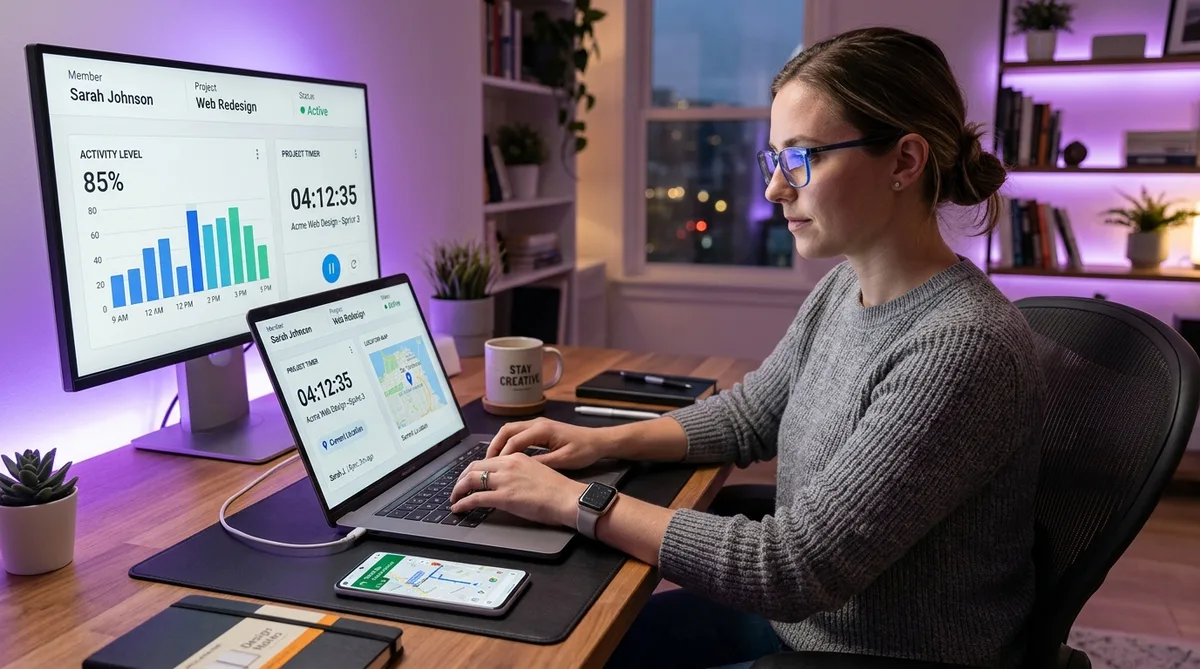
For a focused employee-side explanation, read Hubstaff Activity Levels: What Your Percentage Means. Understand how Hubstaff activity levels are calculated, why low input can reflect real work, and how employees can explain percentages with useful task context.
What Hubstaff Does
Hubstaff is a time tracking and workforce management platform built for remote, hybrid, and field teams. It pairs a timer-based tracker with activity-level monitoring, optional screenshots, app and URL logging, GPS location tracking, geofencing, and built-in payroll — a wider spread of features than most tools in its price range.
This guide is the practical companion to our Hubstaff review. Instead of judging whether the tool is worth it, here we walk through how to actually use it — from creating an organization and installing the apps to configuring screenshots, setting up GPS for field crews, reading reports, and running payroll. Whether you are an administrator rolling Hubstaff out to a team or an employee who just received an invite, this walkthrough covers what you need.
Hubstaff sits in the same category as Time Doctor, DeskTime, and Insightful, but its defining trait is the combination of desk and field tracking: the same account that screenshots a remote developer's laptop can plot a delivery driver's route on a map. Understanding how those two halves are configured is the key to using the tool well.
Setting Up Hubstaff
Creating Your Organization
To get started, sign up at the Hubstaff website and create an organization — the top-level container for your team, projects, and settings. All paid plans include a 14-day free trial with no credit card required, which is enough time to configure everything and test it with a small group before committing.
During setup you will name your organization and create your first projects. Projects are the buckets that tracked time gets logged against — think client names, internal initiatives, or job sites. You can add and rename projects later, so keep the initial structure simple and refine it once people start tracking real work.
Installing the Desktop and Mobile Apps
Hubstaff's tracking happens in its apps, not the web dashboard. There are two that matter:
- Desktop app (Windows, macOS, and Linux) — handles time tracking, screenshots, activity levels, and app/URL monitoring. Native Linux support is genuinely rare among monitoring tools, which makes Hubstaff a practical option for engineering teams.
- Mobile app (iOS and Android) — handles time tracking on the go plus GPS location and geofencing. Field workers need this app; desk workers usually do not.
After downloading the installer for each person's platform, they sign in with their Hubstaff credentials. The desktop app places a small timer widget on screen showing the current project and elapsed time. There is also a Chrome extension and web timer for browser-based tracking, though the desktop client captures the most detail.
Inviting Your Team
From the web dashboard, open the People (Members) section and invite team members by email. Each person receives an invitation link, creates a password, and installs the relevant app. You can assign people to specific projects and set their role — user, manager, or owner — which controls what data they can see and which settings they can change.
Before inviting a full team, lock in your tracking and screenshot policy (covered below). Rolling those settings out consistently from the start avoids the awkward situation of tightening monitoring rules after people have already begun using the tool, which is a fast way to lose trust.
How to Track Time
Starting the Timer
Hubstaff is a timer-first tracker: nothing is recorded until someone starts the timer. From the desktop, mobile, or web app, a member selects a project (and optionally a to-do), then clicks Start. The timer runs — capturing time, activity, and any enabled monitoring — until they click Stop.
This is an important distinction from always-on tools like RescueTime or silent-mode Time Doctor deployments: with Hubstaff, the employee controls when monitoring is active. Stopping the timer ends all tracking, so there is no background recording when someone is off the clock. The one exception is geofencing, which can start the timer automatically when a worker arrives at a job site.
Projects, To-dos, and Manual Time
Within each project you can create to-dos (Hubstaff's term for tasks) — the specific pieces of work people track against. Tracking time to a to-do rather than just a project produces far more useful reports, showing not only how many hours a project consumed but which activities ate the most time. You can also set project budgets (by hours or cost) on higher tiers and get alerts as you approach them.
If someone forgets to start the timer, they can add manual time from the dashboard by entering the date, project, to-do, and start and end times. Manual entries are flagged as added by hand and contain no screenshots or activity data, so managers can distinguish them from automatically tracked time. Owners can restrict manual time, require approval, or disable it entirely — and worth knowing as an employee, lots of manual time pulls your average activity percentage down because those minutes have no input behind them.
Configuring Monitoring Settings
Hubstaff's monitoring controls live in the organization Settings (often under Activity & Tracking or Feature settings), and most are owner- or manager-only. You can set them organization-wide or, on higher tiers, per project or per member. The three that matter most are screenshots, activity and idle detection, and app and URL tracking.
Screenshots
Hubstaff can capture screenshots while the timer runs, but they are optional and capped by plan — 100 per user per month on Free and 500 per user per month on paid plans. In Settings you can choose how many screenshots are taken per ten-minute period (typically zero, one, two, or three), enable blur to obscure sensitive content, or turn screenshots off entirely. Because of the cap, many teams treat screenshots as a periodic spot-check rather than constant surveillance — a notable difference from tools that screenshot on every plan with no limit.
Activity Levels and Idle Detection
While the timer runs, Hubstaff calculates an activity level from the frequency of mouse and keyboard input, shown as a percentage on the dashboard. Under Settings you can configure idle detection — how long the app waits with no input before it flags idle time, prompts the user, or stops the timer. Setting the threshold too aggressively (one or two minutes) generates constant interruptions and frustrates people whose work includes reading, calls, or thinking away from the keyboard. A 5–10 minute threshold is usually a saner balance.
Apps and URLs
On paid plans, Hubstaff logs the applications and websites used during tracked time, recording how long is spent in each. Like screenshots, app and URL records are capped (500 per user per month on Starter). This data feeds the productivity reports that show where work hours actually go. For an employee perspective on exactly what this tracking captures — and why activity sometimes dips through no fault of your own — see our companion guide on how Hubstaff tracks activity.
Setting Up GPS Tracking and Geofencing
GPS is the feature that sets Hubstaff apart from desk-focused rivals, and it is the part of setup people most often get wrong. A few rules first: GPS is available on the Team plan (and as a paid location add-on on lower tiers), it works only through the mobile app on iOS and Android, and it only records location while the timer is running. The desktop apps do not track location at all.
To roll it out:
- Enable location tracking in your organization settings (under the location or GPS option).
- Have field employees install the mobile app and grant it location permissions — on both iOS and Android this usually means allowing location access “while using the app” or “always,” depending on whether you need background tracking.
- Start the timer from the mobile app. Once running, each member appears on the live map in your dashboard, and their route is logged for the tracked period.
Geofencing
Geofencing builds on GPS by drawing virtual boundaries around job sites. When a worker with the mobile app enters a geofence, Hubstaff can automatically start the timer; when they leave, it can stop or remind them. To set it up, create a geofence around each site address in the dashboard and assign it to the relevant project. This removes the “forgot to clock in” problem and produces accurate on-site hours — the reason Hubstaff is popular with construction, landscaping, cleaning, and home-services teams. Time Doctor and most desk-oriented tools offer no equivalent.
Reading Reports and Dashboards
The dashboard is where Hubstaff's data becomes useful. The reports most teams rely on are:
- Time & Activity — hours worked per person and project alongside average activity percentages and screenshots.
- Apps & URLs — ranked list of the applications and sites that consumed the most tracked time.
- Locations / Map — where mobile members were during tracked hours, with route history (GPS plans).
- Attendance & Schedules — who started on time, who was late, and who is currently working.
- Project budgets & client invoices — how hours and cost track against budgets, and billable totals for clients.
A useful habit is to read activity levels in context rather than as a strict score. A 45% activity level on a day full of client calls and document review is not the same as 45% on a heads-down data-entry day. Pairing the percentage with the Apps & URLs report and screenshots prevents the common mistake of treating a raw number as a productivity grade. Reports can be scheduled to land in your inbox daily or weekly.
Payroll, Scheduling, and Integrations
The Team plan adds built-in payroll. Set each member's pay rate (hourly or fixed), and Hubstaff calculates totals from approved timesheets and pays out through PayPal, Wise, Payoneer, and other providers. To use it, enable payroll in Settings, set the pay period and currency, add rates per member, and approve timesheets before each run. This is what makes Hubstaff popular with agencies and outsourcing firms that pay contractors by tracked hours.
Scheduling and attendance tools let managers set shifts, track lateness, and see who is on the clock. Hubstaff also connects to 30+ integrations including Jira, Asana, Trello, QuickBooks, Slack, and GitHub — though lower tiers cap how many you can connect (Grow allows one) while the Team plan unlocks unlimited integrations. Connecting your project management tool lets you start timers directly from a task and keep tracked hours lined up with real work items.
Tips to Get the Most Out of Hubstaff
A few practices separate teams that get value from Hubstaff from those that just create friction:
- Track to-dos, not just projects. To-do-level data is what turns Hubstaff from a surveillance tool into a planning tool. Vague project tracking produces vague reports.
- Mind the screenshot and app caps. Because both are limited per user per month, decide deliberately how to spend them — constant screenshots burn the budget fast and add little over a sensible spot-check cadence.
- Tune idle detection sensibly. A 5–10 minute idle threshold balances accuracy against constant interruptions. Anything shorter punishes normal work rhythms.
- Get mobile permissions right before go-live. The most common GPS failure is a field worker who never granted location access. Verify it on each device during onboarding, not on the first job.
- Set a clear policy. Tell employees exactly what is tracked, when, and why. Transparency does more for morale than any single setting.
That last point cuts both ways. Activity-based monitoring rewards constant mouse and keyboard input, which does not always match where real work happens — reviewing a contract, joining a video call, or thinking through a problem all register as low activity. This is the gap between work that is real and work that is measured. If your role involves long stretches away from the keyboard and you need your activity to reflect that you are present and working, TrickTack simulates the natural mouse movements, keystrokes, scrolling, and app switching that Hubstaff measures, so a quiet stretch of focused work or a long call does not read as idle. You can see exactly which inputs it generates in the documentation.
Keep Your Hubstaff Activity Consistent
TrickTack simulates mouse movement, keyboard input, scrolling, and app switching — every signal Hubstaff measures for activity levels. Try it free for 7 days.
DownloadFrequently Asked Questions
How do I set up Hubstaff for my team?
Sign up at the Hubstaff website to create an organization, then invite team members by email from the People (Members) section of the web dashboard. Each person installs the desktop app on their computer (Windows, macOS, or Linux), and the mobile app too if you need GPS, then signs in to join your organization. Before inviting everyone, create your first projects and decide on your screenshot, activity, and tracking settings so the policy is consistent from day one. You can assign people to projects and set roles such as user, manager, or owner, which control what data each person can see.
How do I turn off screenshots in Hubstaff?
Screenshots are controlled by organization settings, not by individual employees, so whether they can be turned off depends on your admin. An owner or manager can disable screenshots entirely, change how often they are captured, or enable blur to obscure sensitive content from the Settings area under the screenshots or activity options. Because Hubstaff caps screenshots by plan (100 per user per month on Free and 500 on paid plans), many teams already capture them selectively. As a regular member you generally cannot change this setting yourself.
How do I set up GPS tracking in Hubstaff?
GPS tracking is available on the Team plan (and as a paid location add-on on lower tiers) and works through the Hubstaff mobile app on iOS and Android. To enable it, turn on location tracking in your organization settings, have field employees install the mobile app and grant location permissions, and they will appear on the map in your dashboard while the timer runs. You can also create geofences — virtual boundaries around job sites that automatically start or stop the timer when a worker arrives or leaves. GPS only works on mobile devices; the desktop apps do not track location.
How do I add manual time in Hubstaff?
If someone forgets to start the timer, they can add time manually from the web dashboard or the app by entering the date, project, to-do, and start and end times. Manual entries are flagged so managers can see they were added by hand rather than tracked automatically, and they contain no screenshots or activity data. Owners and managers can limit or disable manual time entry and can require approval for it, so the option may be restricted depending on your organization's settings. Adding a lot of manual time also lowers a member's recorded activity average, because those minutes contain no input data.
Does Hubstaff track me when the timer is off?
No. Hubstaff only records time, screenshots, activity levels, apps, and location while the timer is actively running. When you stop the timer, monitoring stops — Hubstaff does not run silently in the background the way some always-on monitoring tools do. The main exception is geofencing, which can automatically start the timer when you enter a defined job site, but you remain in control of stopping it. If idle detection is enabled, Hubstaff will also prompt you or pause the timer after a stretch with no mouse or keyboard input.
Conclusion
Hubstaff is straightforward to use once you understand its two halves: the desk monitoring (timer, screenshots, activity, and app tracking through the desktop app) and the field tracking (GPS and geofencing through the mobile app). Get the settings right for your team — sensible screenshot and idle thresholds, correct mobile permissions, and to-do-level tracking — and the reports become genuinely useful for planning, billing, and payroll rather than just surveillance.
If you are still deciding whether the tool fits your team at all, read our full Hubstaff review for the pros, cons, and pricing, or compare it head-to-head in Hubstaff vs Time Doctor and Hubstaff vs Clockify. And if you are an employee who needs your activity levels to reflect the real work you do — including the parts that happen away from the keyboard — TrickTack was built for exactly that.


